1. Introduction
This document lists the different functionalities available in the MIMBUS CONSTRUCT simulator.
We will first explain the generic features common to all our simulators.
Secondly, we will detail each instruction associated with a sequence of the simulator, that is to say how to accomplish the task assigned by the system in order to proceed to the next step during the simulation.
2. General Operation
2.1. Main Menu
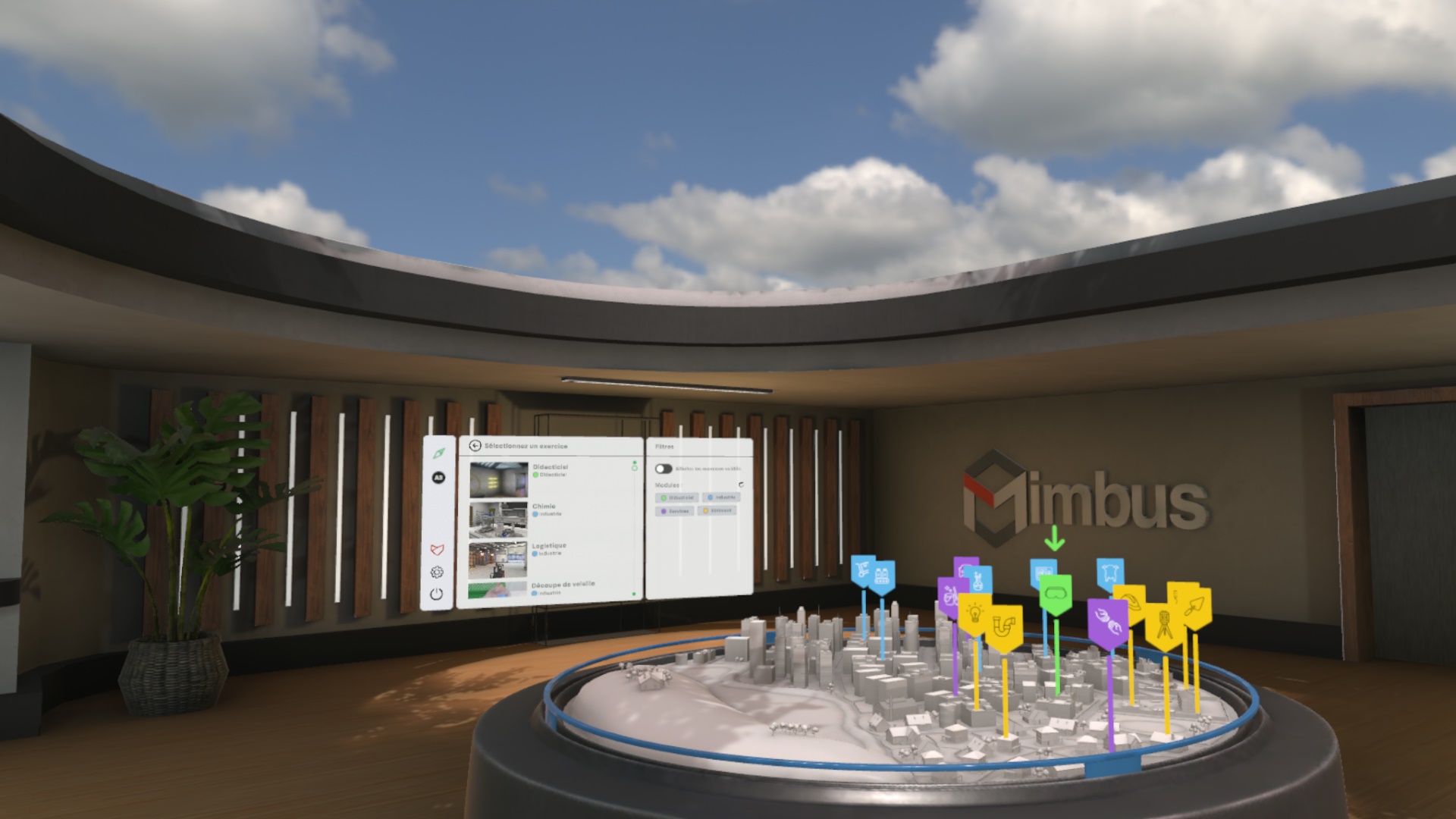
When launching the application, the user is in a main room called the "reception hall", where a screen displays the simulator’s main menu.
The main menu allows the user to authenticate, select an exercise to perform, and view their results. At the end of each exercise, they will be teleported back to this room.
2.1.1. User Selection
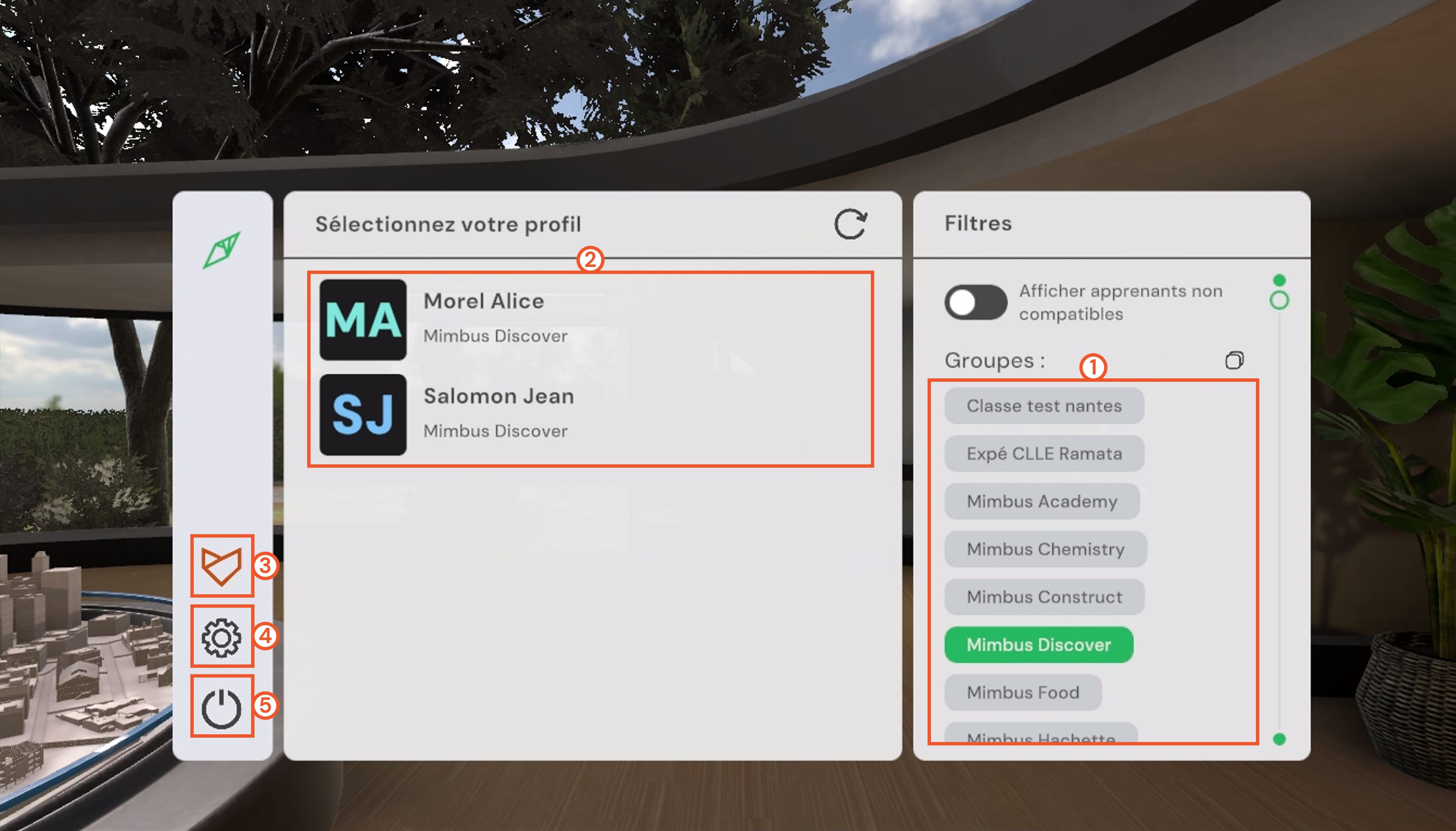
-
Groups menu: allows filtering users by group. If no group is selected, all available users are displayed.
-
Users menu: allows selecting the user to authenticate.
-
VULCAN connection button: allows connecting or disconnecting to the VULCAN platform.
-
Settings button: allows opening the settings screen.
-
Exit button: allows exiting the application.
First, it is necessary to choose a user from those available on the main screen. A simple click on the user’s name displays a window in which you must enter their PIN code (four-digit number), configured in VULCAN.
The user can use the Groups filters on the right, allowing them to display only users from one or more classes created in VULCAN.
It is possible to display all users present in your VULCAN organization. However, those who are not assigned to a learning path corresponding to your simulator will appear grayed out. It will not be possible to log in with them on this simulator.
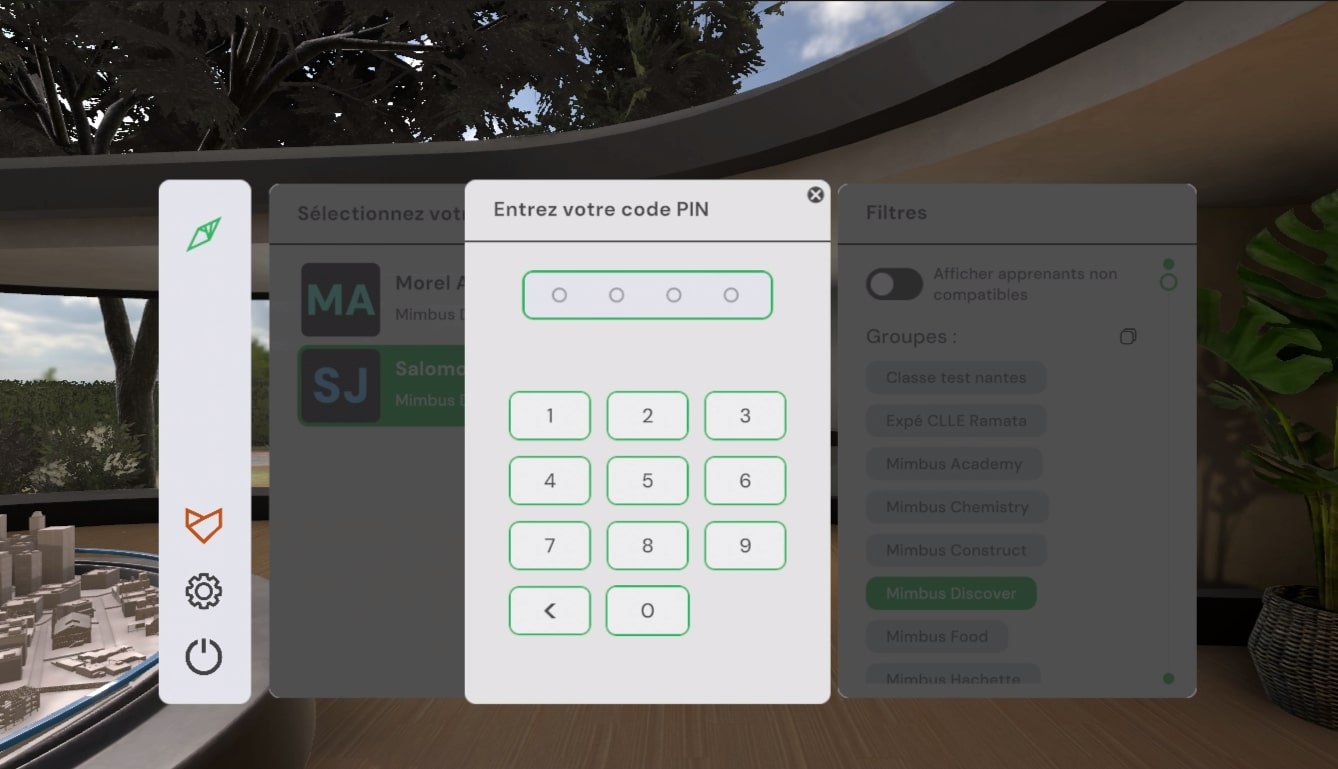
In offline mode, a demonstration user will be automatically selected.
2.1.2. Exercise Selection
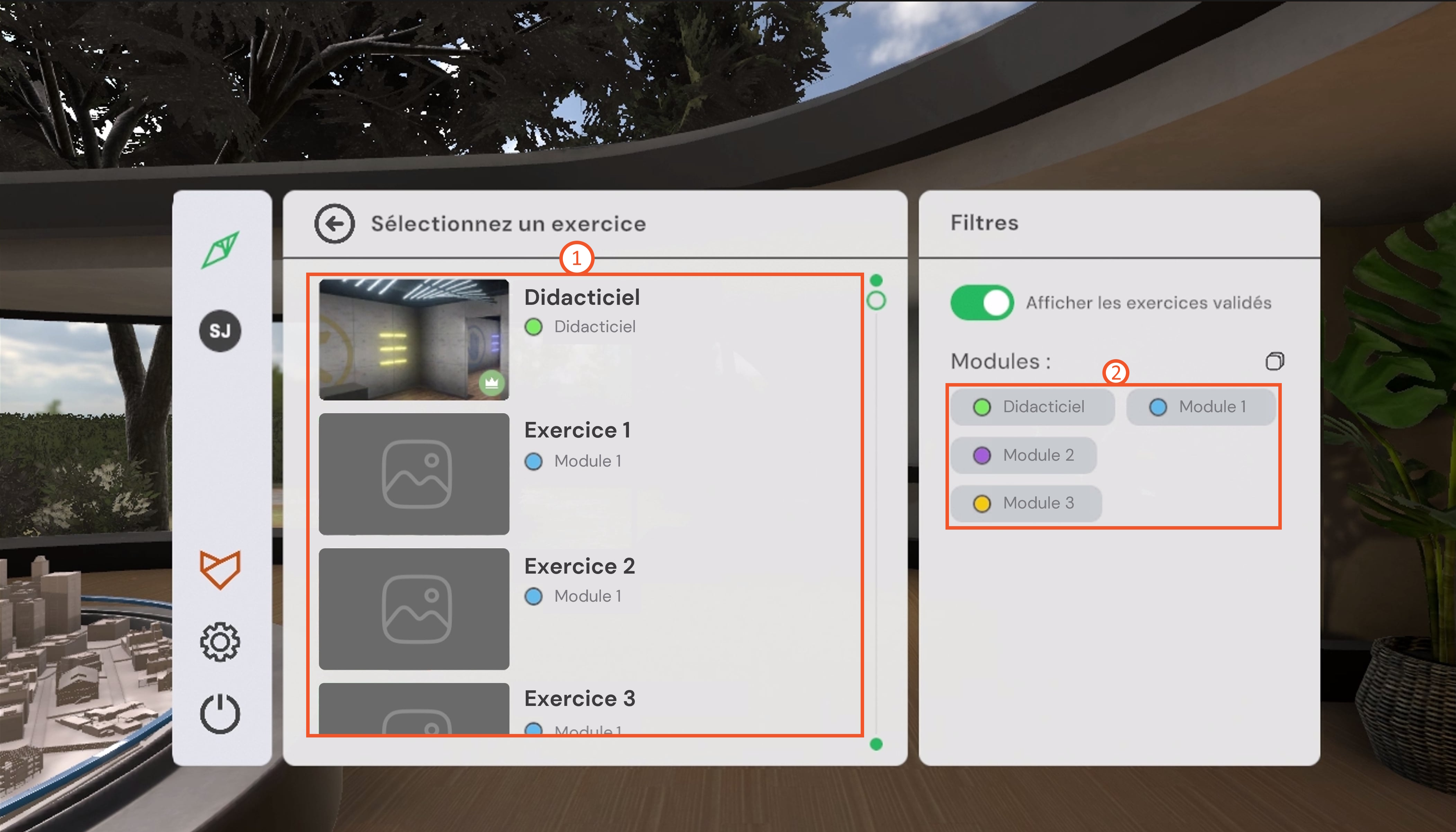
-
Exercise menu: allows selecting the exercise to launch.
-
Modules menu: allows filtering exercises by module. If no module is selected, all available exercises are displayed.
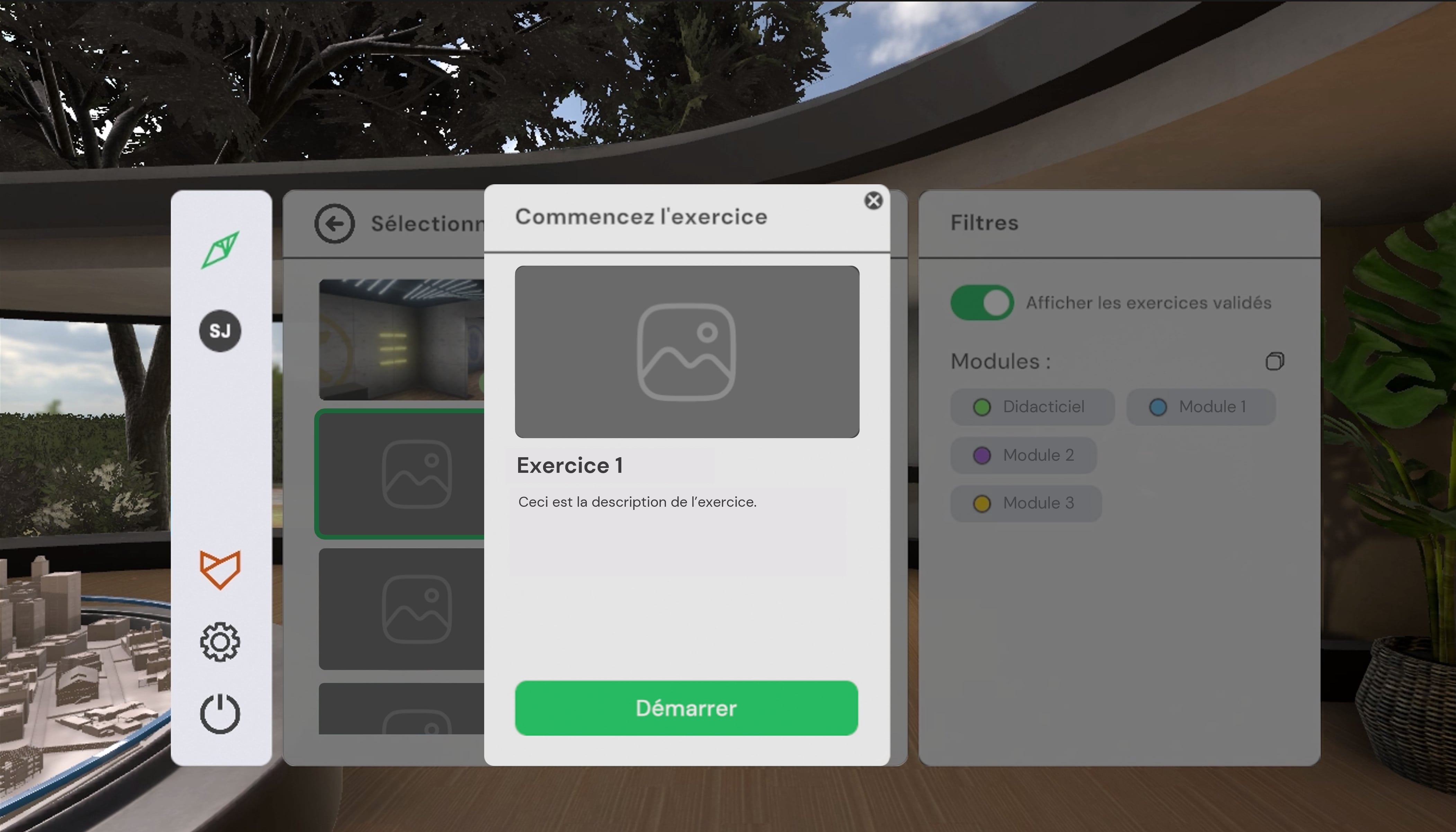
This page displays the available exercises. A first click on an exercise displays its description. A second click validates the choice and launches the exercise. The tutorial allows you to familiarize yourself with the controls using a simplified scenario.
The user can use the Modules filters on the right to display only exercises from one or more categories.
In the exercise list, those already validated by the user are identified by a white crown in a colored circle. If connected to VULCAN, they can also choose to display only unvalidated exercises by deactivating the Show validated exercises button. Activating it allows viewing all exercises assigned to their group.
2.1.3. Difficulty Mode Selection
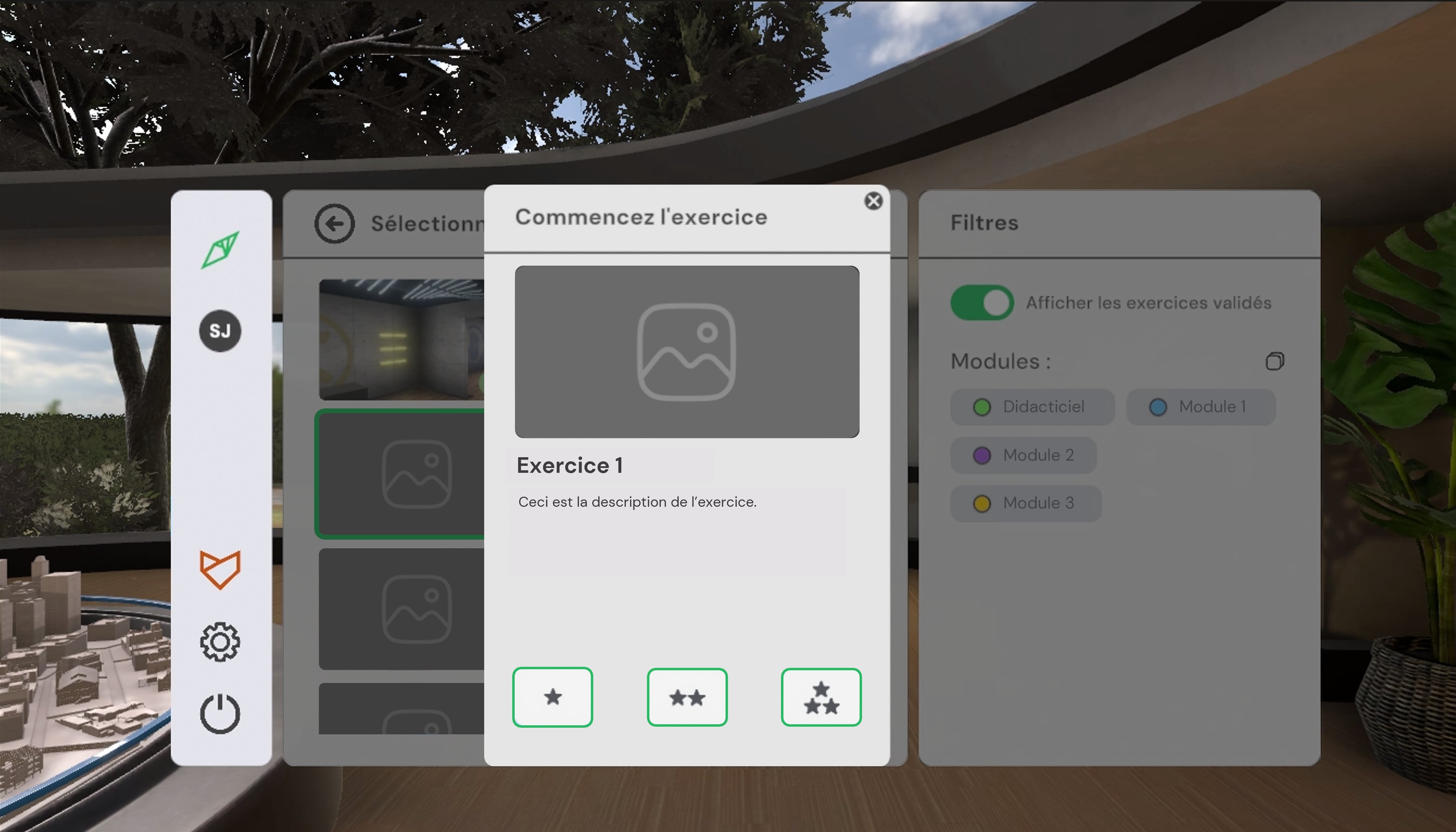
For compatible simulators, when selecting the exercise, the user can choose the difficulty level: Beginner, Advanced, or Expert. Depending on the exercises, the difficulty modifies the instructions and objectives. A click on the difficulty level launches the exercise. Already validated levels are identified by a white crown in a colored circle. For simulators that do not offer difficulty levels, a click on the Start button directly launches the exercise.
2.1.4. Results Screen
-
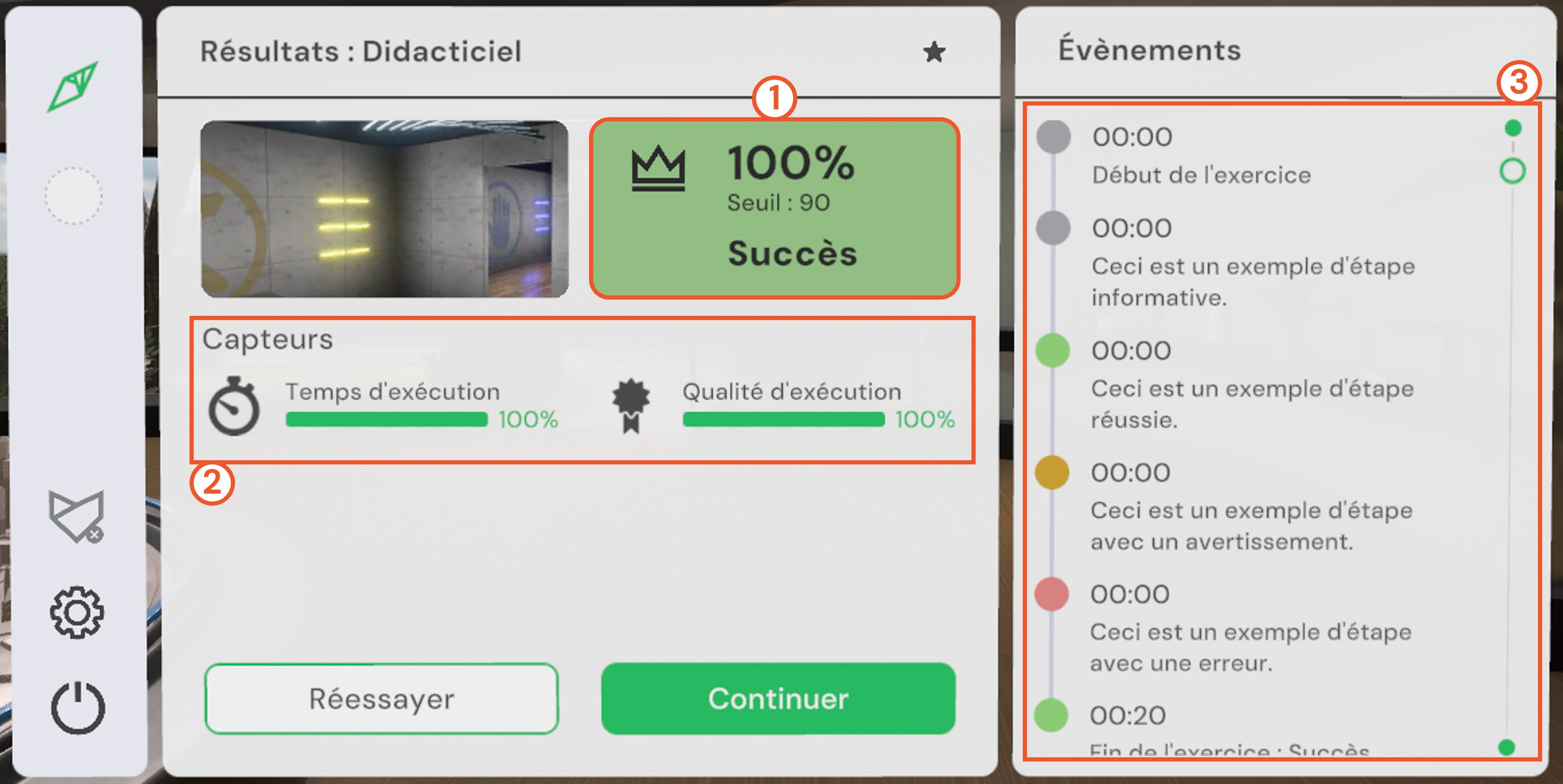
Exercise result: displays the overall score as a percentage (average of sensor scores, weighted by their respective coefficients defined in VULCAN), as well as whether the exercise was validated and its validation threshold.
-
Sensor results: display the evaluation criteria specific to each exercise.
-
Event history: indicates all significant events that occurred during the exercise. The timecode corresponds to the moment of the event, expressed in minutes and seconds elapsed since the start of the exercise.
At the end of the exercise, the user is teleported to the results screen, where they can view the overall summary, sensor details, and events that occurred during the exercise.
2.1.5. Settings Screen
From the home screen and in each simulator, the user can access the settings by clicking on the gear icon.
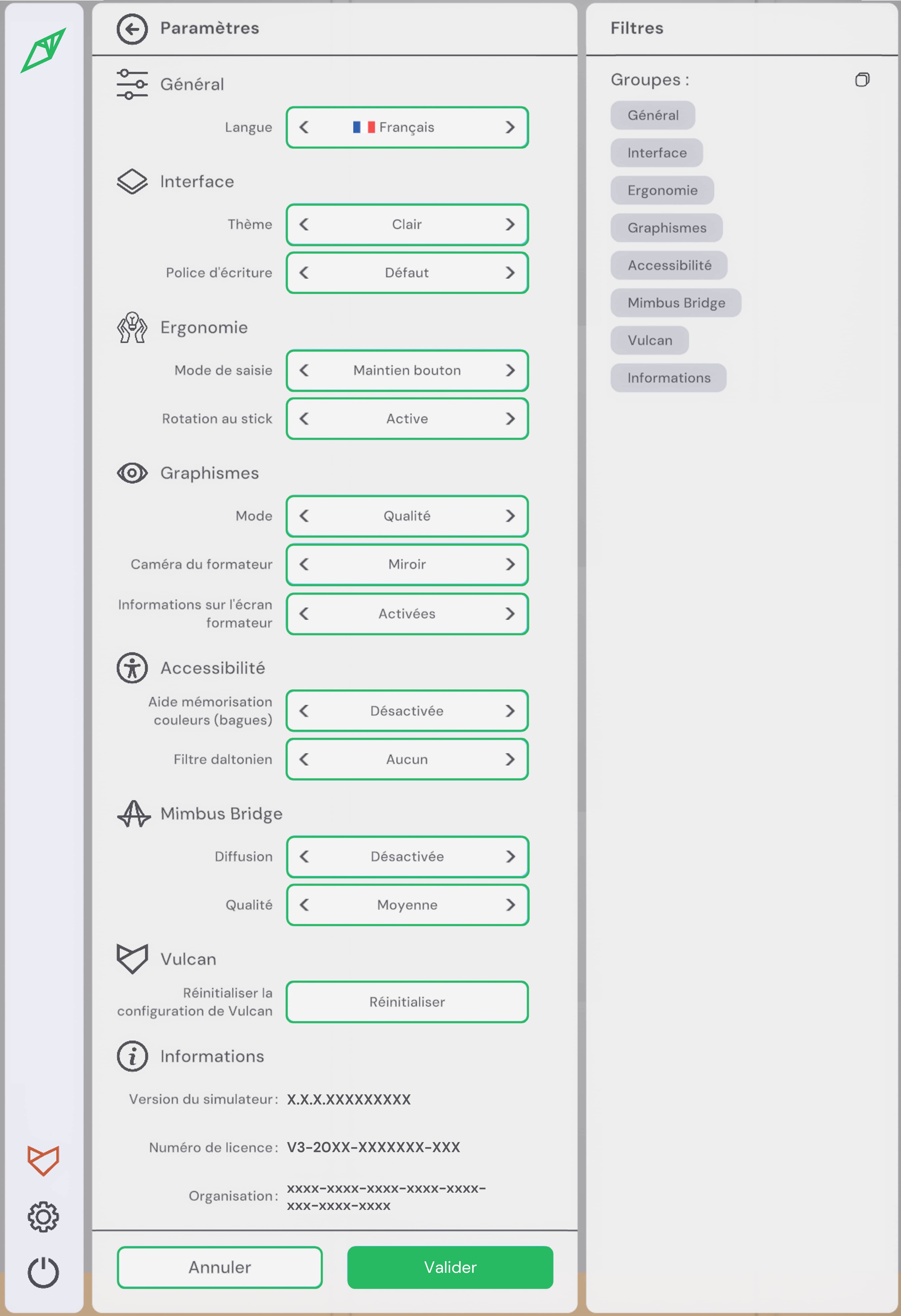
This interface allows you to change the language, adapt the interface, ergonomics, and accessibility according to your preferences, and ensure proper consideration of disabilities (colorblind filter, font adapted for dyslexic people, etc.). It is also possible to adapt the graphics. The Mimbus Bridge section allows you to enable or disable streaming via the MIMBUS BRIDGE application and adjust its quality if necessary. Finally, you will find information about the software version, your license number, and your organization identifier as referenced in the VULCAN LMS. This information may be requested when submitting a support request.
2.2. Controllers
2.2.1. Controllers
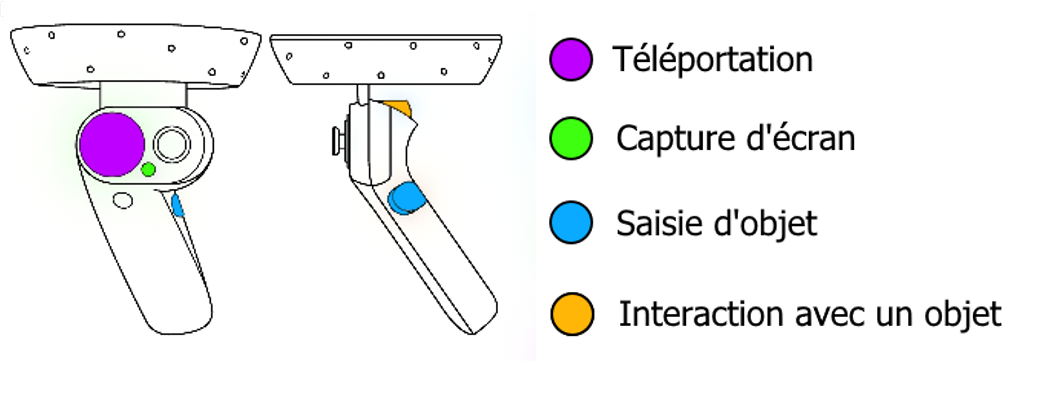
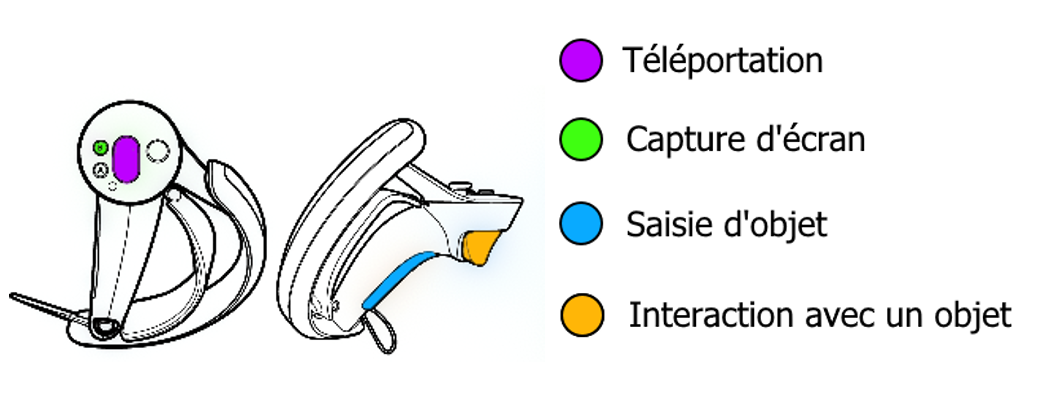
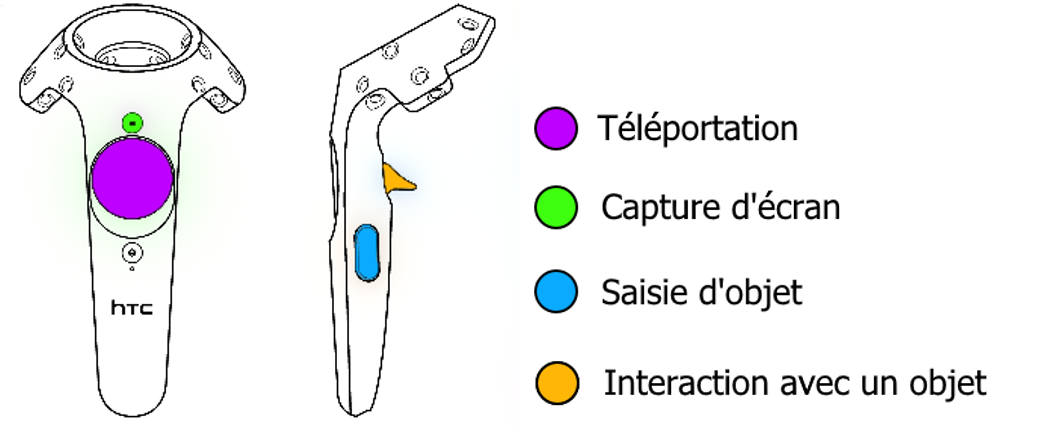
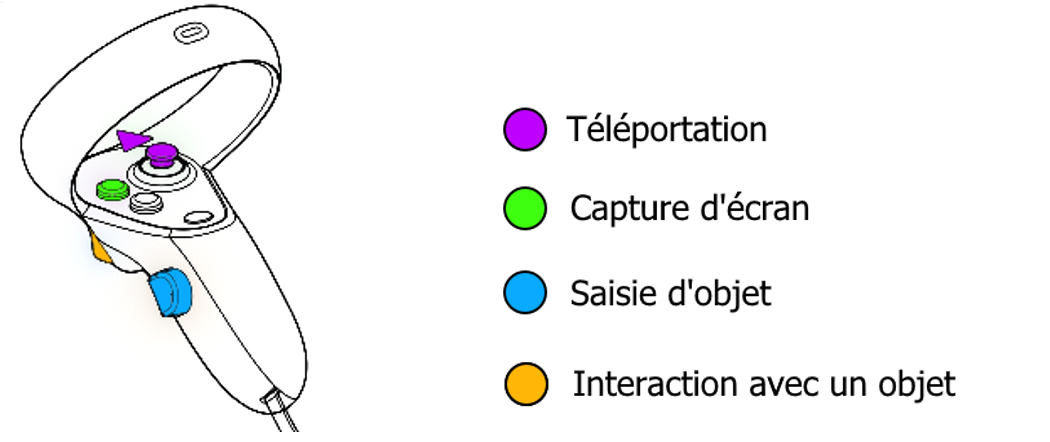
The application is compatible with all headsets supporting the OpenXR standard. Depending on the virtual reality headset used, the controllers and associated buttons differ.
Windows Mixed Reality
Valve Index
HTC Vive
Oculus Rift
3. Tutorial Module
3.1. Tutorial
In order to familiarize the user with the available interactions, a tutorial scenario can be launched from the module selection menu.
The aim of the tutorial is to teach the user the commands of the virtual reality equipment and the different metaphors used in the application in a clear and progressive way. It will take place in a neutral and uncluttered environment so as not to distract the user from the various actions expected.
A panel detailing the association between the user’s controllers and the actions will always be visible during the experience.
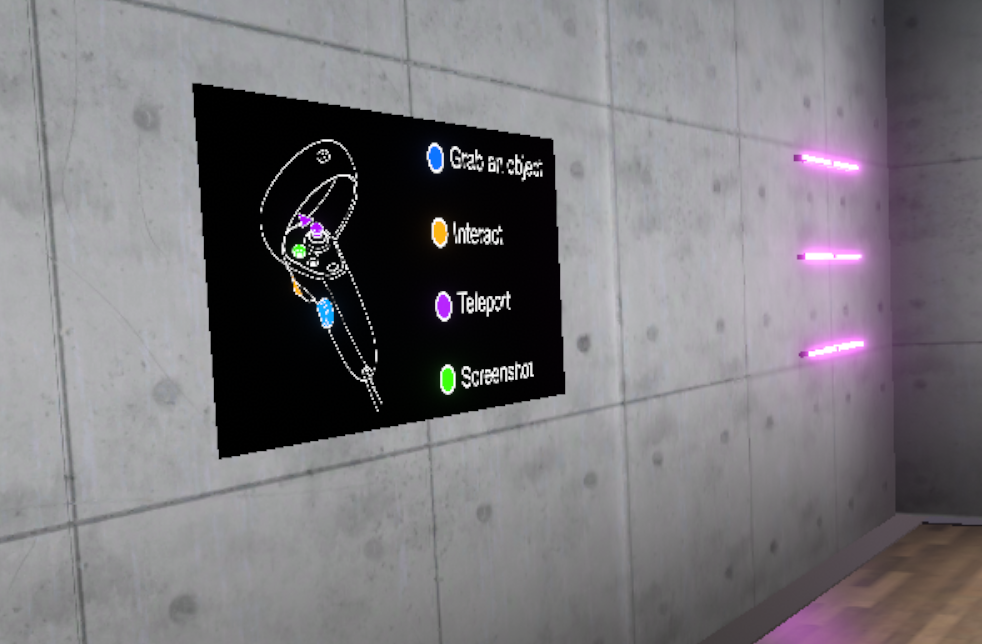
The tutorial is presented in the form of successive themed rooms, which the user will have to perform one after the other:
-
Moving around
-
Grabbing and moving an object
-
Interacting with an object
In each of the rooms, the user will learn an action (i.e., use of a button) in a dedicated space, and then will have to put this action into practice to leave the room and move on to the next. Once the three rooms are completed, the user will go through a final door to finish the tutorial.
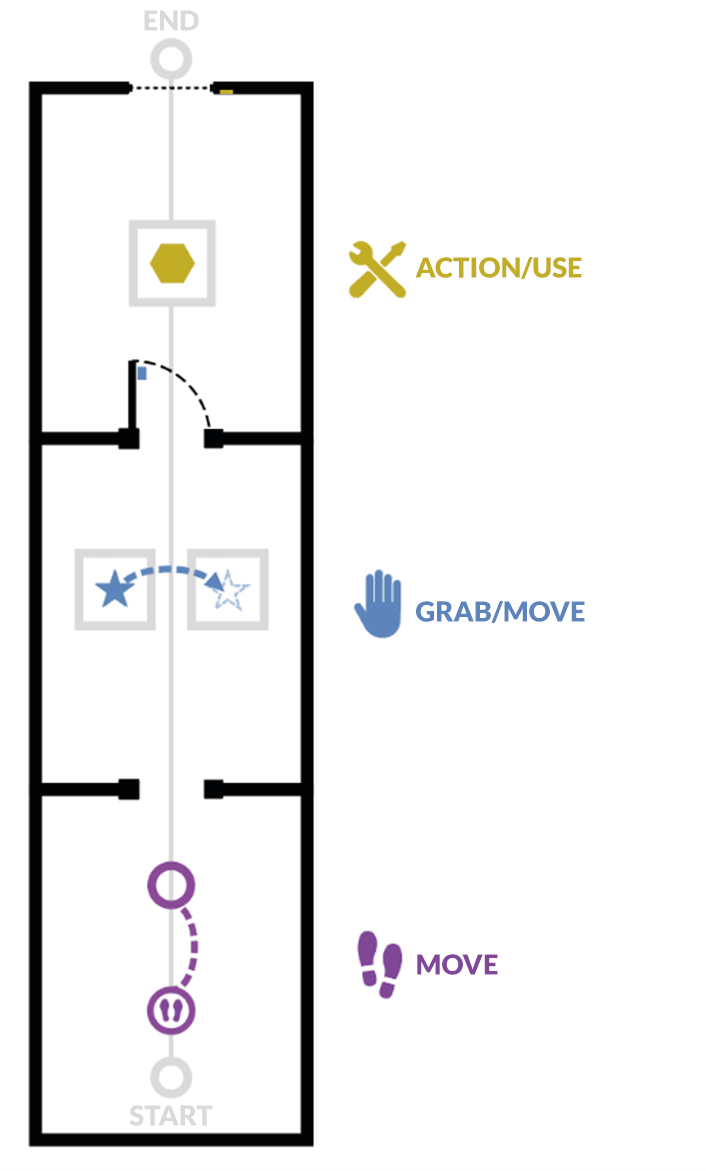
3.1.1. Moving
Objective: to learn how to move around the virtual world and recognize markers that indicate a specific location.
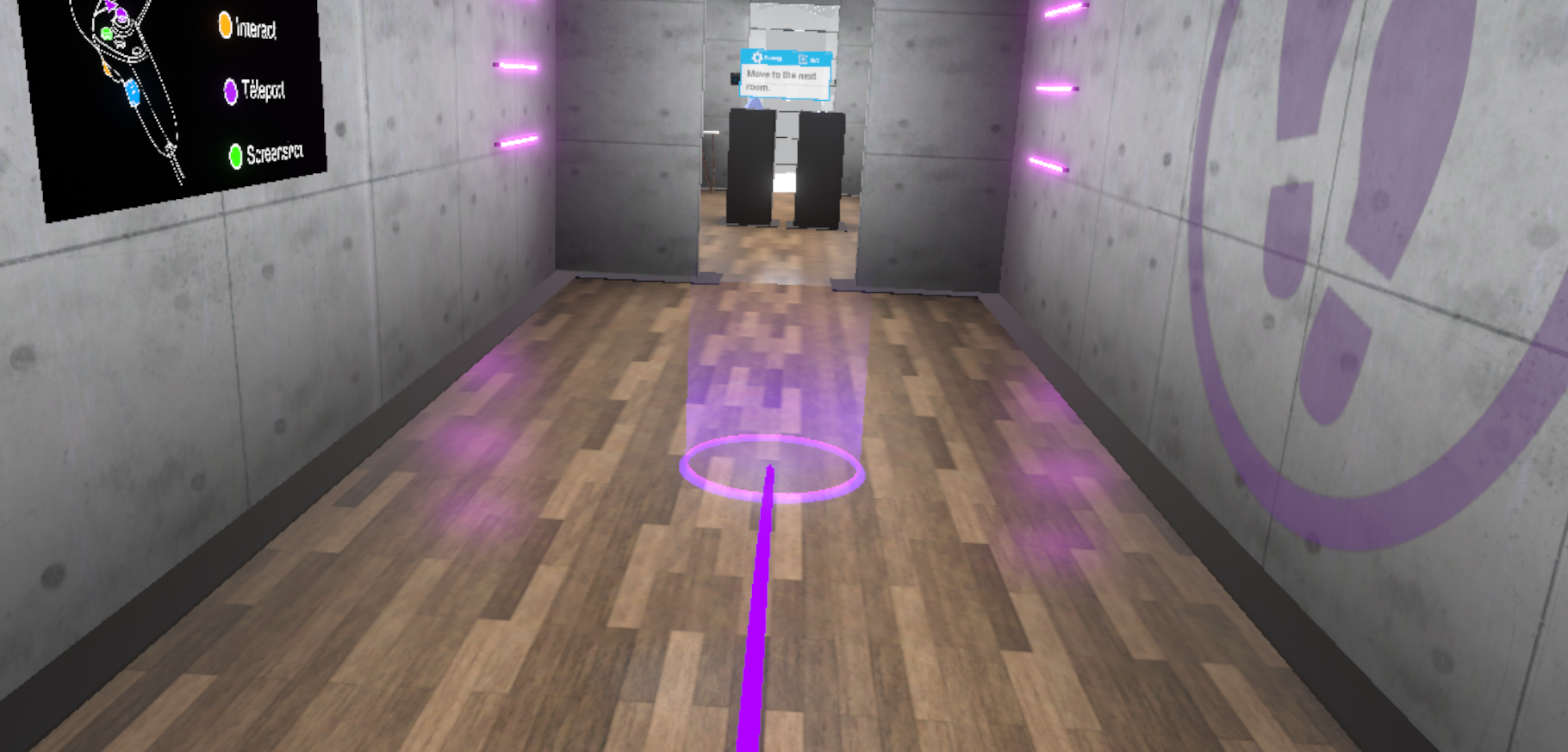
The user will learn to move by teleportation. To leave this first room, the user will be asked to teleport to the next room.
By pressing the "Teleportation" button, it is possible to initiate a teleportation. As long as the button is held down, you can choose the teleportation destination. When you release the button, the teleportation will be performed.
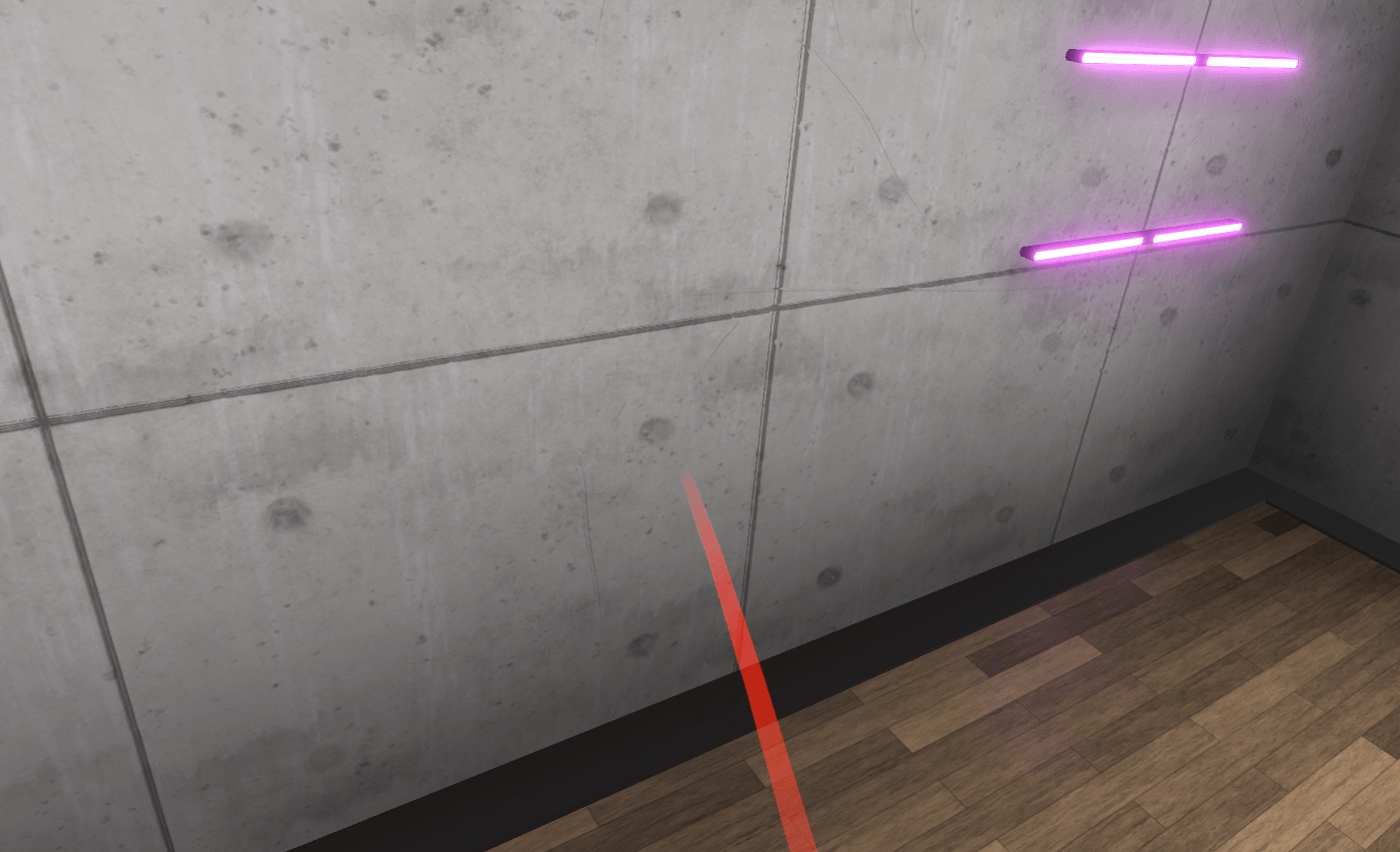
A parabolic pointer coming out of the controller will then be visible, symbolizing the path taken during a teleportation. If teleportation is possible, this pointer is violet; if not, it is red.
3.1.2. Picking Up/Moving an Object
Objective: To learn to pick up an object, release it and place it on a magnetized area, and to recognize the associated visual feedback.
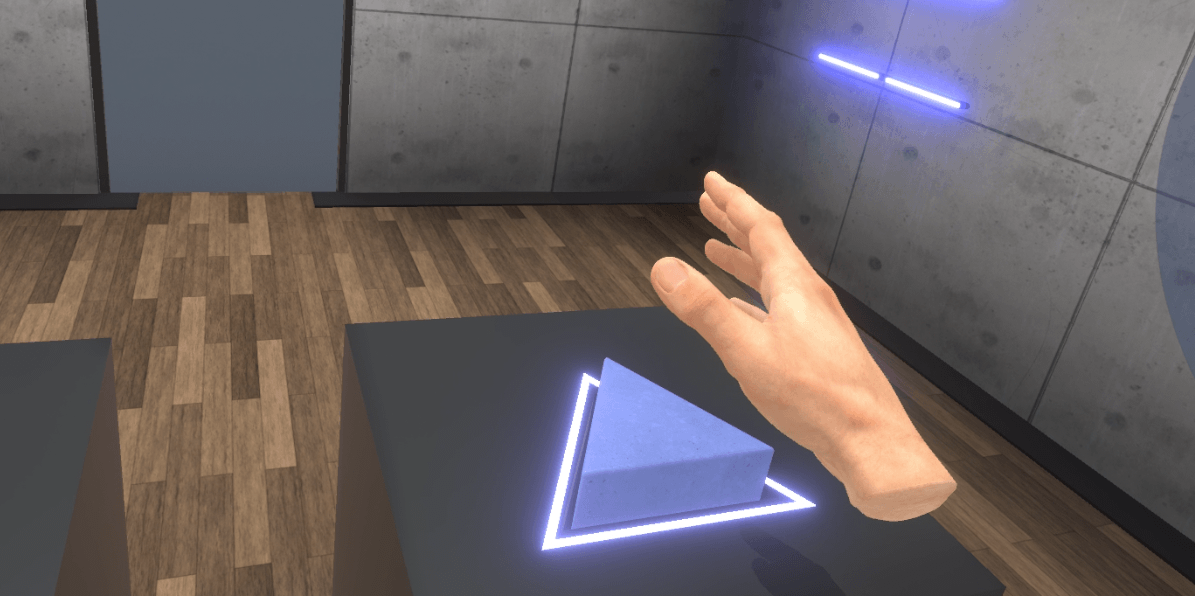
The user will be invited to bring their hand close to an object, visualize the associated visual feedback (blue outline), then pick up the object using the associated button and drop it onto a designated area on a second display.
Once this action is completed, the user will be prompted to exit the room by opening a door, giving them the opportunity to use the "Grab an item" interaction again on the handle.
3.1.3. Action/Using a Tool
Objective: To learn how to interact with tools or buttons, and recognize the associated visual feedback.
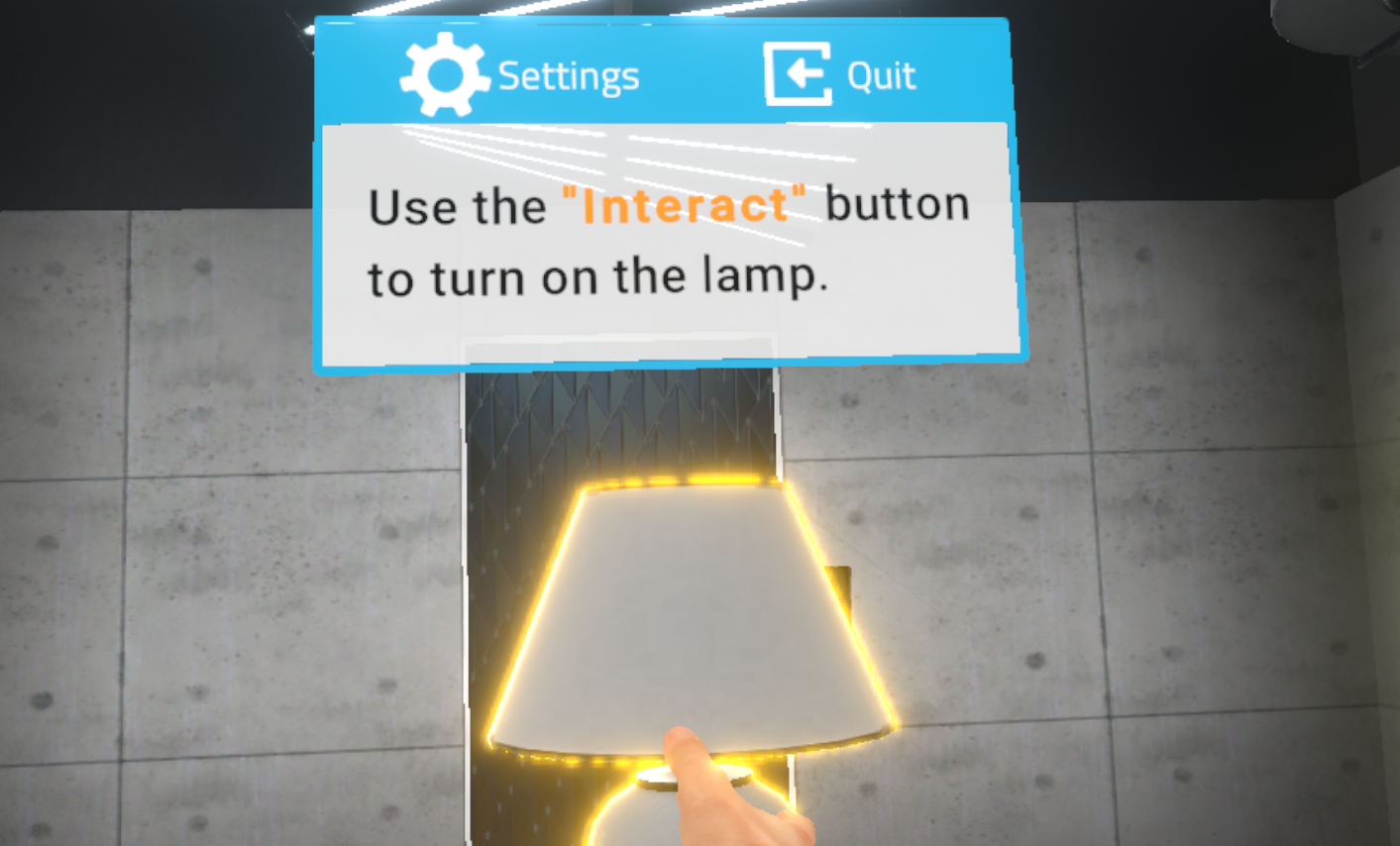
The user will be asked to interact with an object on a display (the object will be surrounded by a yellow outline indicating the possibility of activating it) and activate it using the associated button.
To exit the tutorial, the user will have to move to the back of the room and press the elevator button using the "Interact" button. A fade to black will return the user to the lobby.
4. Discovery Module
4.1. Carpentry
Immersed in a construction environment, the user will be required to install a window.
4.1.1. Exercise Plan
-
Check the briefing.
-
Talk to the site manager.
-
Equip themselves with the appropriate PPE for the task.
-
Go out on the site.
-
Talk to the team leader.
-
Check the dimensions of the window using the tape measure.
-
Screw 3 fixing brackets using the screwdriver.
-
Place a pre-compressed seal on the upper part and the sides of the window frame.
-
Place a seal on the windowsill.
-
Place the frame in the window opening.
-
Place the spirit levels on the frame to check the verticality and horizontality of the frame.
-
Check the rotation of the frame.
-
Screw 3 pre-installed fixing brackets onto the wall.
-
Apply a line of silicone on the base part of the masonry along the joint using the silicone gun.
-
Grab and fit the two sashes onto the frame.
-
Report to your team leader.
4.1.2. Scenario Progress
The user begins the scenario inside a portable cabin, facing a briefing screen presenting the context of the mission.
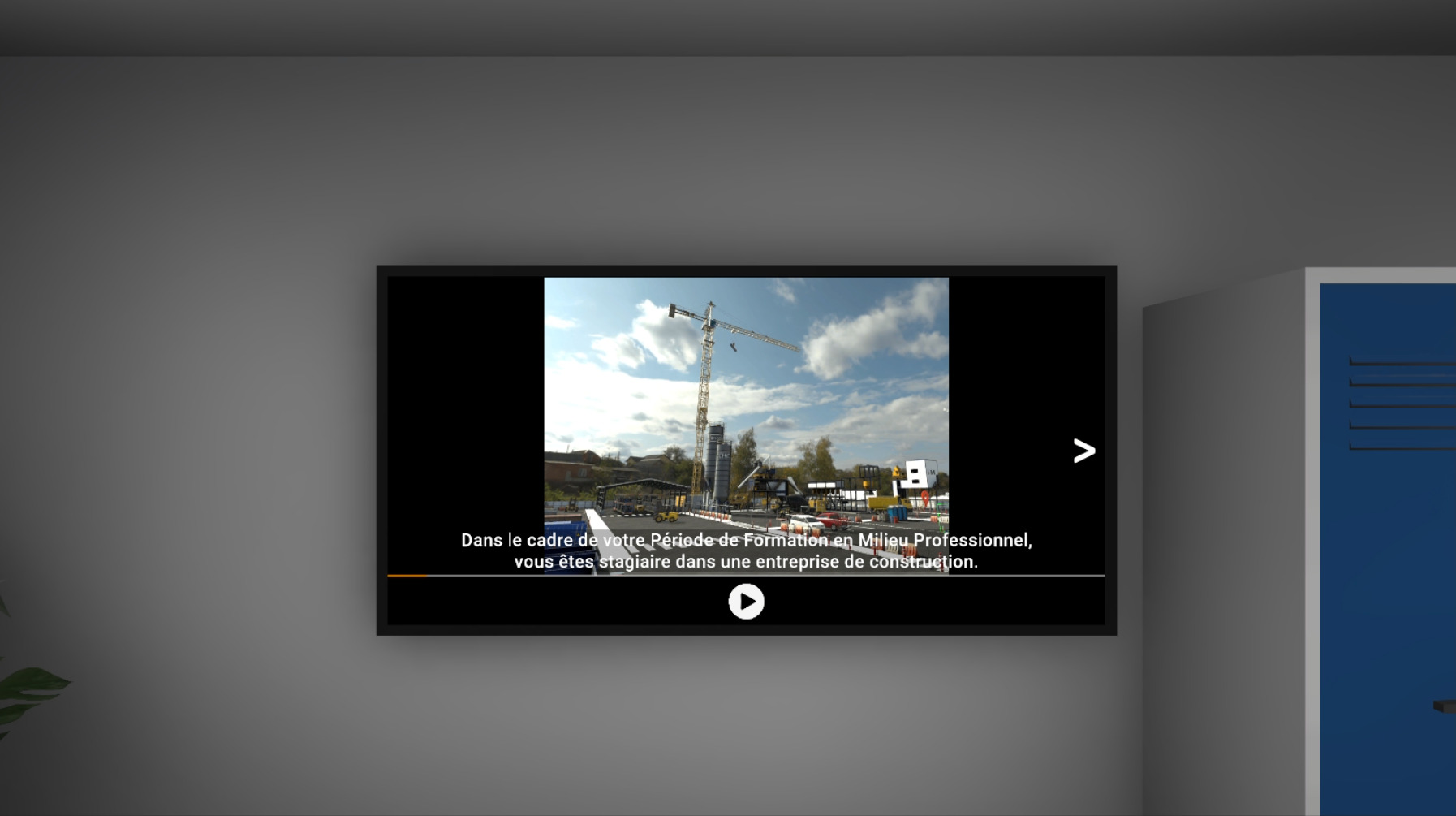
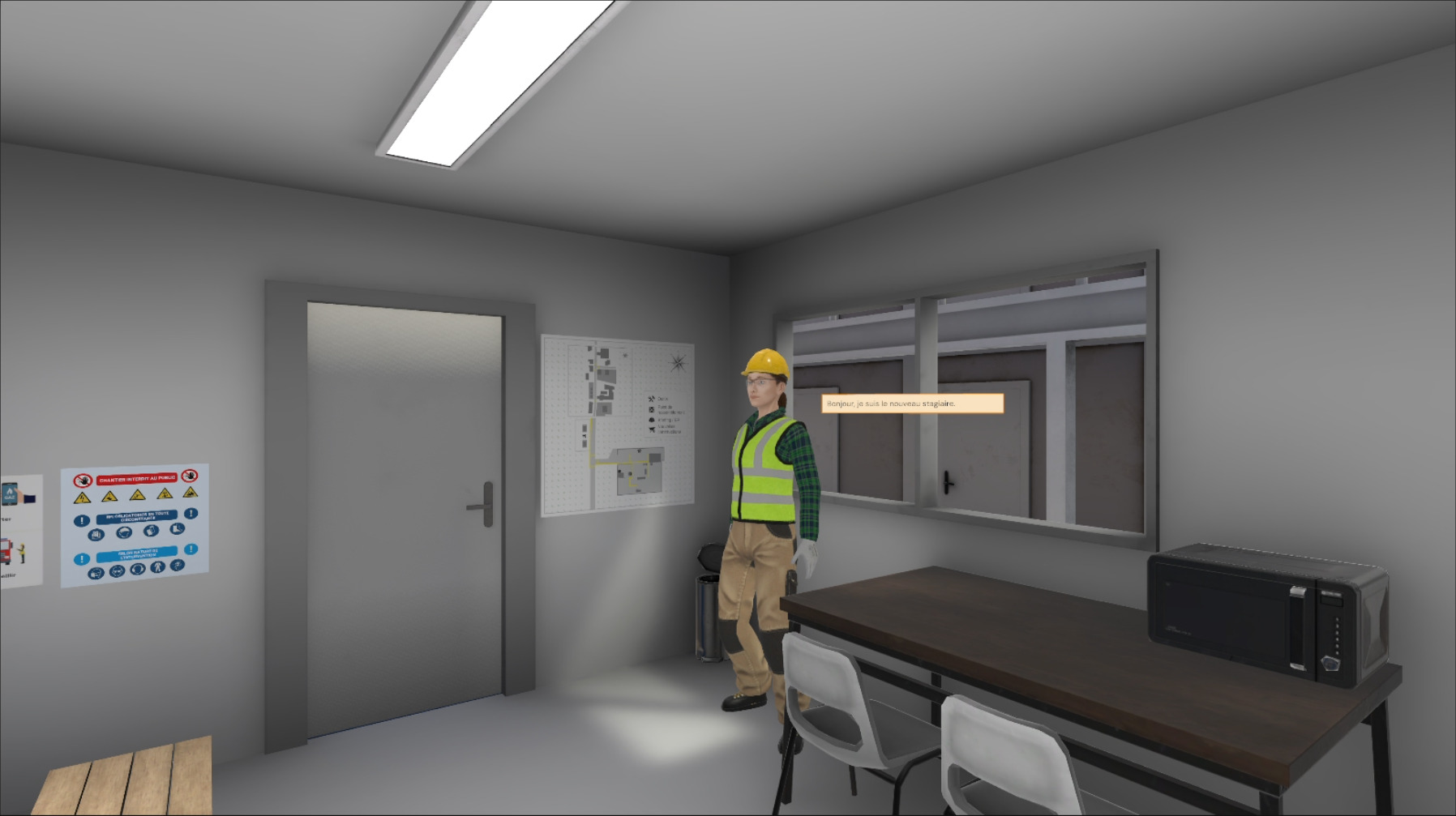
Once the briefing is viewed (or skipped), the site manager stands in a corner of the portable cabin. The user must interact with her to obtain the following information:
-
the task to be performed
-
the mandatory personal protective equipment (PPE) for the intervention
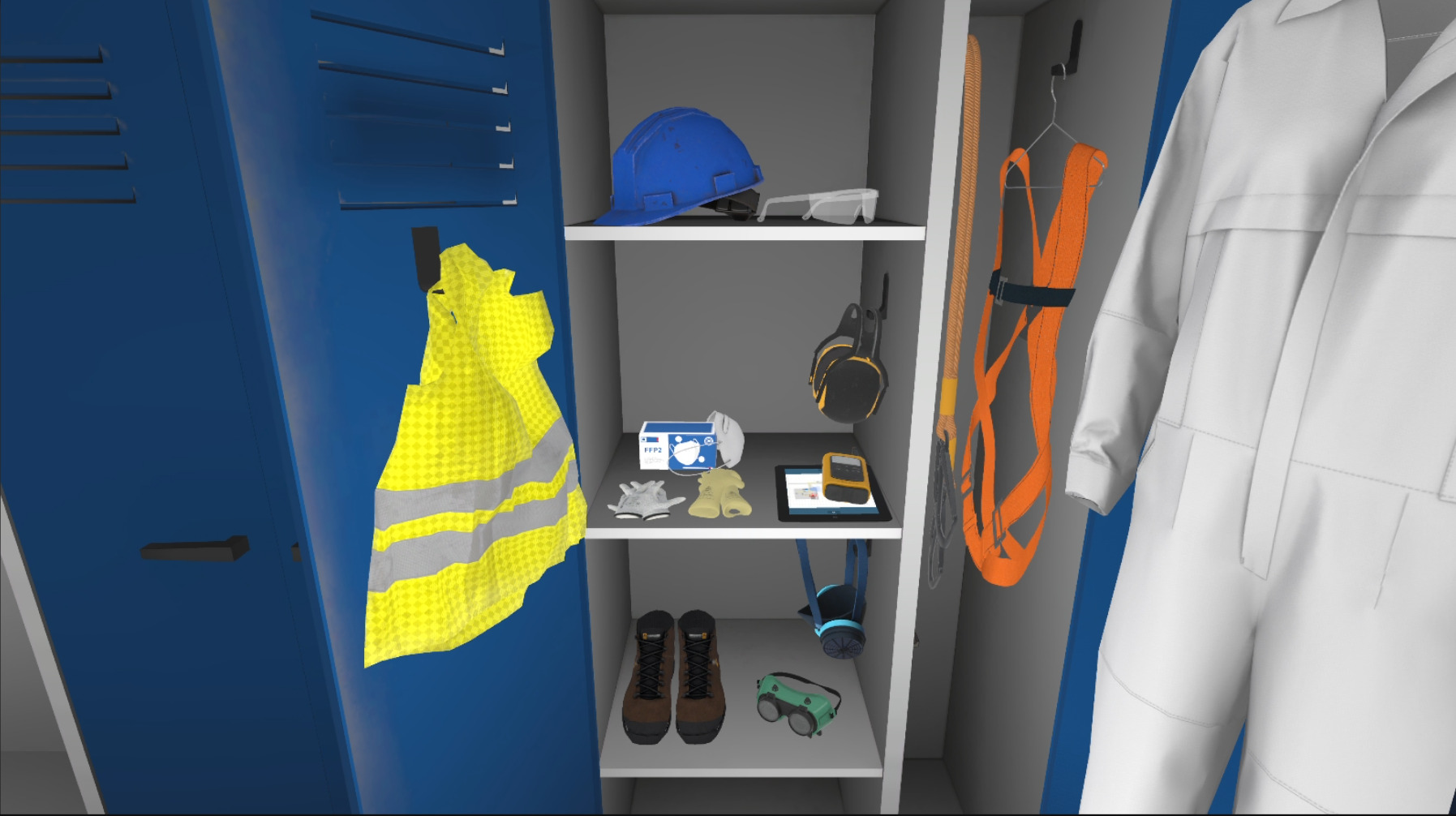
A cabinet containing all the available PPE is also present in the base camp. It will be necessary to choose gloves, a hard hat, a high-visibility vest, safety shoes, earmuffs and a mask before leaving the area.
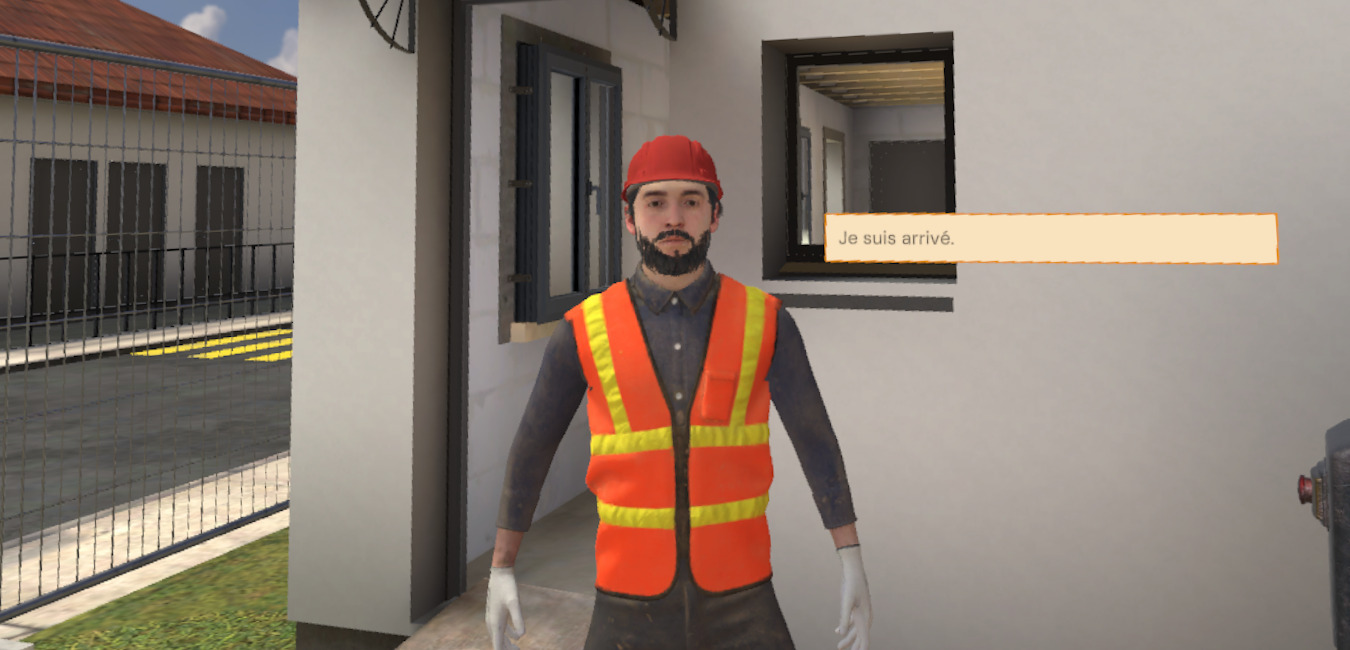
Arriving on the site, the team leader will indicate the concrete task to be performed.
After being teleported into the house, the user will start their work.
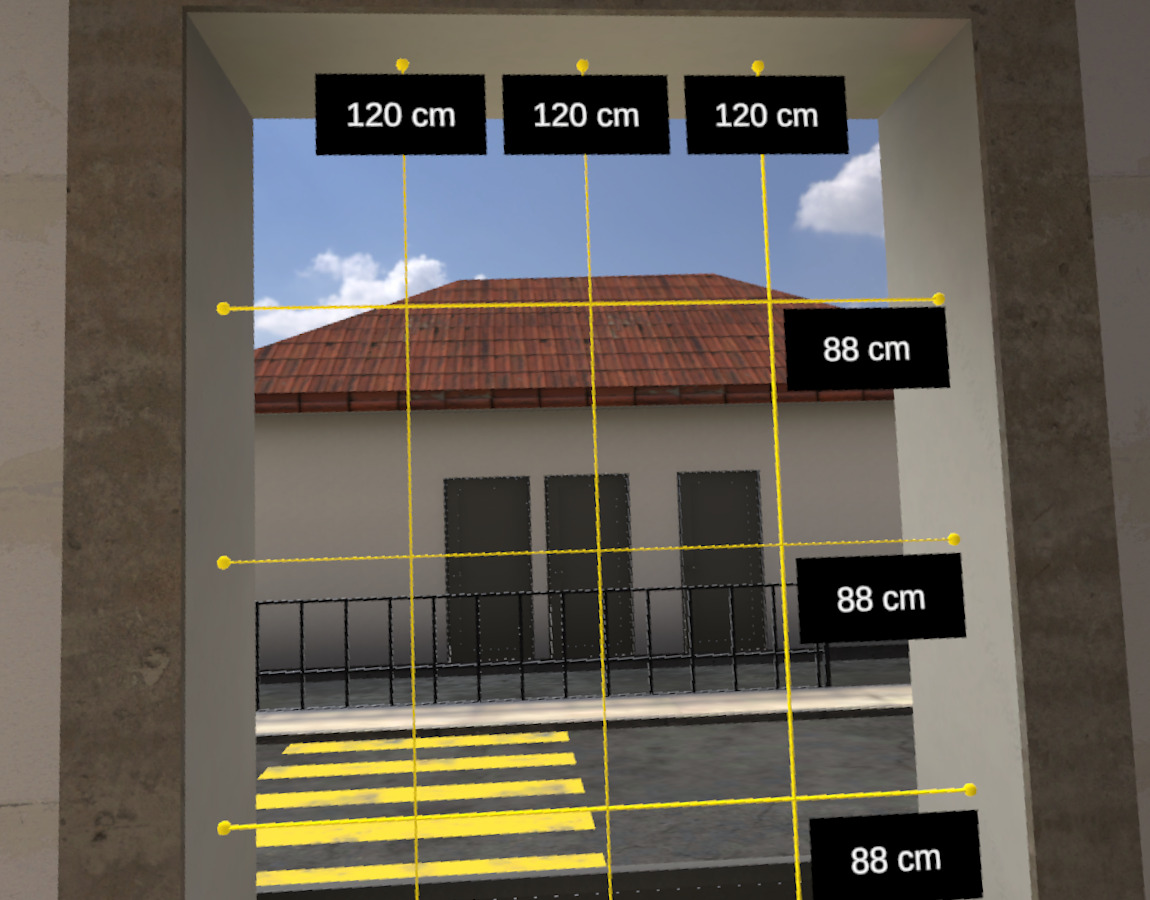
First, it will be necessary to take the measurements of the window using the tape measure.
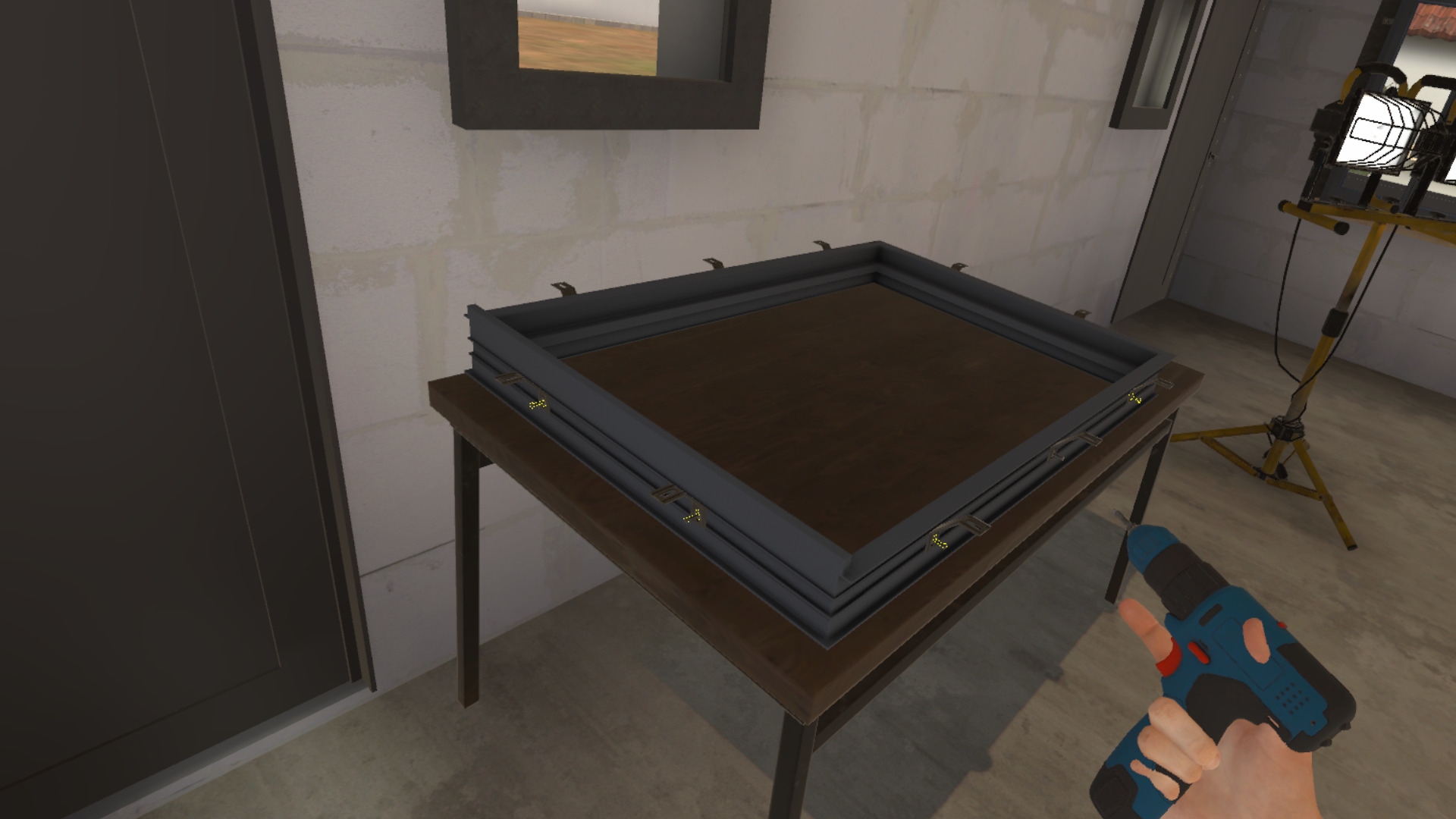
Once the measurements have been taken, screw 3 fixing brackets onto the frame. The other fixing brackets will be automatically screwed.
Take a pre-compressed seal from the trestle and place it on the upper part and the sides of the frame.
Do the same for the seal on the windowsill.
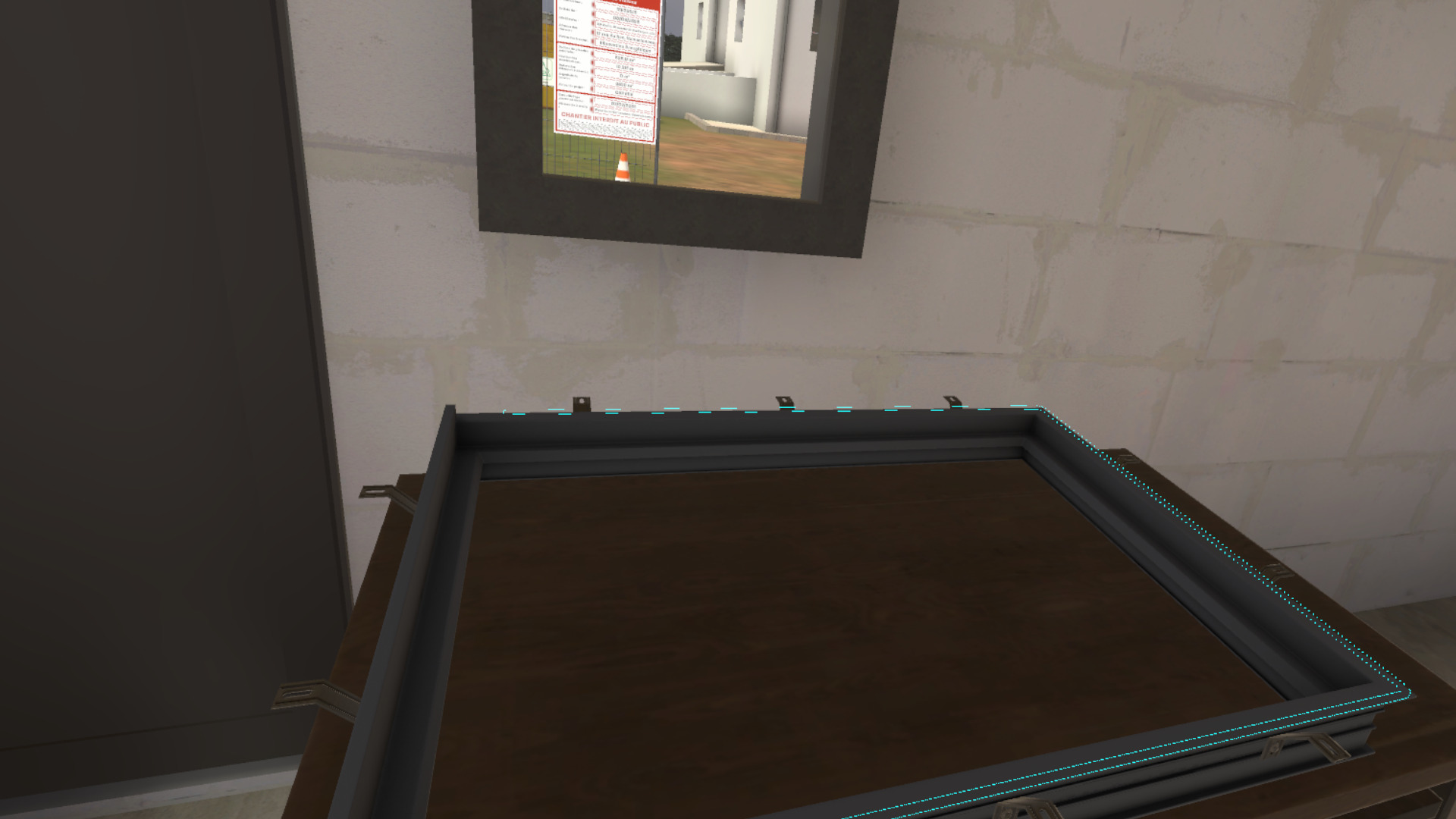
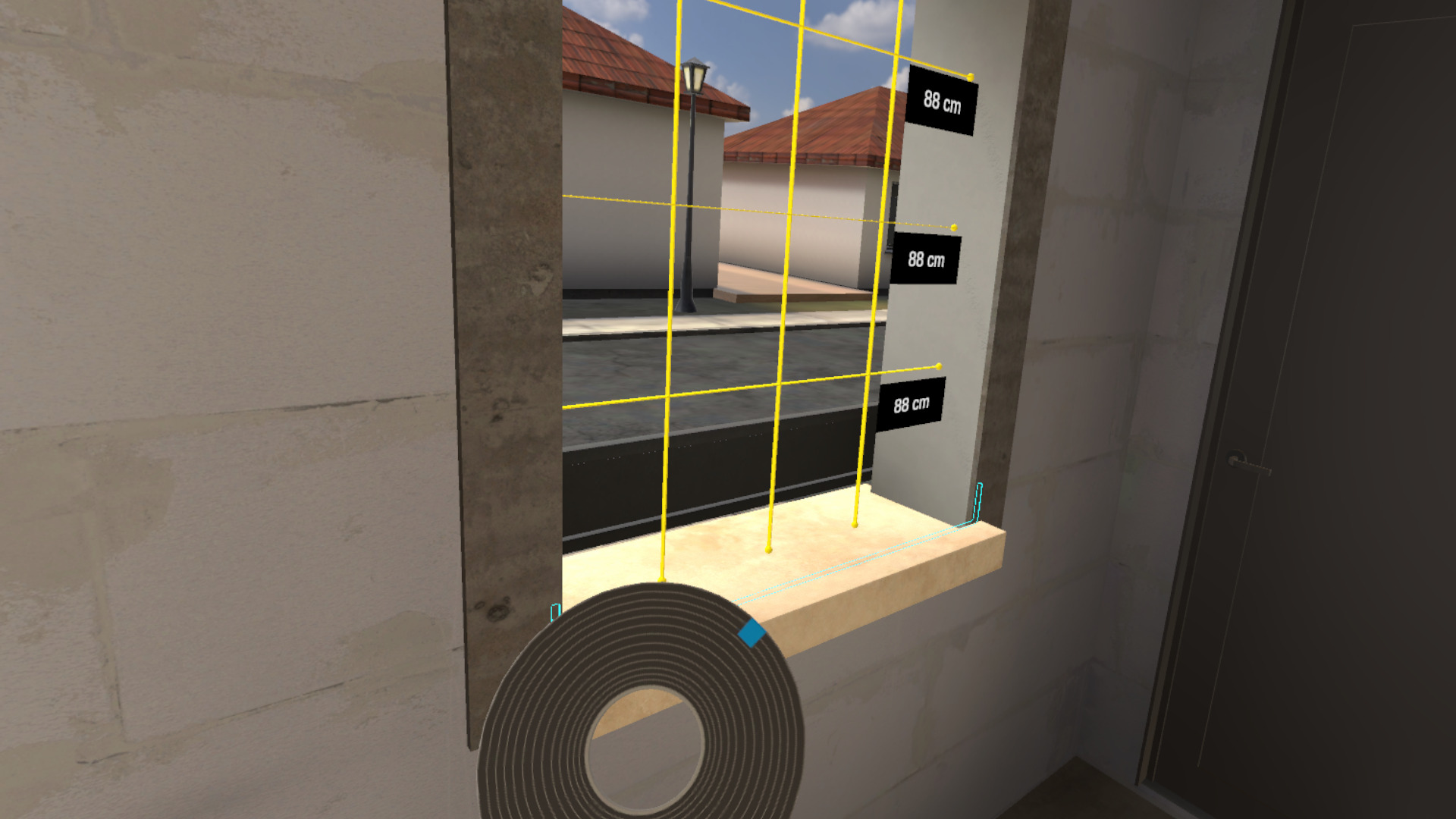
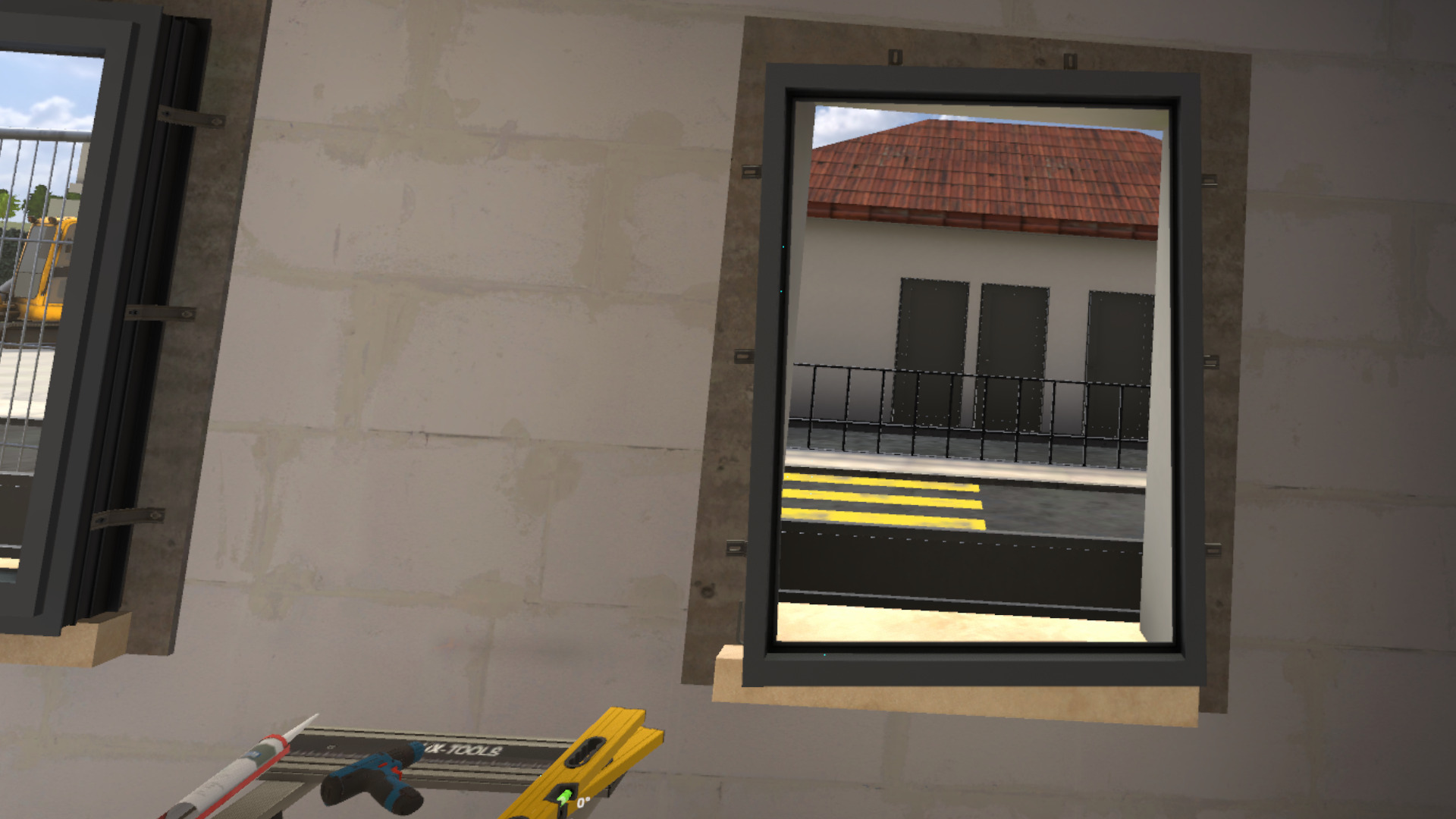
Place the frame in the window opening.
Placing 2 spirit levels on the frame, check its verticality and horizontality. With this, correct the rotation of the frame.
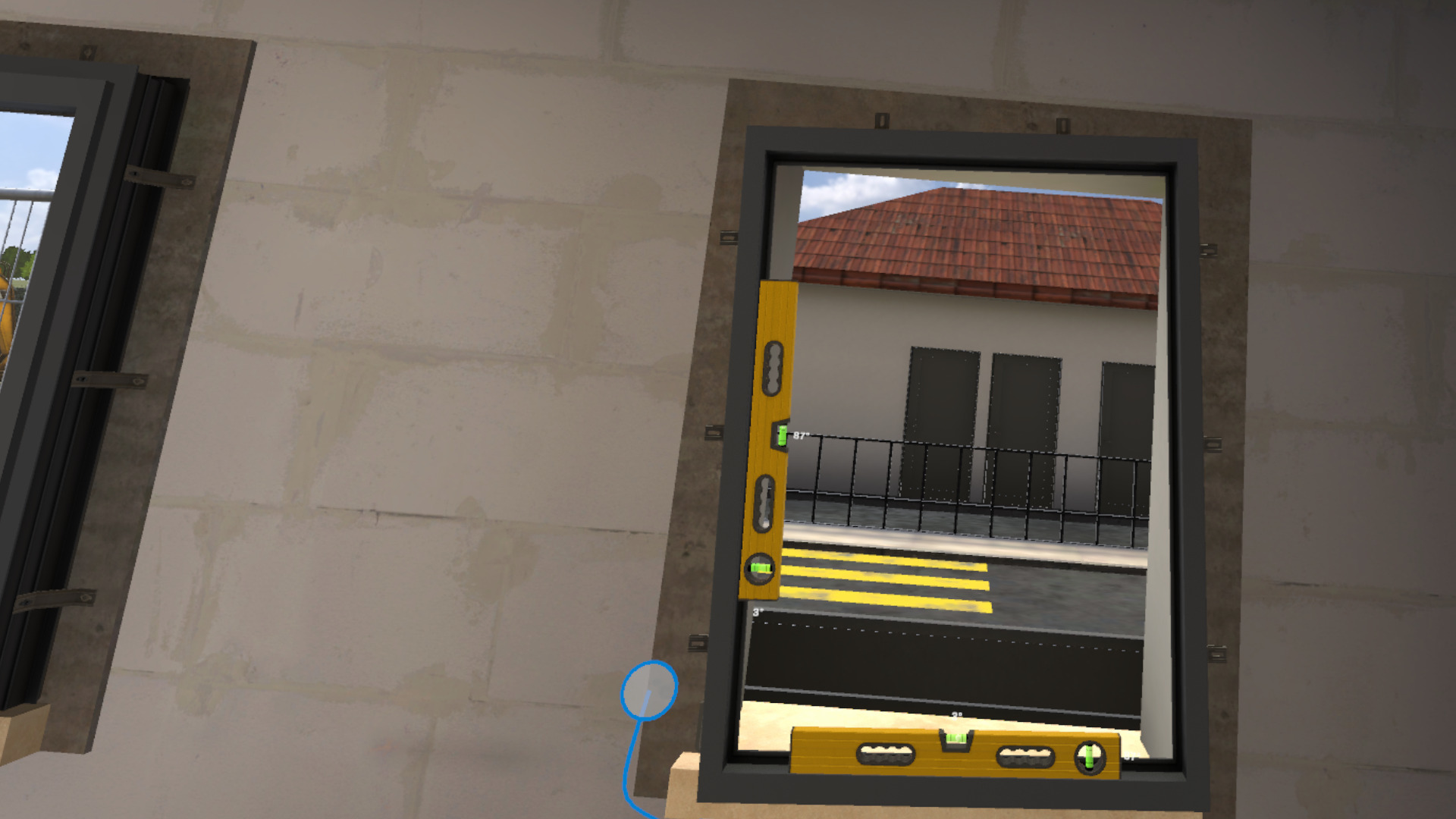
Once correctly positioned, screw 3 pre-installed fixing brackets onto the wall. The other fixing brackets will be automatically screwed.
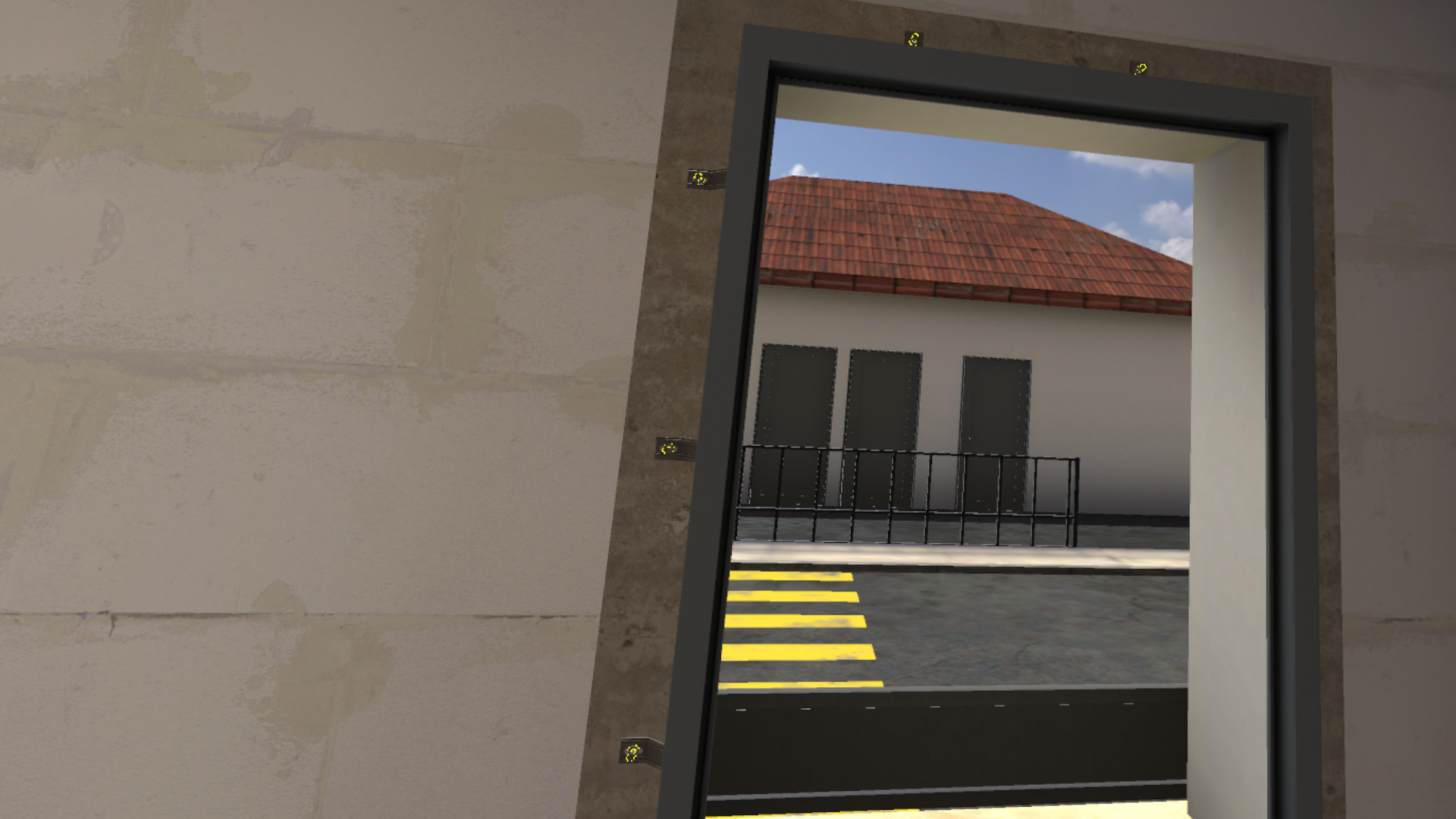
Using the silicone gun, make a line of silicone on the base part of the masonry along the joint.
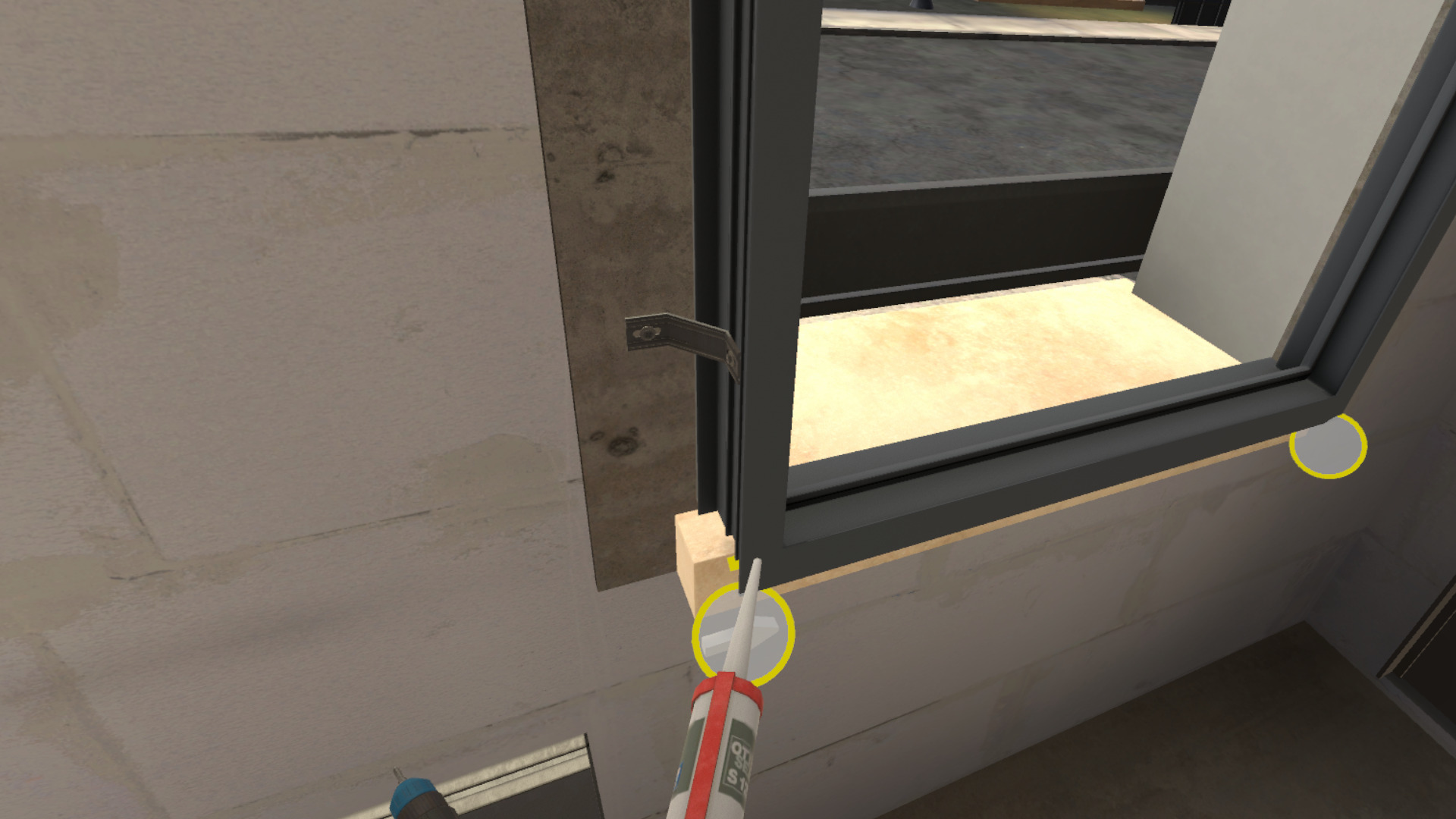
Retrieve the sashes from the floor and fit them onto the frame.
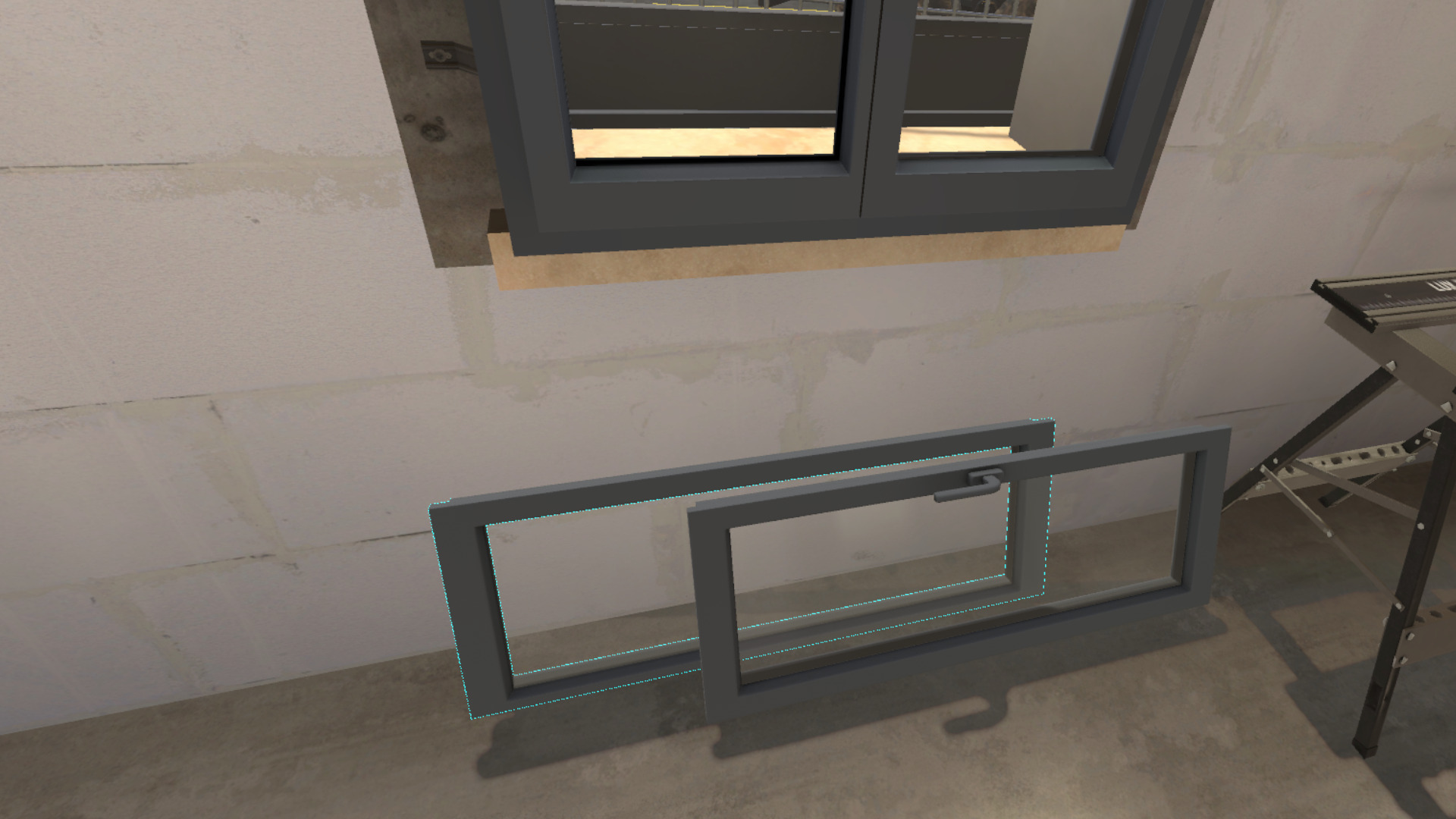
When the window is installed, the user will have to report to their team leader.
The exercise is finished once the report is made.
4.1.3. Exercise Evaluation Criteria
 Choice of PPE: Evaluates the choice of PPE selected by the user.
 Procedure: Validates compliance with the procedure.
4.2. Masonry
Immersed in a construction environment, the user will be led to participate in the realization of a wall from the application of the glue to the correct alignment of the row of blocks.
4.2.1. Exercise Plan
To validate the exercise, the user will have to proceed with the following actions:
-
Check the briefing.
-
Talk to the site manager.
-
Equip themselves with the appropriate PPE for the task.
-
Go out on the site.
-
Talk to the team leader.
-
Take the glue applicator roller.
-
Position the roller at a 25-degree angle on the highlighted row of blocks.
-
Maintain the angle of the roller while moving it along the row.
-
Place the suitable block at the end of the row next to the door opening.
-
Use the spirit level and the mallet to align the block.
-
Place the suitable block at the beginning of the row.
-
Use the spirit level and the mallet to align the block.
-
Place the mason’s line above one of the two previously placed blocks.
-
Finish filling the row by alternating the placement of blocks on each side, making sure to level them.
-
Talk to the team leader.
4.2.2. Scenario Progress
The user begins the scenario inside a portable cabin, facing a briefing screen presenting the context of the mission.
Once the briefing is viewed (or skipped), the site manager stands in a corner of the portable cabin. The user must interact with her to obtain the following information:
-
the task to be performed
-
the mandatory personal protective equipment (PPE) for the intervention
A cabinet containing all the available PPE is also present in the base camp. It will be necessary to choose gloves, a hard hat, a high-visibility vest and safety shoes before leaving the area.
Arriving on the site, their team leader will indicate the concrete task to be performed.
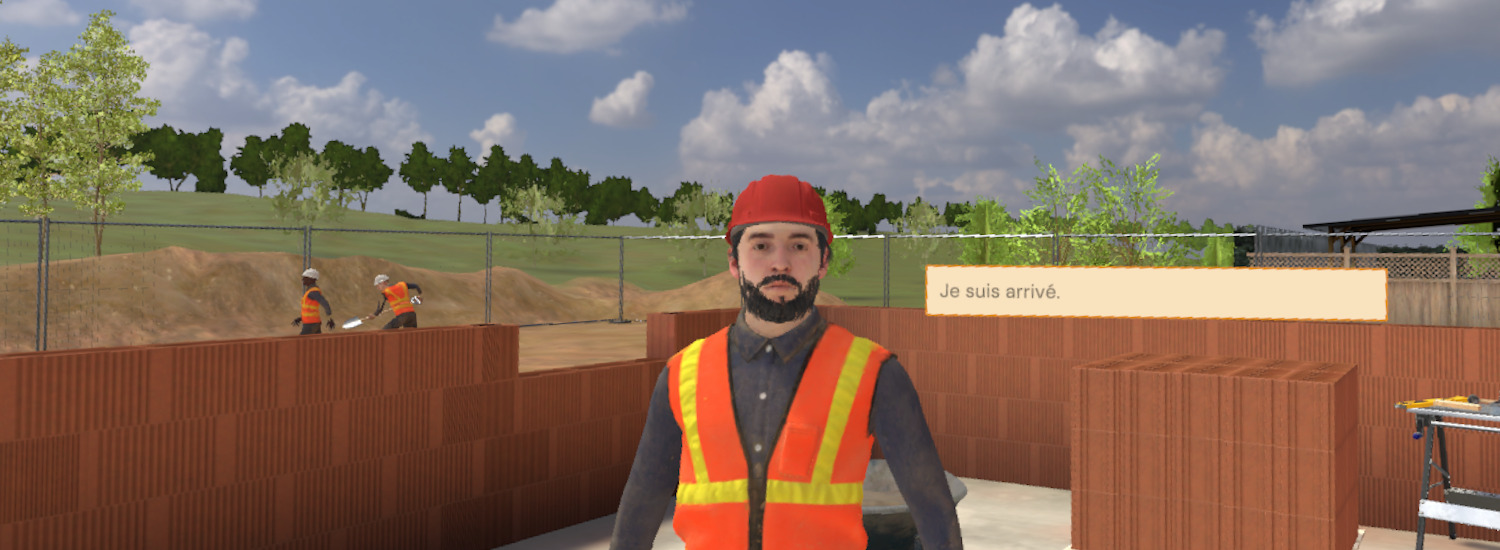
First, apply the glue using the applicator roller. To do this, take the roller and use it on the upper part of the wall. It will be necessary to cover the entire area with glue to move on to the next step.
|
Important
|
The applicator roller must be placed at 25 (+/-5) degrees relative to the wall.
|
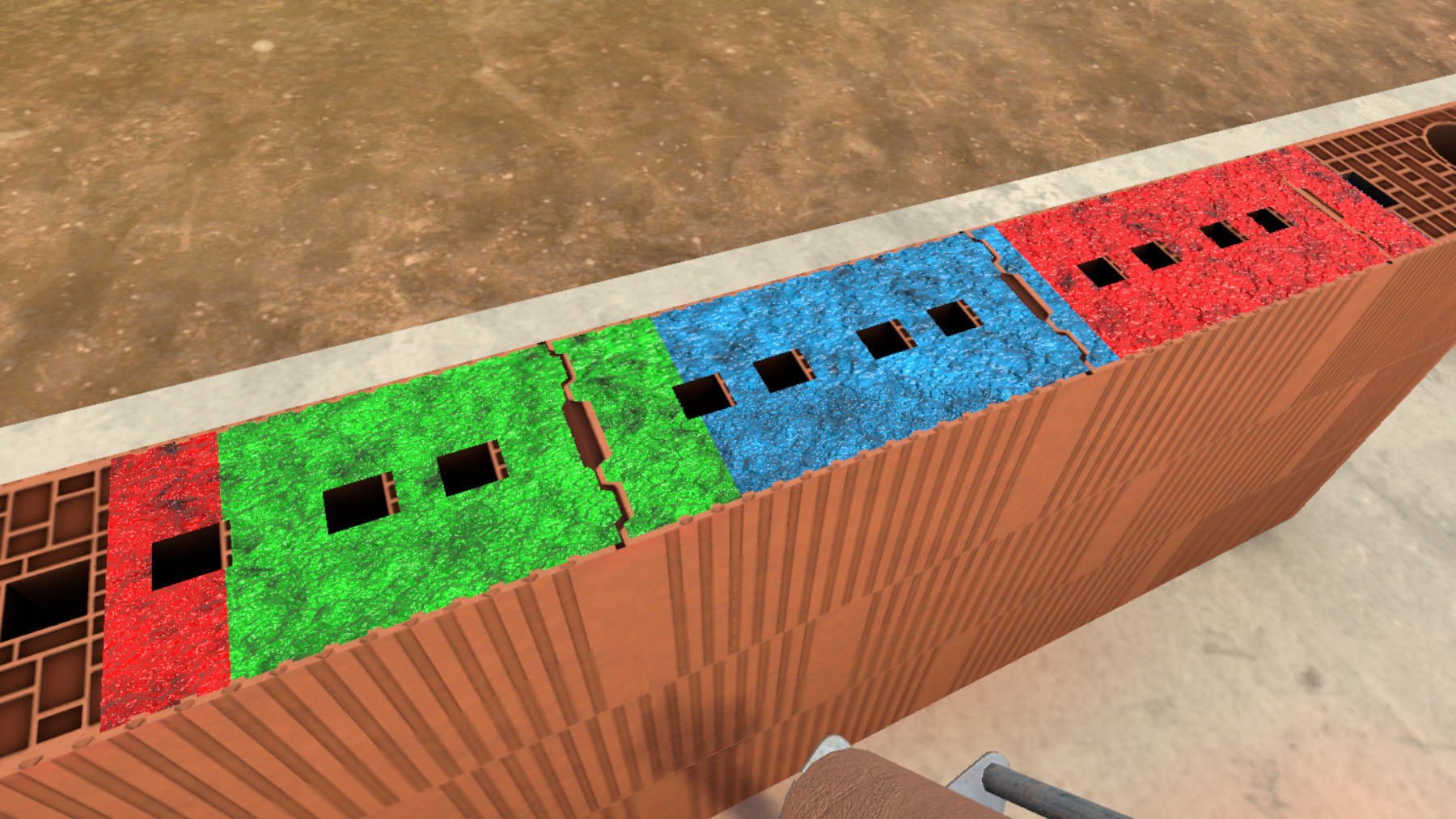
When all the glue is applied, take a short brick with a recess. Place it on the side of the opening.
This should not be aligned with the ground, take the mallet as well as the spirit level to check and correct this alignment.
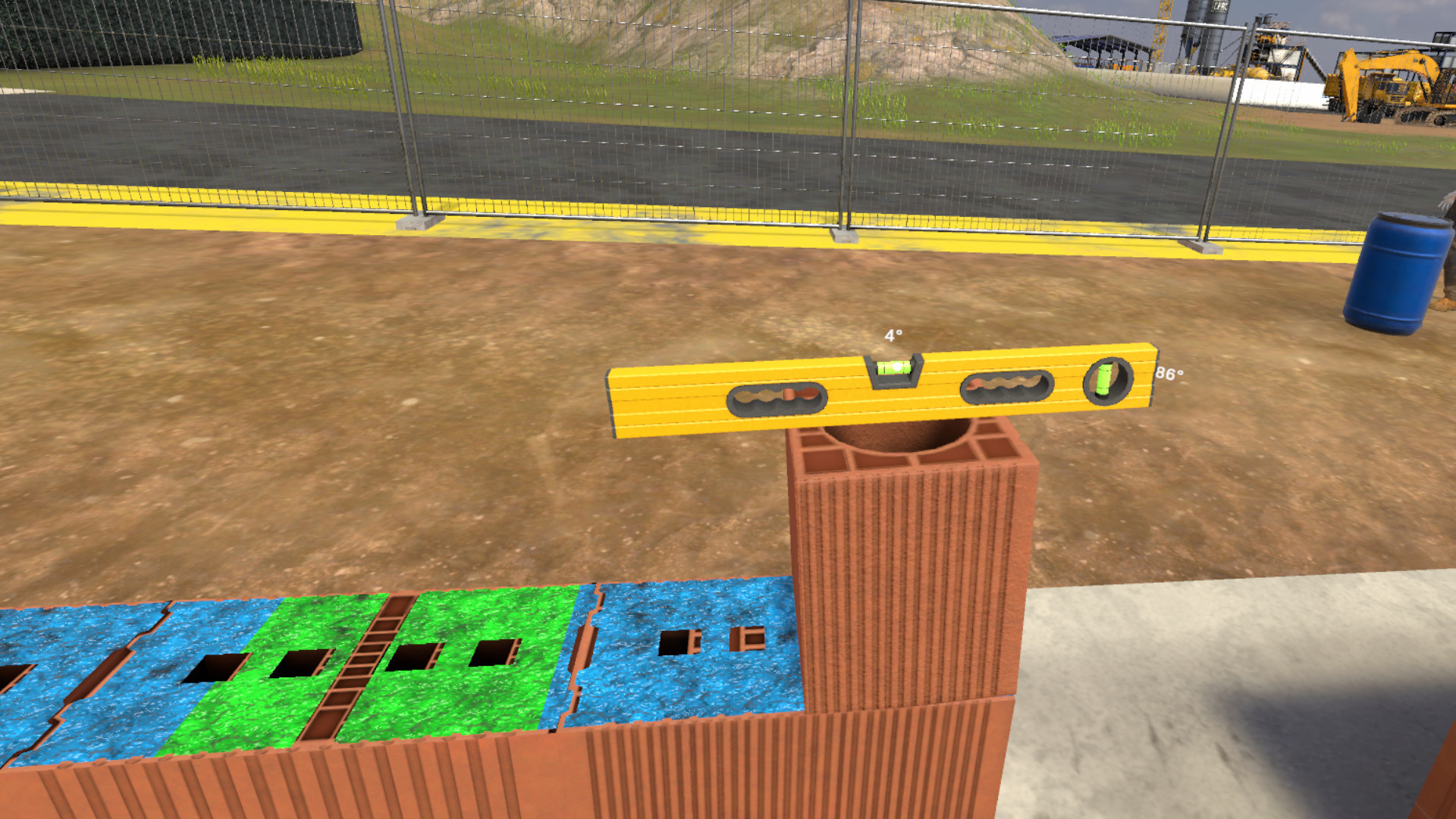
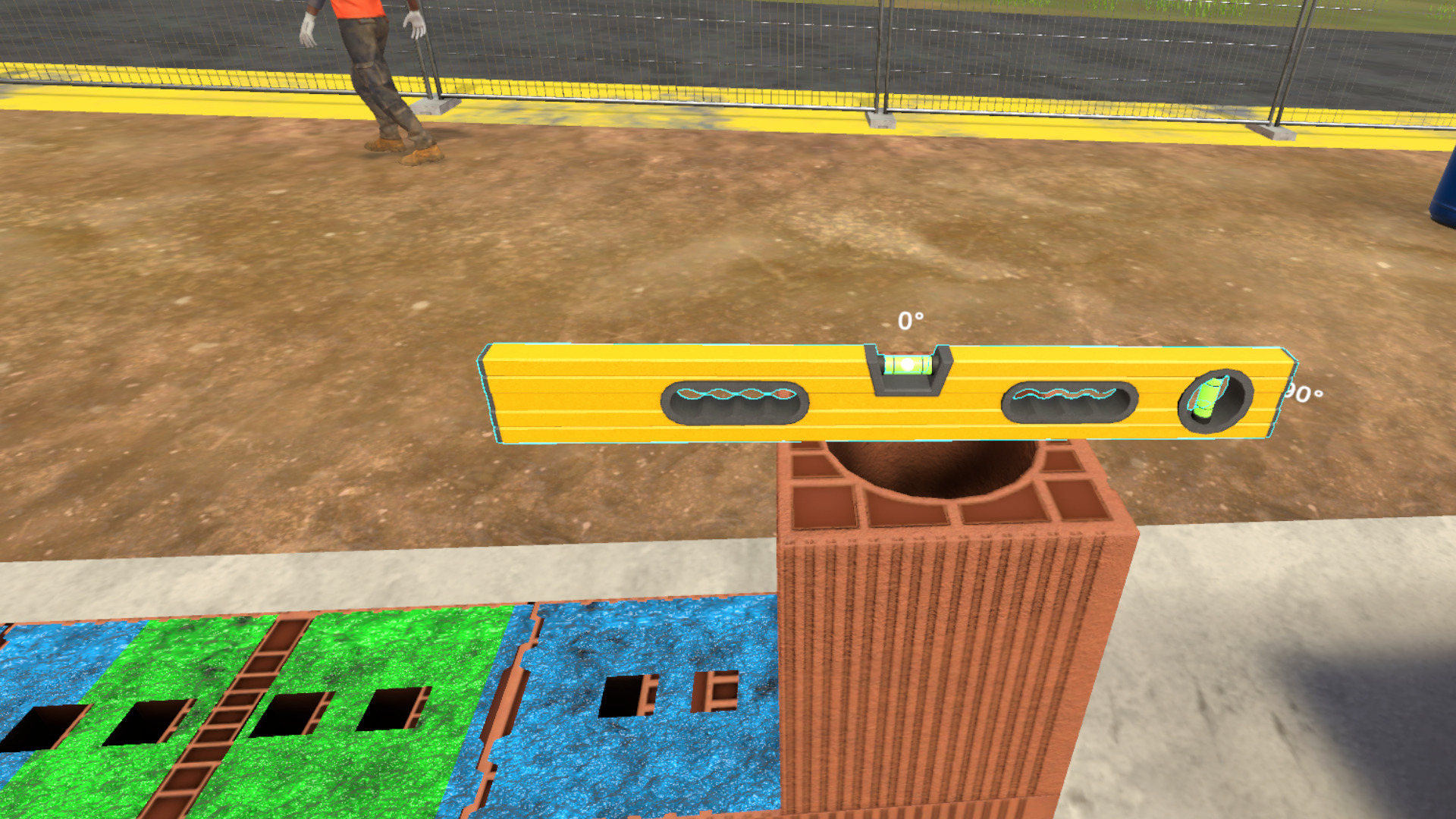
Repeat this manipulation with a standard brick on the other side of the row.
Place the mason’s line on one of the two bricks previously positioned.
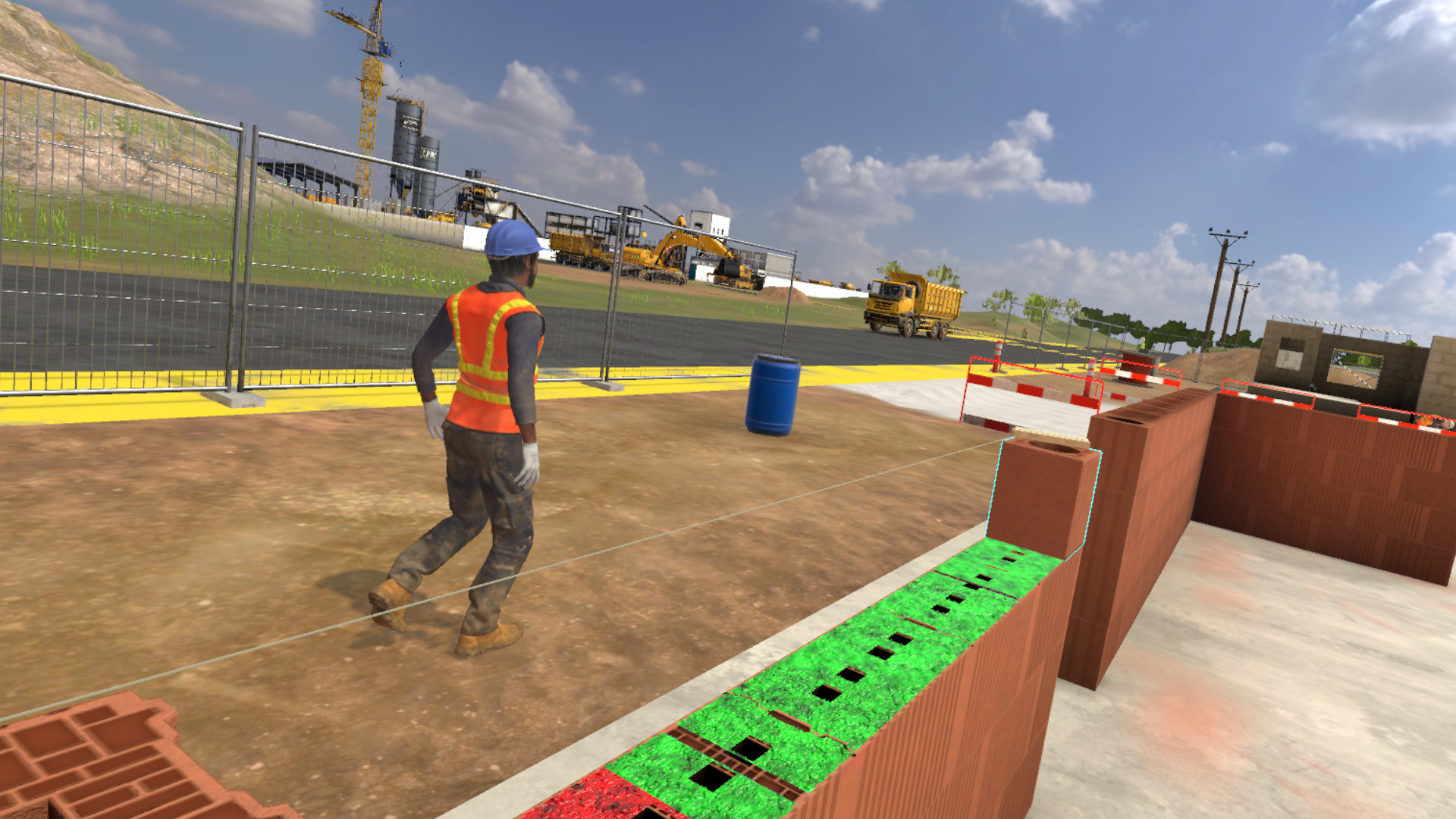
Now continue the placement of the other bricks to finalize the wall.
|
Note
|
The bricks must be laid in alternation one after the other.
|
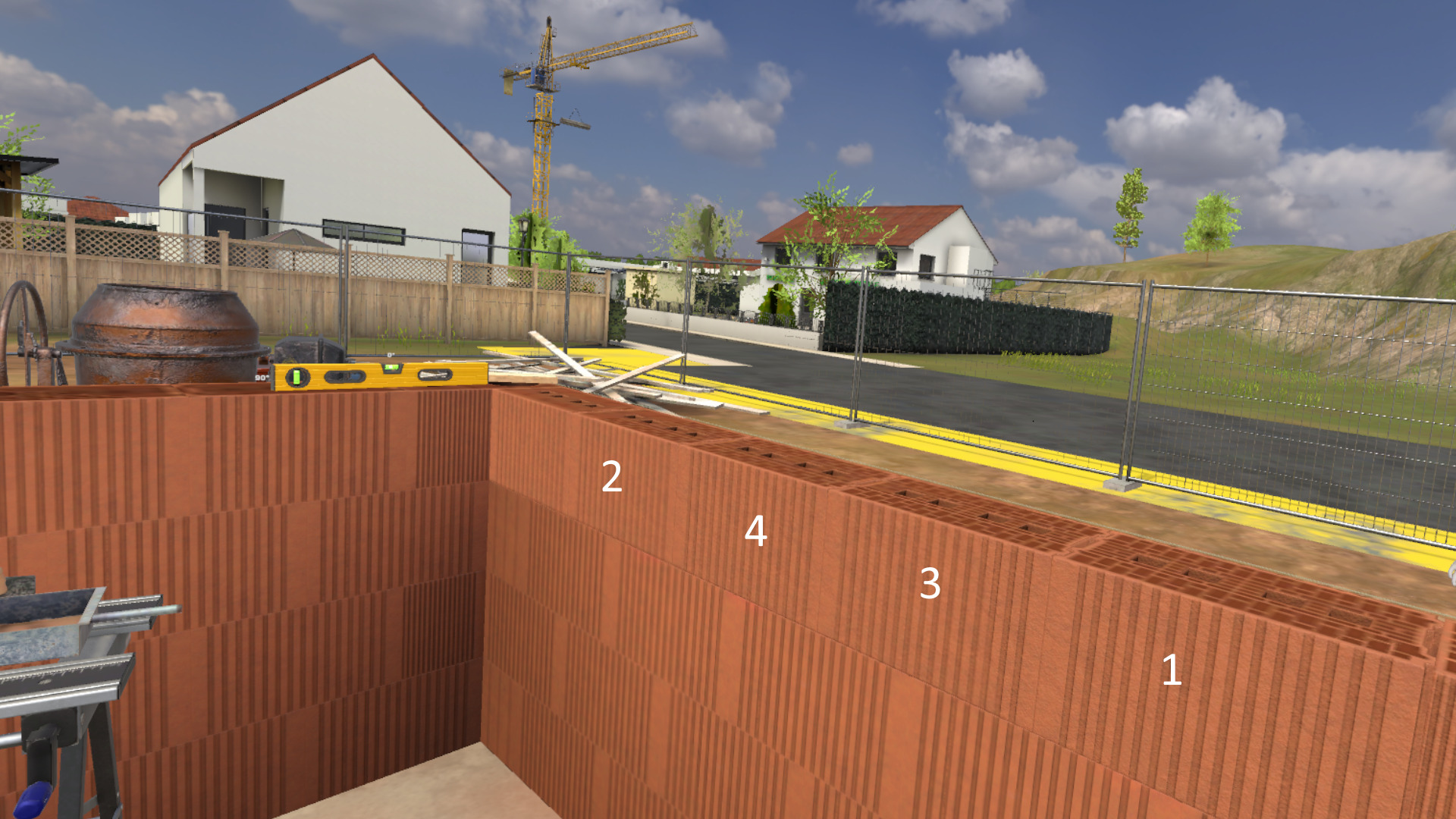
When the wall is built, talk to the team leader to finish the exercise.
4.2.3. Exercise Evaluation Criteria
Choice of PPE: Evaluates the choice of PPE selected by the user.
Procedure: Validates compliance with the procedure.
 Execution quality: Evaluates the quality of task execution.
5. Electrotechnology Module
5.1. Electrotechnology: Garden Lamp
5.1.1. Exercise Plan
-
Talk to the manager.
-
Talk to the customer.
-
Equip themselves with PPE and take the appropriate equipment for the task from the van.
-
Lock out the luminaire contactor in the LV Main Switchboard room.
-
Replace the luminaire bulb.
-
Turn the lighting back on in the LV Main Switchboard room.
-
Put away the equipment and report the end of the intervention to the customer.
-
Talk to the partner.
-
Fill out the self-check sheet.
5.1.2. Scenario Progress
The user begins the scenario next to a van with a bucket, in the parking lot of a pharmacy. They are close to a Low Voltage Main Switchboard (LVMS) room and facing their manager.
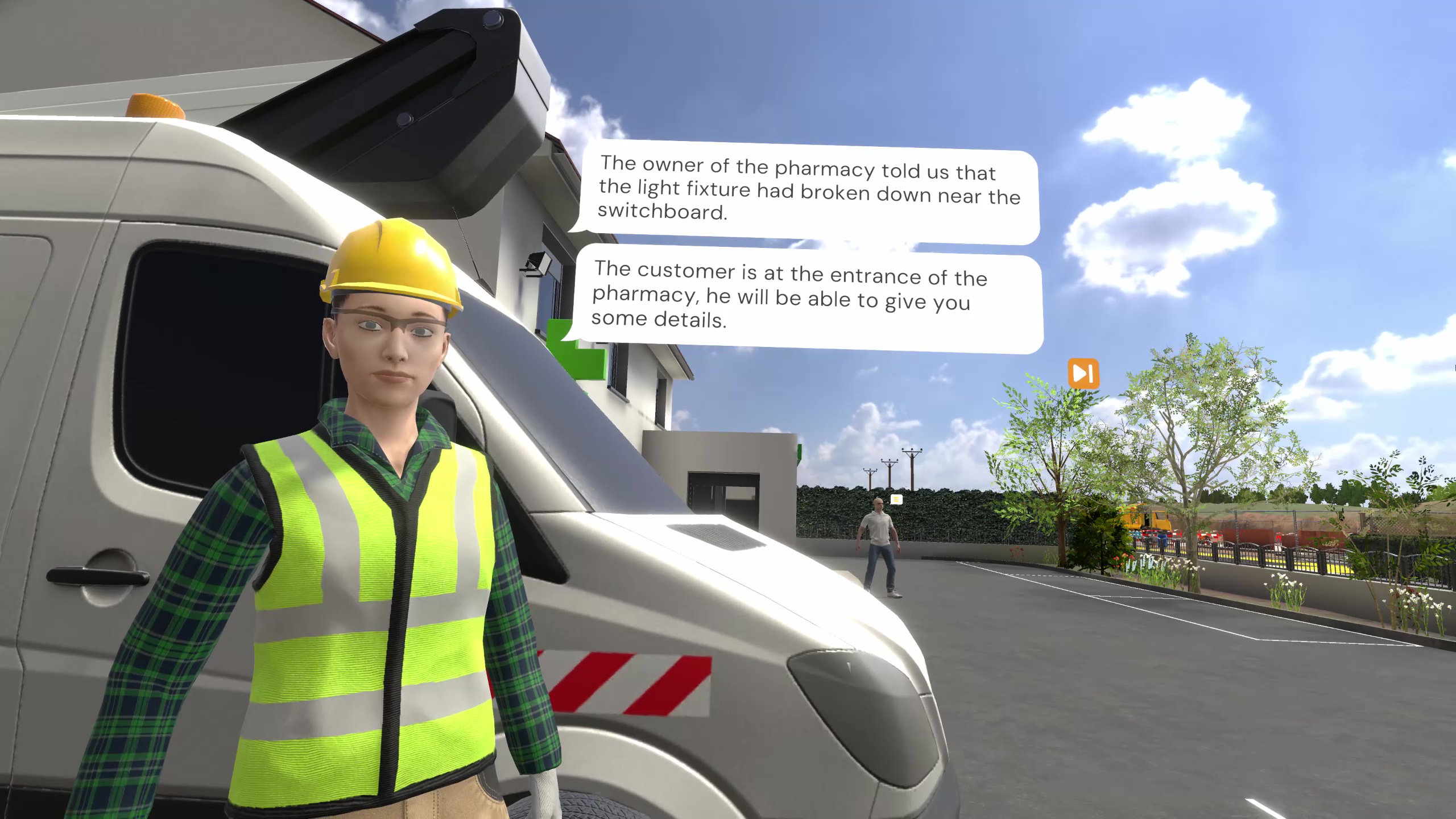
The user must first become aware of the task to be performed by speaking to their superior. A breakdown affects a luminaire near the LVMS and the user will have to replace its bulb safely.
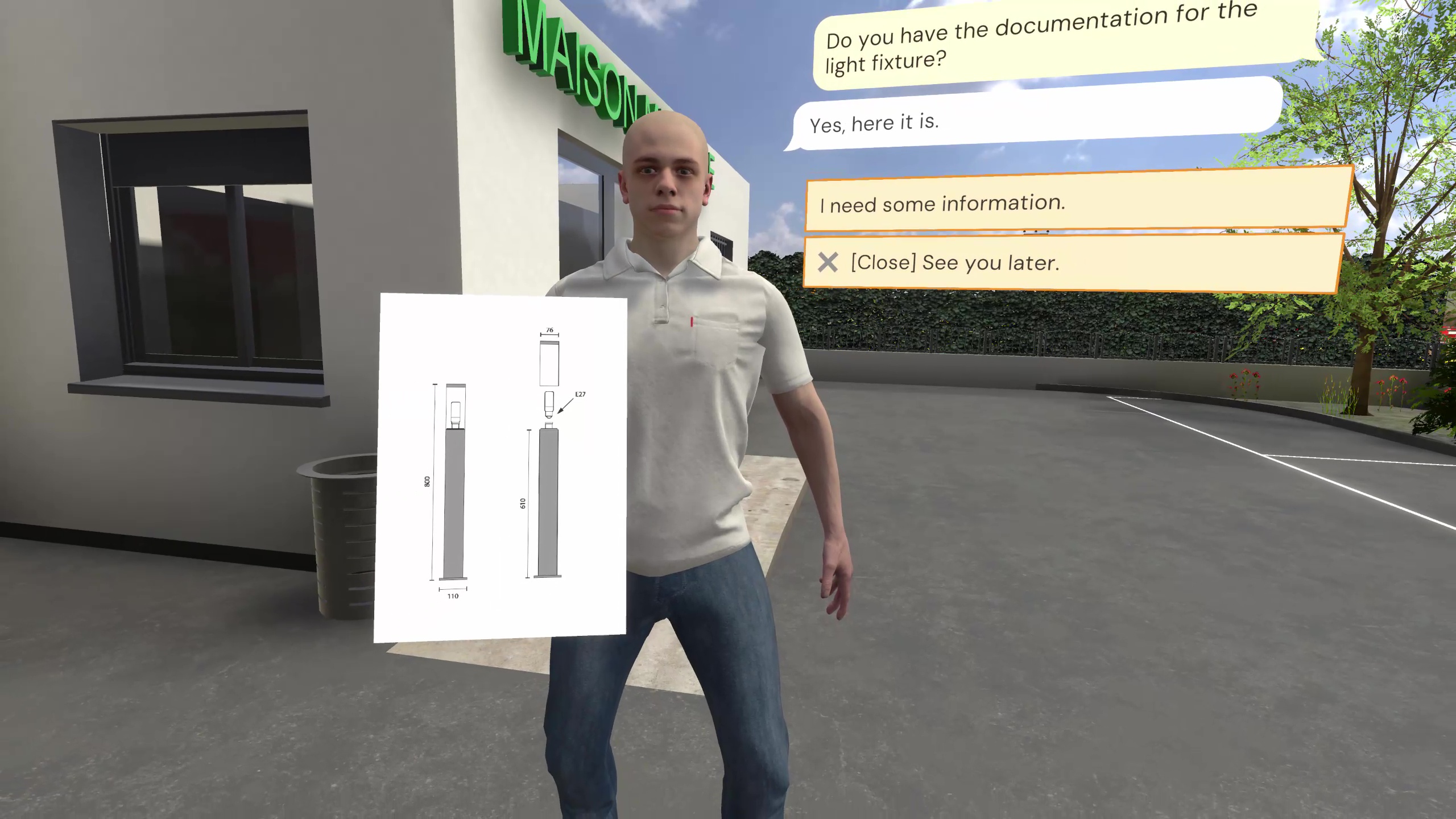
The user must go talk to the customer to obtain more information, they can in particular ask them for the luminaire documentation which specifies the type of bulb to replace, here an E27 bulb.
A cabinet containing all the available PPE is present in the van. To enter, simply touch the side sliding door and press the interaction trigger. It will be necessary to equip the PPE by touching them and then pressing the interaction trigger:
-
Insulated gloves
-
Hard hat (then lower the visor)
-
High-visibility vest
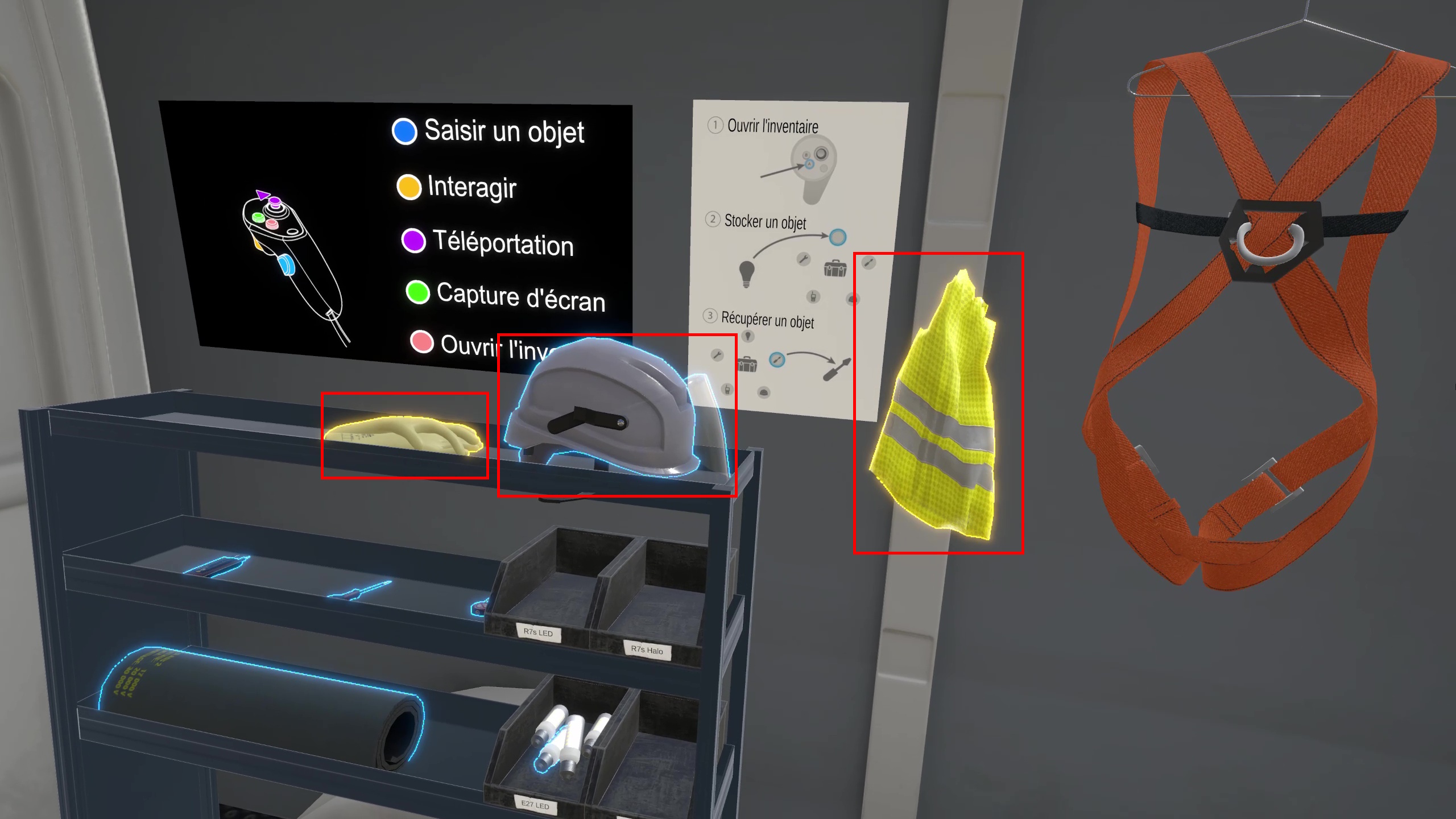
An inventory can be opened by pressing the X or A buttons on the left or right controllers respectively. Objects can be dropped onto the bubbles that appear and then retrieved from these same bubbles. It will be necessary to store in the inventory:
-
The insulating mat
-
Insulated screwdriver
-
Voltage detector (VD)
-
Circuit breaker lockout
-
Lockout padlock
-
LED E27 replacement bulb
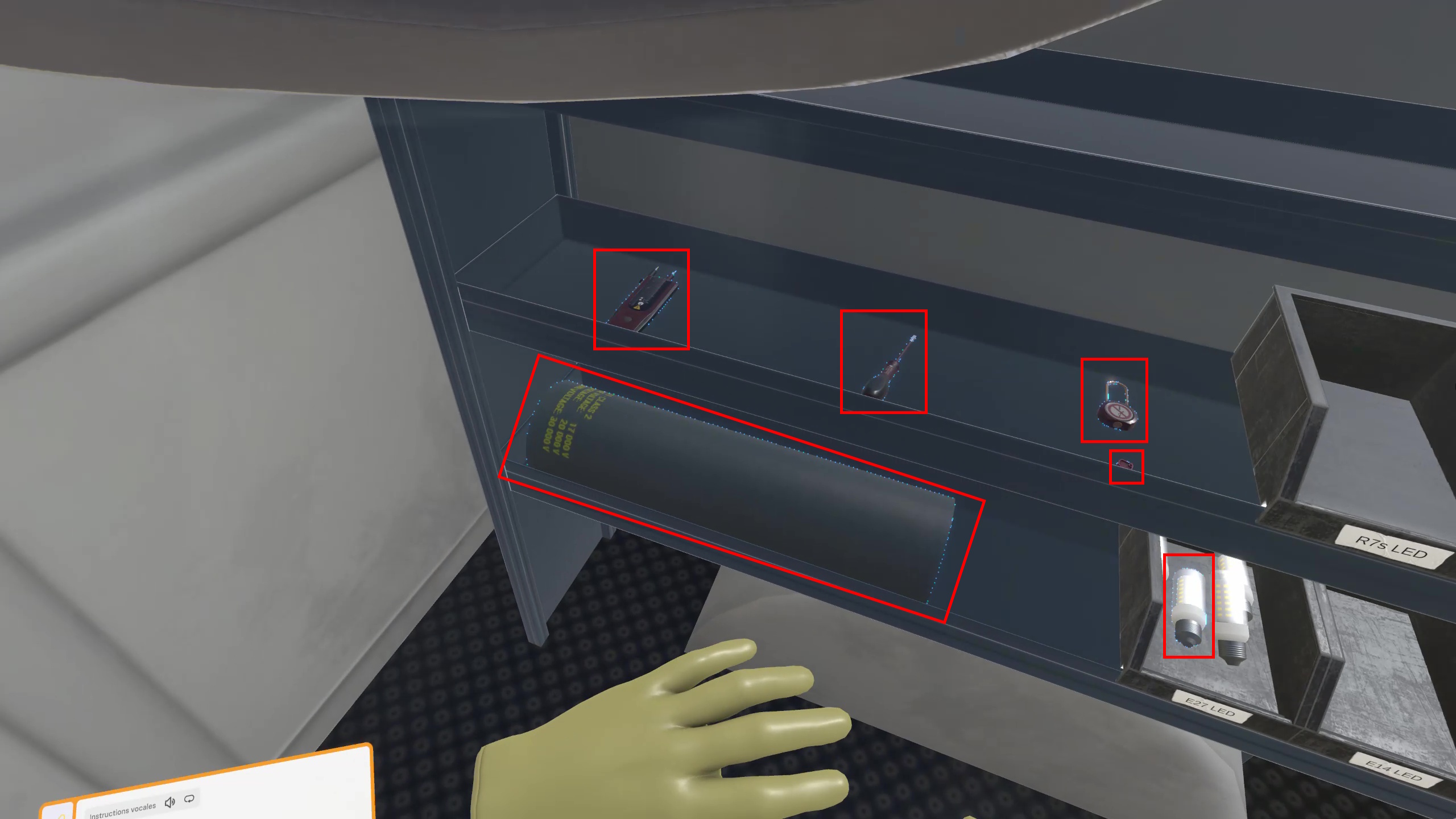
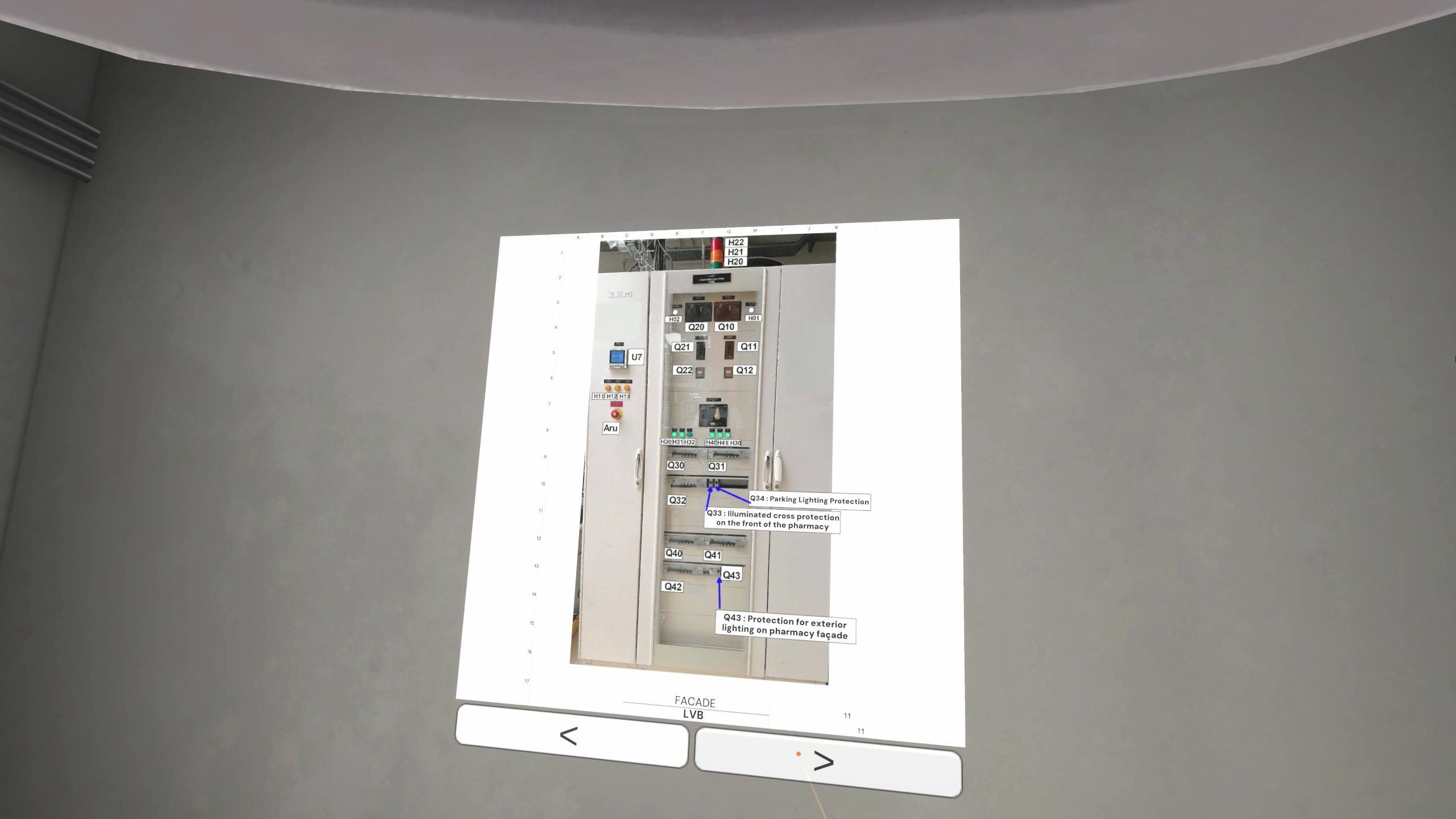
The user must go to the LVMS room, an electrical panel is opposite the door while the technical documentation of the LVMS can be consulted on the right. It is specified in the documentation that the Q34 contactor controls the power supply to the exterior parking lot luminaires. It will therefore be necessary to turn it off and lock it out.
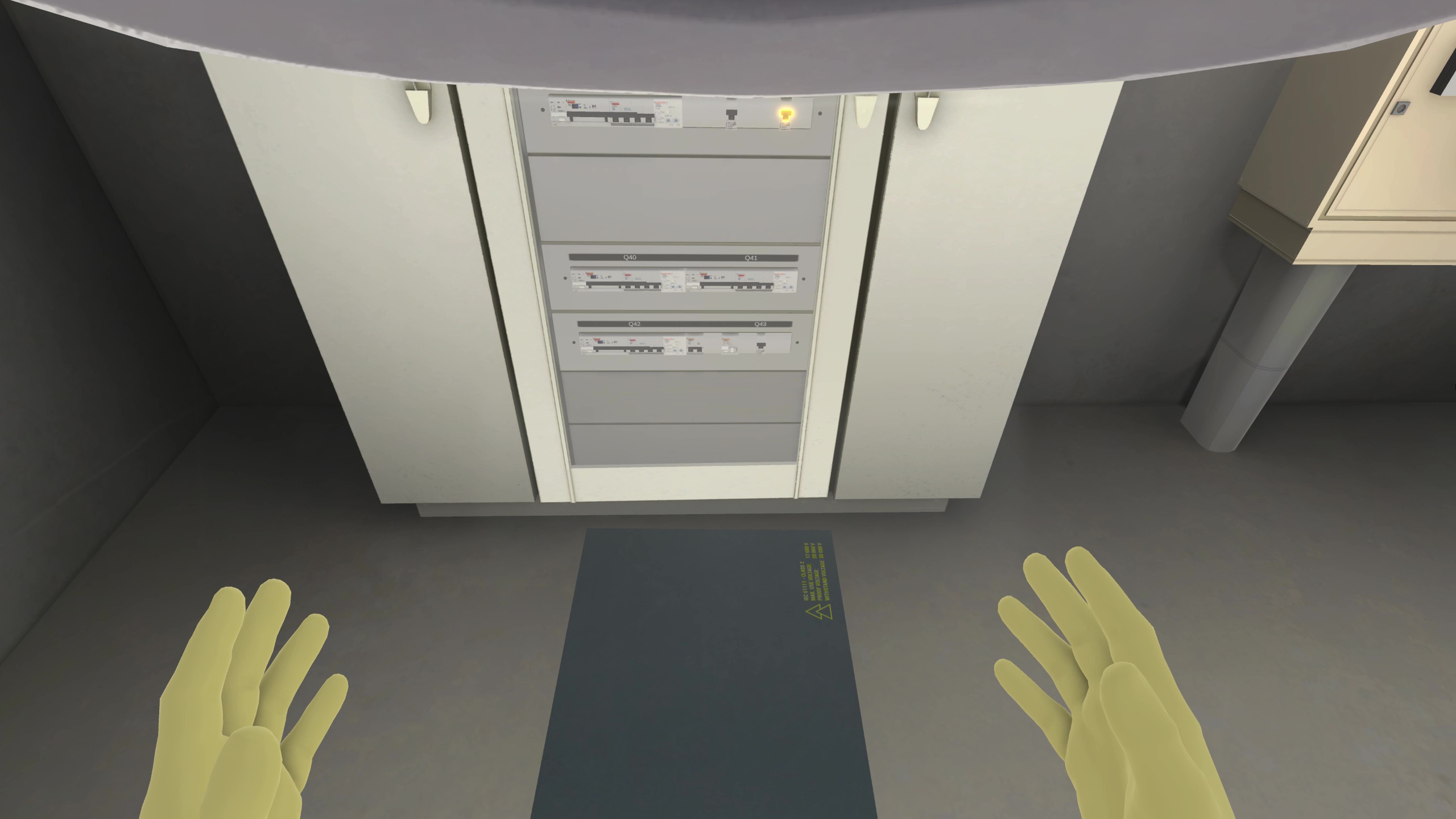
First of all, the insulating mat must be placed on the floor in front of the cabinet.
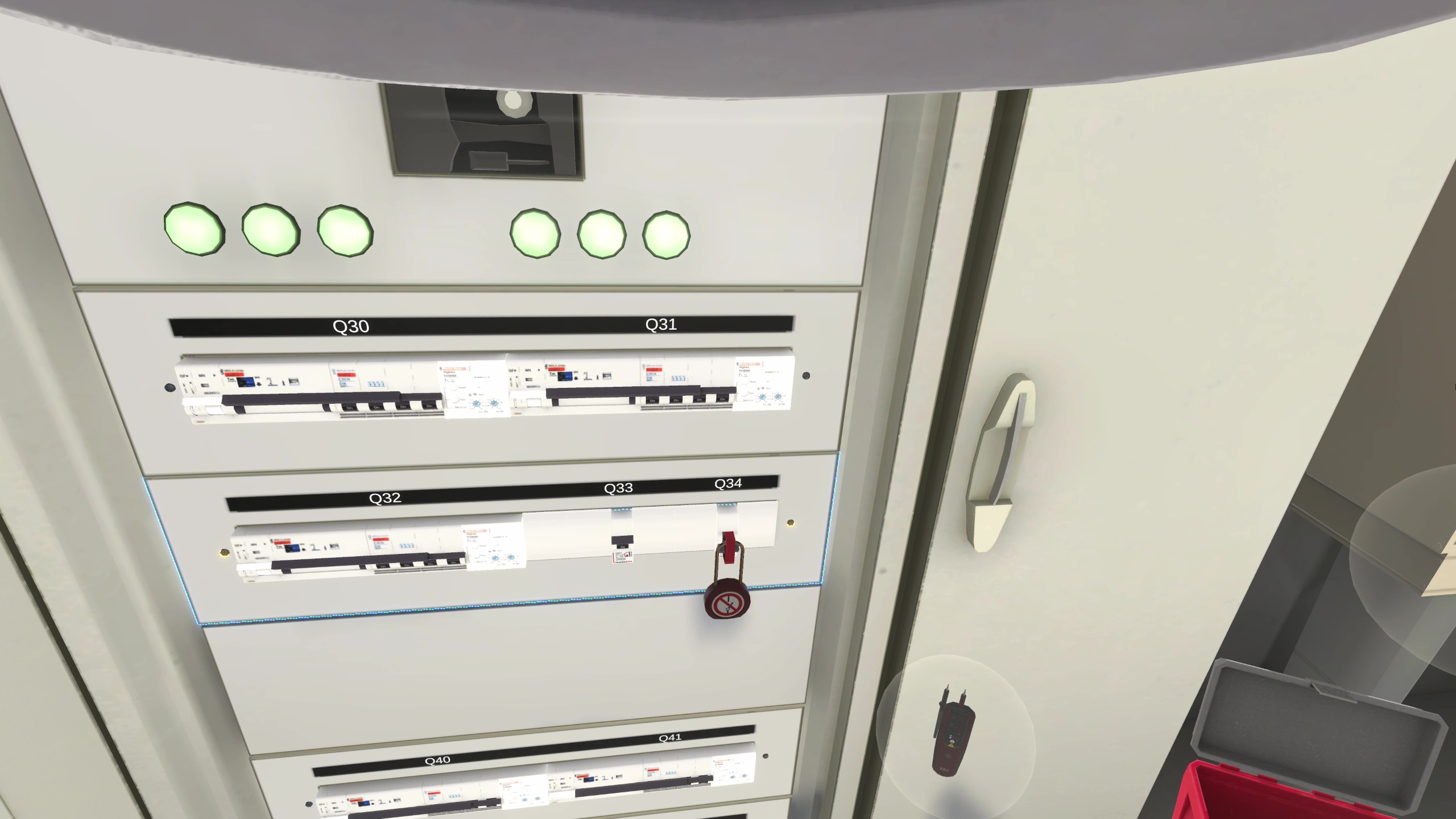
The user can then open the cabinet door and turn off the Q34 contactor. Once turned off, grasp the circuit breaker lockout from the inventory and place it on the Q34 contactor. The lockout padlock can then be placed on the lockout to block interaction with it.
It will now be necessary to grasp the insulated screwdriver to unscrew the faceplate in front of the contactors. This will provide access to the terminals to check the correct power-off.
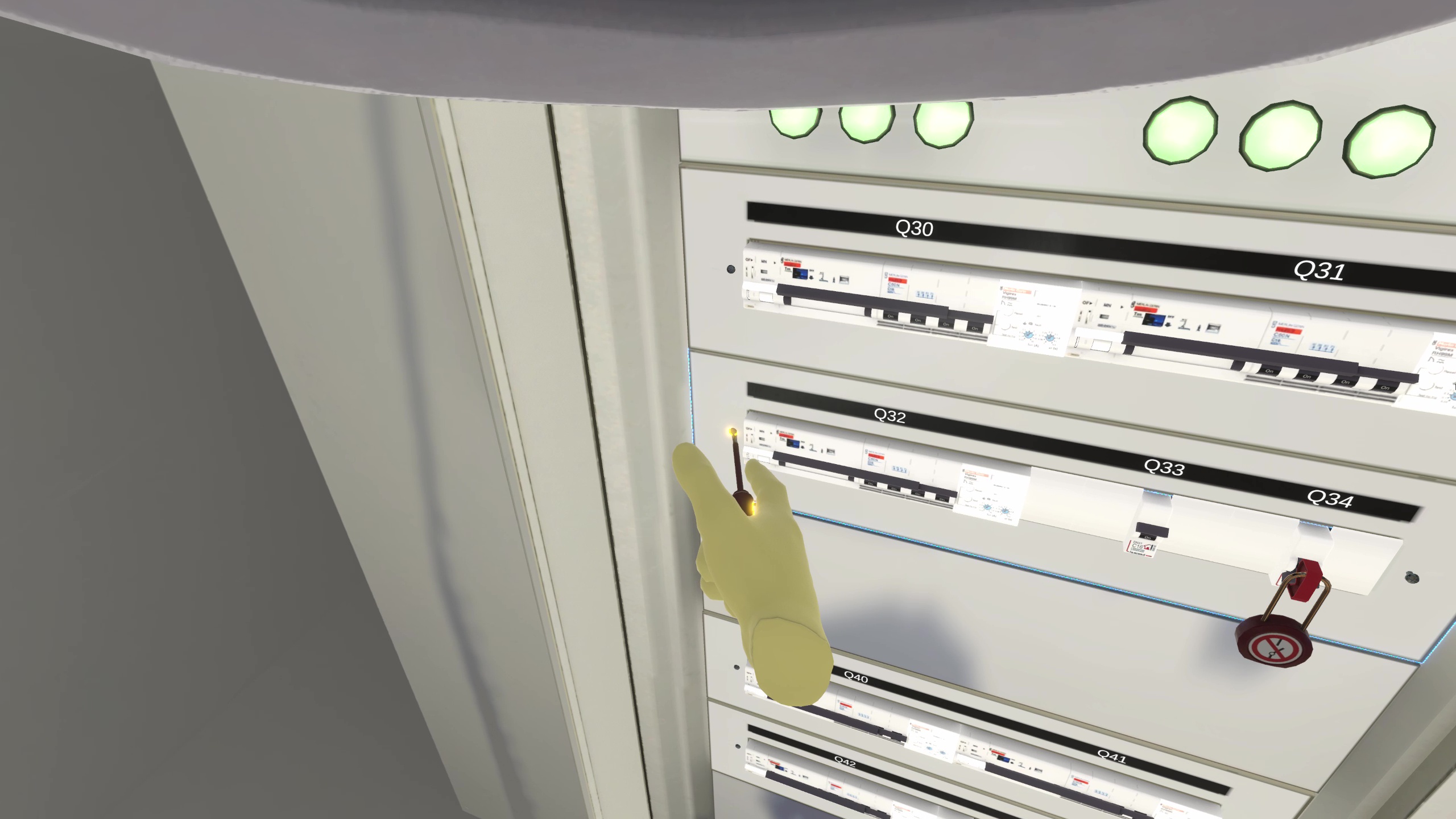
Once the faceplate is unscrewed and removed from the front, it can be placed on the ground.
You must now grab the VD and test for the absence of voltage at the contactor output. To do this, you must start with a VD self-test to verify its proper functioning. This involves touching the two tips together and confirming with the LEDs and a sound that the device is functioning correctly.
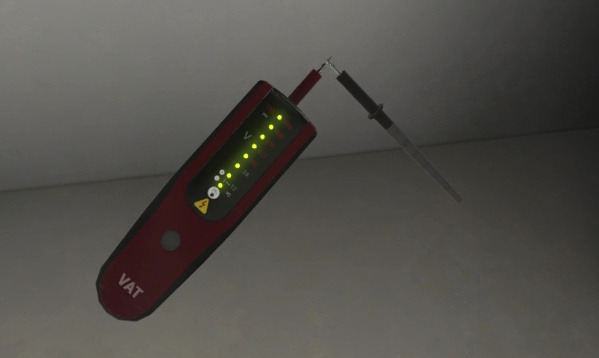
It is then necessary to place the VD tips on different terminals in pairs to check for the presence of current:
-
Input phase (top right of the contactor) and earth: Voltage is present
-
Input neutral (top left of the contactor) and earth: No voltage
-
Output neutral (bottom left of the contactor) and earth: No voltage
-
Output phase (bottom right of the contactor) and earth: No voltage
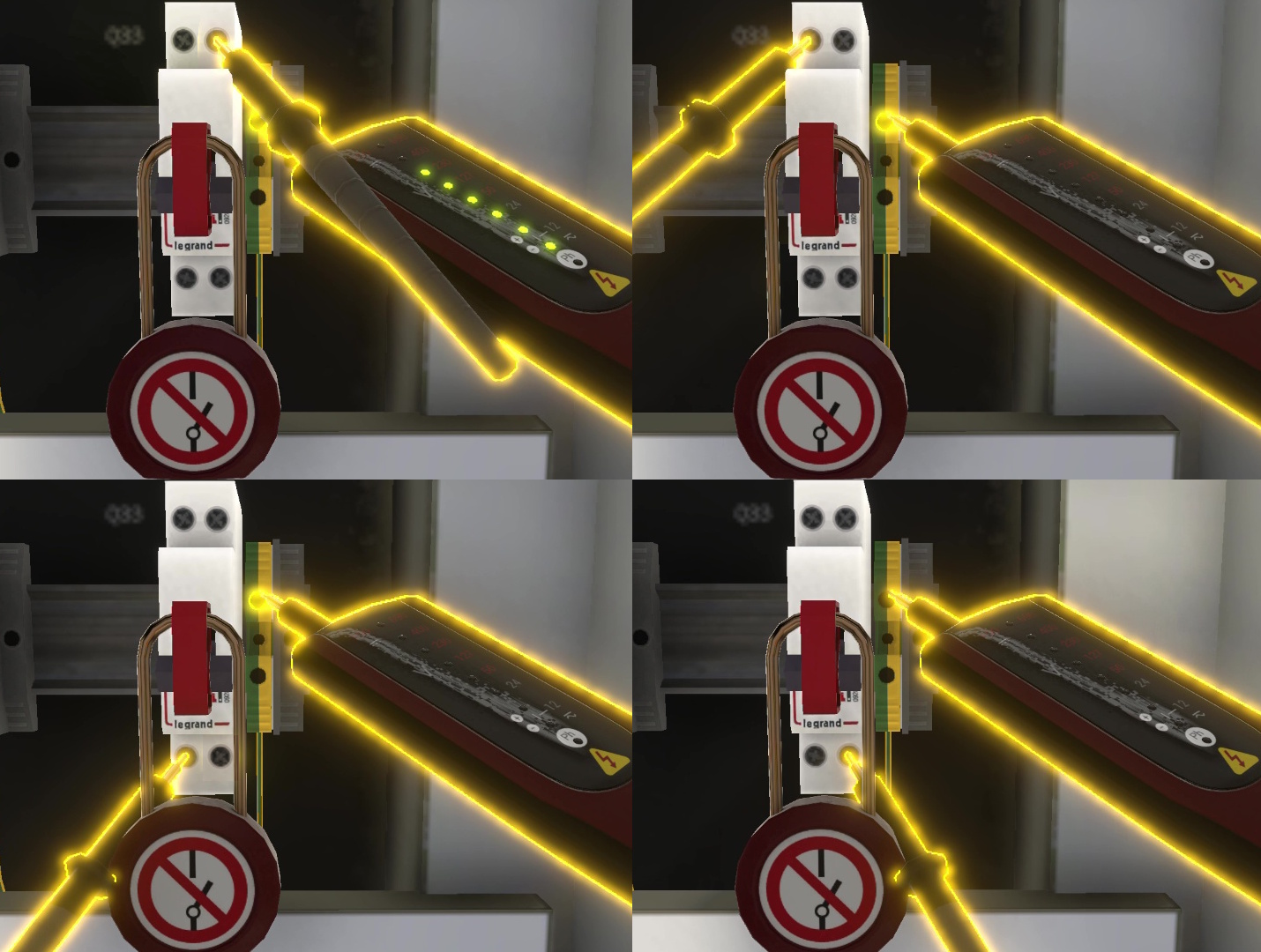
This demonstrates the absence of current at the contactor output. You must now perform another self-test of the device to confirm that it is still working and thus validate the latest absence of voltage measurement.
The user must now replace the faceplate, screw the two screws at its ends, and then close the LVMS door.
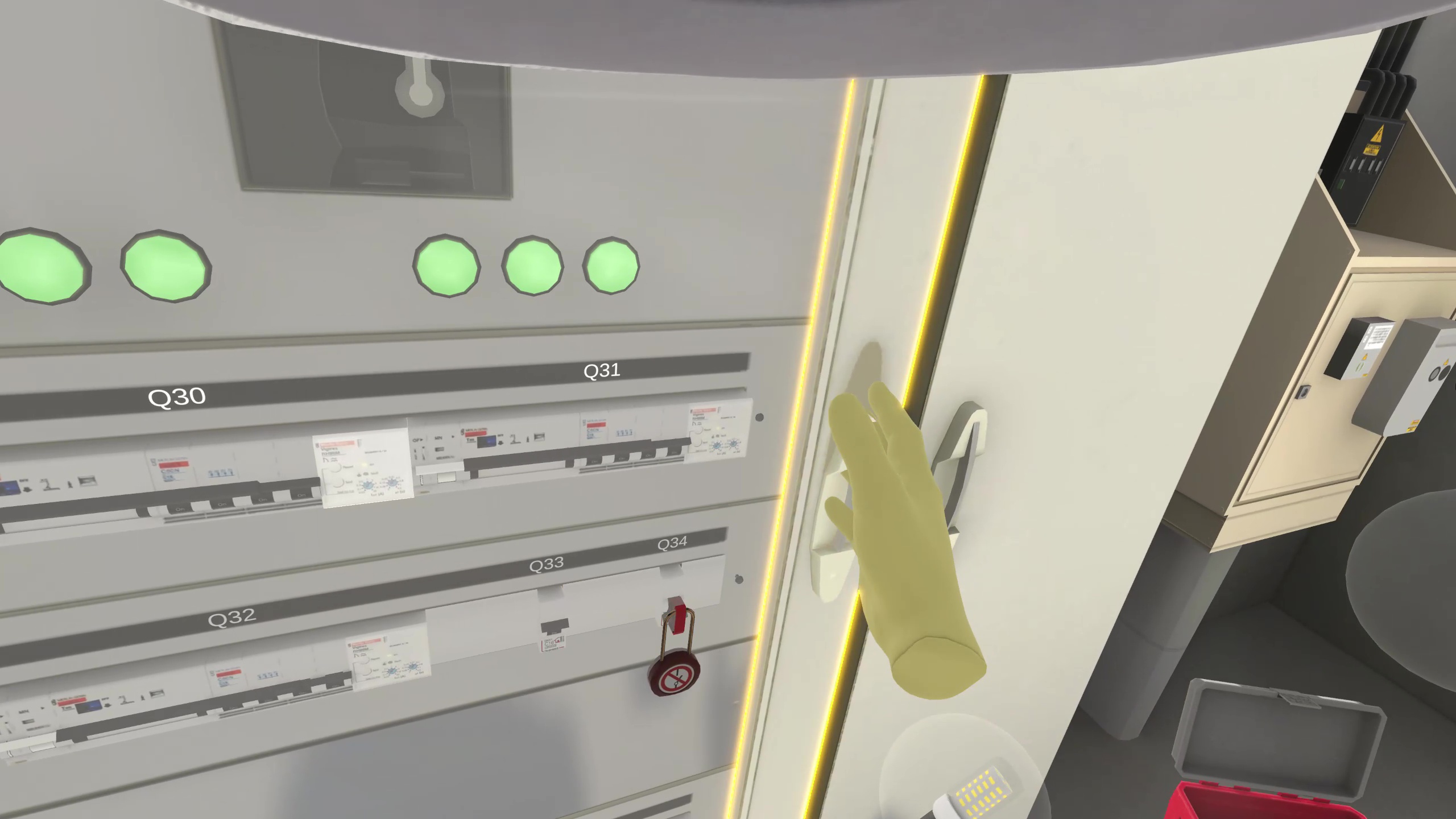
The user must go out and lift the upper cover of the luminaire to remove the bulb. They can store it in their inventory, place the new LED E27 bulb in the place of the old defective bulb, and then replace the cover.
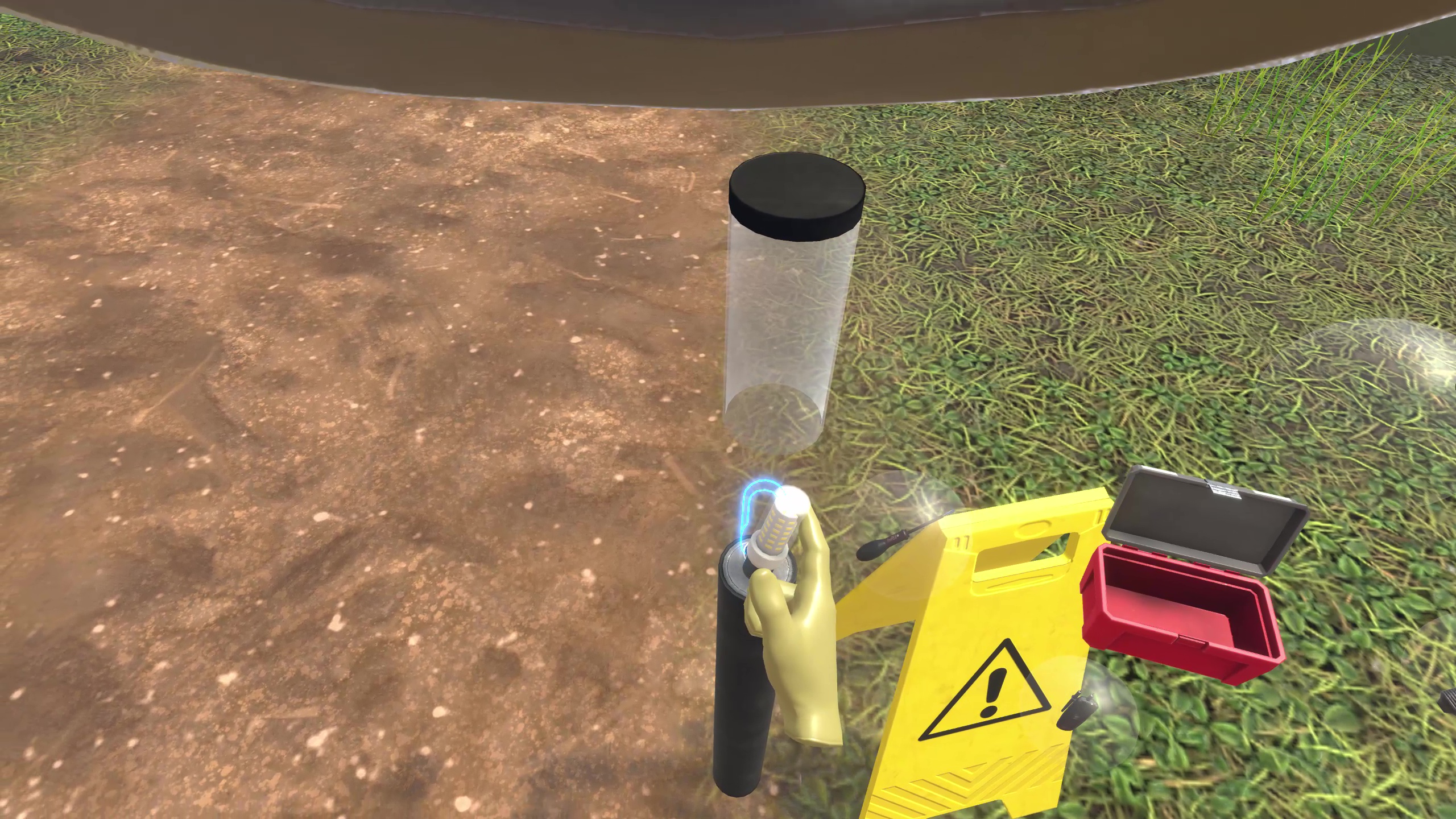
They must then return to the LVMS room, remove the lockout padlock and the circuit breaker lockout and rearm the latter to turn the parking lot lighting back on before closing the door.
Once this is done, they can remove the insulating mat and put it back in their inventory.
The customer must be notified of the end of the intervention, after which it is necessary to go back to the manager and ask for the self-check sheet.
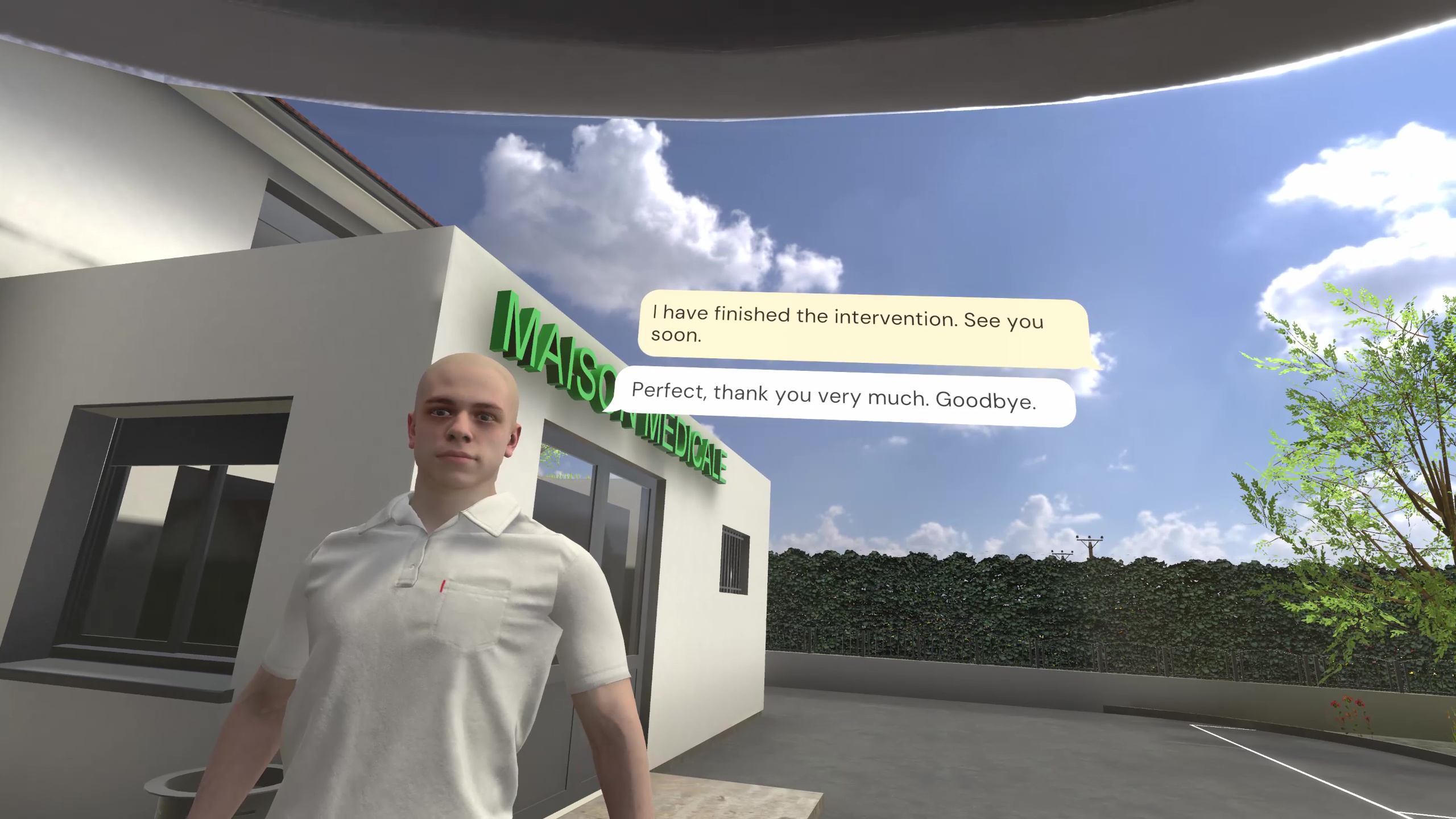
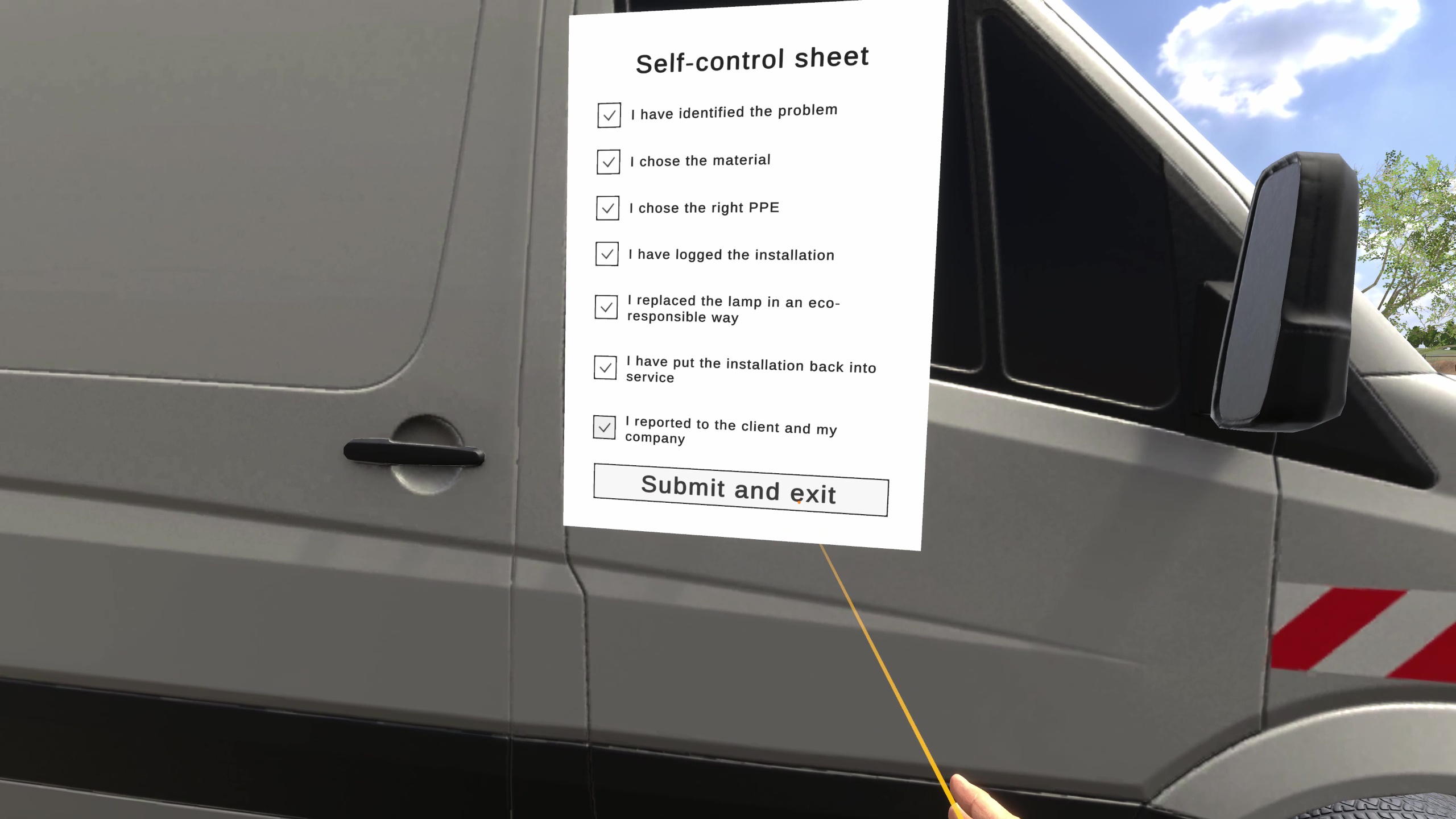
Filling it out ends the exercise.
5.1.3. Exercise Evaluation Criteria
 Safety: Evaluates compliance with safety rules and the procedure for verifying the absence of voltage.
Execution quality: Evaluates the quality of task execution.
Choice of PPE: Evaluates the choice of PPE.
 Communication: Evaluates good communication with the manager and the customer.
5.2. Electrotechnology: Pharmacy Cross
5.2.1. Exercise Plan
-
Talk to the manager.
-
Talk to the customer.
-
Equip themselves with PPE and take the appropriate equipment for the task from the van.
-
Lock out the cross contactor in the LV Main Switchboard room.
-
Replace the cross.
-
Turn the new cross on in the LV Main Switchboard room.
-
Put away the equipment and report the end of the intervention to the customer.
-
Talk to the partner.
-
Fill out the self-check sheet.
5.2.2. Scenario Progress
The user begins the scenario next to a van with a bucket, in the parking lot of a pharmacy. They are close to a Low Voltage Main Switchboard (LVMS) room and facing their manager.
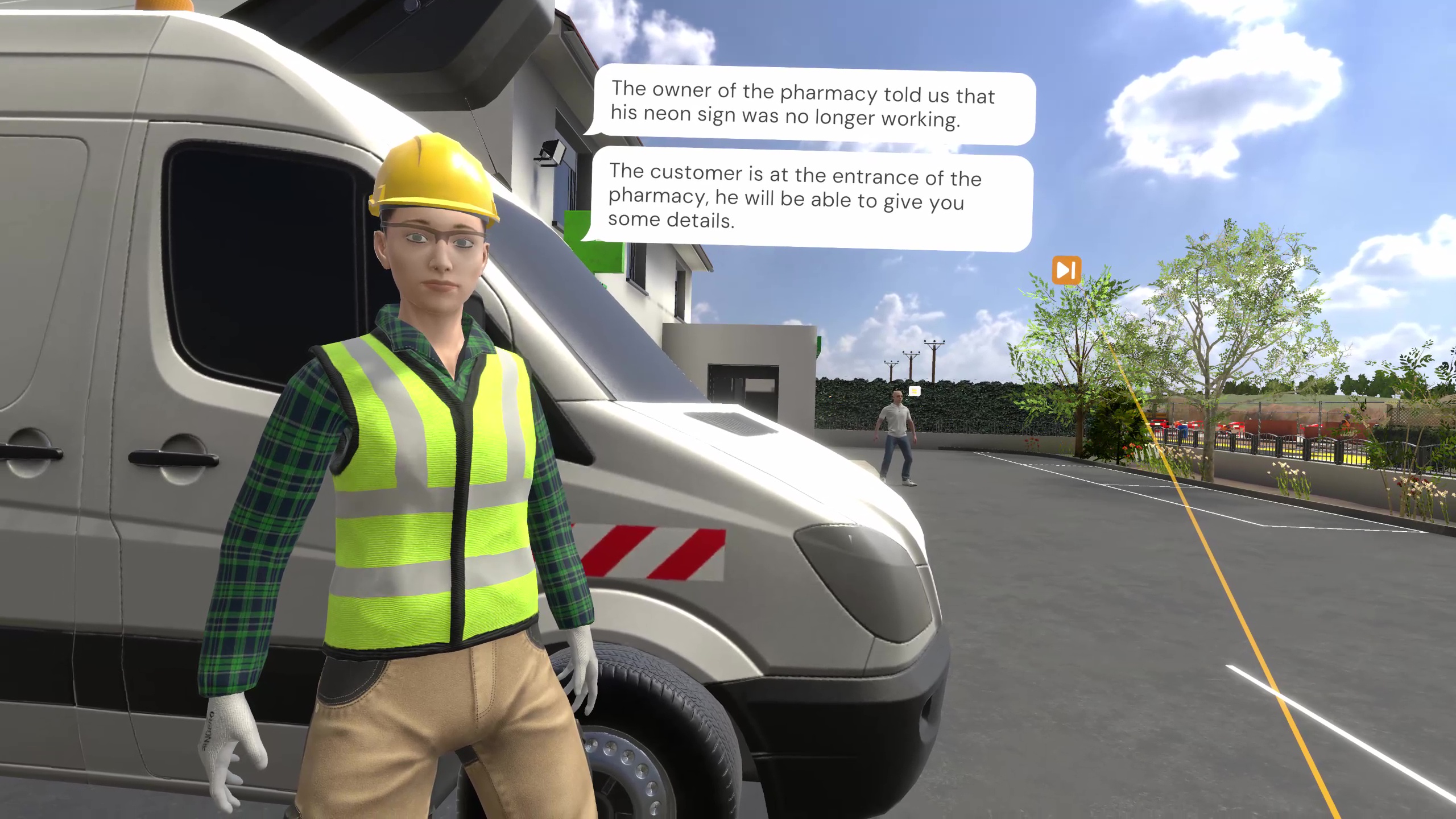
The user must first become aware of the task to be performed by speaking to their superior. A breakdown affects the lighting of a pharmacy cross and the user will have to replace it safely.
The user must go talk to the customer to obtain more information, they can in particular ask them for the illuminated sign documentation which details the replacement procedure.
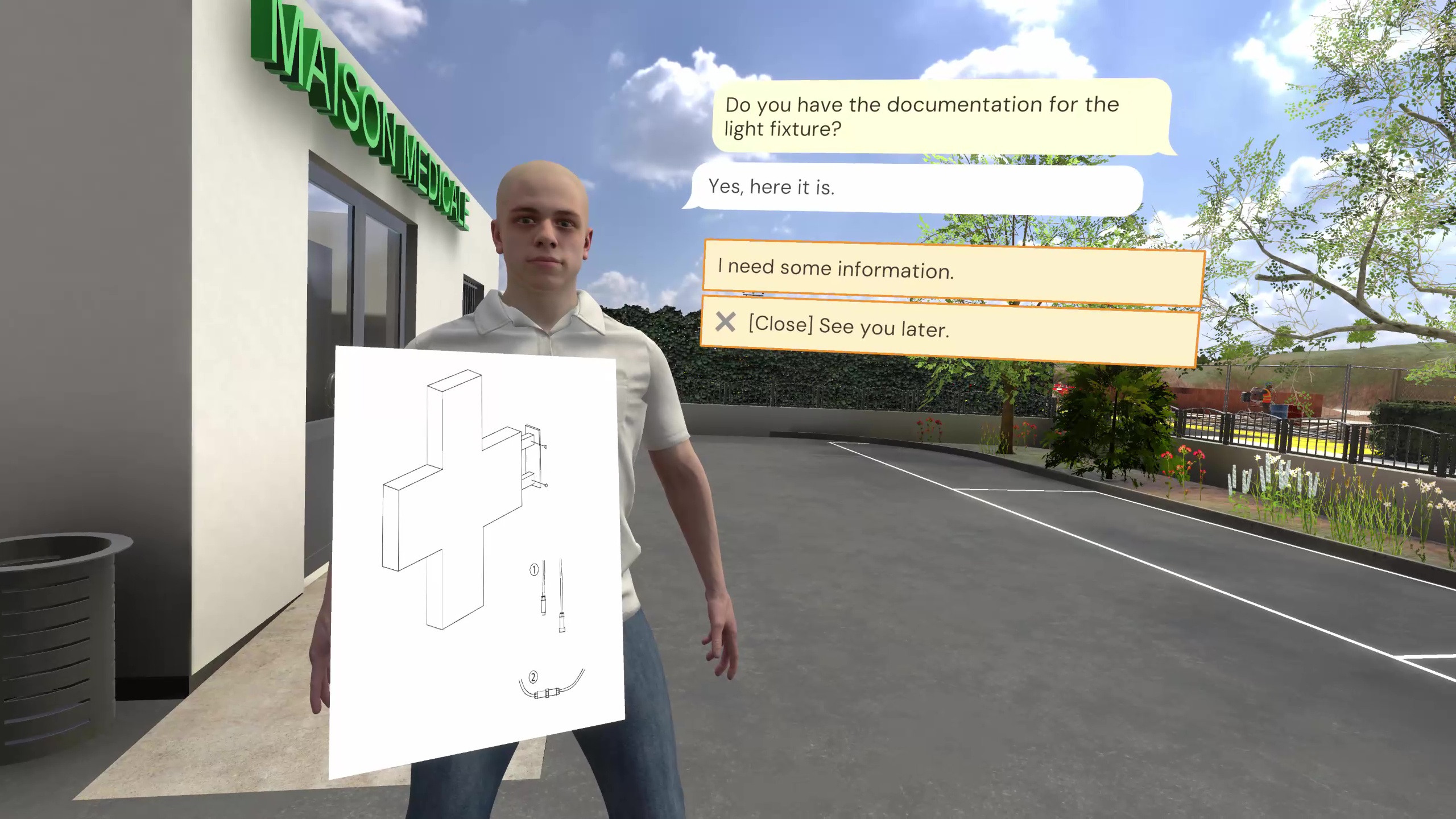
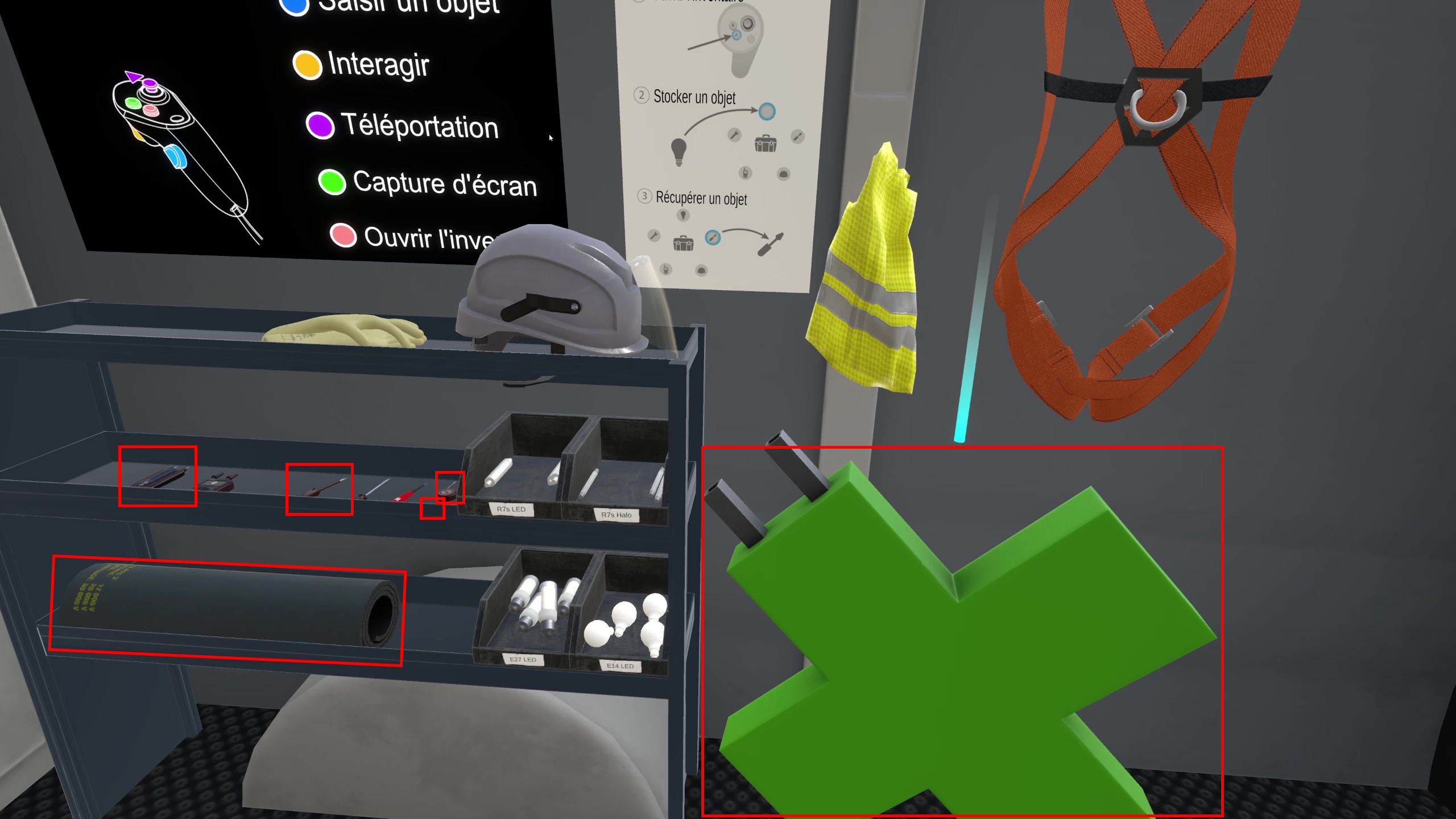
A cabinet containing all the available PPE is present in the van. To enter, simply touch the side sliding door and press the interaction trigger. It will be necessary to equip the PPE by touching them and then pressing the interaction trigger:
-
Insulated gloves
-
Hard hat (then lower the visor)
-
High-visibility vest
-
Harness
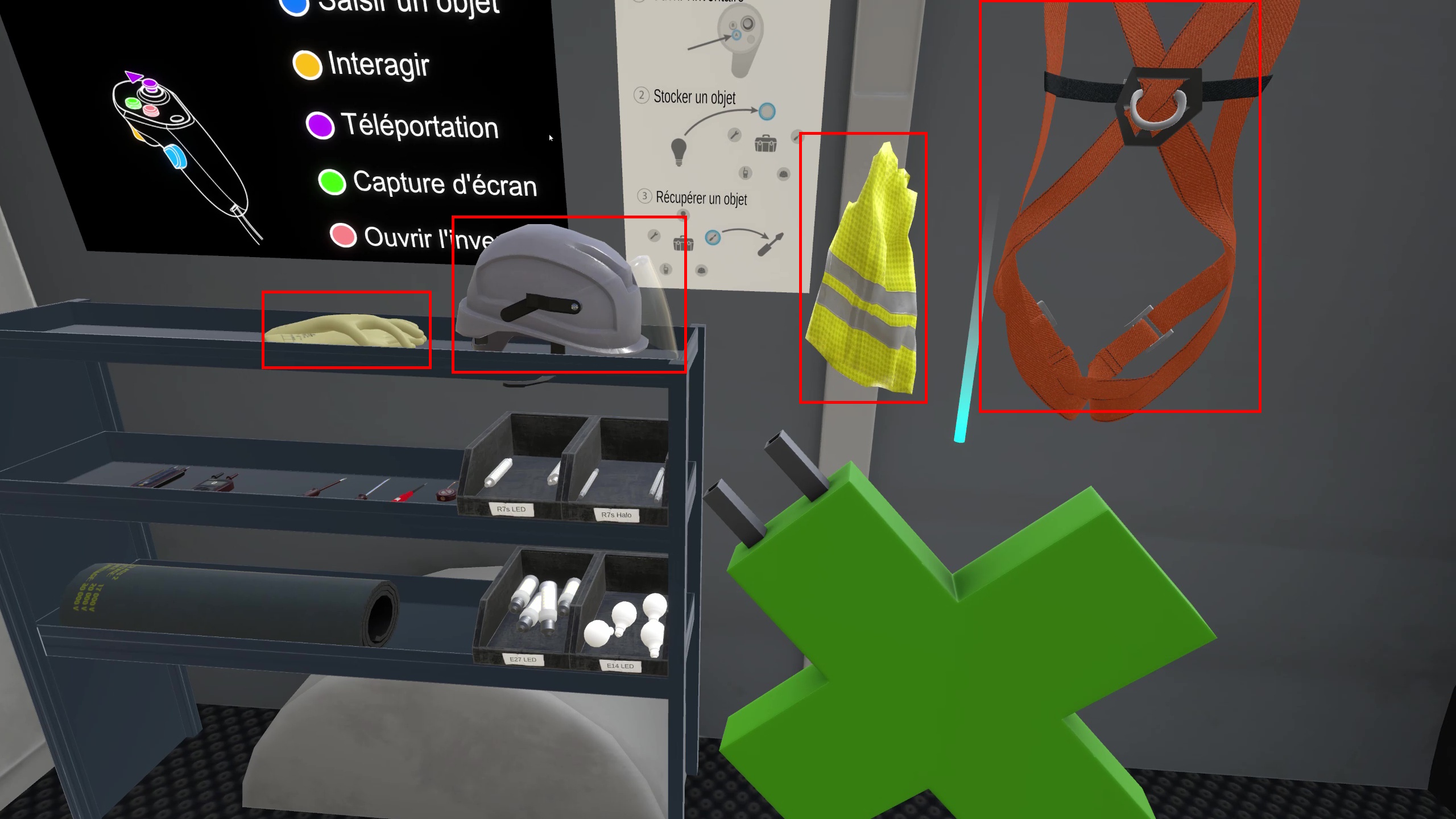
An inventory can be opened by pressing the X or A buttons on the left or right controllers respectively. Objects can be dropped onto the bubbles that appear and then retrieved from these same bubbles. It will be necessary to store in the inventory:
-
The insulating mat
-
Insulated screwdriver
-
Voltage detector (VD)
-
Circuit breaker lockout
-
Lockout padlock
-
Replacement green cross illuminated sign
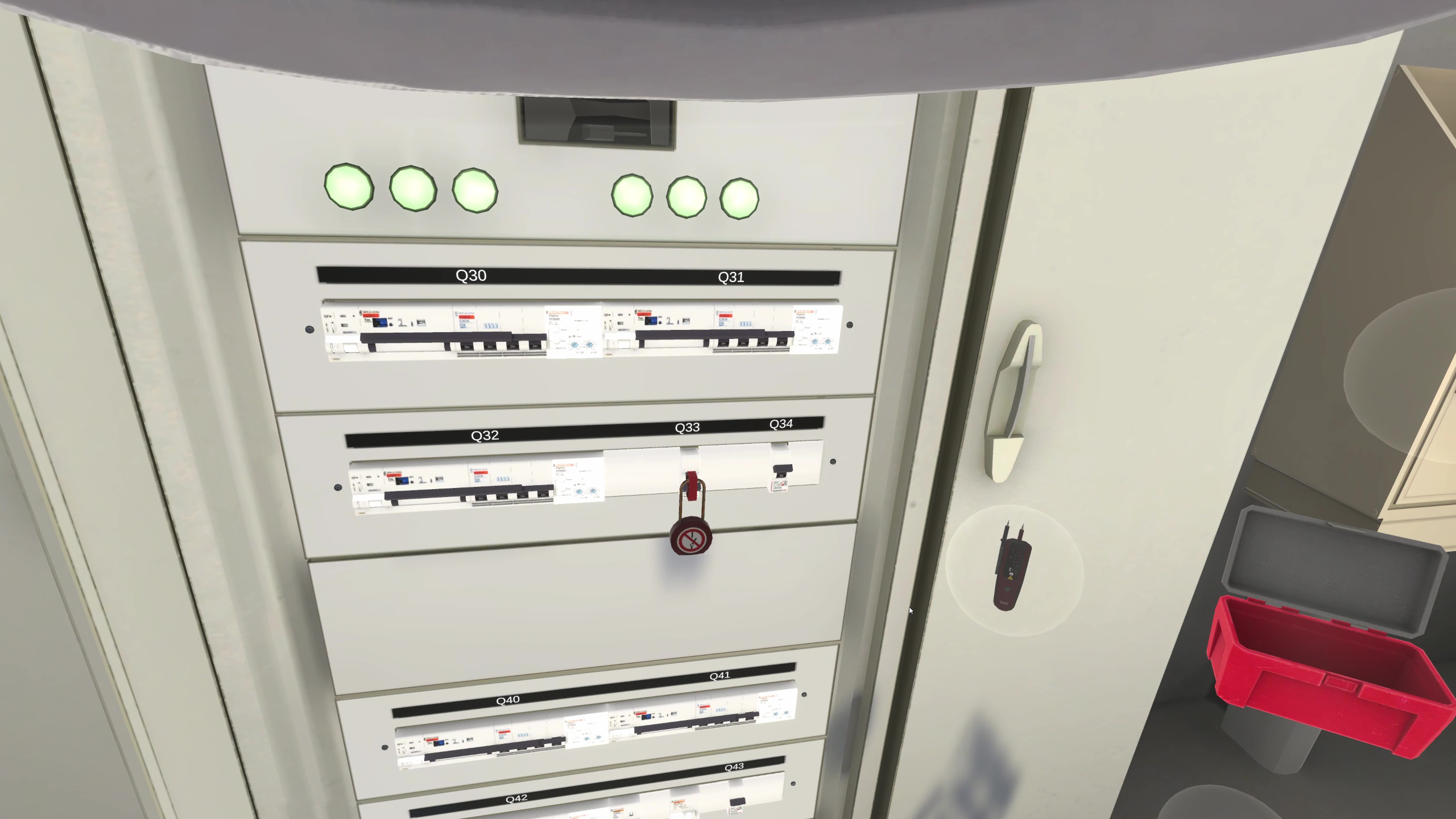
The user must go to the LVMS room, an electrical panel is opposite the door while the technical documentation of the LVMS can be consulted on the right. It is specified in the documentation that the Q33 contactor controls the power supply to the illuminated cross. It will therefore be necessary to turn it off and lock it out.
First of all, the insulating mat must be placed on the floor in front of the cabinet.
The user can then open the cabinet door and turn off the Q33 contactor. Once turned off, grasp the circuit breaker lockout from the inventory and place it on the Q33 contactor. The lockout padlock can then be placed on the lockout to block interaction with it.
It will now be necessary to grasp the insulated screwdriver to unscrew the faceplate in front of the contactors. This will provide access to the terminals to check the correct power-off.
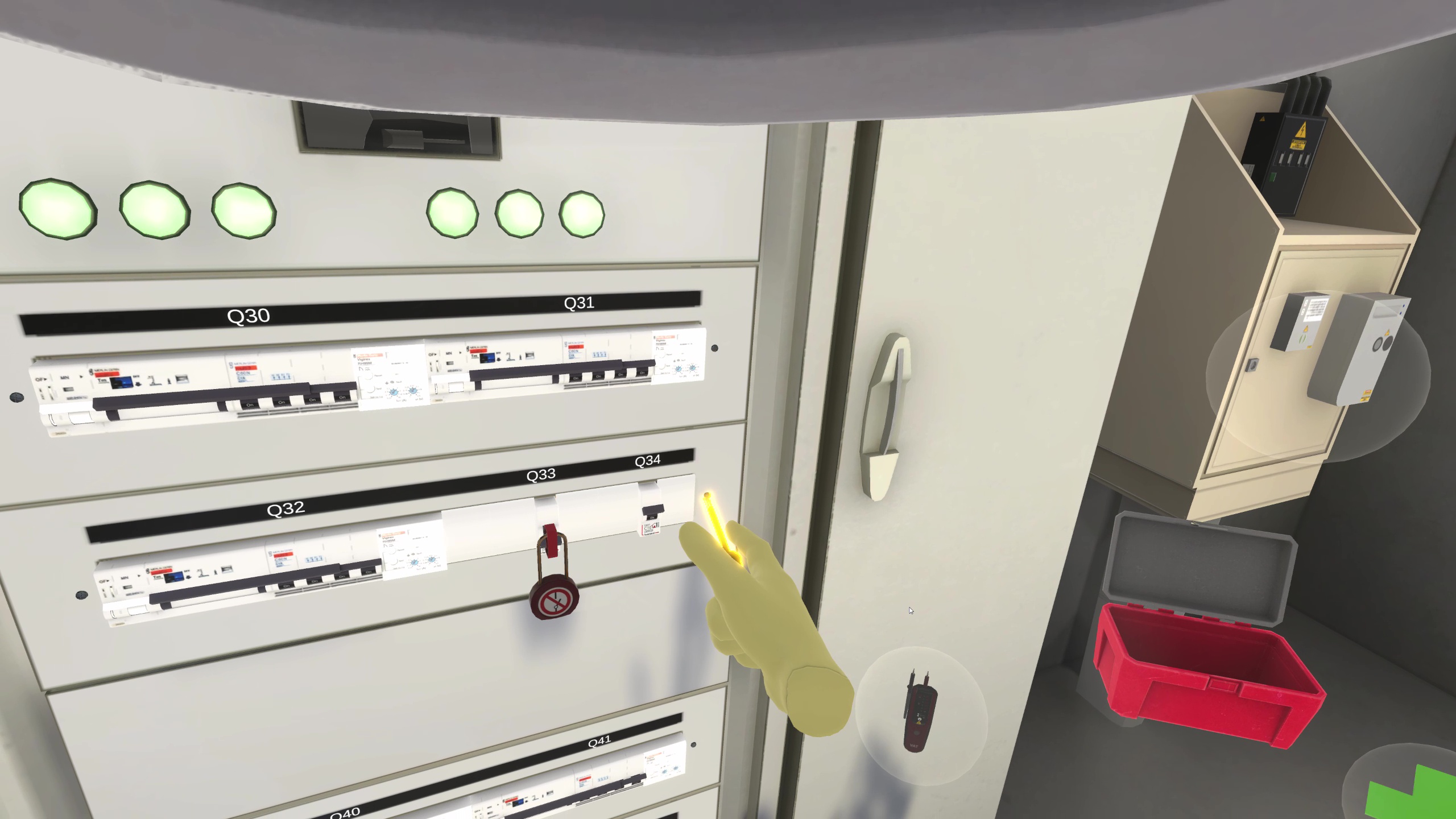
Once the faceplate is unscrewed and removed from the front, it can be placed on the ground.
You must now grab the VD and test for the absence of voltage at the contactor output. To do this, you must start with a VD self-test to verify its proper functioning. This involves touching the two tips together and confirming with the LEDs and a sound that the device is functioning correctly.
It is then necessary to place the VD tips on different terminals in pairs to check for the presence of current:
-
Input phase (top right of the contactor) and earth: Voltage is present
-
Input neutral (top left of the contactor) and earth: No voltage
-
Output neutral (bottom left of the contactor) and earth: No voltage
-
Output phase (bottom right of the contactor) and earth: No voltage
This demonstrates the absence of current at the contactor output. You must now perform another self-test of the device to confirm that it is still working and thus validate the latest absence of voltage measurement.
The user must now replace the faceplate, screw the two screws at its ends, and then close the LVMS door.
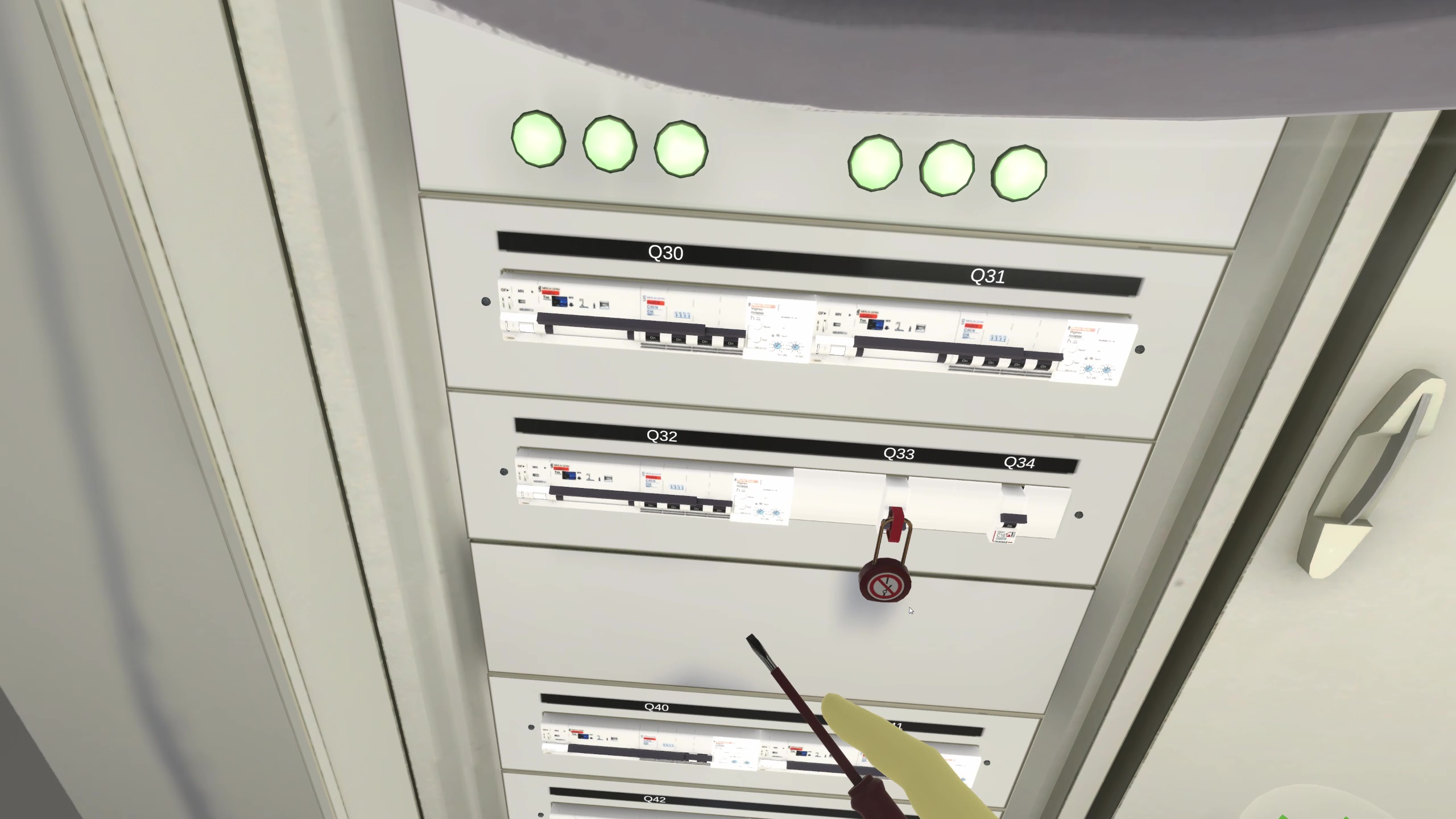
To reach the illuminated sign, the user will have to use the van’s bucket.
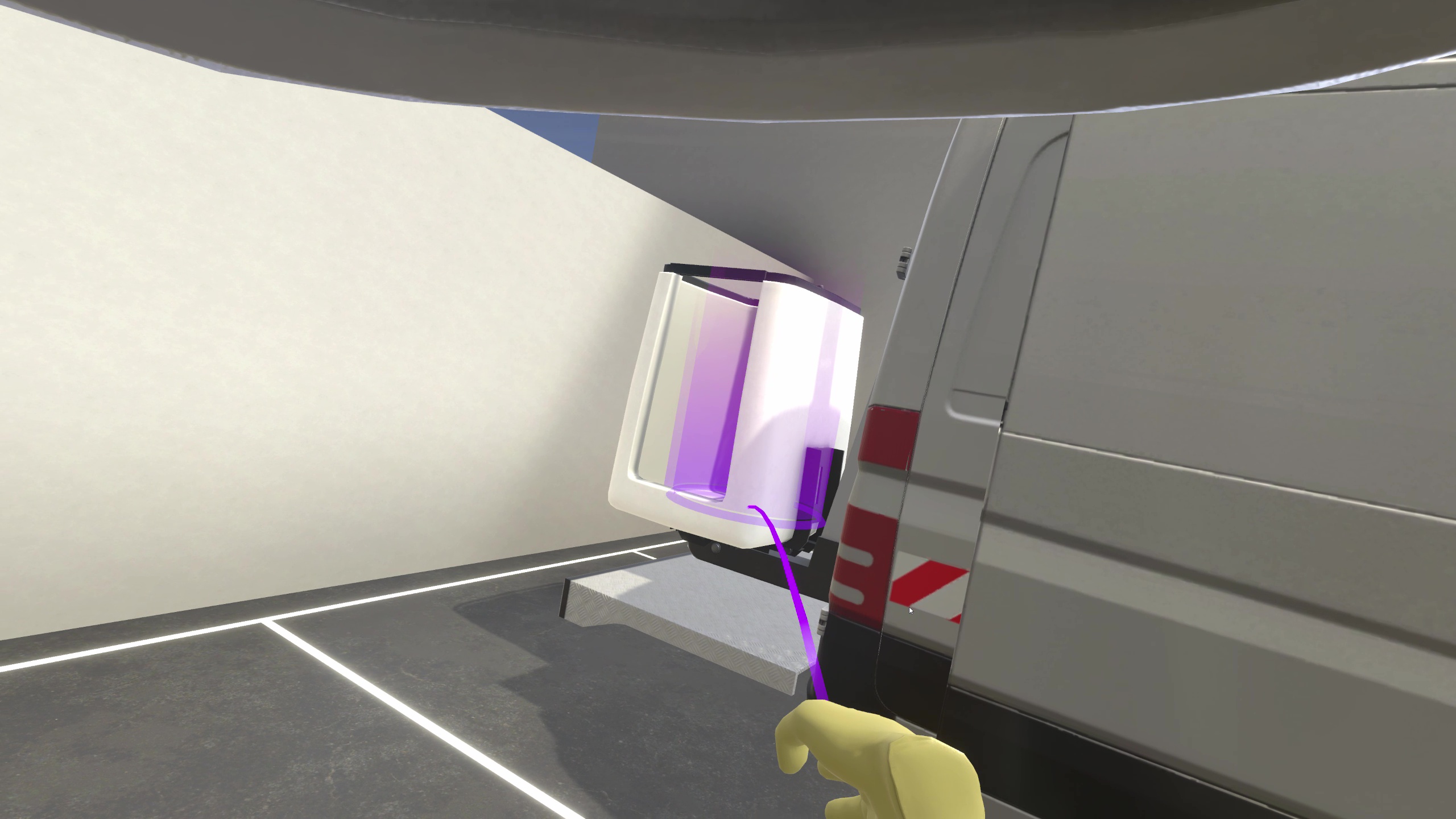
Once on board, pressing the left joystick allows moving up or down. The emergency stop button on the right allows skipping the animation for those prone to motion sickness.
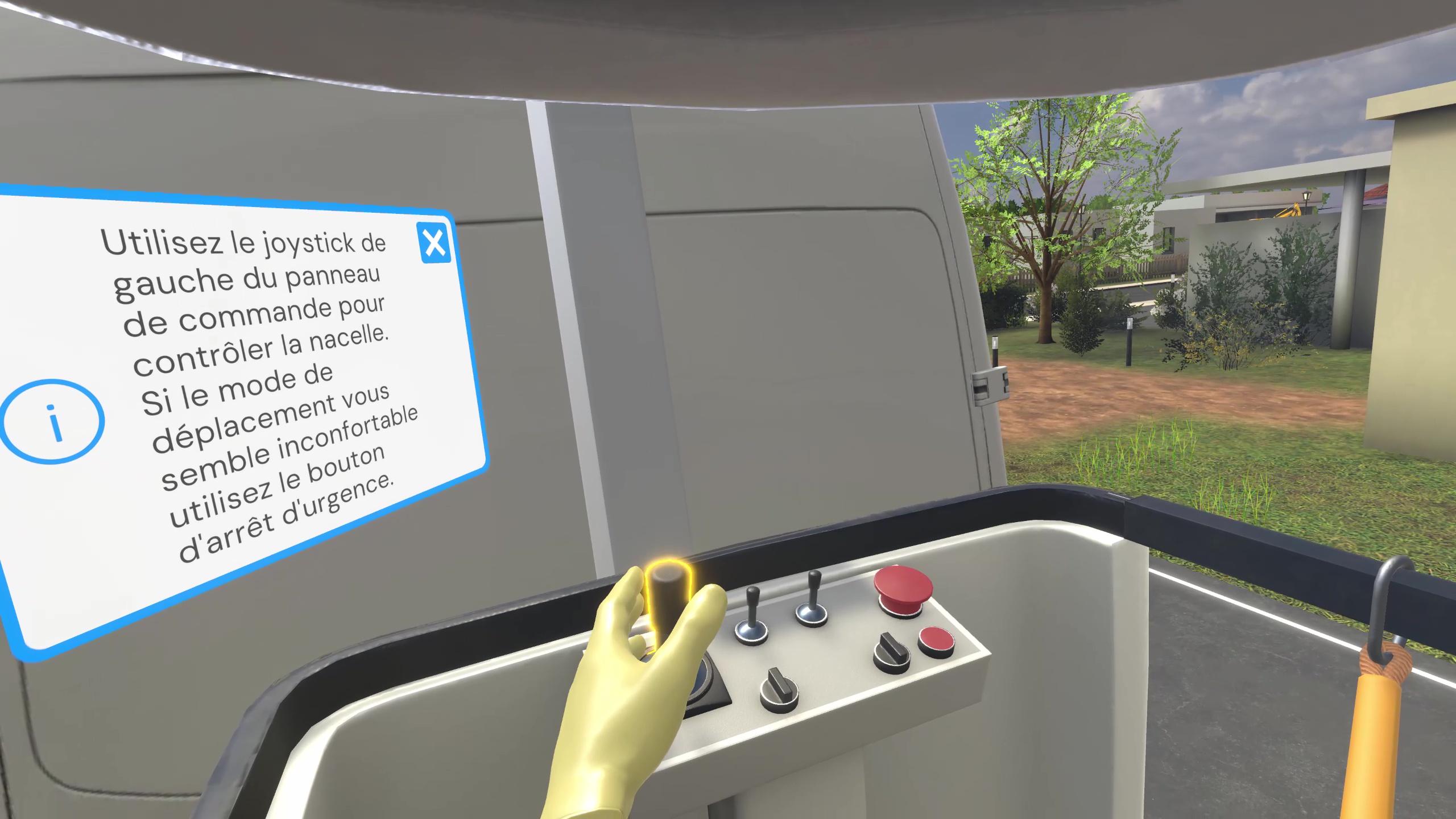
They must first unplug the sign, then unscrew the two screws holding it to the facade.
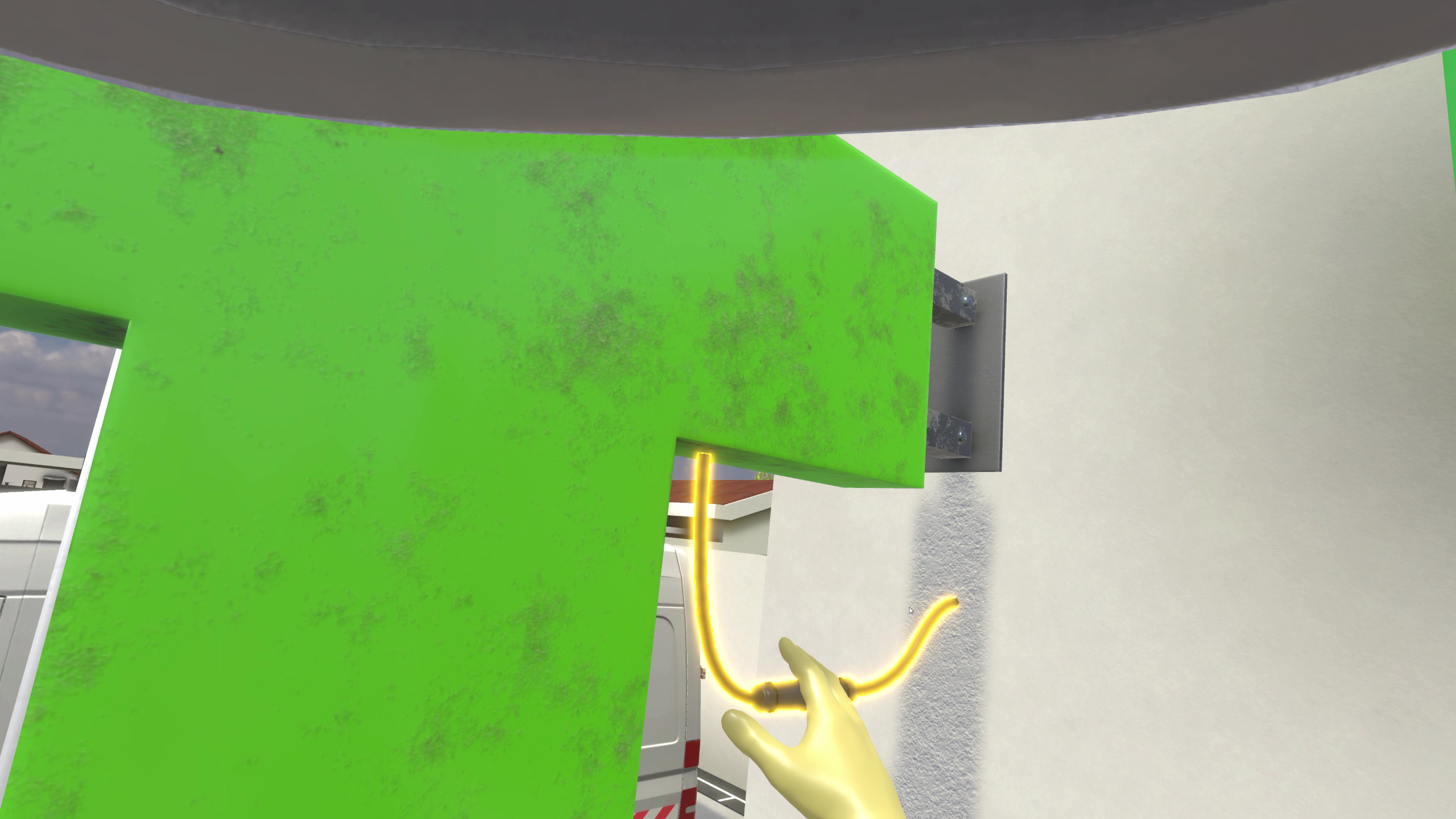
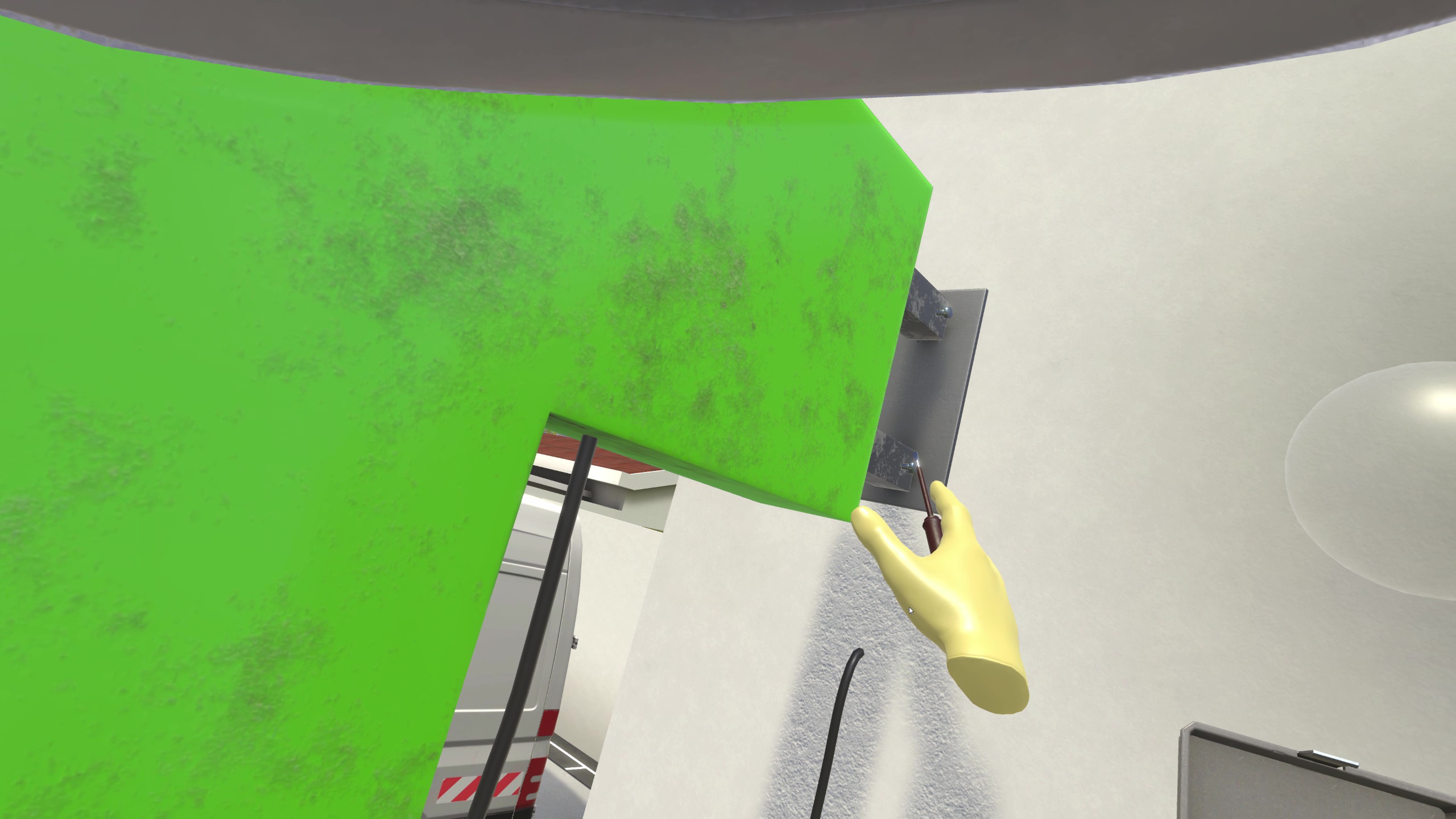
The cross can then be removed, placed in the inventory and replaced by the new one stored in the inventory.
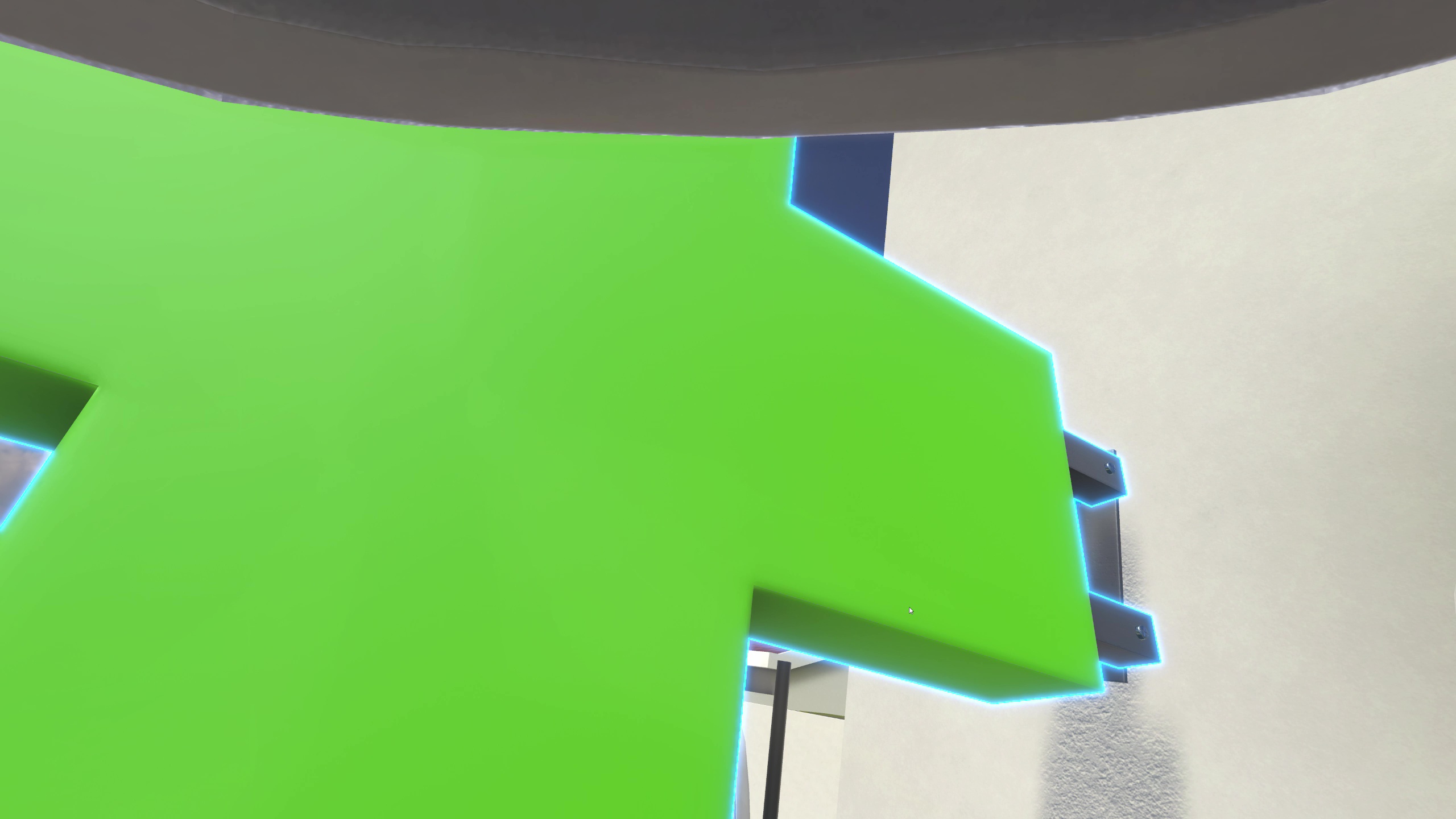
They must then lower the bucket using the joystick and return to the LVMS room. The lockout padlock and circuit breaker lockout can be removed and the latter must be rearmed to turn the sign lighting back on before closing the door.
Once this is done, the insulating mat can be removed and put back in your inventory.
The customer must be notified of the end of the intervention, after which it is necessary to go back to the manager and ask for the self-check sheet.
Filling it out ends the exercise.
5.2.3. Exercise Evaluation Criteria
Safety: Evaluates compliance with safety rules and the procedure for verifying the absence of voltage.
Execution quality: Evaluates the quality of task execution.
Choice of PPE: Evaluates the choice of PPE.
Communication: Evaluates good communication with the manager and the customer.
5.3. Electrotechnology: Projector
5.3.1. Exercise Plan
-
Talk to the manager.
-
Talk to the customer.
-
Equip themselves with PPE and take the appropriate equipment for the task from the van.
-
Lock out the projector contactor in the LV Main Switchboard room.
-
Replace the defective projector bulb.
-
Turn the projectors back on in the LV Main Switchboard room.
-
Put away the equipment and report the end of the intervention to the customer.
-
Talk to the partner.
-
Fill out the self-check sheet.
5.3.2. Scenario Progress
The user begins the scenario next to a van with a bucket, in the parking lot of a pharmacy. They are close to a Low Voltage Main Switchboard (LVMS) room and facing their manager.
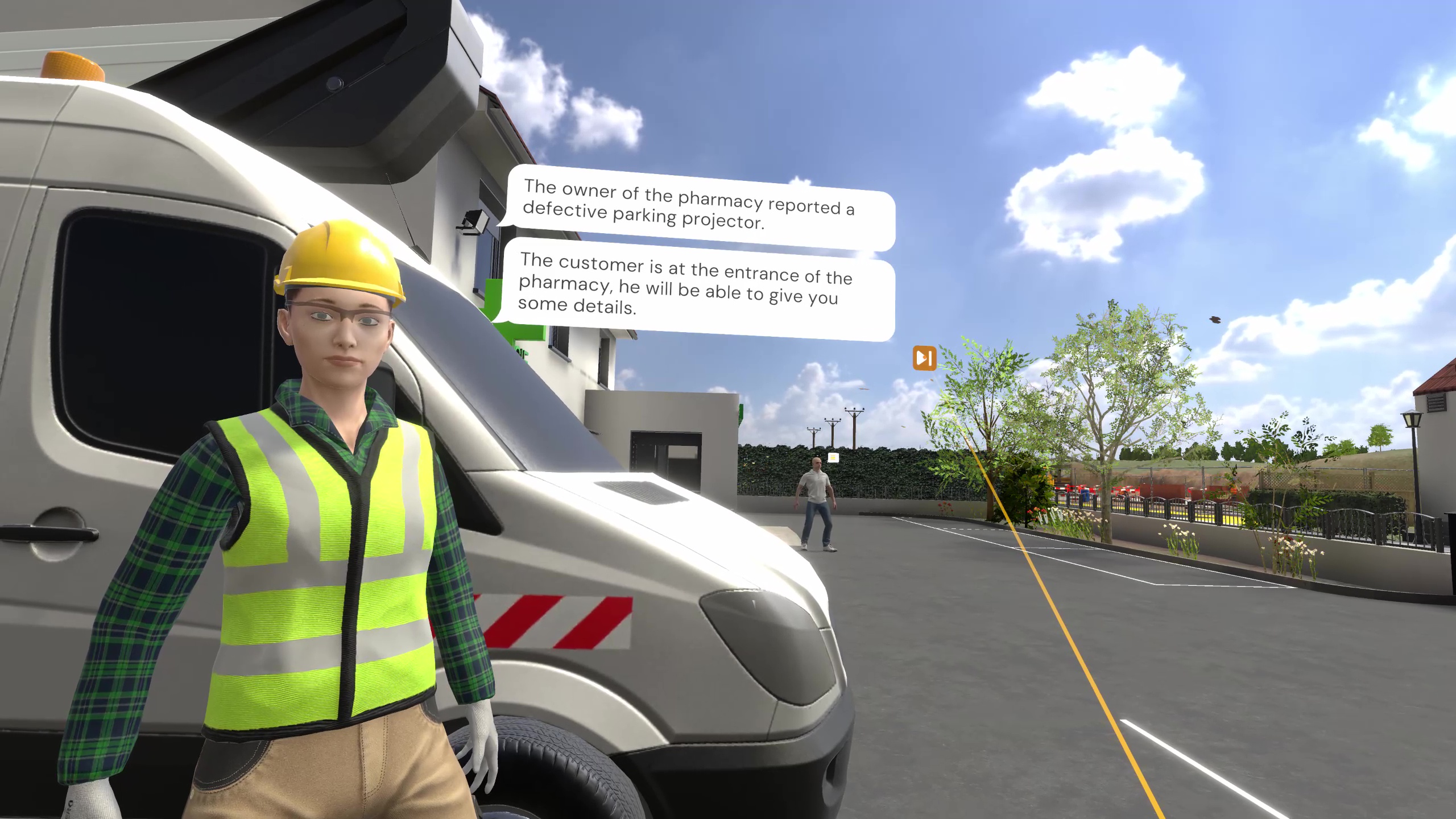
The user must first become aware of the task to be performed by speaking to their superior. A breakdown affects a high projector on the facade of the pharmacy and the user will have to replace a bulb safely.
The user must go talk to the customer to obtain more information, they can ask them for the projector documentation which allows in particular to know the type of bulb to use.
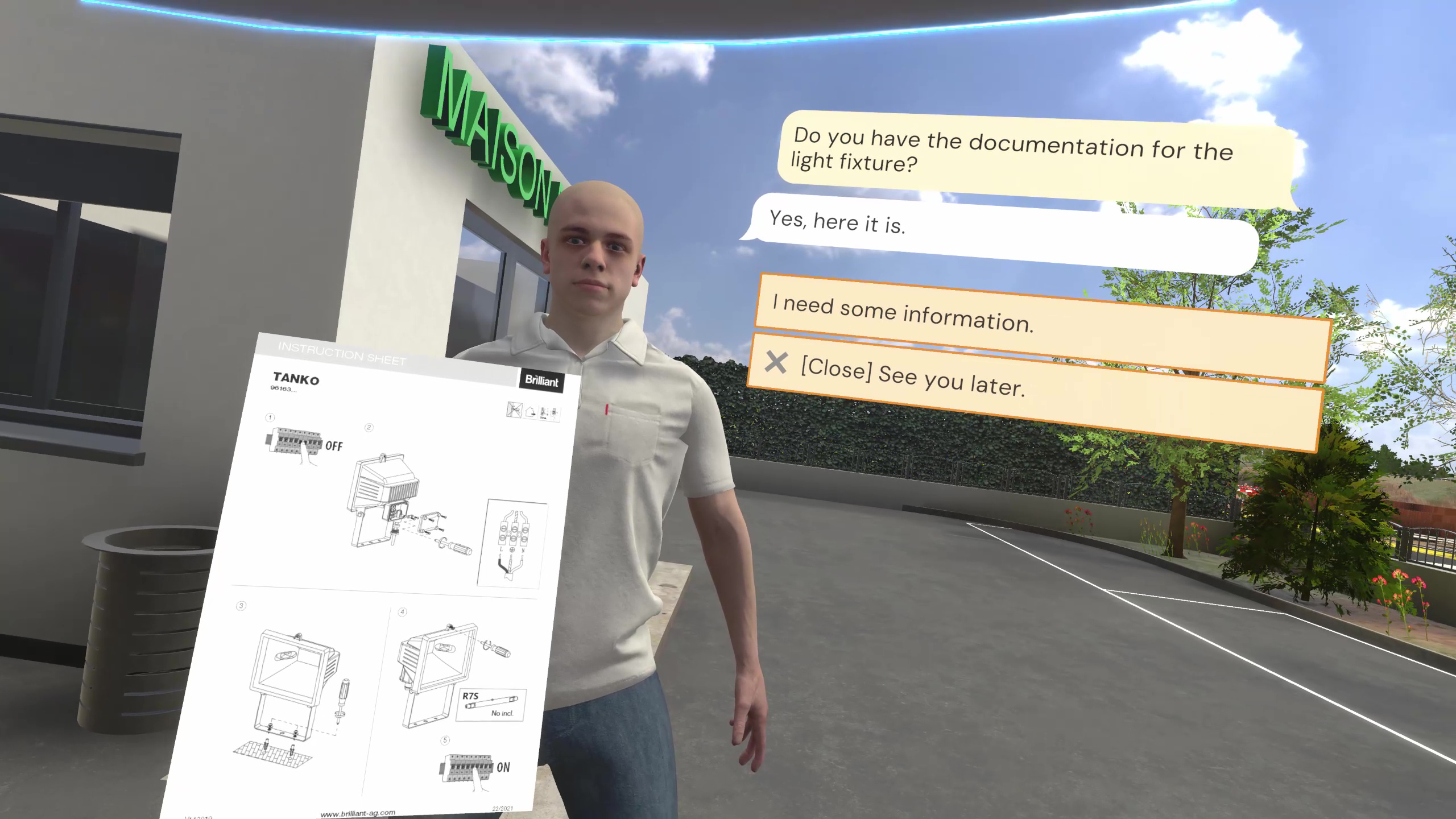
A cabinet containing all the available PPE is present in the van. To enter, simply touch the side sliding door and press the interaction trigger. It will be necessary to equip the PPE by touching them and then pressing the interaction trigger:
-
Insulated gloves
-
Hard hat (then lower the visor)
-
High-visibility vest
-
Harness
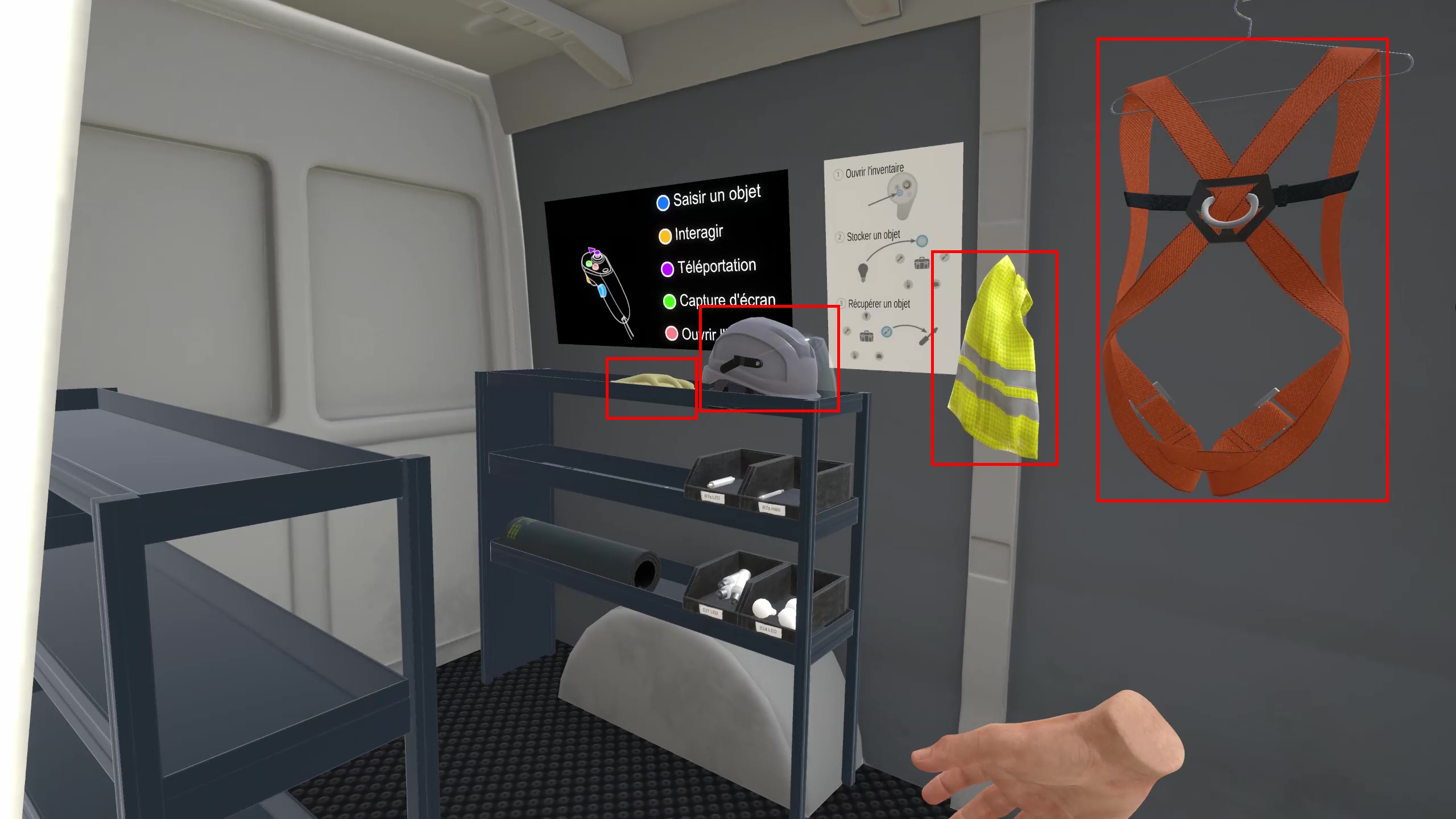
An inventory can be opened by pressing the X or A buttons on the left or right controllers respectively. Objects can be dropped onto the bubbles that appear and then retrieved from these same bubbles. For ecological reasons, it will be necessary to replace the defective halogen R7s bulb with a LED R7s bulb. It will be necessary to store in the inventory:
-
The insulating mat
-
Insulated screwdriver
-
Voltage detector (VD)
-
Circuit breaker lockout
-
Lockout padlock
-
LED R7s Bulb
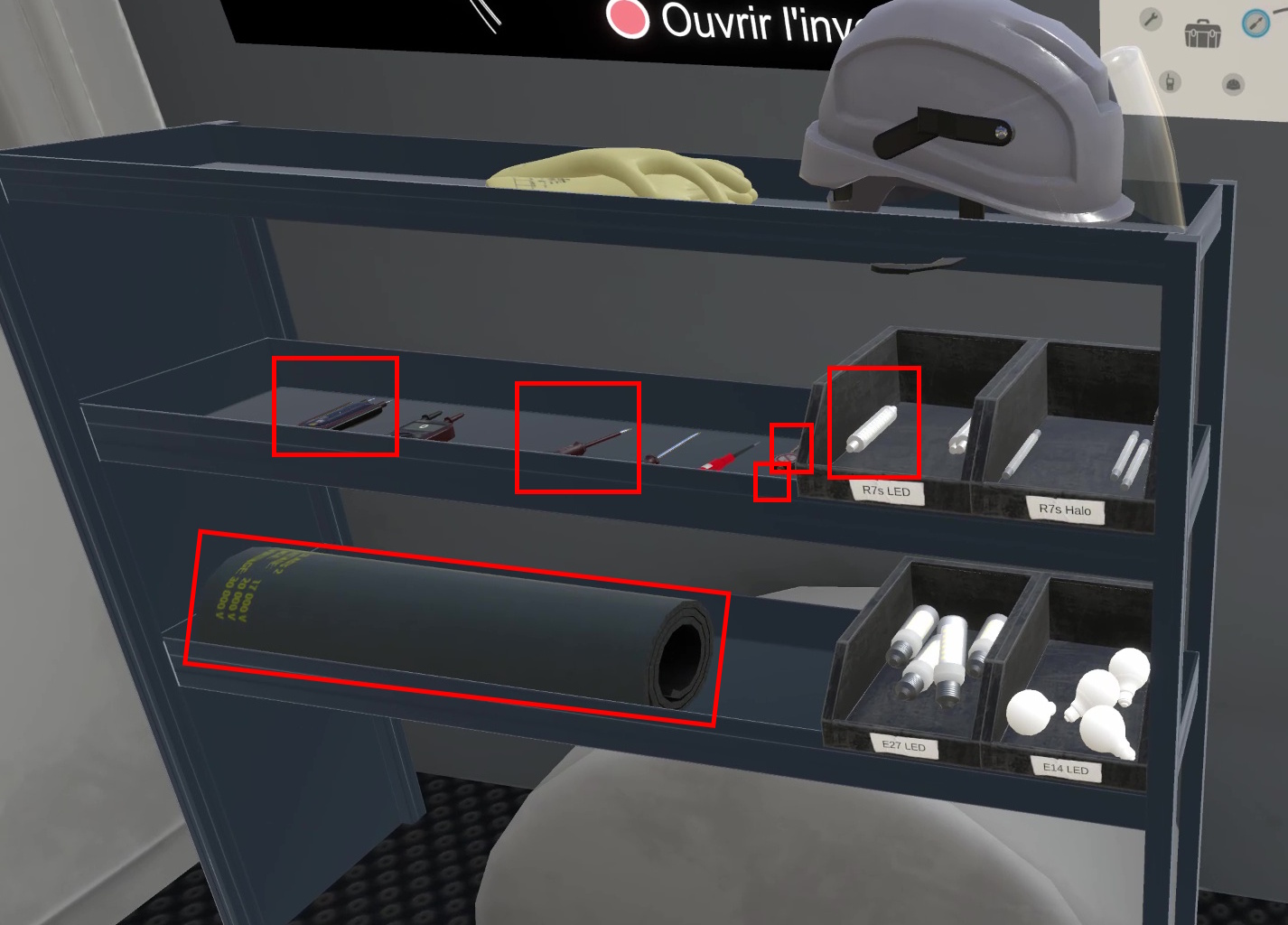
The weather is very windy and makes the intervention at height with the bucket dangerous. The user will have to report this risk to their manager by first announcing they have a problem, which will result in its reduction. If the user does not report this danger, climbing on the bucket will result in a fall and a fatal outcome to the exercise.
The user must go to the LVMS room, an electrical panel is opposite the door while the technical documentation of the LVMS can be consulted on the right. It is specified in the documentation that the Q43 contactor controls the power supply to the facade lighting. It will therefore be necessary to turn it off and lock it out.
First of all, the insulating mat must be placed on the floor in front of the cabinet.
The user can then open the cabinet door and turn off the Q43 contactor. Once turned off, grasp the circuit breaker lockout from the inventory and place it on the Q43 contactor. The lockout padlock can then be placed on the lockout to block interaction with it.
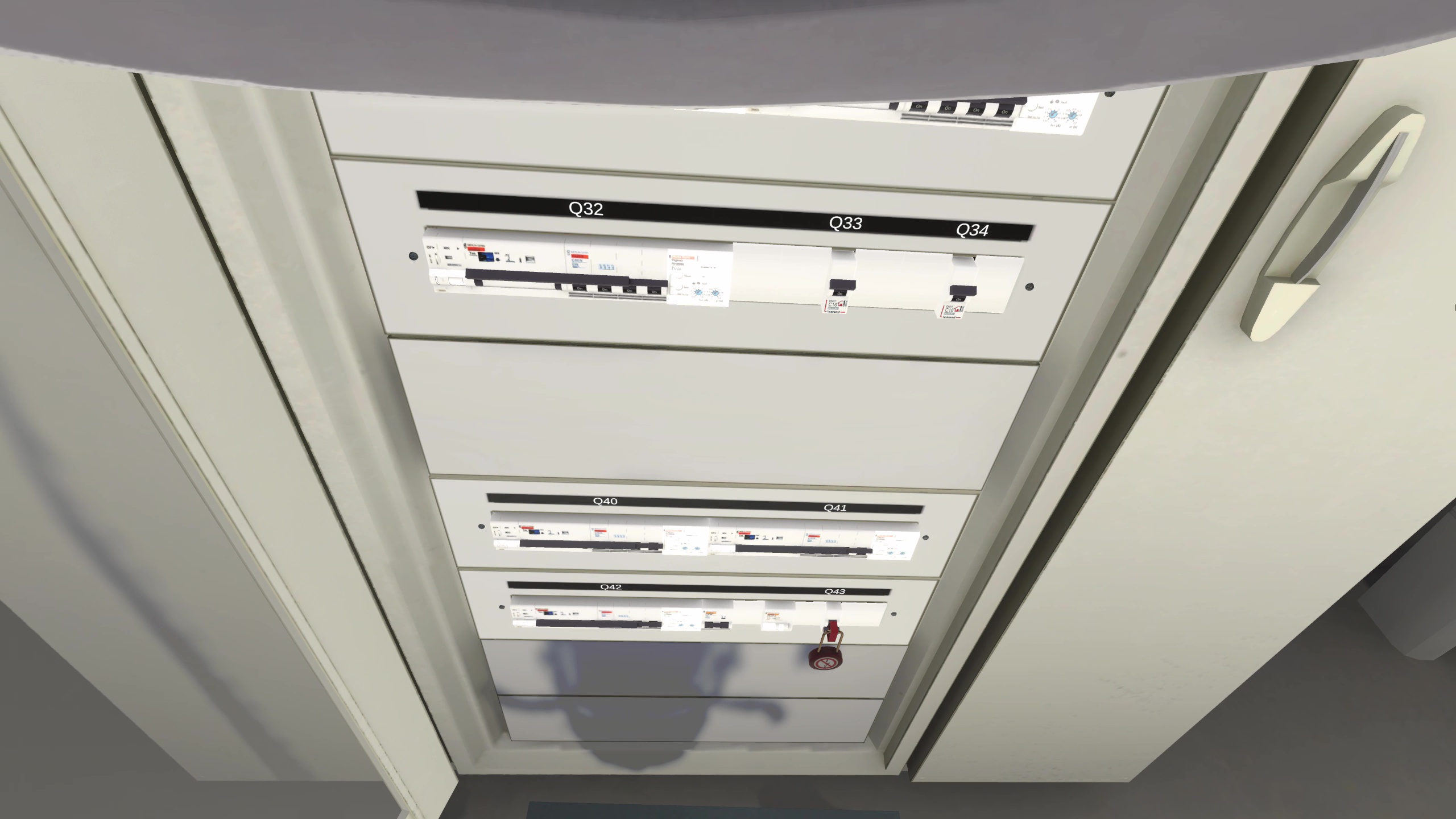
It will now be necessary to grasp the insulated screwdriver to unscrew the faceplate in front of the contactors. This will provide access to the terminals to check the correct power-off.
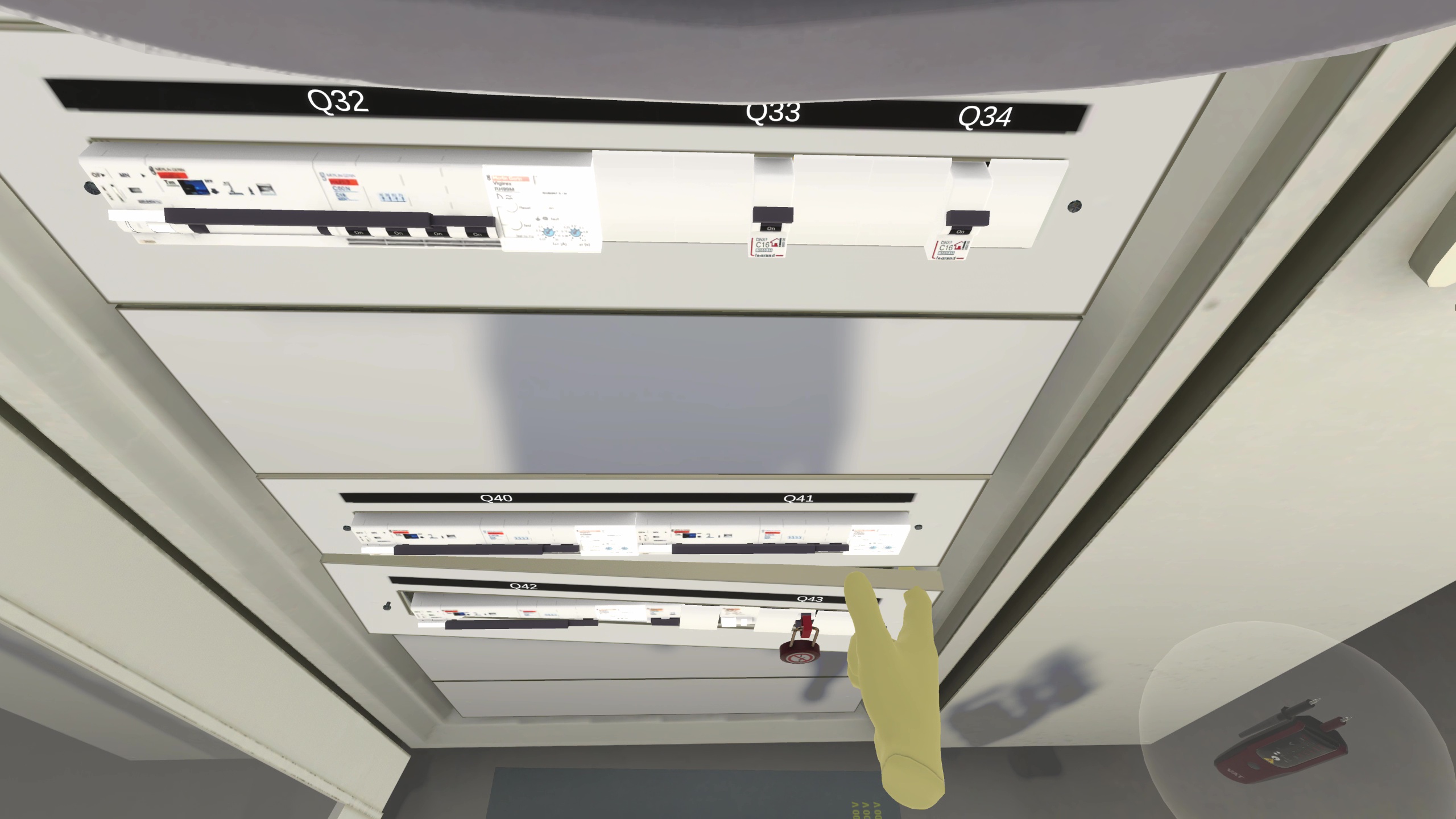
Once the faceplate is unscrewed and removed from the front, it can be placed on the ground.
You must now grab the VD and test for the absence of voltage at the contactor output. To do this, you must start with a VD self-test to verify its proper functioning. This involves touching the two tips together and confirming with the LEDs and a sound that the device is functioning correctly.
It is then necessary to place the VD tips on different terminals in pairs to check for the presence of current:
-
Input phase (top right of the contactor) and earth: Voltage is present
-
Input neutral (top left of the contactor) and earth: No voltage
-
Output neutral (bottom left of the contactor) and earth: No voltage
-
Output phase (bottom right of the contactor) and earth: No voltage
This demonstrates the absence of current at the contactor output. You must now perform another self-test of the device to confirm that it is still working and thus validate the latest absence of voltage measurement.
The user must now replace the faceplate, screw the two screws at its ends, and then close the LVMS door.
To reach the projector, the user will have to use the van’s bucket.
Once on board, pressing the left joystick allows moving up or down. The emergency stop button on the right allows skipping the animation for those prone to motion sickness.
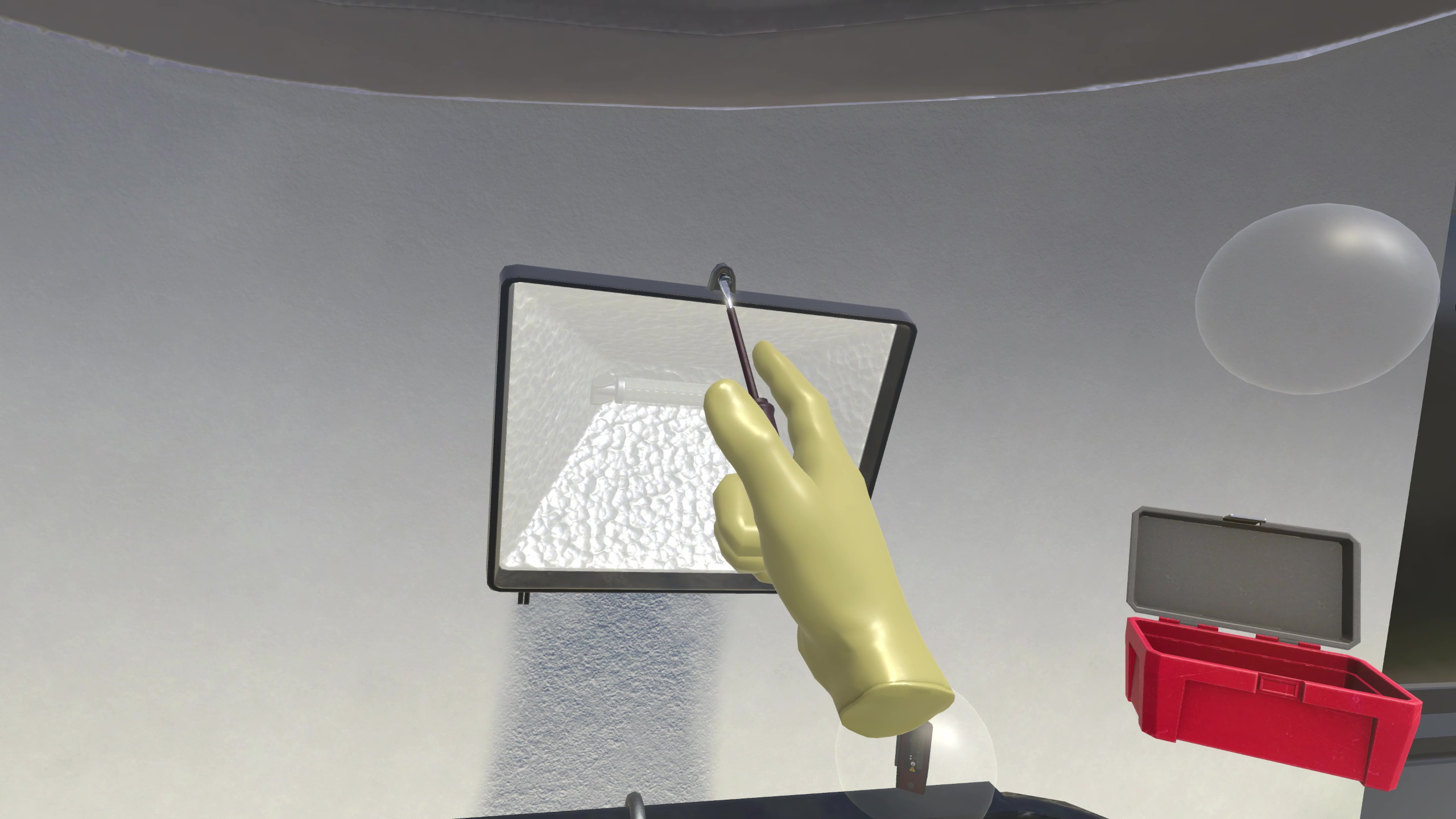
You must first unscrew the screw that holds the projector housing and then click on it to open it.
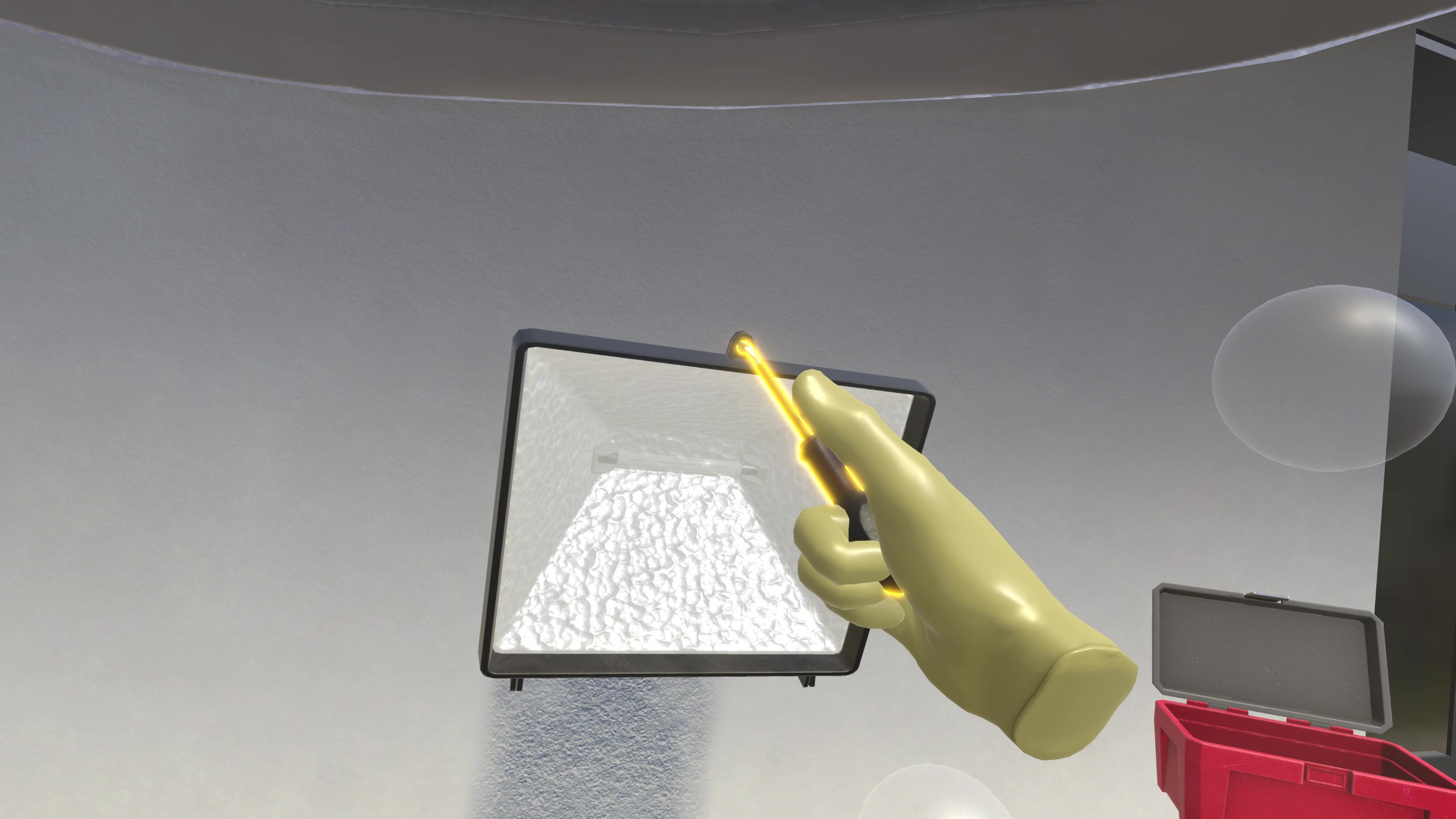
It is then necessary to check the correct power-off of the projector using the VD. As before, you must first perform a self-test, check the voltage between the two ends of the bulb, and then perform another self-test.
|
|
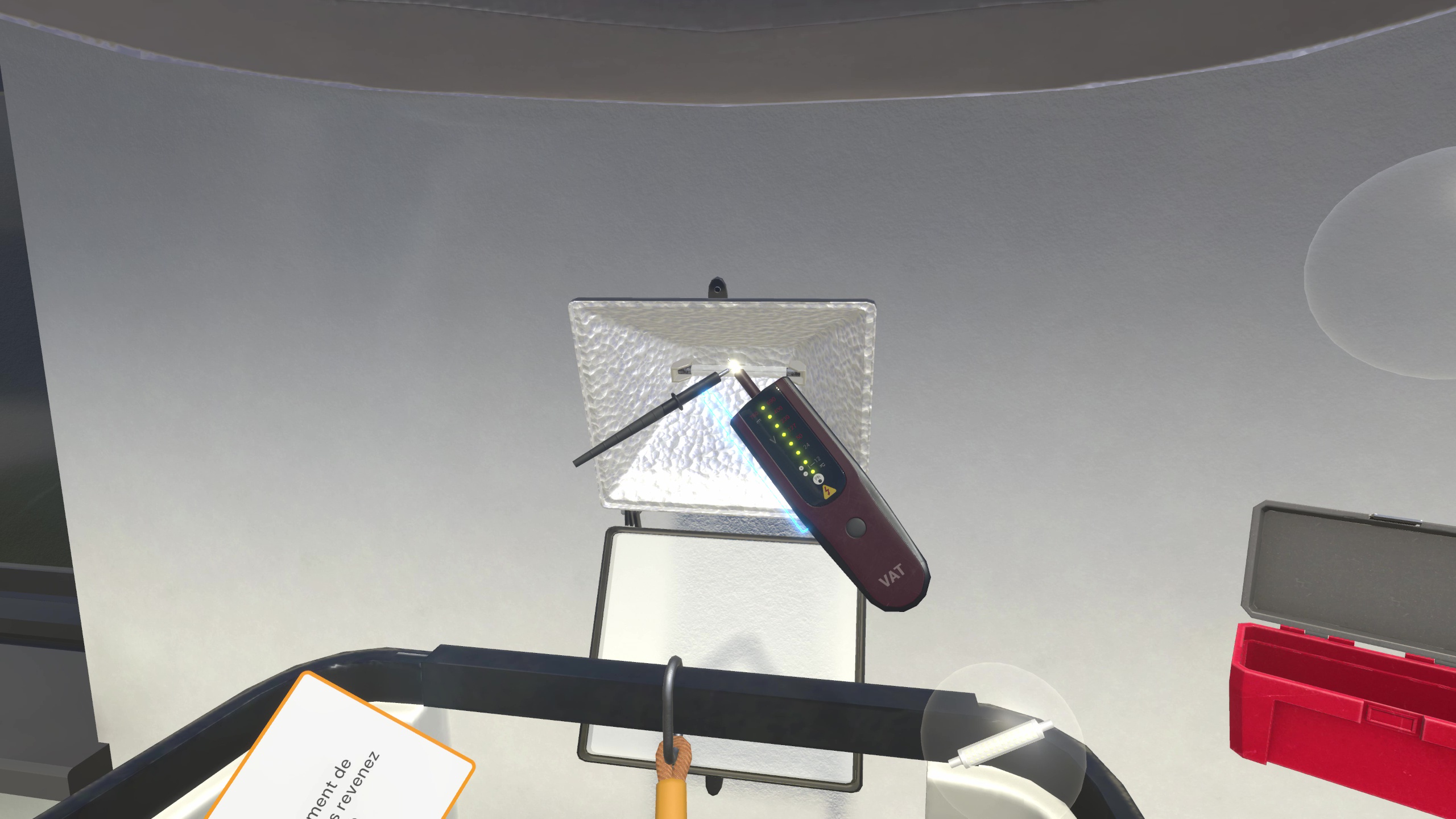
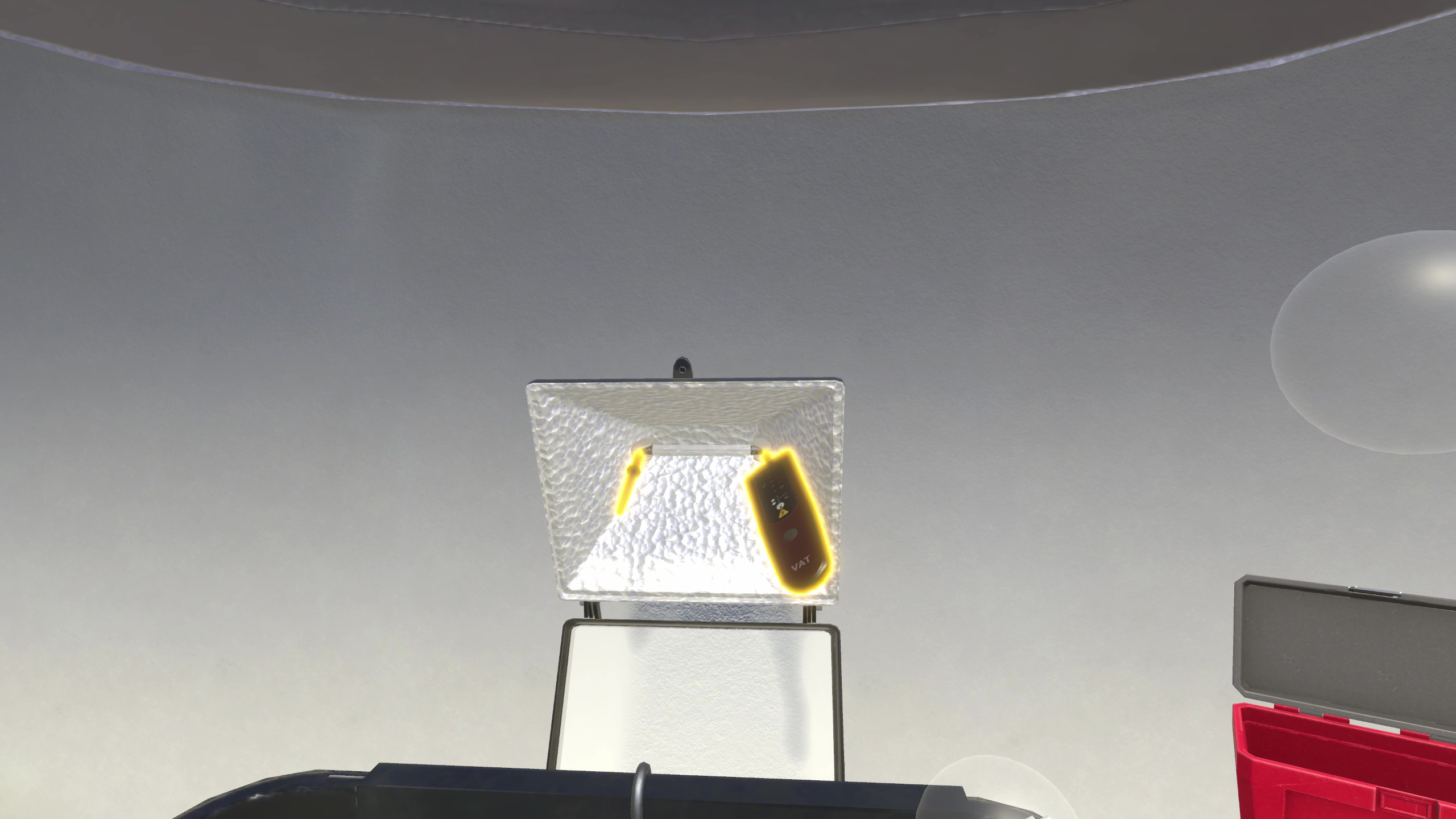
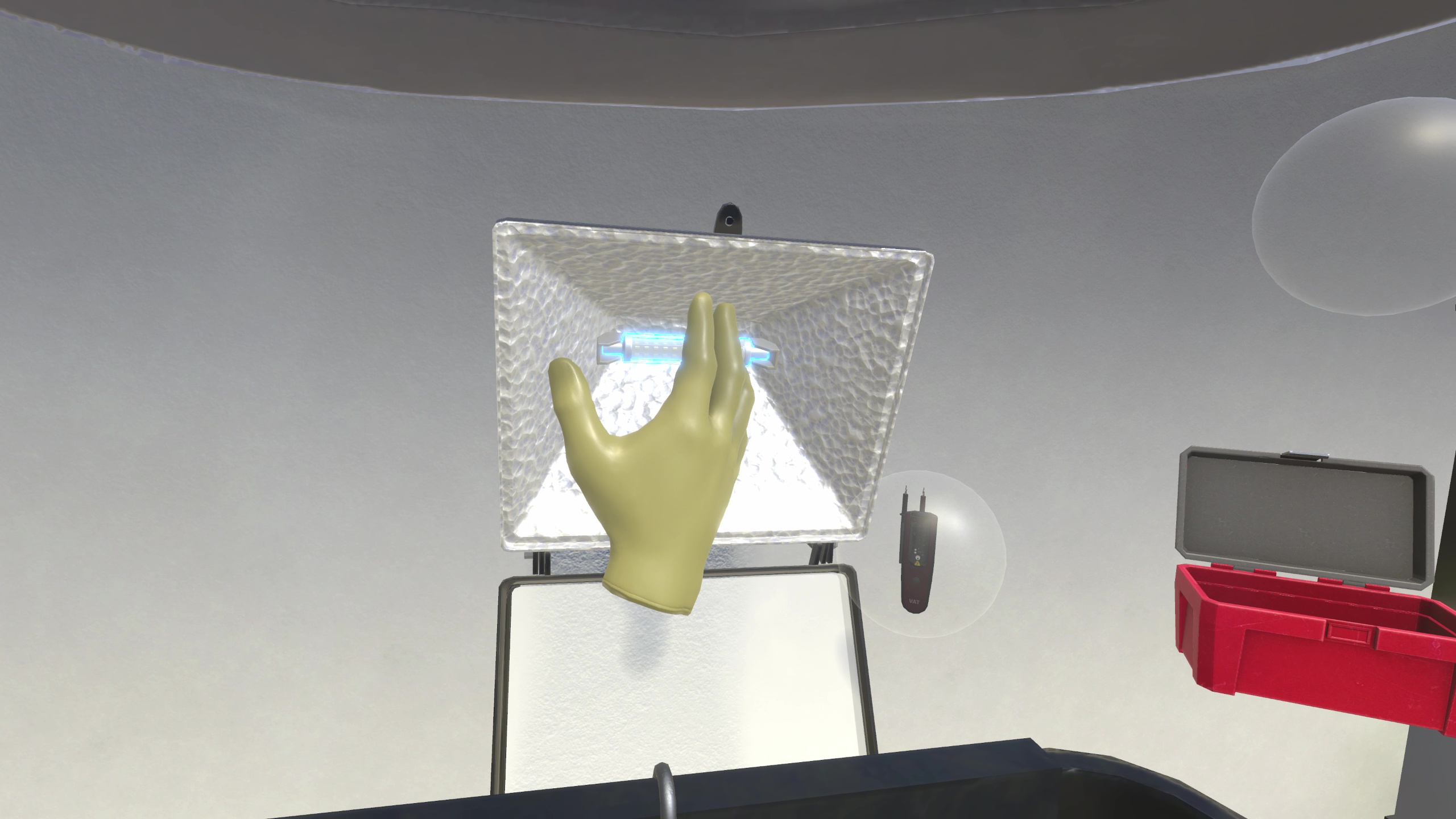
The defective halogen R7s bulb can then be removed and replaced with the new LED R7s bulb.
All that remains is to close and screw back the housing.
They must then lower the bucket using the joystick and return to the LVMS room. The lockout padlock and circuit breaker lockout can be removed and the latter must be rearmed to turn the facade lighting back on before closing the door.
Once this is done, the insulating mat can be removed and put back in your inventory.
The customer must be notified of the end of the intervention, after which it is necessary to go back to the manager and ask for the self-check sheet.
Filling it out ends the exercise.
5.3.3. Exercise Evaluation Criteria
Safety: Evaluates compliance with safety rules and the procedure for verifying the absence of voltage.
Execution quality: Evaluates the quality of task execution.
Choice of PPE: Evaluates the choice of PPE.
Communication: Evaluates good communication with the manager and the customer.
6. AIPR Module
6.1. Network identification: Clues and surface markers
6.1.1. Exercise outline
To complete the whole exercise, the user must carry out the actions in the following order:
-
Watch the briefing.
-
Talk to the site manager.
-
Ask the site manager for work instructions.
-
In the random zone, select and fill in the required information.
-
Return to see the site manager and validate the scenario.
6.1.2. Scenario walkthrough
The user starts the scenario on a closed-off street. Three random zones are possible, with, in each case, 10 objects to identify.
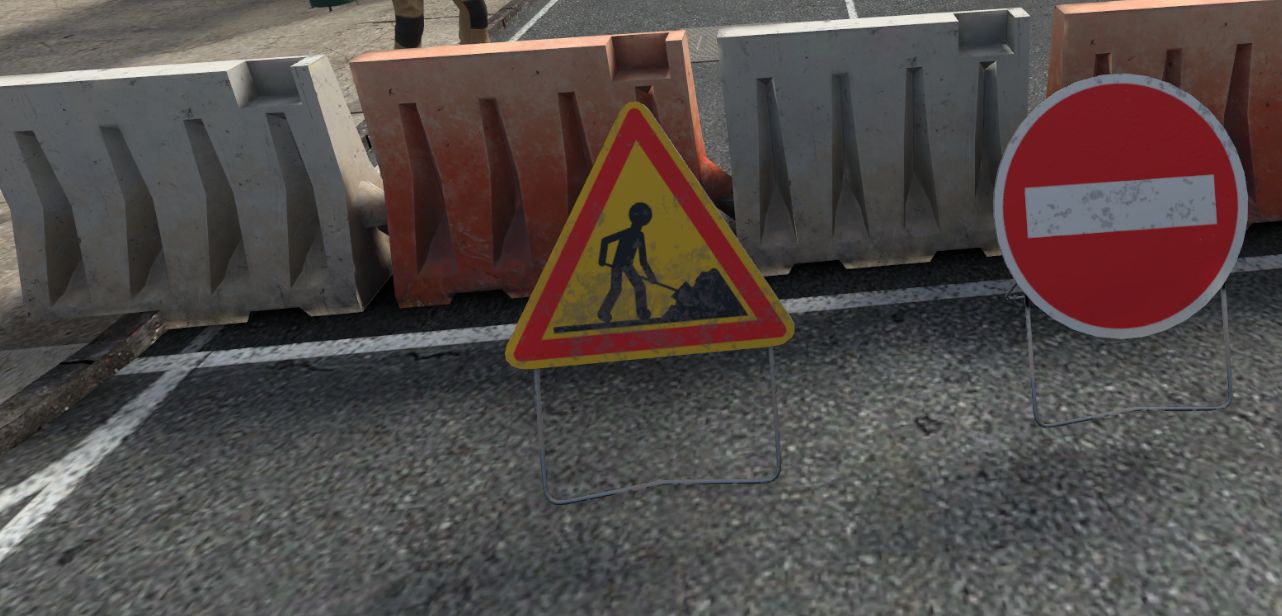
The site manager stands at the entrance of the relevant street. The user must interact with her to learn about the task to be carried out.
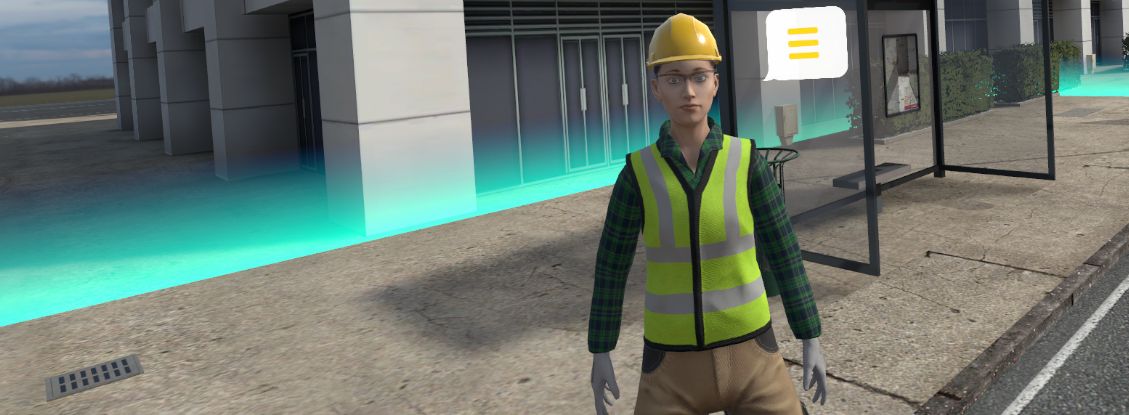
On arriving in this zone, the user, equipped with a laser pointer, must interact with various objects to determine their nature.
After selecting a surface marker, the user is presented with an interface on which he must enter the type of network and indicate whether it is sensitive.
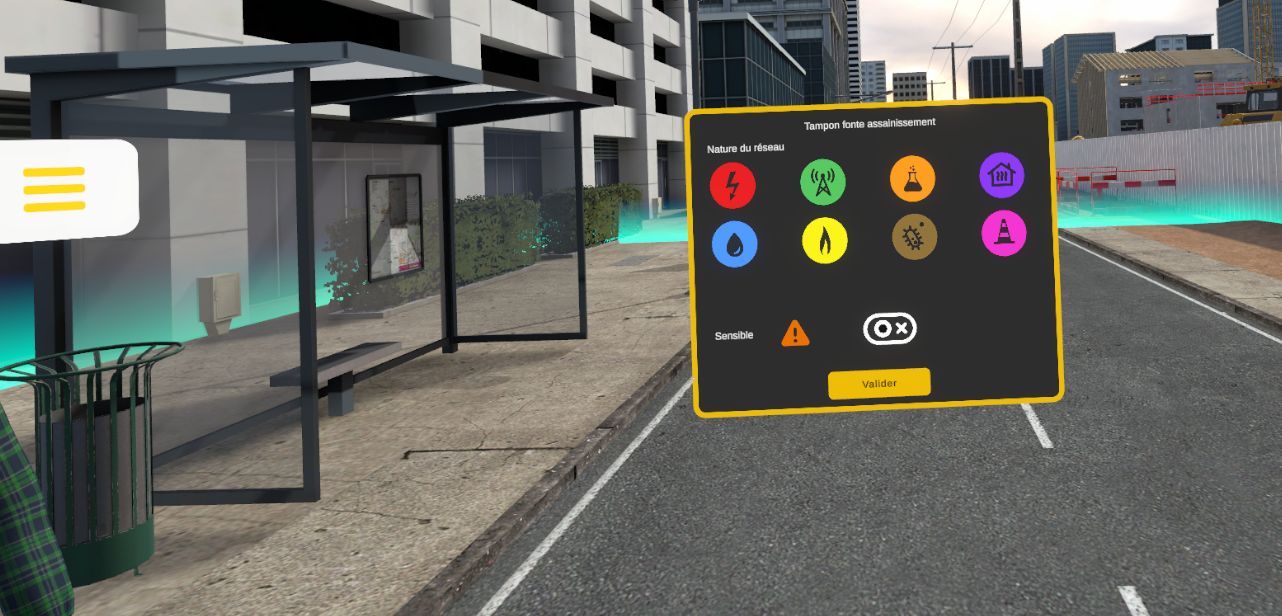
Choice of network type: Electrical (red, sensitive), Telecom (green, not sensitive), Chemical (orange, sensitive), Water (blue, not sensitive), Gas (yellow, sensitive), Sanitation (brown, not sensitive), District heating (purple, sensitive), Multi-utility (pink, ?)
Choice of sensitivity: Yes / No When the "Validate" button is selected, the screen is replaced by a reduced version showing a simple pictogram of the chosen network, possibly accompanied by an icon indicating its sensitive nature. The user can, at any time, click on it to reopen the interface and modify his answers.
Zone 1
| Object | Nature | Sensitivity |
|---|---|---|
LV / HV line |
Electrical |
Yes |
Gas key valve box |
Gas |
Yes |
Cast iron sanitation manhole cover |
Sanitation |
No |
Traffic light |
Electrical |
Yes |
Gas connection box |
Gas |
Yes |
Street lighting |
Electrical |
Yes |
Backlit advertising panel |
Electrical |
Yes |
Telecom manhole cover (fiber optic) |
Telecom |
No |
Telecom connection box |
Telecom |
No |
Storm drain grate |
Sanitation |
No |
Zone 2
| Object | Nature | Sensitivity |
|---|---|---|
Electrical terminal |
Electrical |
Yes |
Warning mesh () |
Gas |
Yes |
Cast iron sanitation manhole cover |
Sanitation |
No |
Traffic light |
Electrical |
Yes |
Gas connection box |
Gas |
Yes |
Street lighting |
Electrical |
Yes |
Backlit advertising panel |
Electrical |
Yes |
Telecom manhole cover (fiber optic) |
Telecom |
No |
Telecom connection box |
Telecom |
No |
Storm drain grate |
Sanitation |
No |
Zone 3
| Object | Nature | Sensitivity |
|---|---|---|
Blue / yellow HDPE pipe |
Water / Gas |
No / Yes |
Electrical substation |
Electrical |
Yes |
Backlit advertising panel |
Electrical |
Yes |
Telecom manhole cover (fiber optic) |
Telecom |
No |
Telecom box |
Telecom |
No |
Street lighting |
Electrical |
Yes |
Storm drain grate |
Sanitation |
No |
Fire hydrant |
Water |
No |
Cast iron sanitation manhole cover |
Sanitation |
No |
LV / HV line |
Electrical |
Yes |
Once the procedure has been carried out correctly, the user must go back and talk with the site manager, then he is automatically teleported to the reception hall, facing the summary screen recapping his performance.
6.1.3. Exercise evaluation criteria
 Time to analyze the scene and identify the clues and surface markers.
 Identification score for surface markers in a zone.
 Analysis score on the nature of a network and determining whether it is sensitive.
6.2. Network identification: Marking / staking out
6.2.1. Exercise outline
-
Talk to the site manager.
-
Learn about the mission.
-
Identify the marking points.
-
Measure and analyze the markings.
-
Enter the nature, class and depth.
-
Return to see the site manager to validate the scenario.
6.2.2. Scenario walkthrough
After receiving his mission, the user explores the zone where, among 15 random arrows, 5 are selected and mark network points on the ground markings.
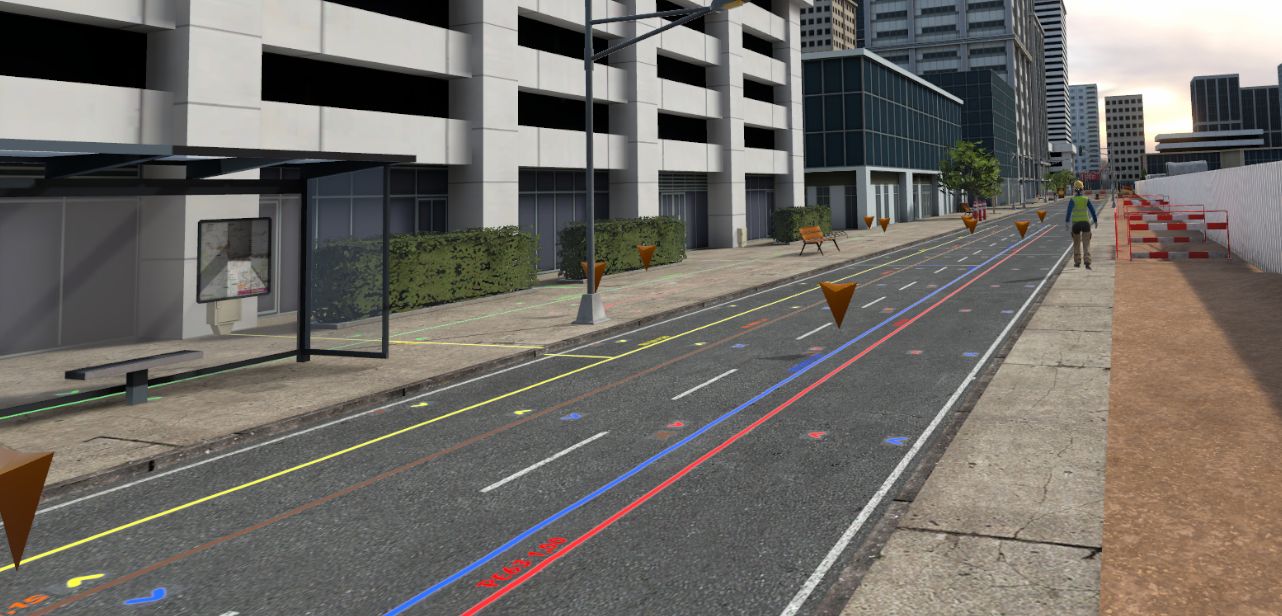
By selecting each point, he must enter the requested information.
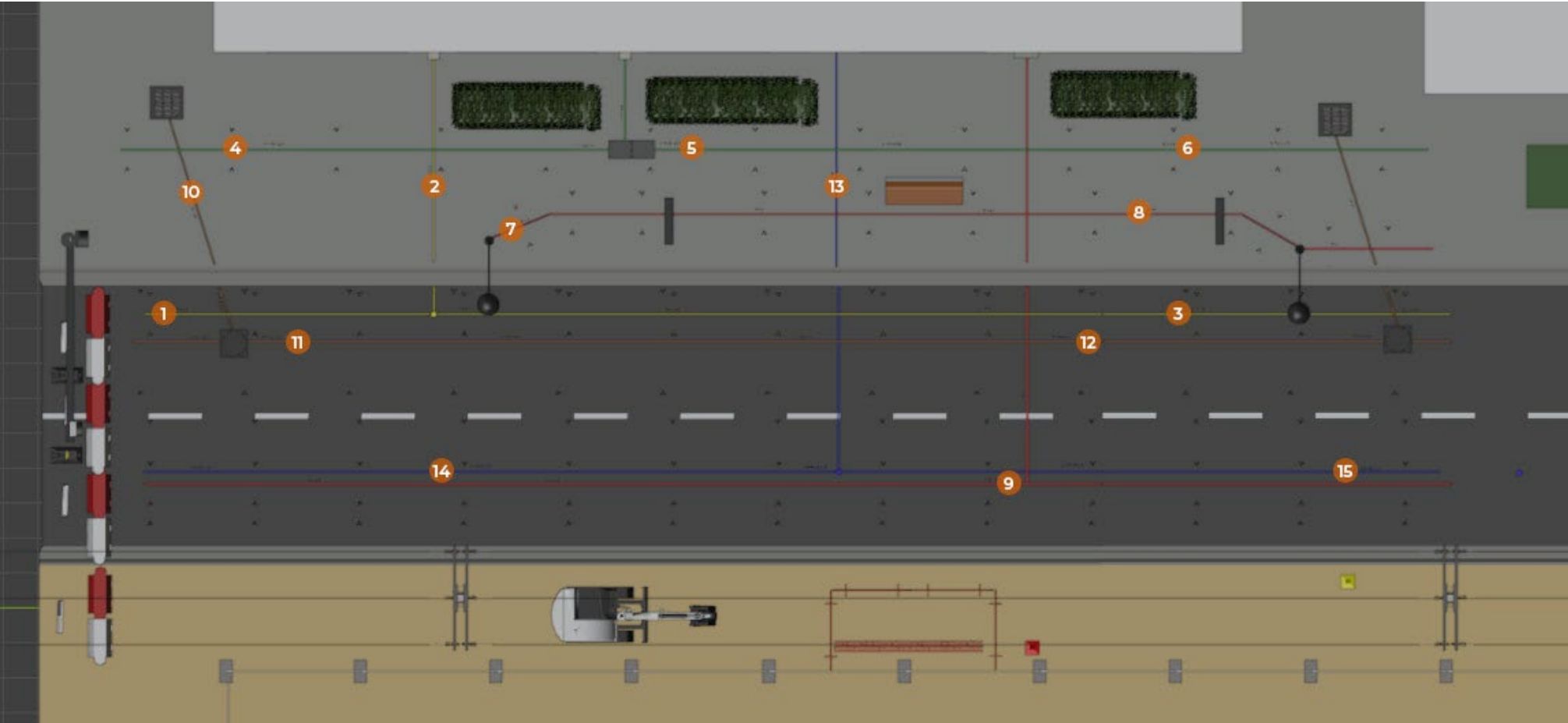
| Type | Class | Depth |
|---|---|---|
Gas |
A |
0.8 |
Gas |
A |
0.5 |
Gas |
A |
0.75 |
Telecom |
B |
0.5 |
Telecom |
B |
0.45 |
Telecom |
B |
0.45 |
Electricity |
A |
0.5 |
Electricity |
A |
0.55 |
Electricity |
A |
1 |
Sanitation |
B |
1 |
Sanitation |
B |
1.15 |
Sanitation |
B |
1.3 |
Water |
B |
1.05 |
Water |
B |
1 |
Water |
B |
1.05 |
A tape measure is available to estimate the accuracy class.
The exercise ends when all the points have been correctly filled in.
The user is teleported to the reception hall, facing the summary screen recapping his performance.
6.2.3. Exercise evaluation criteria
Time given to analyze the scene.
Identification score for surface markers in a zone.
Analysis score on the nature of a network, determining its class as well as the depth at which it is located.
6.3. Risk: Laying a sanitation network in a deep trench
On a sanitation installation site, the user must secure the work area in order to carry out a slope check.
6.3.1. Exercise outline
-
Talk to the site manager.
-
Put on the required PPE.
-
Secure the trench (barriers, shoring, ladder).
-
Manage possible risk situations, chosen among 4 random ones.
-
Climb down into the trench.
-
Check the slope with the laser target.
6.3.2. Scenario walkthrough
The user must choose from the PPE available in the locker: . Hard hat . Work gloves . Safety shoes . High-visibility clothing (yellow vest) . Hearing protection . Protective glasses
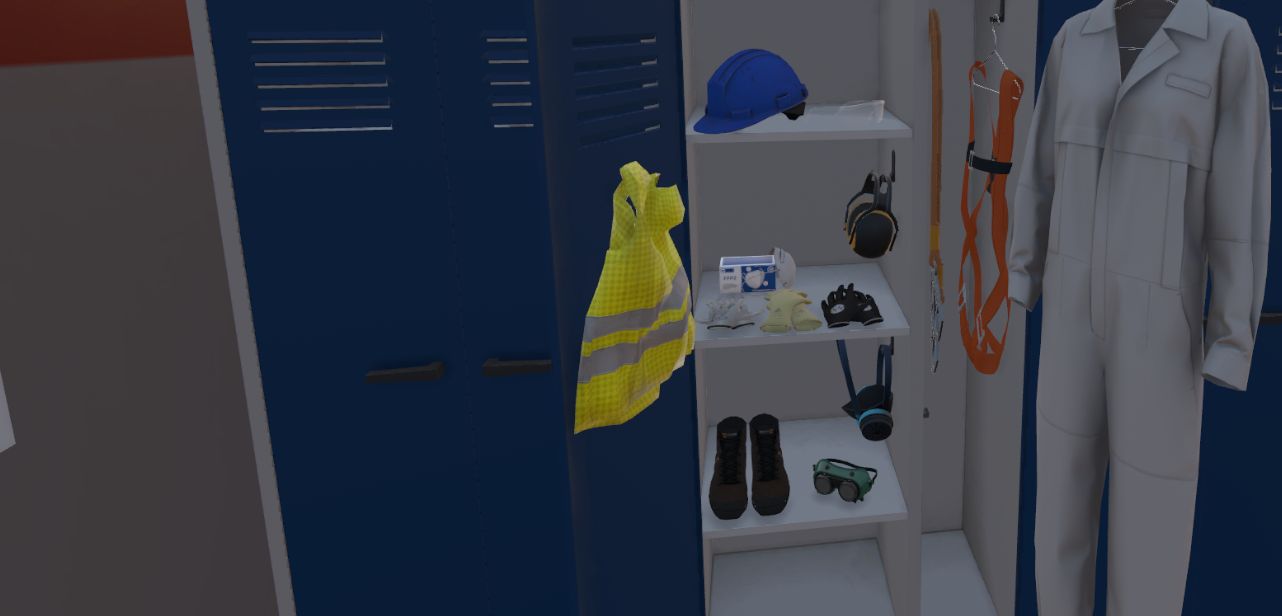
Once equipped, he must go to the site and inspect the zone.
There are various possible random situations: . Presence of water in the trench . Unmarked water or gas network . Explosive device present in the trench
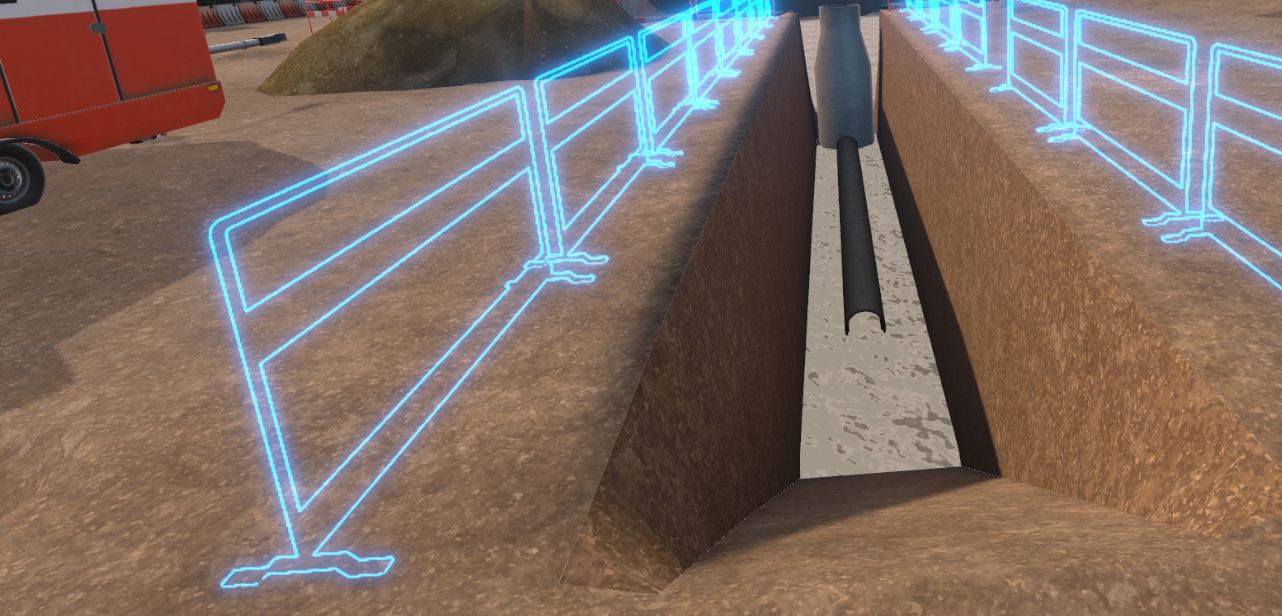
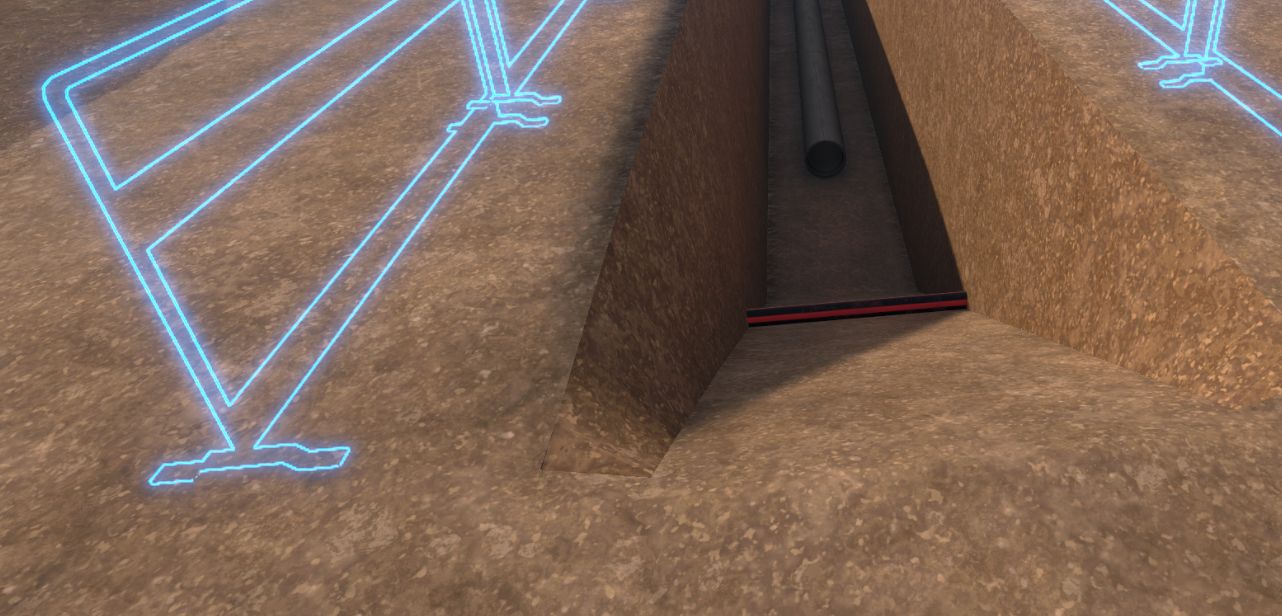
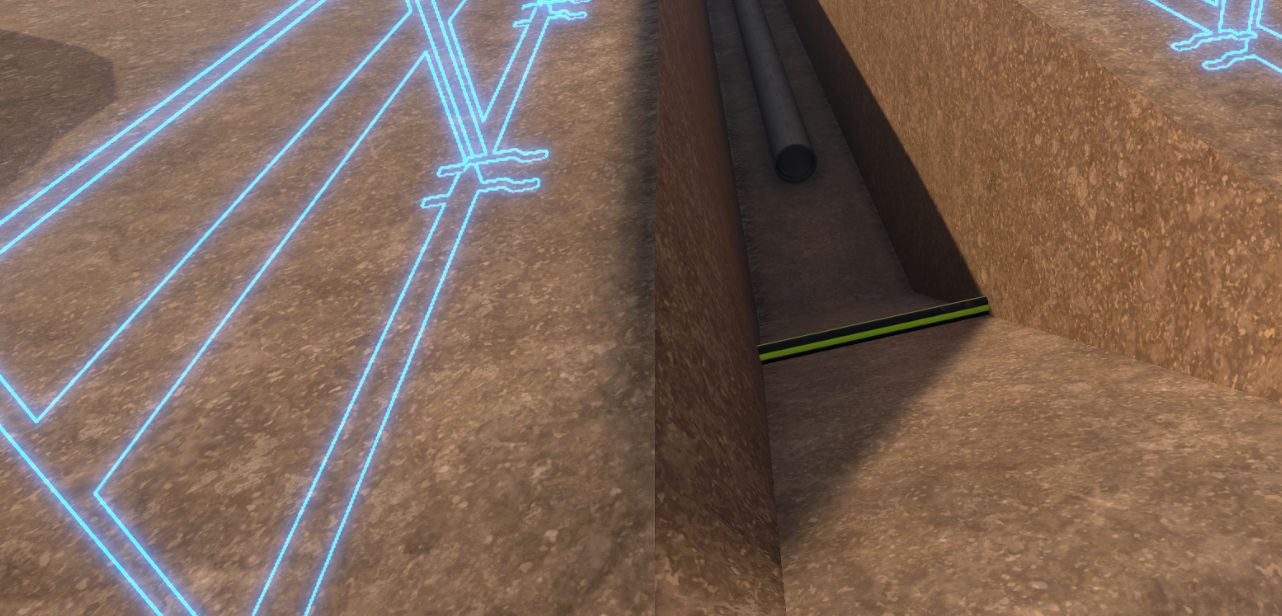
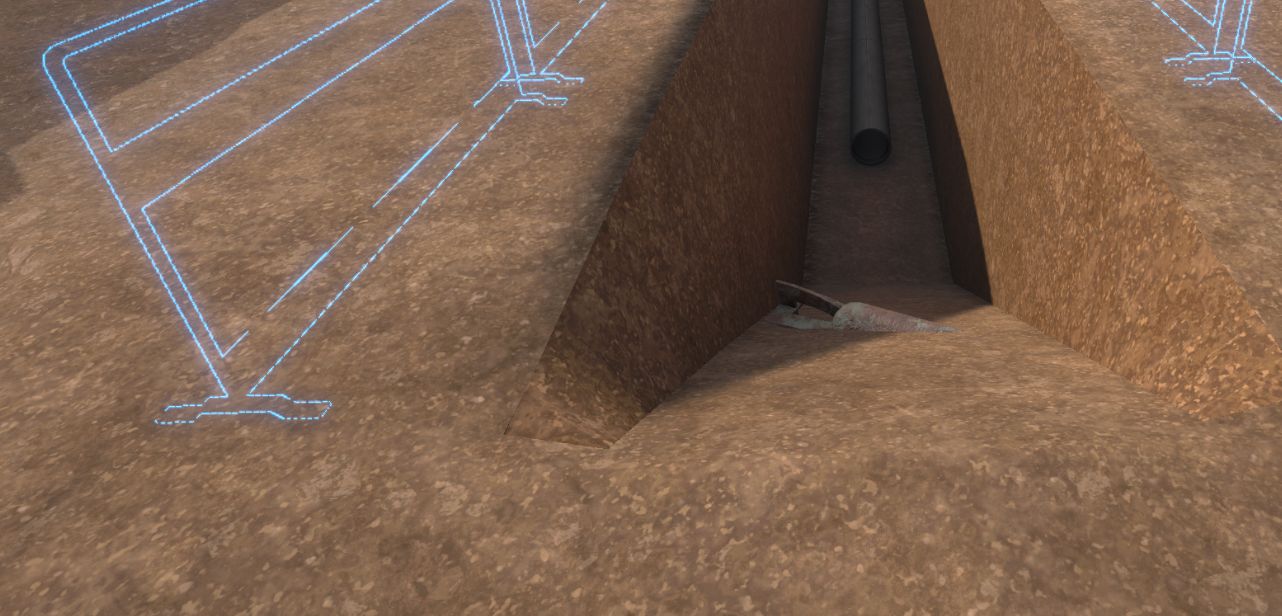
If the situation corresponds to an unmarked network, whether electrical or gas, the user must ask the site manager for help, then specify that there is an unidentified network and indicate which one.
Required dialogue:
-
User: I need to contact a utility operator.
-
Site manager: Very well, which one?
-
User: Electricity / Gas (depending on the network detected)
If there is an explosive device in the trench, the user must report it to the site manager, who will bring in experts to remove it.
Required dialogue:
-
User: We found an explosive device, the fire department needs to be contacted.
-
Site manager: I’ll take care of it.
If there is water at the bottom of the trench, the user must inform the site manager, who will set up a pump and the water will disappear.
Required dialogue:
-
User: The trench is flooded.
-
Site manager: I’ll set up a pump, go back outside.
The user must return to the site trailer to inform the site manager and take safety measures.
The user must also ask the site manager to have safety shoring put in place.
Finally, the user must position barriers around the trench to mark off the zone.
Depending on the risk, the user has different dialogue options with the site manager in the trailer.
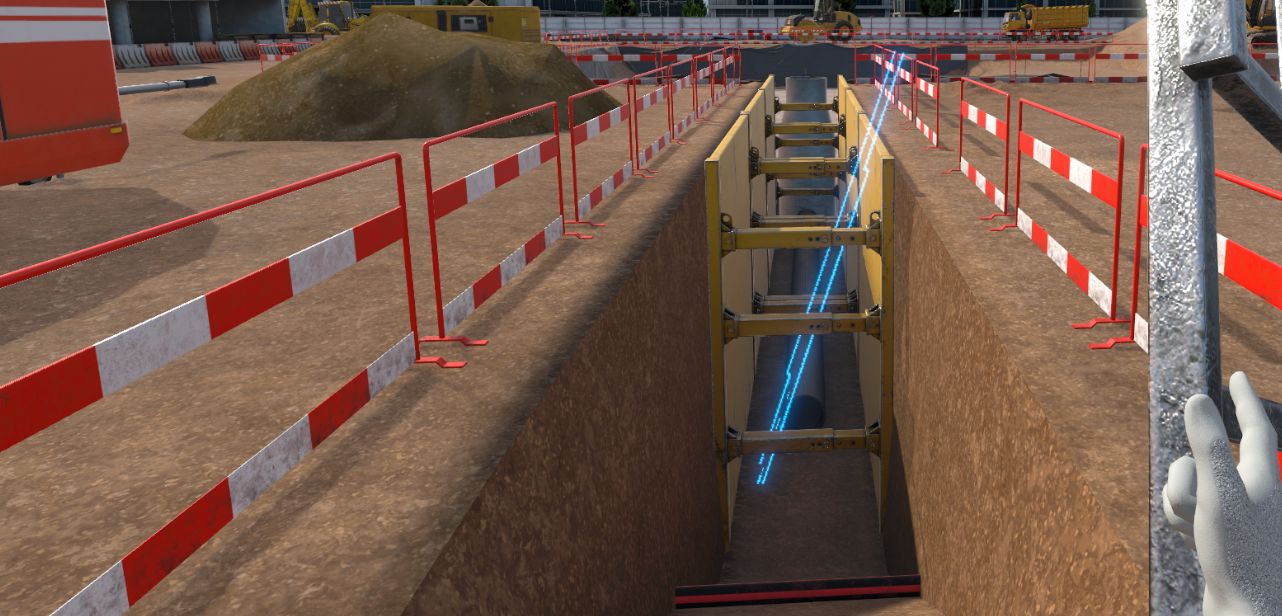
After securing the area, he positions a ladder and climbs down into the trench.
He positions a laser target to check the slope.
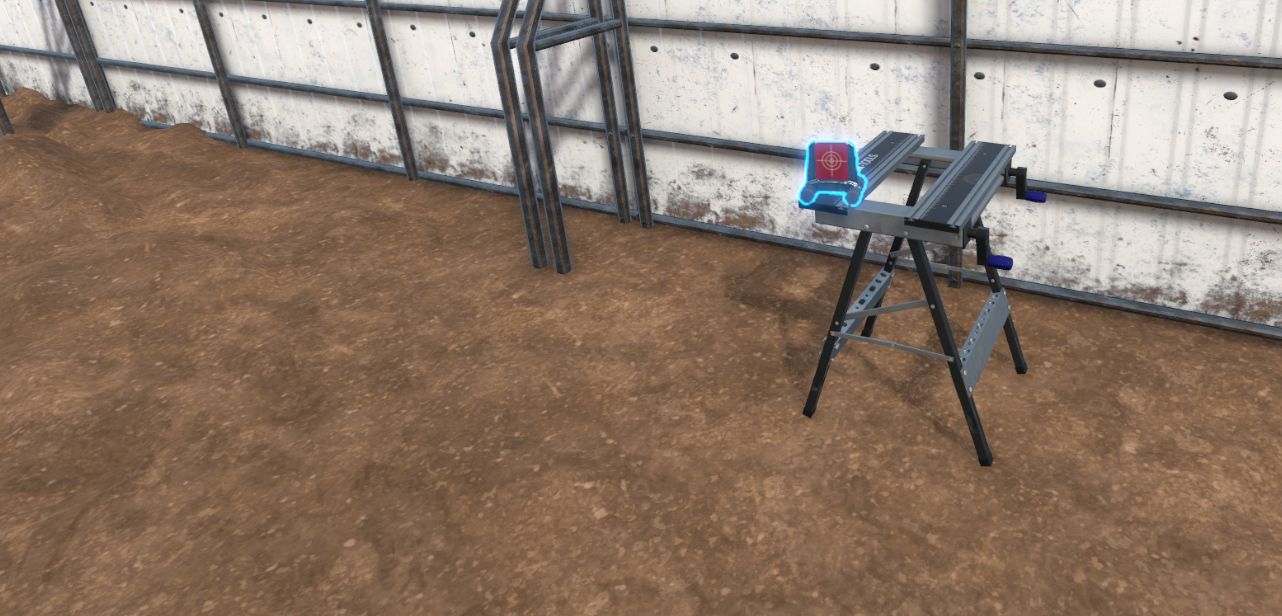
The scenario ends when the user has placed the laser target, then he is teleported to the reception hall, facing the summary screen recapping his performance.
6.3.3. Exercise evaluation criteria
Time given to analyze the scene.
 Securing of the work area.
 Compliance with safety rules.
 PPE selection.
6.4. Risk: Laying dry networks in a shallow trench
On a sanitation installation site, the user must secure the work area in order to carry out a slope check.
6.4.1. Exercise outline
-
Learn about the mission.
-
Put on the appropriate PPE.
-
Secure the trench.
-
Manage the random situations.
-
Use the compactor.
6.4.2. Scenario walkthrough
The user starts in a site trailer containing the PPE.
Once equipped, he must go to the site and inspect the zone.
The user must choose from the PPE available in the locker: . Hard hat . Anti-vibration gloves . Safety shoes . High-visibility clothing (yellow vest) . Hearing protection . Protective glasses
There are various possible random situations: . Presence of materials (pipes) in the immediate vicinity of the trench . Marked gas crossing . Marked water supply crossing
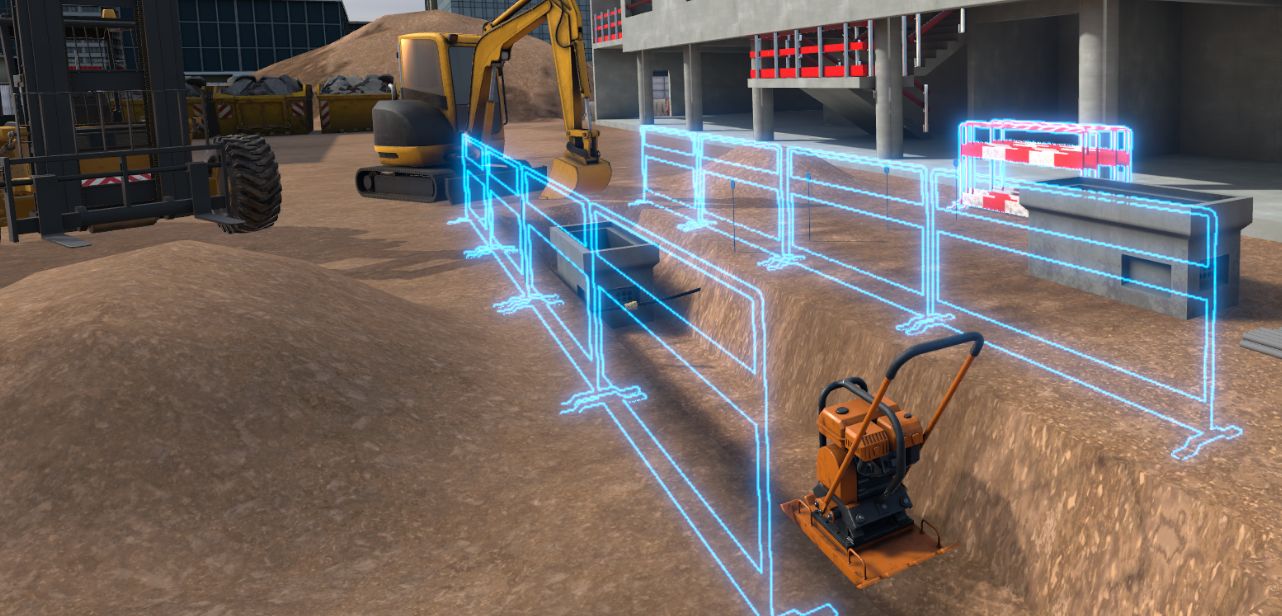
Random events:
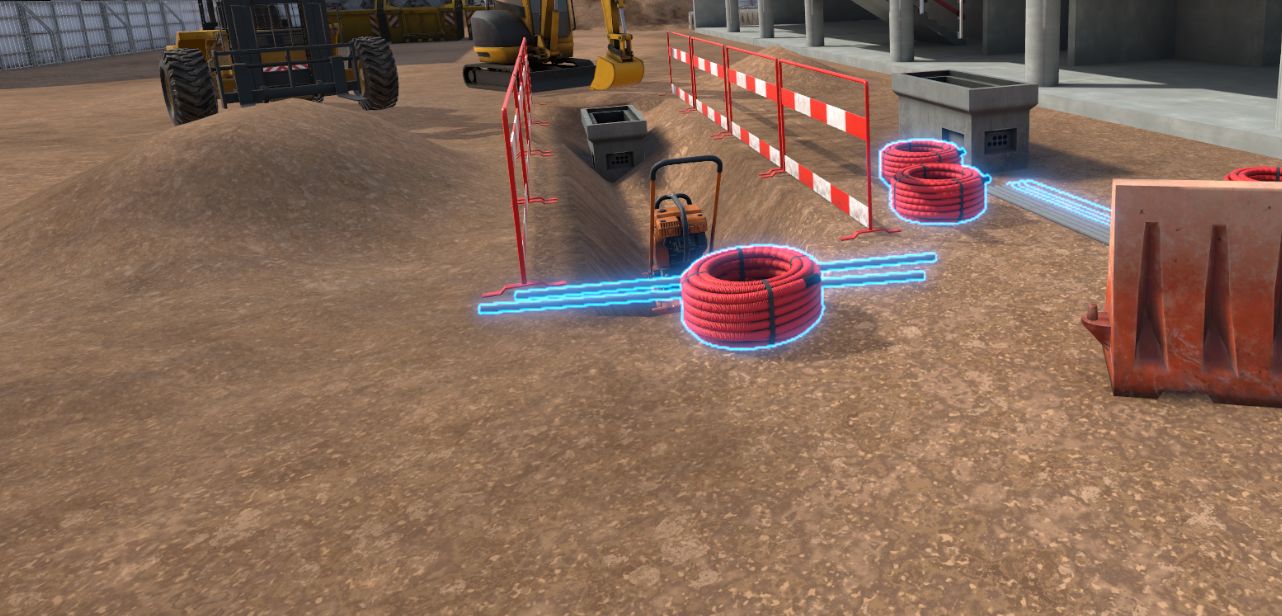
If the random event is the presence of materials (pipes) in the immediate vicinity of the trench:
The user picks up one of the pipes and places it on a highlighted spot; the others are automatically moved as well.
If the random event is a marked gas / water supply crossing:
The user picks up a pipe support in the storage zone and positions it at the pipe. An indicator appears as soon as the boards and straps are in hand.
-
User: I need to contact a utility operator.
-
Site manager: Very well, which one?
-
User: Electricity / Gas / Water (depending on the network detected)
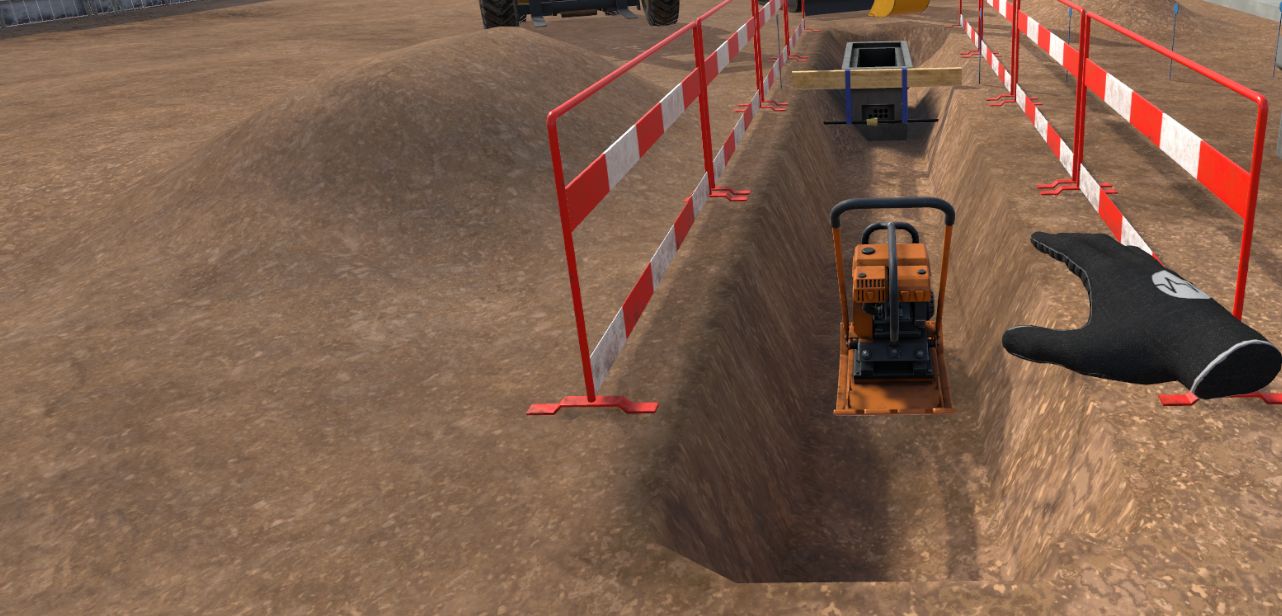
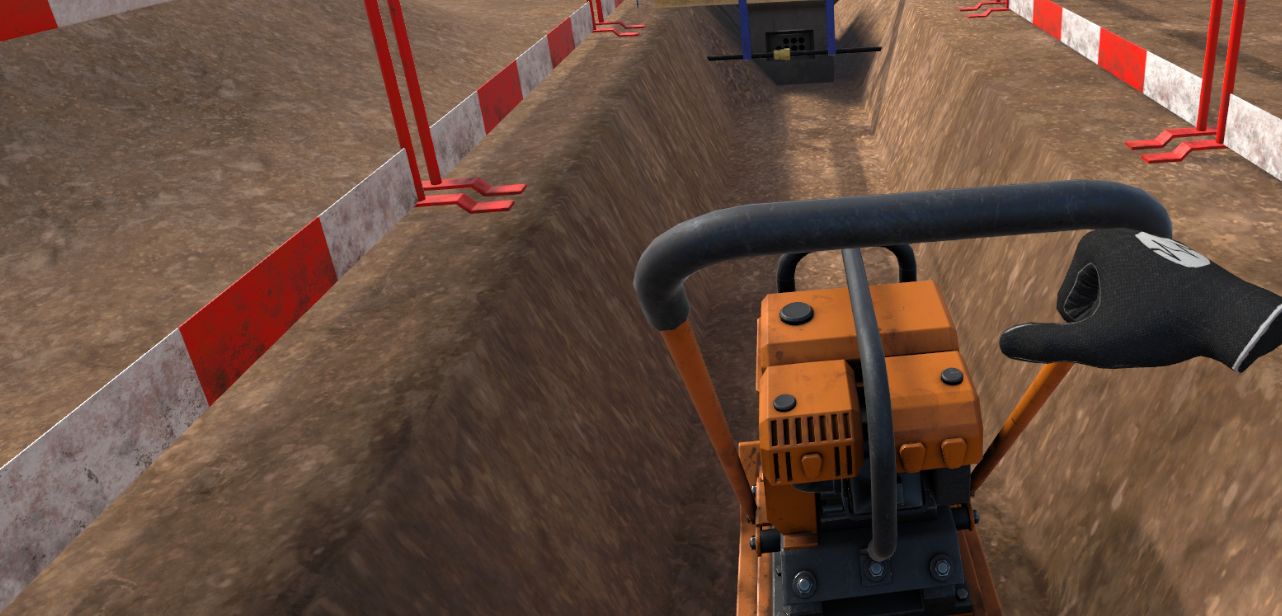
The user then climbs down into the trench and picks up the compactor. This validates the scenario, and the user is teleported to the reception hall, facing the summary screen recapping his performance.
6.4.3. Exercise evaluation criteria
Time given to analyze the scene.
Securing of the work area.
Compliance with safety rules.
PPE selection.
6.5. Risk: Burying an electrical line during earthworks
On an electrical line burial site, the user must secure the work area in order to carry out a slope check.
6.5.1. Exercise outline
-
Talk to the site manager.
-
Put on the required PPE.
-
Secure the zone (traffic, barriers, networks).
-
Manage the risk events.
-
Check the altimetry with the laser.
6.5.2. Scenario walkthrough
The user must choose from the PPE available in the locker:
-
Hard hat
-
Work gloves
-
Safety shoes
-
High-visibility clothing (yellow vest)
-
Hearing protection
-
Protective glasses
Once equipped, he must go to the site and inspect the zone.
There are various possible random situations: . Presence of an overhead MV line . Presence of materials (pipes) in the immediate vicinity of the trench . Inaccessible gas shut-off valve . Unmarked gas
Before climbing down into the trench, the user must secure the work area.
Random events:
-
If there is an overhead MV line:
The user must go back to see the site manager and ask her to report an electrical network.
-
User: I need to contact a utility operator.
-
Site manager: Very well, which one?
-
User: Electricity
-
Site manager: The network has been cut off by the operator, we can continue working.
-
If the random event is the presence of materials (pipes) in the immediate vicinity of the trench:
The user picks up one of the pipes and places it on a highlighted spot; the others are automatically moved as well.
-
If the gas shut-off valve is inaccessible because it is obstructed by a pile of earth:
The user will have to walk around the backhoe loader to ask the excavator operator to remove the pile of earth and clear the obstructed gas valve.
-
If there is no marking around the gas shut-off valve:
The user must go back to see the site manager and ask her to report a gas network.
-
User: I need to contact a utility operator.
-
Site manager: Very well, which one?
-
User: Gas
-
Site manager: The network has been cut off by the operator, we can continue working.
The user then climbs down into the trench and picks up the compactor. This validates the scenario, and the user is teleported to the reception hall, facing the summary screen recapping his performance.
6.5.3. Exercise evaluation criteria
Time given to analyze the scene.
Securing of the work area.
Compliance with safety rules.
PPE selection.
6.6. Adapting technical resources: Demolishing a hard asphalt layer
The user must choose the technique and equipment suited to demolishing an asphalt layer, taking existing networks into account.
6.6.1. Exercise outline
-
Learn about the mission.
-
Observe the zone and the markings.
-
Choose the approach technique.
-
Select the appropriate equipment.
6.6.2. Scenario walkthrough
First, the user will be able to go outside and observe the zone. Networks will randomly be visible around the hard asphalt layer.
The user will be able to interact with the arrows to open the menu and enter the information.
With this information, the user can go back to see the site manager in the trailer to suggest an approach technique.
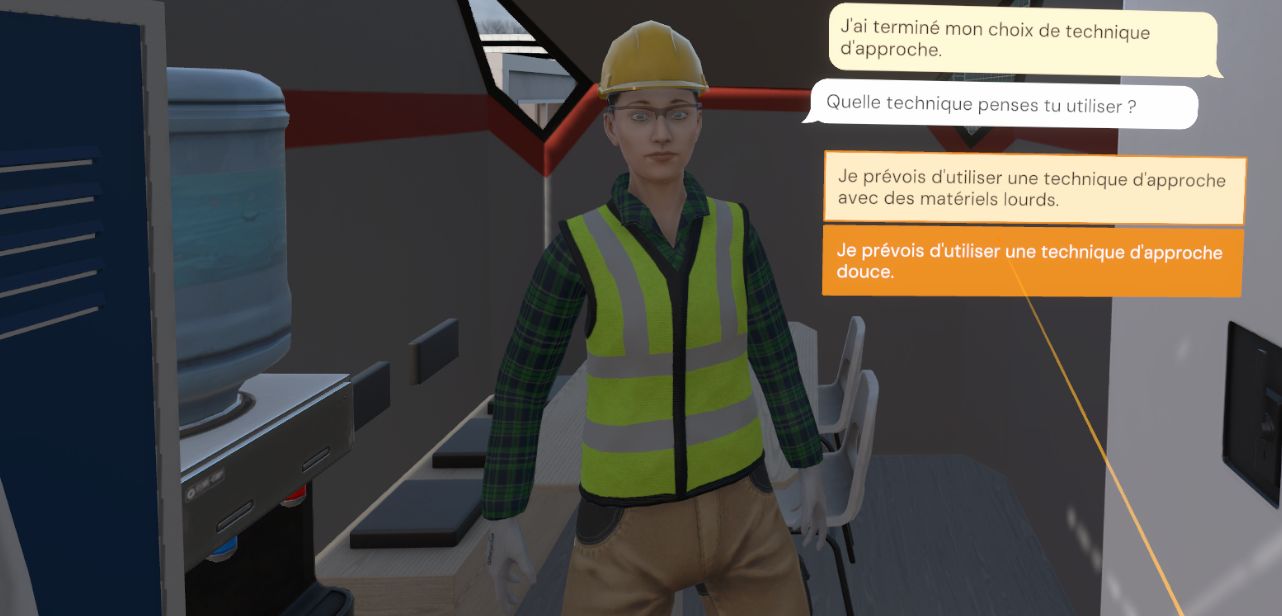
| Type | Class | Depth | Answer |
|---|---|---|---|
Electrical network (red) |
A |
0.8 |
Light technique |
Gas |
A |
0.5 |
Light technique |
Following this choice, the user must go to the equipment parking area and choose, among the various machines and tools, the one best suited to the situation.
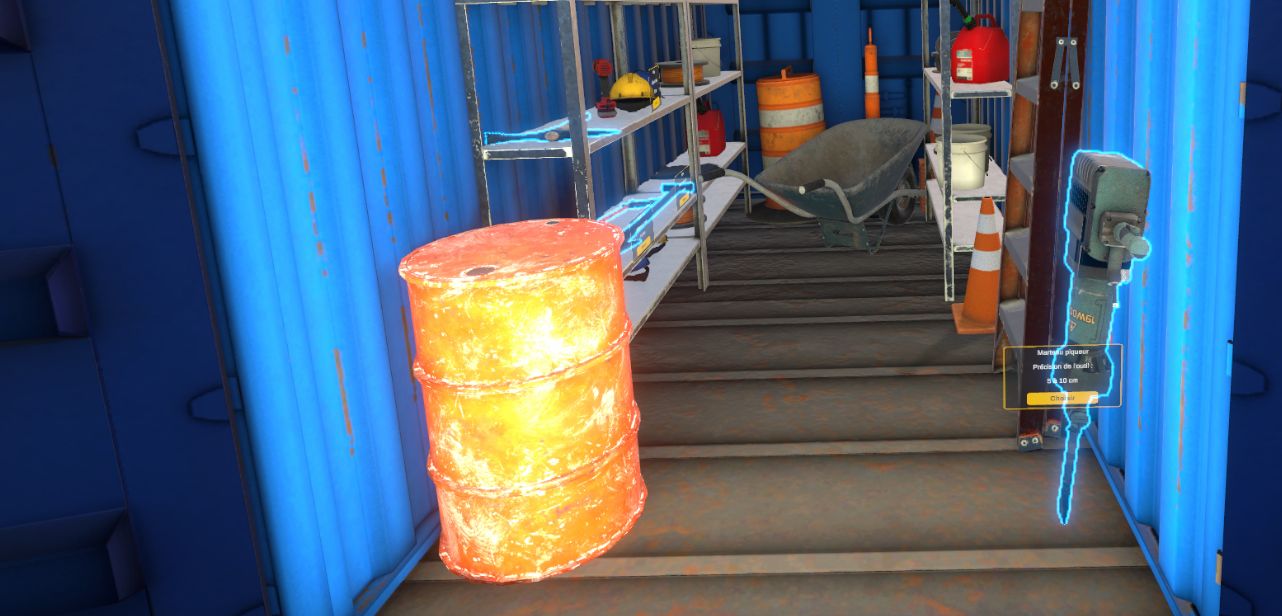
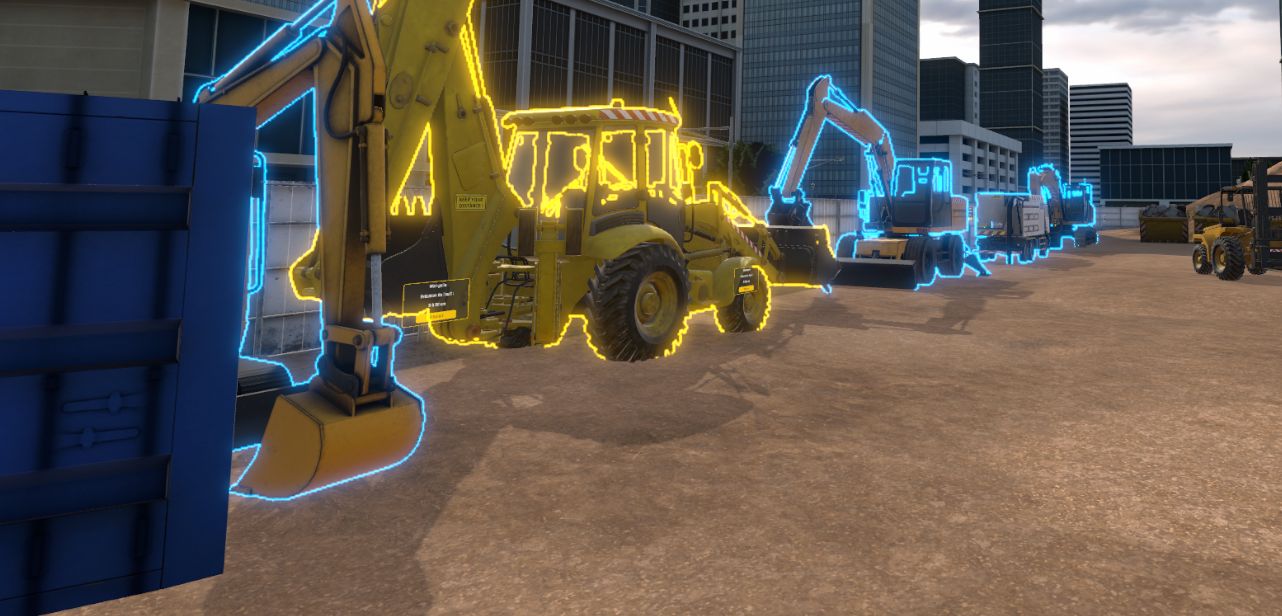
| Tool / Machine | Relevance |
|---|---|
Backhoe loader |
10 / 10 |
Hydraulic excavator |
5 / 10 |
Jackhammer |
3 / 10 |
Mini excavator |
2 / 10 |
Pickaxe |
0 / 10 |
Air pick |
0 / 10 |
Wheel loader |
0 / 10 |
6.6.3. Exercise evaluation criteria
Time given to analyze the scene.
Analysis of the networks present.
Relevance of the technique.
6.7. Adapting technical resources: Excavating a trench
The user must choose the technique and equipment suited to excavating a trench, taking existing networks into account.
6.7.1. Exercise outline
-
Learn about the mission.
-
Observe the zone and the markings.
-
Choose the approach technique.
-
Select the appropriate equipment.
6.7.2. Scenario walkthrough
First, the user will be able to go outside and observe the zone. Networks will randomly be visible around the hard asphalt layer.
The user will be able to interact with the arrows to open the menu and enter the information.
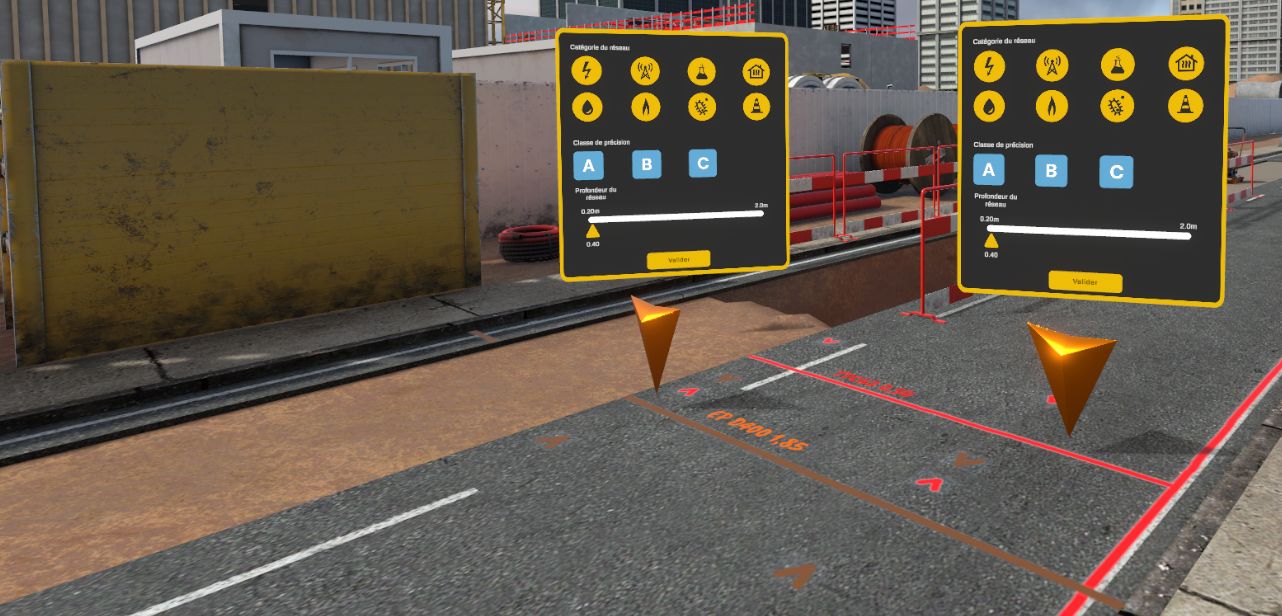
With this information, the user can go back to see the site manager in the trailer to suggest an approach technique.
| Type | Class | Depth | Answer |
|---|---|---|---|
Sanitation |
B |
1.85m |
Soft technique |
Electrical network (red) |
A |
0.6m |
Heavy technique |
Electrical network (red) + Sanitation |
B + A |
1.85m & 0.6m |
Soft technique |
Following this choice, the user must go to the equipment parking area and choose, among the various machines and tools, the one best suited to the situation.
No marking:
Tool / Machine |
Relevance |
Hydraulic excavator |
10 / 10 |
Mini excavator |
5 / 10 |
Other |
0 / 10 |
Sanitation marking (orange):
Tool / Machine |
Relevance |
Hydraulic excavator |
10 / 10 |
Mini excavator |
5 / 10 |
Other |
0 / 10 |
Electrical marking (red):
Tool / Machine |
Relevance |
Vacuum excavator |
10 / 10 |
Air pick |
4 / 10 |
Shovel |
2 / 10 |
Pickaxe |
2 / 10 |
Other |
0 / 10 |
Electrical marking (red) AND Sanitation marking (orange):
Tool / Machine |
Relevance |
Vacuum excavator |
10 / 10 |
Air pick |
4 / 10 |
Shovel |
2 / 10 |
Pickaxe |
2 / 10 |
Other |
0 / 10 |
6.7.3. Exercise evaluation criteria
Time given to analyze the scene.
Analysis of the networks present.
Relevance of the technique.
6.8. Adapting technical resources: Clearing network(s)
The user must choose the technique and equipment suited to clearing a zone, taking existing networks into account.
6.8.1. Exercise outline
-
Learn about the mission.
-
Observe the zone and the markings.
-
Choose the approach technique.
-
Select the appropriate equipment.
6.8.2. Scenario walkthrough
First, the user will be able to go outside and observe the zone. Networks will randomly be visible around the hard asphalt layer.
The user will be able to interact with the arrows to open the menu and enter the information.
With this information, the user can go back to see the site manager in the trailer to suggest an approach technique.
| Type | Class | Depth | Answer |
|---|---|---|---|
Water supply network (blue) |
B |
1.05 |
Soft technique |
Water supply network (blue) + embedded in a concrete block |
B |
1.05 |
Soft technique |
Gas (yellow) |
A |
0.70 |
Soft technique |
Water network (blue) + Gas (yellow) |
B + A |
1.05 + 0.70 |
Light technique |
If the configuration is such that the network is embedded in a block of concrete, the user must also ask the site manager to contact a utility operator to intervene.
Following this choice, the user must go to the equipment parking area and choose, among the various machines and tools, the one best suited to the situation.
Sanitation marking (orange):
Tool / Machine |
Relevance |
Hydraulic excavator |
10 / 10 |
Mini excavator |
5 / 10 |
Other |
0 / 10 |
Water marking (blue):
Tool / Machine |
Relevance |
Vacuum excavator |
10 / 10 |
Air pick |
4 / 10 |
Shovel |
2 / 10 |
Pickaxe |
2 / 10 |
Other |
0 / 10 |
Water marking (blue) AND Gas marking (yellow):
Tool / Machine |
Relevance |
Vacuum excavator |
10 / 10 |
Air pick |
4 / 10 |
Shovel |
2 / 10 |
Pickaxe |
2 / 10 |
Other |
0 / 10 |
6.8.3. Exercise evaluation criteria
Time given to analyze the scene.
Analysis of the networks present.
Relevance of the technique.
6.9. 4A Procedure: Damage to a buried network
Immersed in a construction site environment, the user finds himself in a site trailer, waiting to receive his mission. The user will need to go to a road under construction, but, on arrival, an incident occurs with one of the machines on site. Following the 4A rule, the learner must take charge of the procedure to stop the incident, arrange the zone, alert of the danger, and welcome the site manager.
6.9.1. Exercise outline
-
Talk to the site manager.
-
Ask the site manager for safety instructions.
-
Ask the site manager for work instructions.
-
Put on the PPE appropriate to the task before going out onto the site.
-
Leave the site trailer.
-
Start the 4A procedure.
-
Talk to the excavator operator.
-
Call the site manager.
-
Secure the incident zone.
-
Welcome the site manager.
6.9.2. Scenario walkthrough
The user starts the scenario inside a site trailer. The site manager stands in a corner of the trailer. The user must interact with her to learn about:
-
the task to be carried out;
-
the personal protective equipment (PPE) required for the intervention.
A cabinet containing all the available PPE is also present in the trailer. The user must put on the required PPE before leaving the zone.
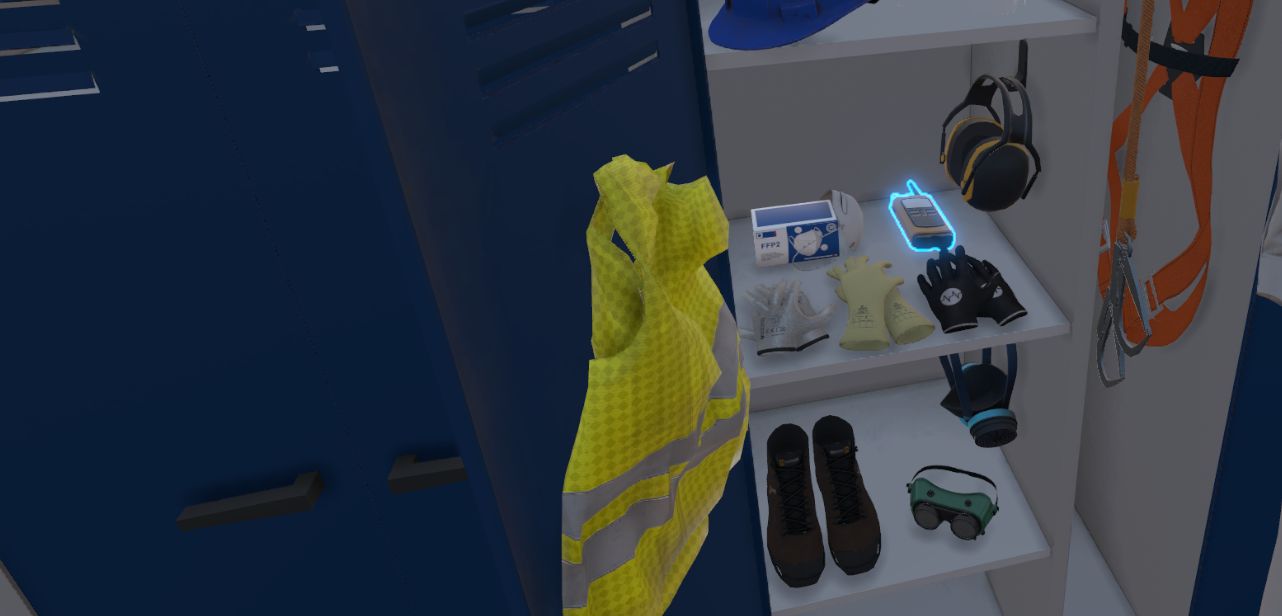
Once properly equipped, the user leaves the trailer and heads to the road under construction.
On arriving in this zone, an incident occurs: a backhoe loader digging a trench pierces an underground water network and creates a leak that turns into flooding.
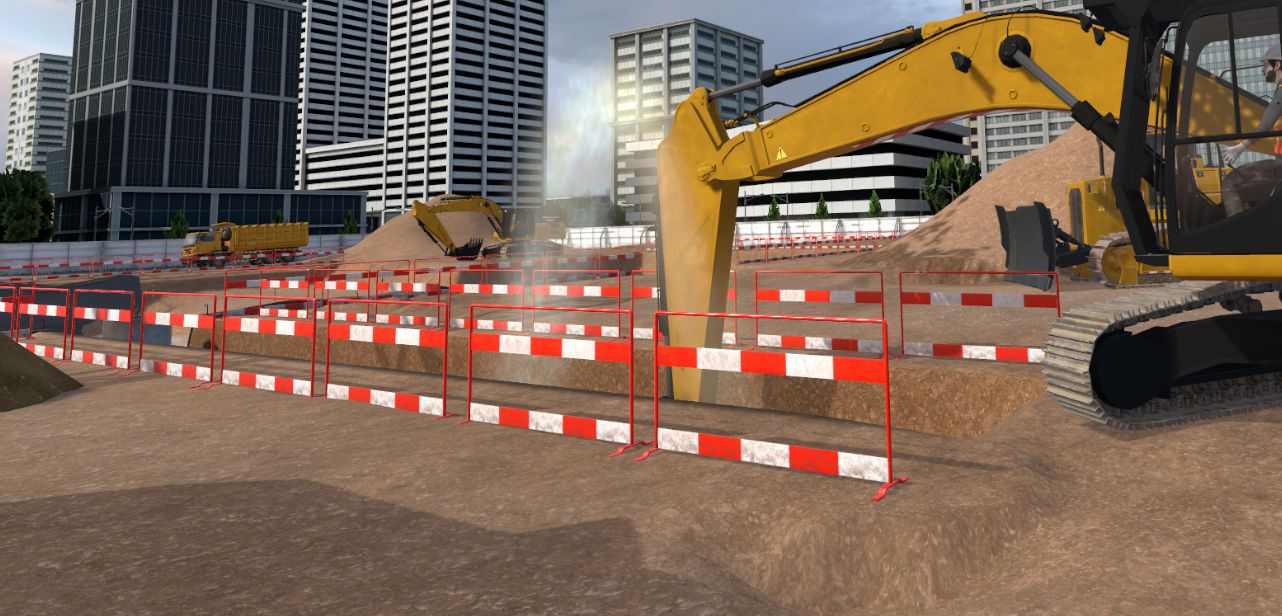
Faced with this incident, the learner must apply the 4A procedure to secure the situation.
-
Stop: Secure the zone by talking to the excavator operator.
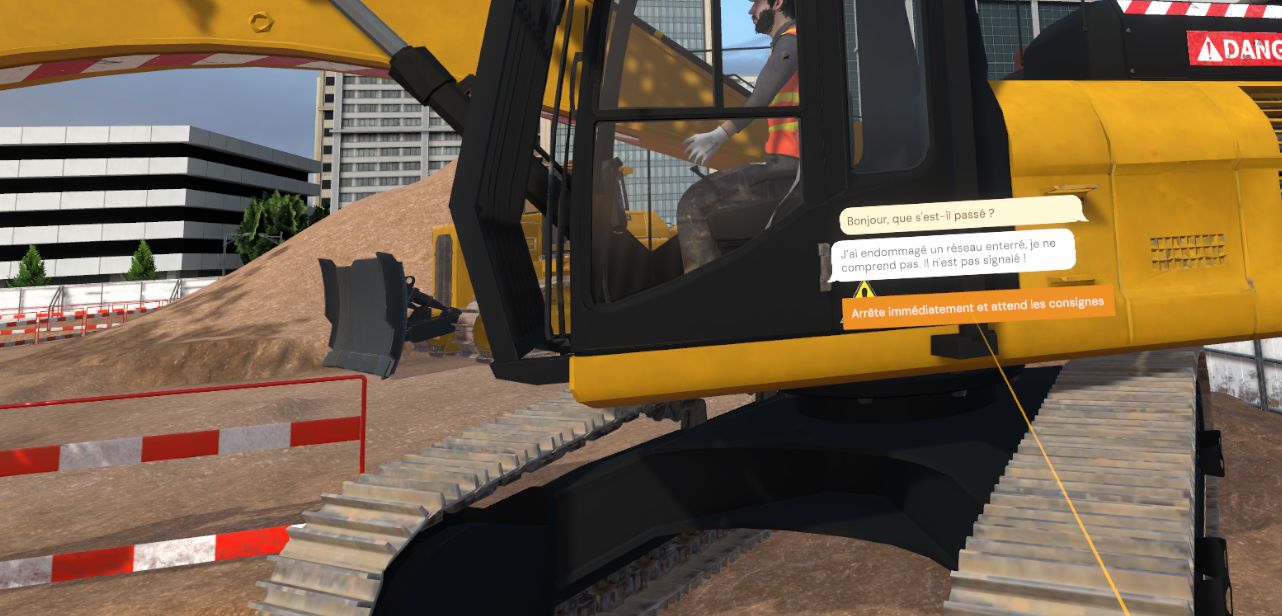
-
Alert: Contact the site manager or emergency services to report the incident, depending on whether the excavator operator can free himself or not.
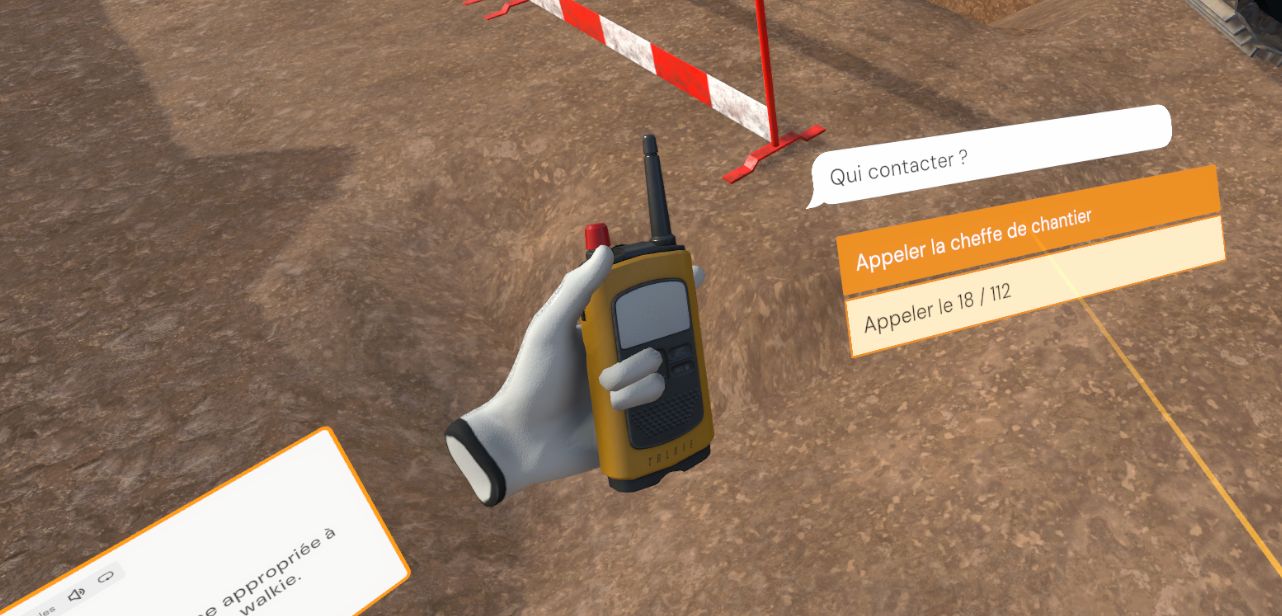
Answers to the call dialogue:
Zone 2
| Question | Answer | Why? |
|---|---|---|
Who to call? |
The site manager |
No one is injured, so emergency services are not needed. |
Where are you? |
I’m at the office building construction site, downtown, next to the sanitation trench. |
The most detailed answer is always preferable. |
What is happening? |
A water pipe has been pierced. |
Important detail. |
Have you stopped the work? |
No. |
Securing takes place during the waiting period; this affects the order of the steps: Alert first, then Arrange. |
Are there any injuries? |
No. |
Do not give false information. |
/!\ Every mistake costs points.
-
Arrange: Set up marker cones to prevent any further accidents.
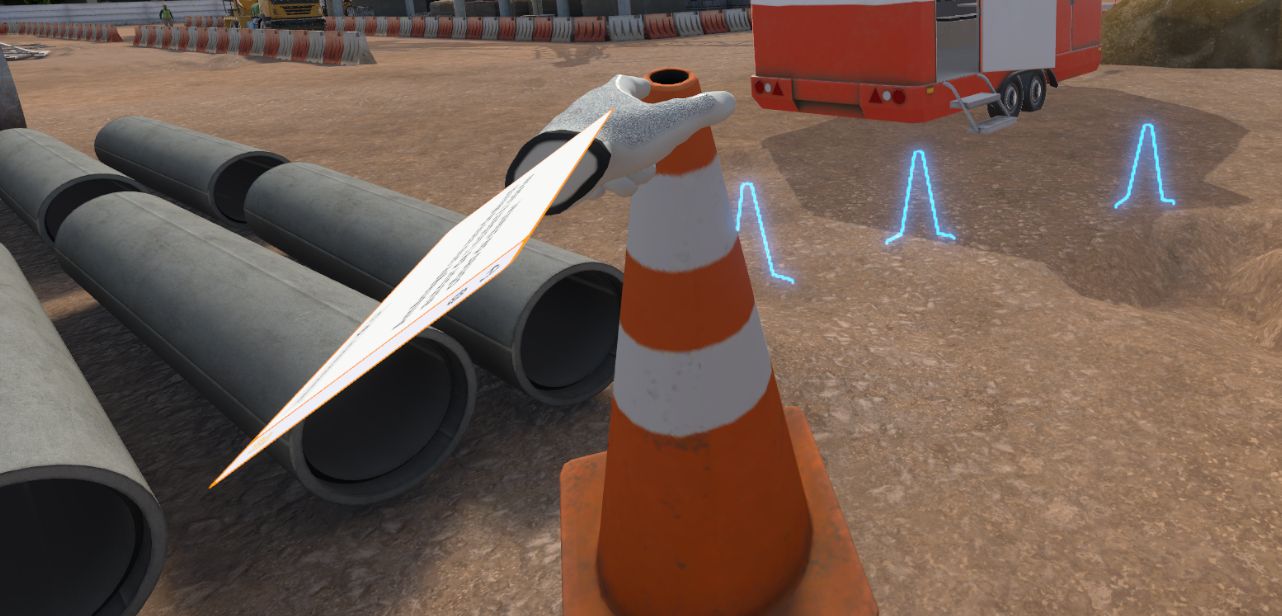
-
Welcome: Wait near the incident zone to welcome the site manager or emergency services on arrival.
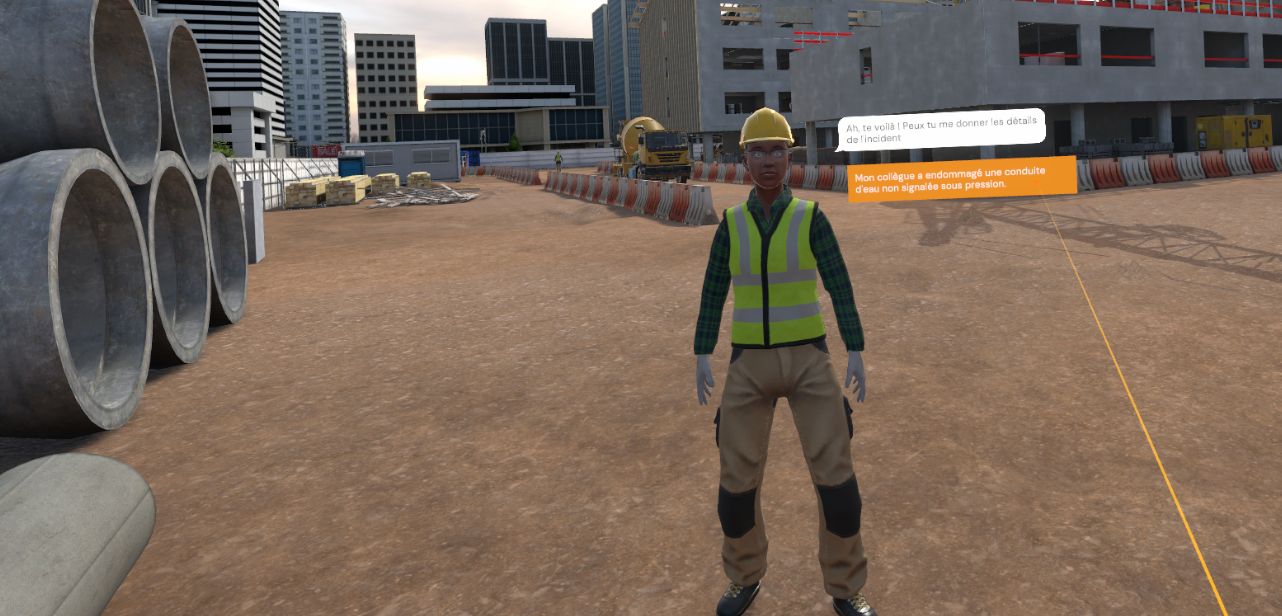
Once the 4A procedure has been carried out correctly, the user is automatically teleported to the reception hall, facing the summary screen recapping his performance.
6.9.3. Exercise evaluation criteria
Safety: Evaluates the user’s PPE selection.
Reaction time (incident): Evaluates the speed of execution of the 4A procedure following the incident.
 Stop: Evaluates whether all elements have been stopped.
 Alert: Evaluates whether the user chose the right service to contact and gave it the right information.
 Arrange: Evaluates the quality of the arrangement of the incident zone.
 Welcome: Evaluates how the user welcomes the service contacted.
Procedure: Validates compliance with the order of the 4A procedure.
6.10. 4A Procedure: Damage to a gas network
Immersed in a construction site environment, the user finds himself in a site trailer, waiting to receive his mission. The user will need to go to a road under construction, but, on arrival, an incident occurs with one of the machines on site. Following the 4A rule, the learner must take charge of the procedure to stop the incident, arrange the zone, alert of the danger, and welcome the site manager.
6.10.1. Exercise outline
-
Talk to the site manager.
-
Ask the site manager for safety instructions.
-
Ask the site manager for work instructions.
-
Put on the PPE appropriate to the task before going out onto the site.
-
Leave the site trailer.
-
Start the 4A procedure.
-
Talk to the excavator operator.
-
Call the site manager.
-
Secure the incident zone.
-
Welcome the site manager.
6.10.2. Scenario walkthrough
The user starts the scenario inside a site trailer. The site manager stands in a corner of the trailer. The user must interact with her to learn about:
-
the task to be carried out;
-
the personal protective equipment (PPE) required for the intervention.
A cabinet containing all the available PPE is also present in the trailer. The user must put on the required PPE before leaving the zone.
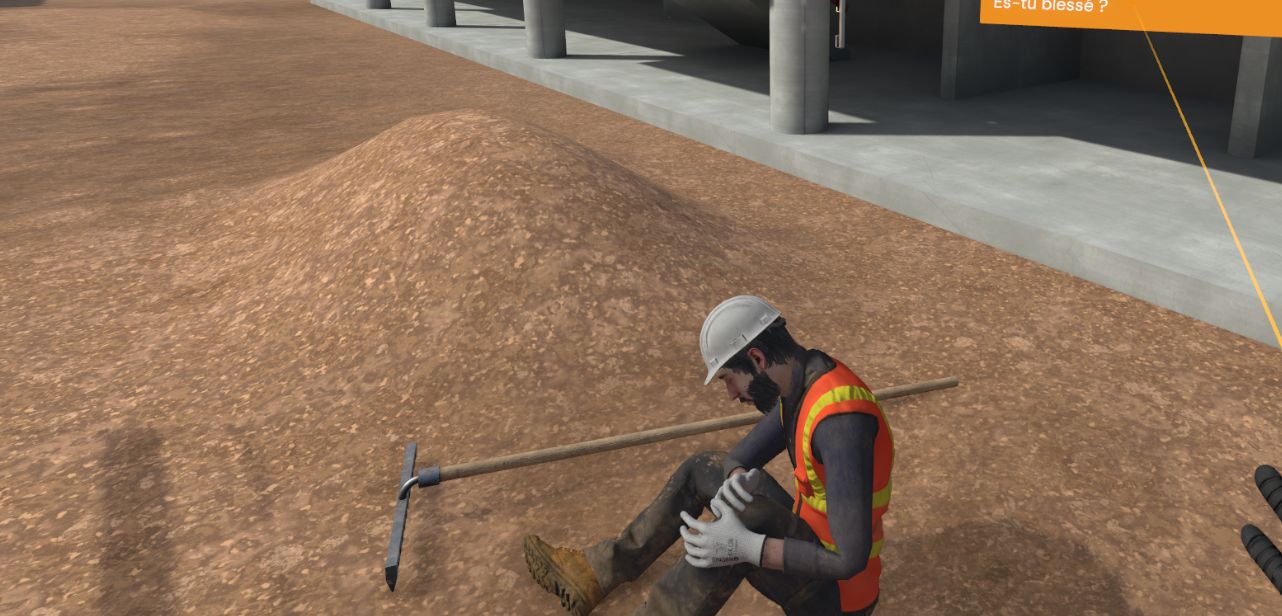
Once properly equipped, the user leaves the trailer to go to the site, then heads to the trench. He picks up the compactor to move it forward. An explosion caused by a gas leak rings out, and an injured person is visible near the explosion.
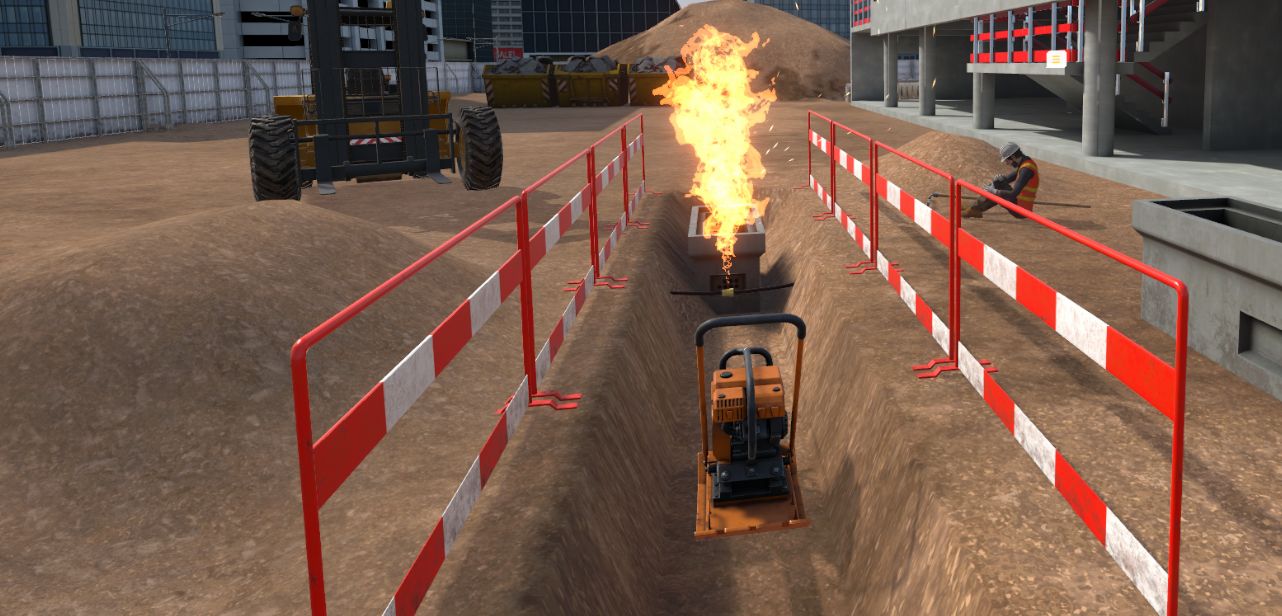
Faced with this incident, the learner must apply the 4A procedure to secure the situation.
-
Stop: Stop the compactor and secure the zone by talking to the avatar who appears to be injured.
-
Alert: Contact the site manager or emergency services to report the incident, depending on whether the excavator operator can free himself or not.
-
Arrange: Set up marker cones to prevent any further accidents.
-
Welcome: Wait near the incident zone to welcome the site manager or emergency services on arrival.
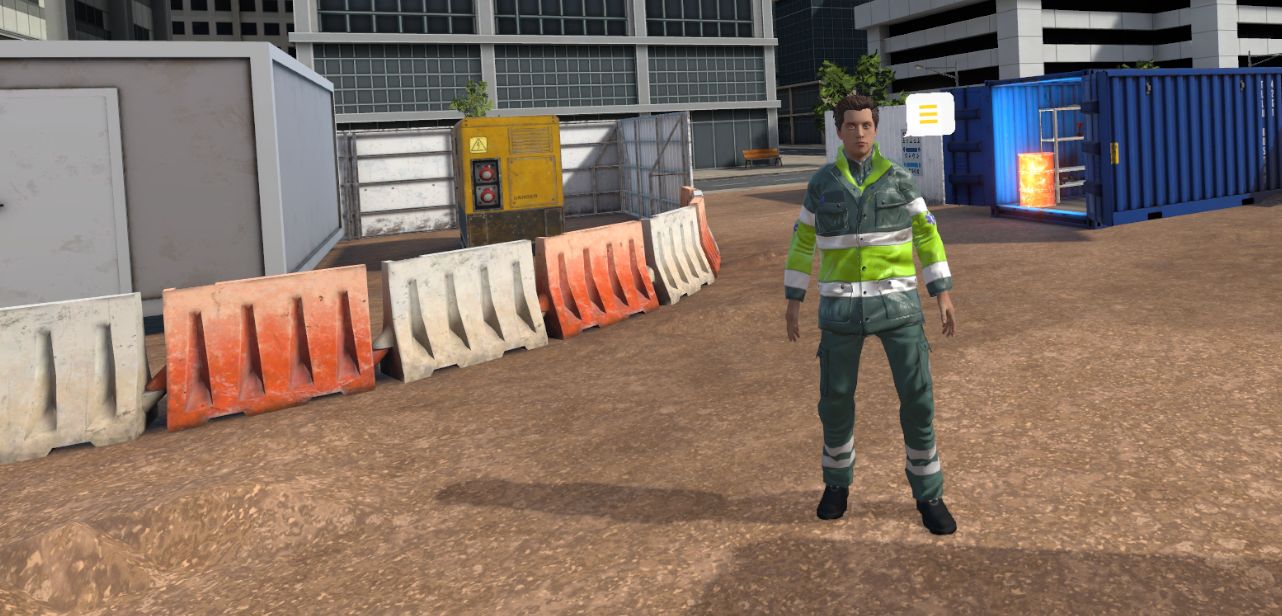
Once the 4A procedure has been carried out correctly, the user is automatically teleported to the reception hall, facing the summary screen recapping his performance.
6.10.3. Exercise evaluation criteria
Safety: Evaluates the user’s PPE selection.
Reaction time (incident): Evaluates the speed of execution of the 4A procedure following the incident.
Stop: Evaluates whether all elements have been stopped.
Alert: Evaluates whether the user chose the right service to contact and gave it the right information.
Arrange: Evaluates the quality of the arrangement of the incident zone.
Welcome: Evaluates how the user welcomes the service contacted.
Procedure: Validates compliance with the order of the 4A procedure.
6.11. 4A Procedure: Contact between a machine and an HV line
Immersed in a construction site environment, the user finds himself in a site trailer, waiting to receive his mission. The user will need to go to a road under construction, but, on arrival, an incident occurs with one of the machines on site. Following the 4A rule, the learner must take charge of the procedure to stop the incident, arrange the zone, alert of the danger, and welcome the site manager.
6.11.1. Exercise outline
To complete the whole exercise, the user must carry out the actions in the following order:
-
Talk to the site manager.
-
Ask the site manager for safety instructions.
-
Ask the site manager for work instructions.
-
Put on the PPE appropriate to the task before going out onto the site.
-
Leave the site trailer.
-
Start the 4A procedure.
-
Talk to the excavator operator.
-
Call the site manager.
-
Secure the incident zone.
-
Welcome the site manager.
6.11.2. Scenario walkthrough
The user starts the scenario inside a site trailer. The site manager stands in a corner of the trailer. The user must interact with her to learn about:
-
the task to be carried out;
-
the personal protective equipment (PPE) required for the intervention.
A cabinet containing all the available PPE is also present in the trailer. The user must put on the required PPE before leaving the zone.
Once properly equipped, the user leaves the trailer and heads to the road under construction.
On arriving in this zone, an incident occurs: a backhoe loader makes contact between its bucket and the cables of a high-voltage line.
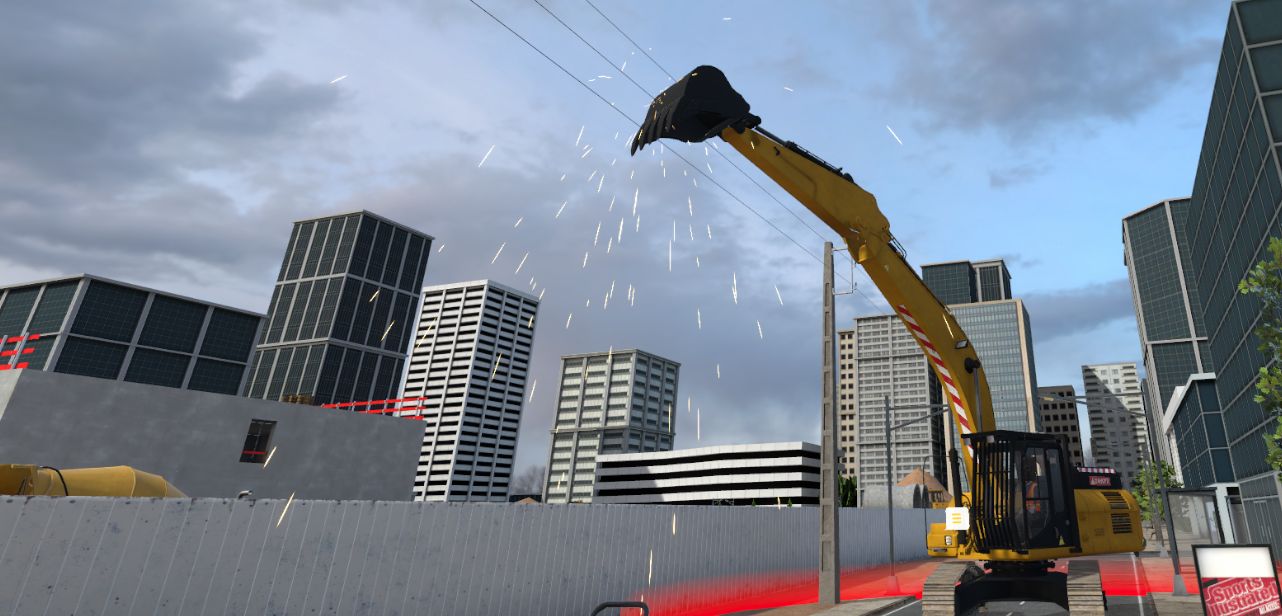
Faced with this incident, the learner must apply the 4A procedure to secure the situation.
-
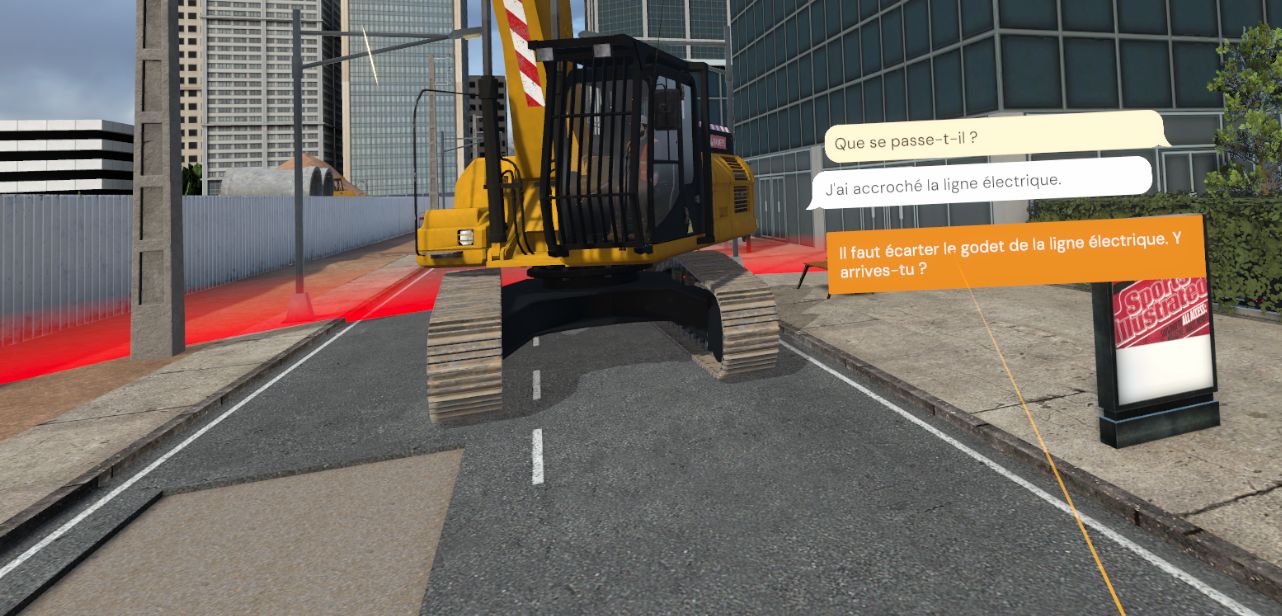
Stop: Secure the zone by talking to the excavator operator.
-
Alert: Contact the site manager or emergency services to report the incident, depending on whether the excavator operator can free himself or not.
-
Arrange: Set up marker cones to prevent any further accidents.
-
Welcome: Wait near the incident zone to welcome the site manager or emergency services on arrival.
Once the 4A procedure has been carried out correctly, the user is automatically teleported to the reception hall, facing the summary screen recapping his performance.
6.11.3. Exercise evaluation criteria
Safety: Evaluates the user’s PPE selection.
Reaction time (incident): Evaluates the speed of execution of the 4A procedure following the incident.
Stop: Evaluates whether all elements have been stopped.
Alert: Evaluates whether the user chose the right service to contact and gave it the right information.
Arrange: Evaluates the quality of the arrangement of the incident zone.
Welcome: Evaluates how the user welcomes the service contacted.
Procedure: Validates compliance with the order of the 4A procedure.
7. Construction Site Safety Module (suburban construction site)
7.1. Alert: Property Damage
Immersed in a construction site environment, the user is in the base camp waiting to receive their mission. The user will be required to go to the storage area to check the stocks for the next order, but upon arriving, an incident will occur. Following the 4A rule, the user will have to take charge of the procedure to arrest (Stop) the incident, arrange (Secure) the area, alert of the danger and accommodate (Welcome) their site manager.
7.1.1. Exercise Plan
To validate the entire exercise, the user will have to perform the actions in the following order:
-
Check the briefing.
-
Talk to the site manager.
-
Ask the site manager for safety instructions.
-
Ask the site manager for work instructions.
-
Equip themselves with the appropriate PPE for the task before going out on the site.
-
Leave the base camp.
-
Go to the storage area.
-
Start the 4A procedure.
-
Remove the structures that have just fallen.
-
Call the site manager.
-
Secure the incident area.
-
Welcome the site manager.
7.1.2. Scenario Progress
The user begins the scenario inside the base camp, facing a briefing screen presenting the context of the mission.
Once the briefing is viewed (or skipped), the site manager stands in a corner of the base camp. The user must interact with her to learn about:
-
the task to be performed
-
the mandatory personal protective equipment (PPE) for the intervention
A cabinet containing all the available PPE is also present in the base camp.
It will be necessary to choose gloves, a hard hat, a high-visibility vest and safety shoes before leaving the area.
Once properly equipped, the user leaves the base camp and goes to the storage area.
Upon arrival in this area, an incident occurs: metal bars fall from the storage rack, creating a dangerous situation.
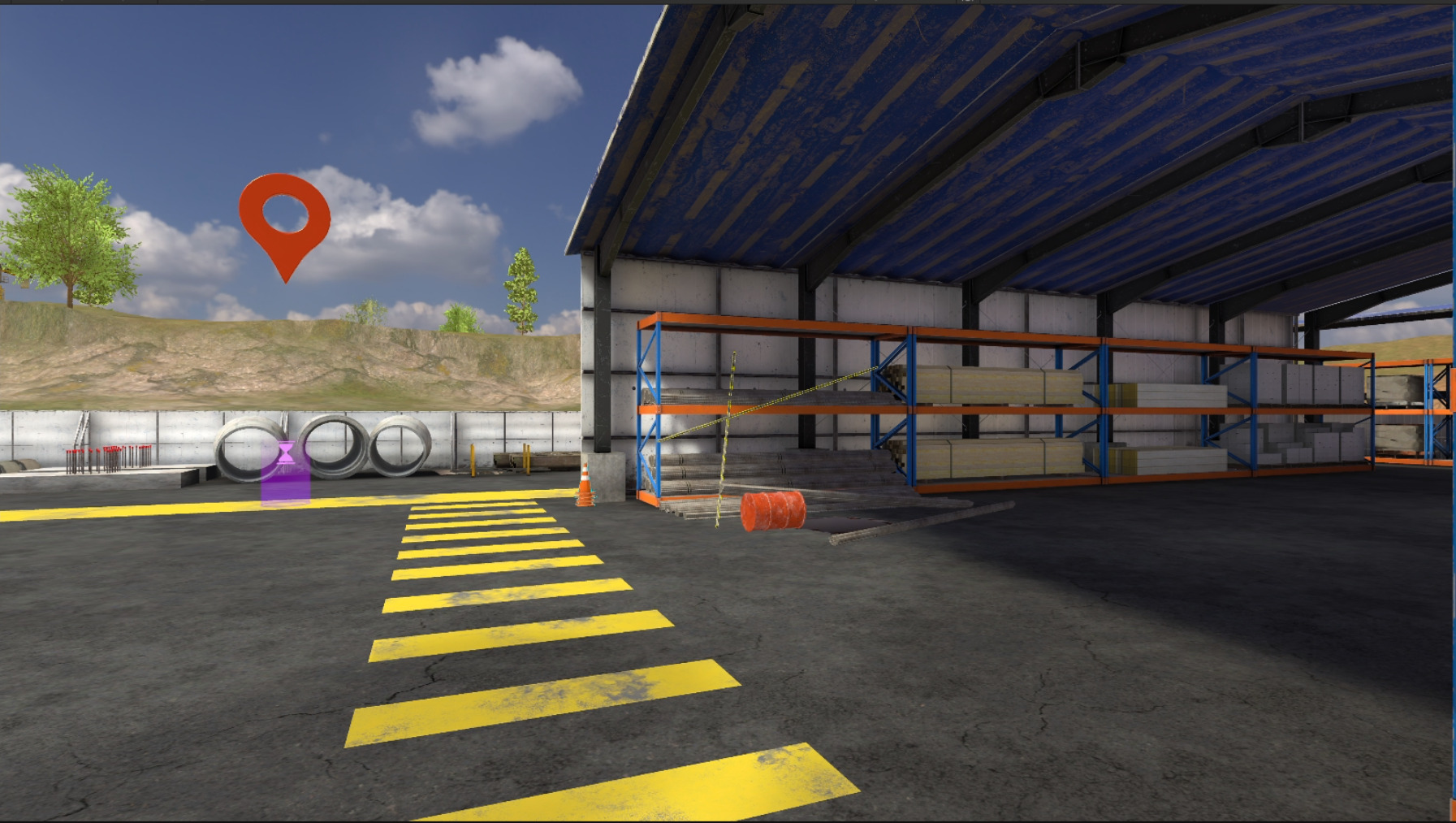
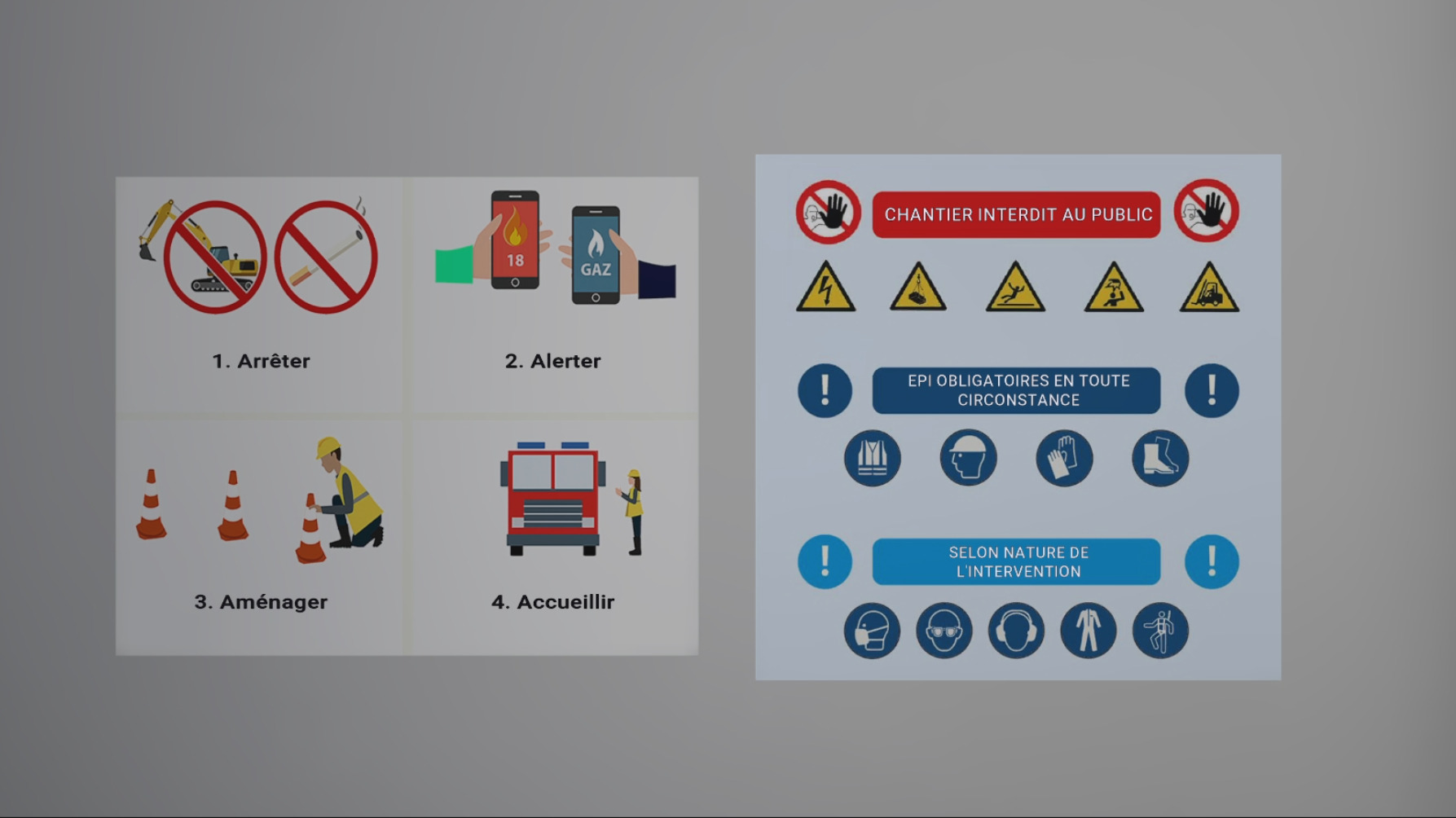
Faced with this incident, the user must apply the 4A procedure to secure the situation.
-
Arrest (Stop): Secure the area by removing or stabilizing the unstable metal bars.
-
Alert: Contact the site manager to report the incident.
-
Answers to the MCQ:
-
1. Call the site manager.
-
2. Hello, I am witnessing an incident.
-
3. I am at the industrial wasteland construction site, in the storage area.
-
4. A strap came loose and reinforcement bars fell to the ground.
-
5. No.
-
6. Yes, me.
-
-
-
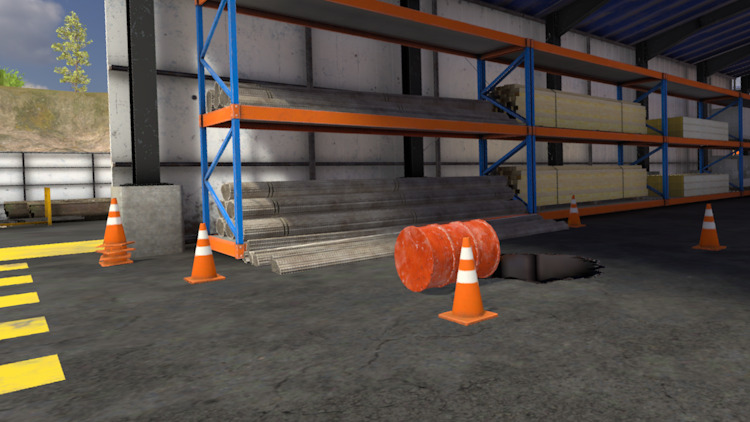
Arrange (Secure): Set up marking cones to prevent any secondary accidents.
-
Accommodate (Welcome): Wait near the incident area to welcome the site manager upon her arrival.
Once the 4A procedure is correctly carried out, the user is automatically teleported to the lobby, facing the summary screen of their performance.
7.1.3. Exercise Evaluation Criteria
Safety: Evaluates the user’s choice of PPE.
Incident reaction time: Evaluates the execution speed of the 4A procedure following the incident.
Arrest (Stop): Evaluates if all elements have been stopped.
Alert: Evaluates if the user has chosen the right service to contact and if they give them the correct information.
Arrange (Secure): Evaluates the quality of the arrangement of the incident area.
Accommodate (Welcome): Evaluates the quality of the welcome of the service contacted by the user.
Procedure: Validates compliance with the order of the 4A procedure.
7.2. Alert: Bodily Injury
Immersed in a home renovation environment, the user is in the base camp waiting for their mission. A briefing is presented by the site manager to explain the tasks to be performed.
During the exercise, a site accident involving bodily injury occurs. The user is then responsible for applying the 4A procedure: arresting (stopping) the tools, arranging (securing) the area, alerting emergency services and accommodating (welcoming) external responders.
7.2.1. Exercise Plan
To validate the entire exercise, the user will have to perform the following actions in the indicated order:
-
Check the briefing.
-
Talk to the site manager.
-
Ask the site manager for safety instructions.
-
Ask the site manager for work instructions.
-
Equip themselves with the appropriate PPE for the task before going out on the site.
-
Leave the base camp.
-
Talk to the team leader.
-
Pick up the rubble.
-
An accident occurs.
-
Start the 4A procedure.
-
Stop the cutter.
-
Remove the block located up high.
-
Bend the iron rod sticking out of the wall.
-
Inform the construction site colleague working in the next room.
-
Ask this colleague to wait outside to welcome the emergency services.
-
Call emergency services.
-
Secure the accident area.
7.2.2. Scenario Progress
The user begins the scenario inside the base camp, facing a briefing screen presenting the context of the mission.
Once the briefing is viewed (or skipped), the site manager stands in a corner of the base camp. The user must interact with her to obtain the following information:
-
the task to be performed
-
the mandatory personal protective equipment (PPE) for the intervention
A cabinet containing all the available PPE is also present in the base camp. It will be necessary to choose gloves, a hard hat, a high-visibility vest, earmuffs and safety shoes before leaving the area.
Once properly equipped, the user leaves the base camp and is teleported to their workplace.
Upon arrival at the area, the team leader tells them the tasks to be carried out in the house.
Entering the building, the user must clear the rubble on the floor.
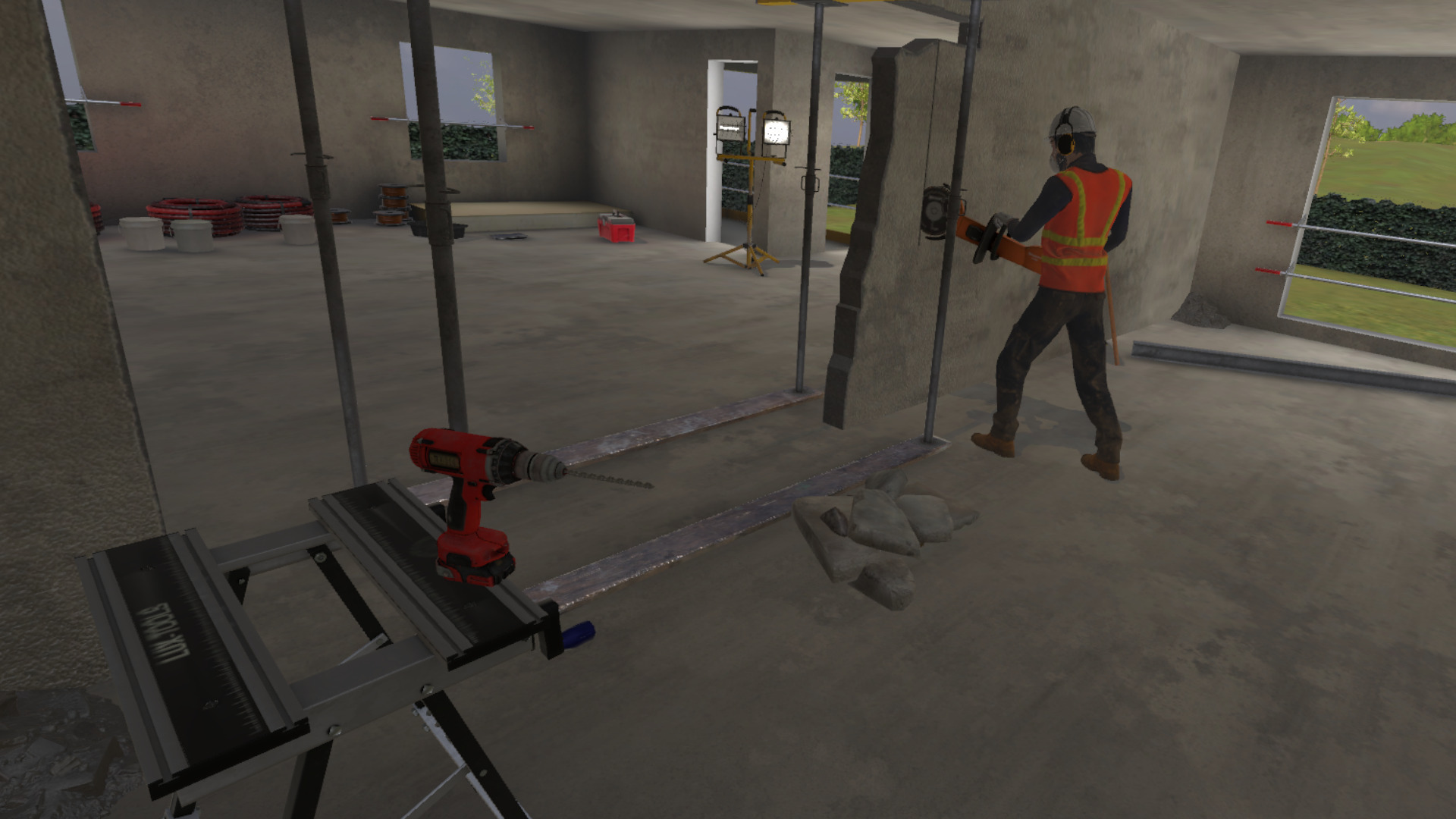
While depositing the rubble in the wheelbarrow, an accident occurs: the colleague cutting the wall falls, taking the cutter with him.
Faced with this accident, the user must apply the 4A procedure to secure the situation.
-
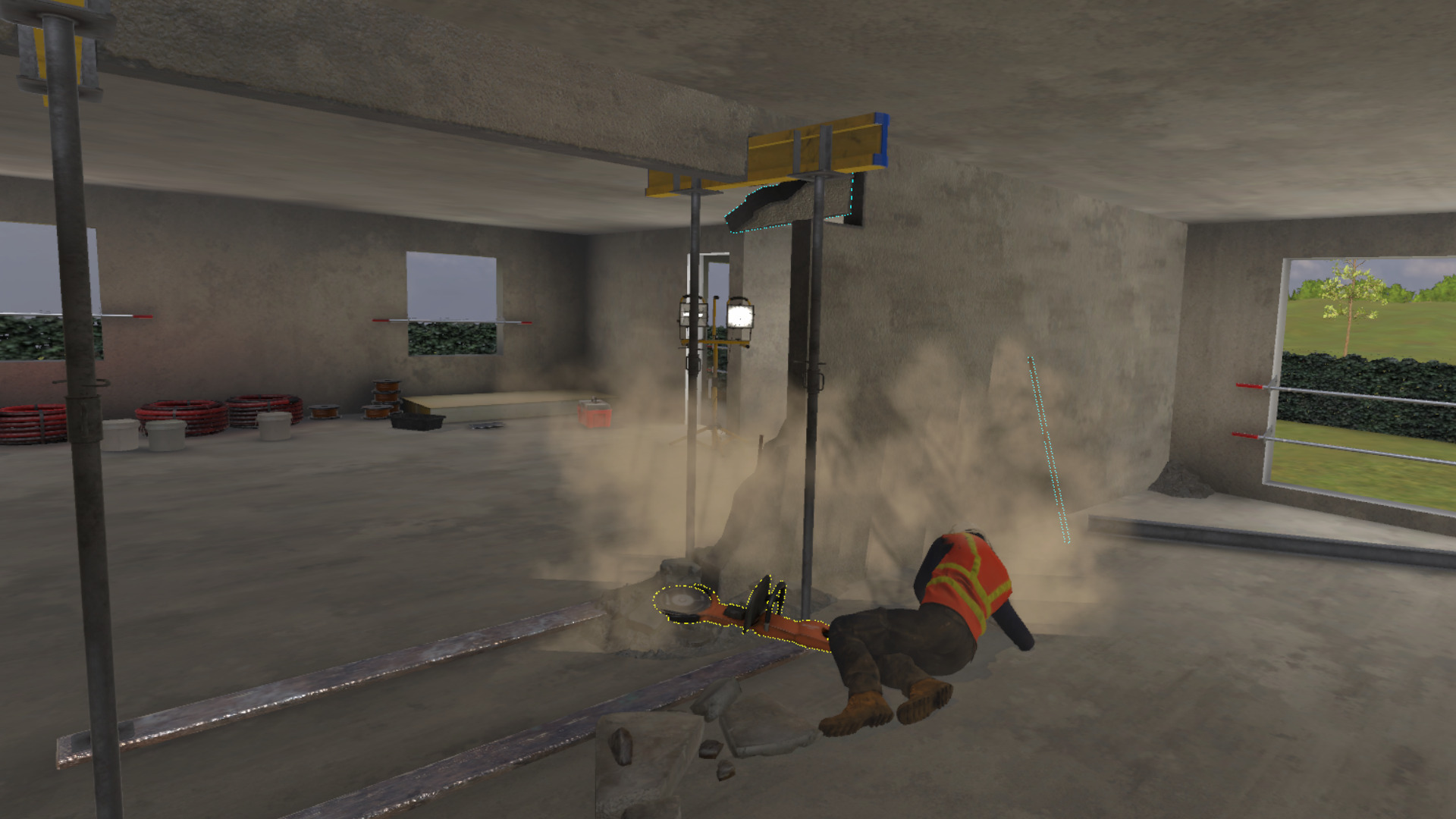
Arrest (Stop): Secure the area by stopping the cutter and dropping the wall block located above the colleague on the ground.
-
Alert: Go warn the worker in the next room, then contact emergency services.
-
Answer to the walkie-talkie discussion:
-
-
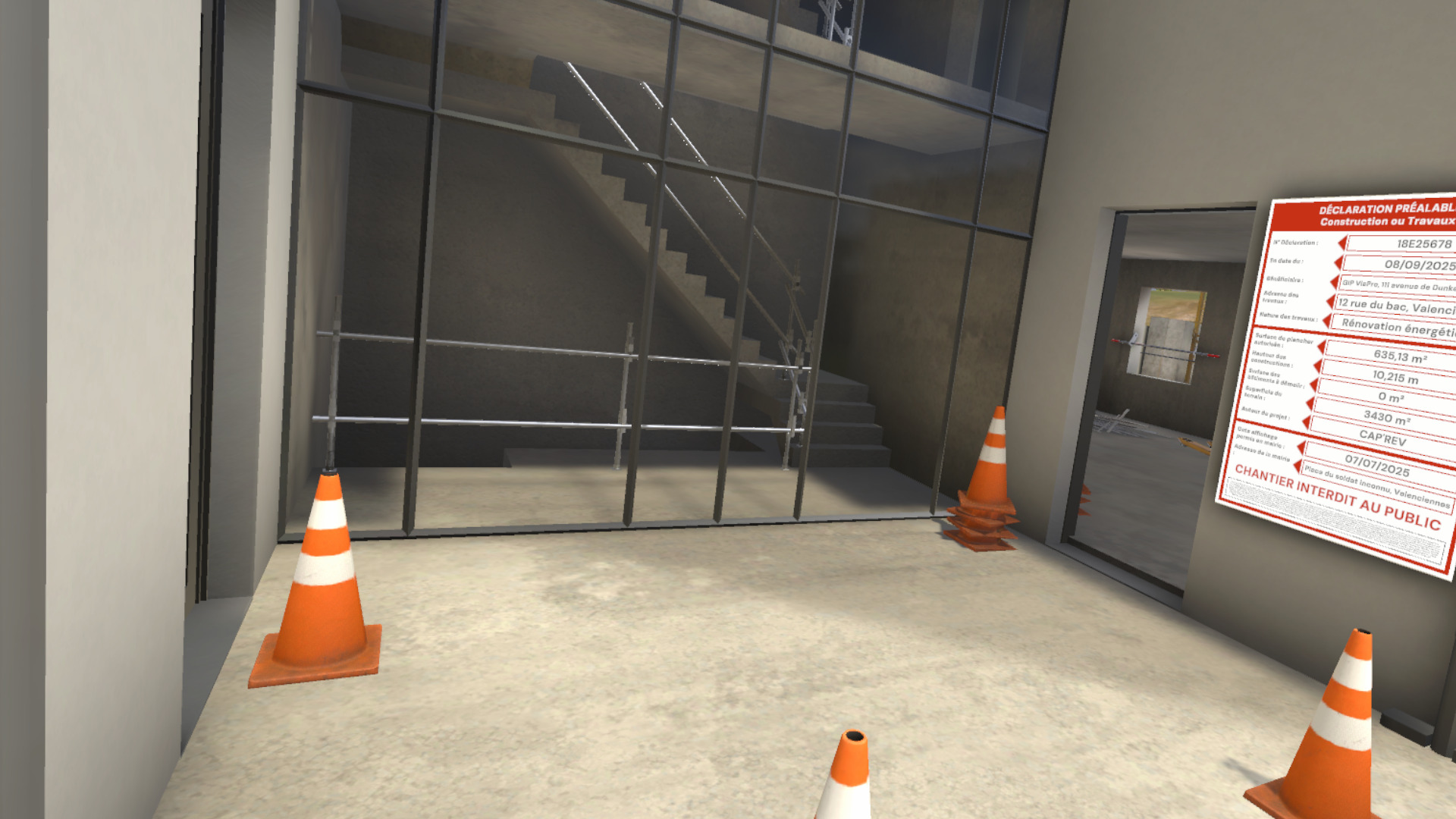
Arrange (Secure): Set up marking cones to prevent any secondary accidents.
-
Accommodate (Welcome): During the exchange with the worker, ask him to wait in front of the building to welcome the emergency services.
-
Answers to the discussion with the colleague:
-
1. Watch out, there’s just been an accident in the back.
-
2. Stop what you’re doing and go welcome the emergency services at the door.
-
-
Once the 4A procedure is correctly carried out, the user is automatically teleported to the lobby, facing a summary screen of their performance.
7.2.3. Exercise Evaluation Criteria
Choice of PPE: Evaluates the choice of PPE selected by the user.
Incident reaction time: Evaluates the execution speed of the 4A procedure following the incident.
Arrest (Stop): Evaluates if all dangerous elements have been correctly stopped.
Alert: Evaluates if the user has contacted the appropriate service and transmitted the necessary information.
Arrange (Secure): Evaluates the quality of the arrangement of the incident area.
Accommodate (Welcome): Evaluates the quality of the welcome of emergency services by the user.
Procedure: Validates compliance with the order and steps of the 4A procedure.
7.3. Safety: Circulation
Immersed in a construction site environment, the user is in the base camp waiting for their mission. They will have to go to a container to retrieve a toolbox, then give it to their team leader.
Throughout the exercise, the user will have to respect safety and circulation rules. They will in particular have to pay attention to the vehicles present in the area and adopt the appropriate behavior in the event of an emergency or accident situation.
|
Note
|
This exercise is divided into three parts, each corresponding to a difficulty level. These parts follow one another, so it is preferable to do them in order. |
7.3.1. Exercise Plan
To validate all the difficulties of the exercise, the user will have to perform the following actions in the indicated order:
Beginner difficulty
-
Check the briefing.
-
Equip themselves with the appropriate PPE for movement on a construction site.
-
Go to the tool container respecting circulation rules.
Advanced difficulty
-
Take the walkie-talkie attached to the belt.
-
Retrieve the toolbox.
-
Hand the toolbox to the team leader.
Expert difficulty
-
Take the walkie-talkie attached to the belt.
-
Return to the base camp.
-
A gas pipe explodes.
-
Go to the assembly point respecting safety instructions.
7.3.2. Scenario Progress
Beginner difficulty
In the beginner level, the user begins the scenario inside the base camp, facing a briefing screen presenting the context of the mission.
Once the briefing is viewed (or skipped), the site manager stands in a corner of the base camp. The user must interact with her to obtain the following information:
-
the task to be performed
-
the mandatory personal protective equipment (PPE) for the intervention
A cabinet containing all the available PPE is also present in the base camp. It will be necessary to choose gloves, a hard hat, a high-visibility vest and safety shoes before leaving the area.
Once properly equipped, the user leaves the base camp and goes to the tool container, making sure to respect the site’s circulation rules. The exercise ends when the user reaches the tool container.
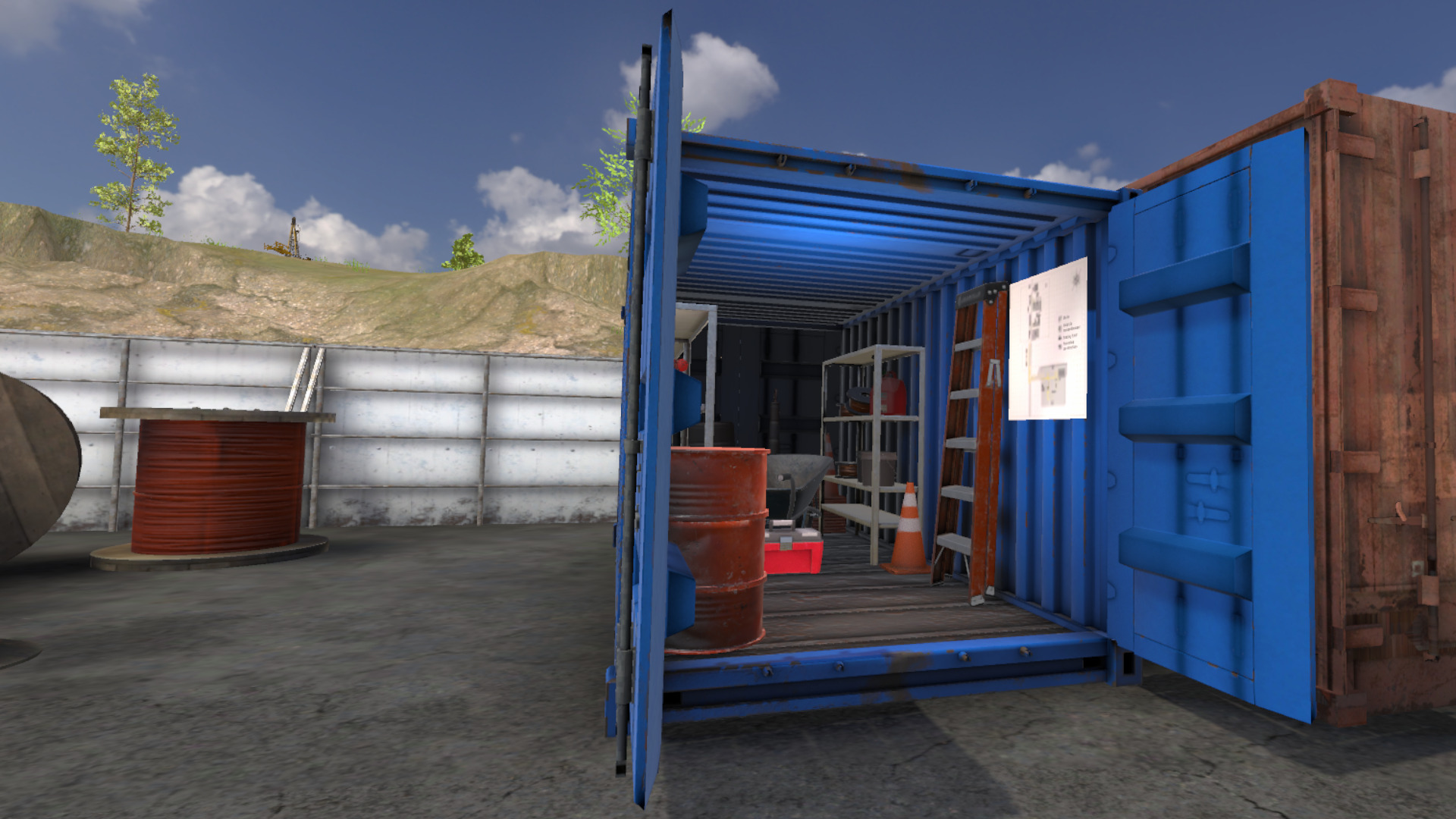
Advanced difficulty
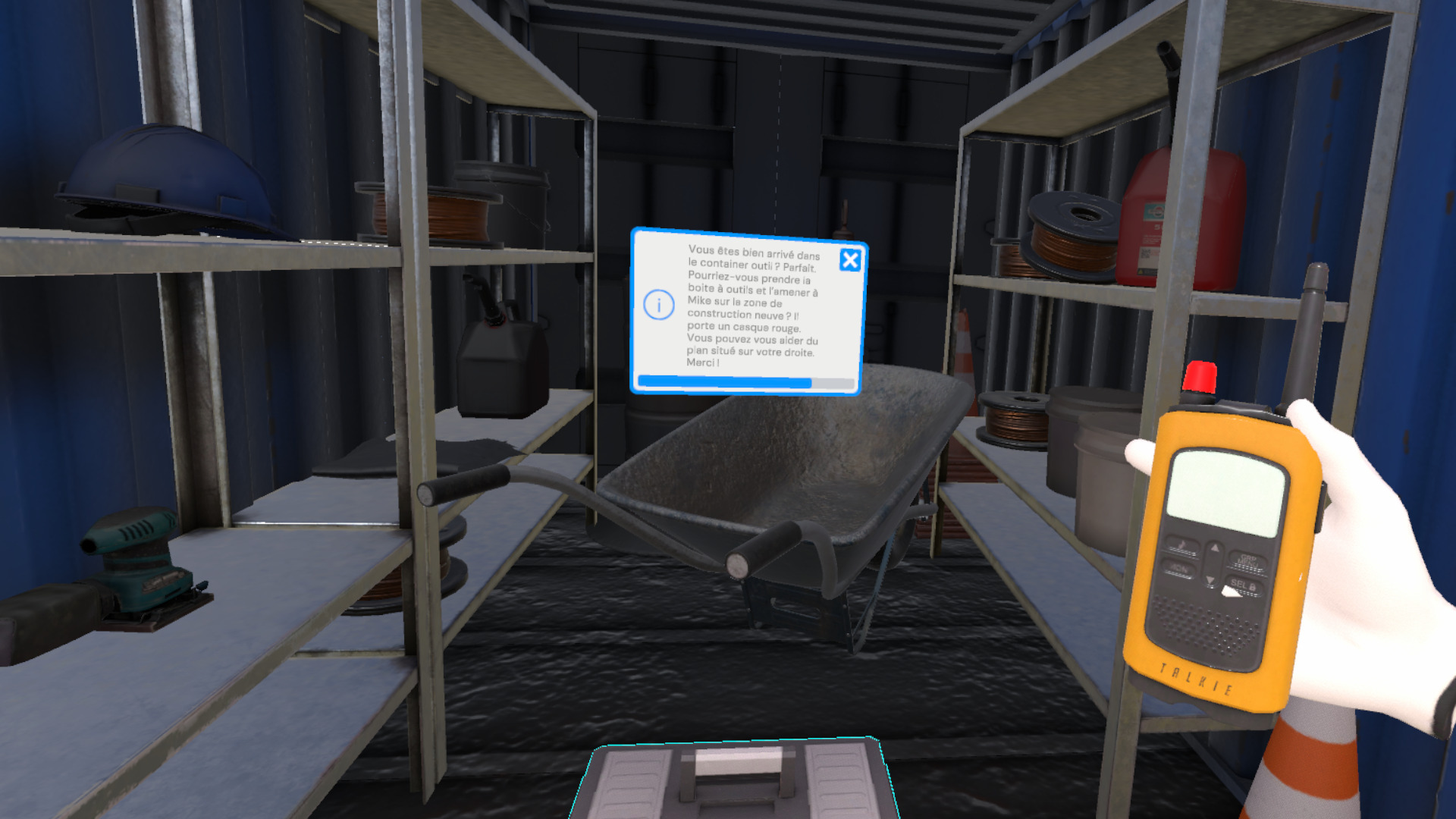
In the advanced level, the user starts directly in the tool container. A walkie-talkie is attached to their belt and presents them with the task to be carried out as well as the associated instructions.
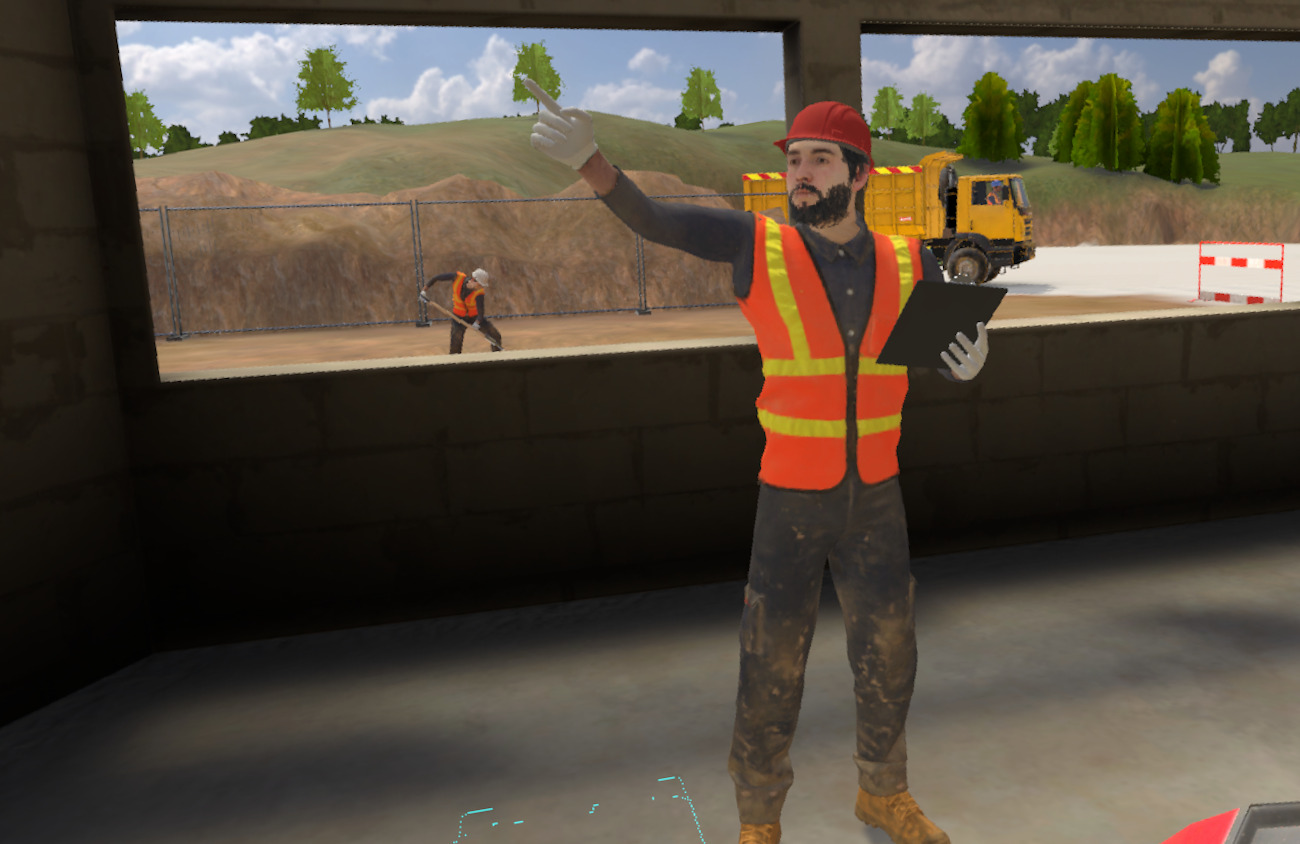
The user must then retrieve the toolbox, then go to the site where the team leader is located. The team leader is identifiable by his red hard hat.
The exercise ends when the user correctly hands the toolbox to the team leader.
Expert difficulty
In the expert level, the user begins the scenario facing the team leader met during the advanced level.
A walkie-talkie is attached to their belt and presents them with the task to be performed.
While retrieving the walkie-talkie, a gas pipe explodes, leading to the immediate shutdown of the site and the triggering of an emergency situation.
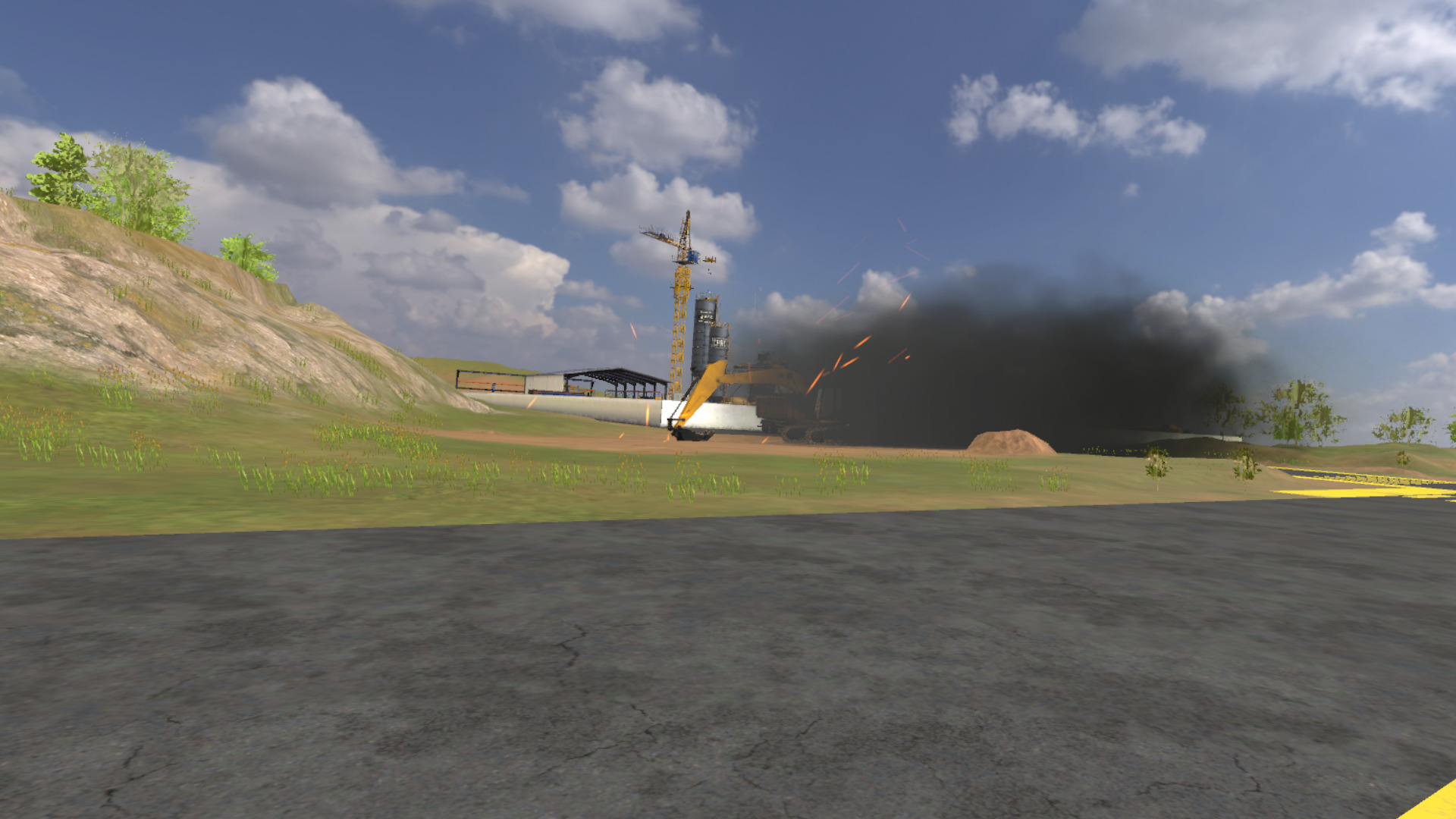
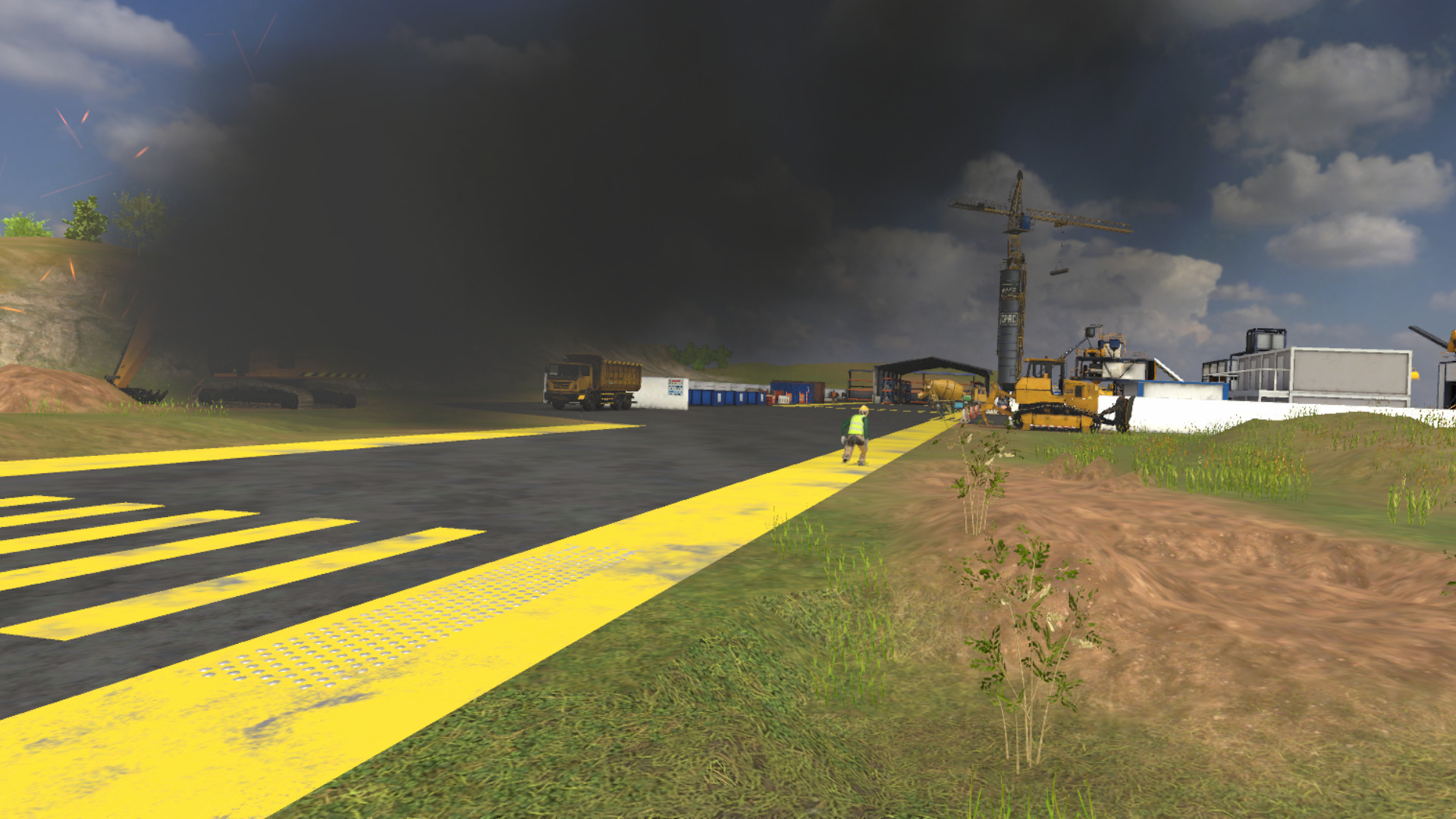
The user must then go to the assembly point respecting circulation rules. When passing through smoke-filled areas, they must crouch to limit their exposure to the smoke emitted by the explosion.
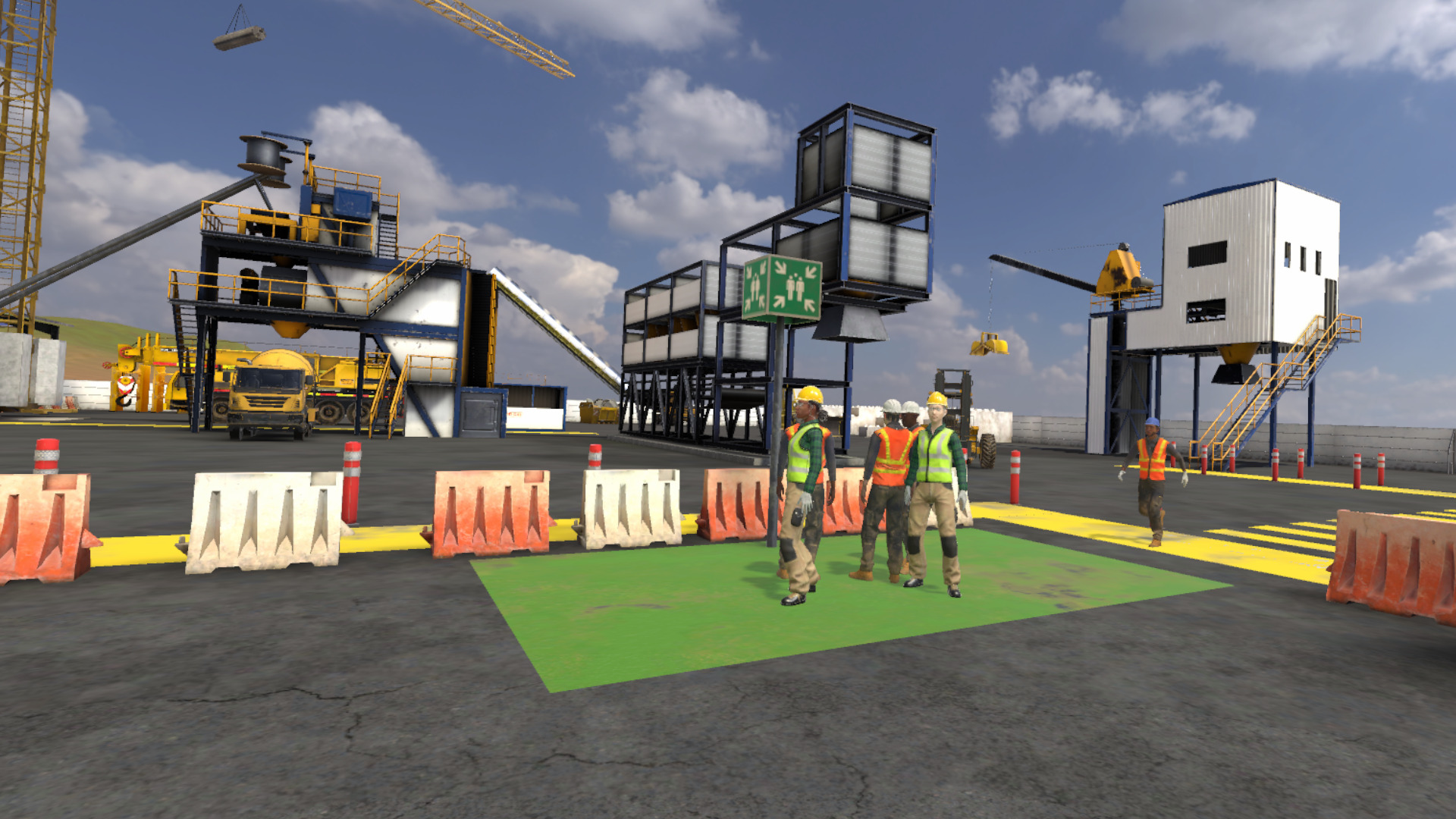
Upon arrival at the assembly point, the user must wait for the other workers. The exercise ends when all workers are present and safe.
At the end of each exercise, the user is automatically teleported to the lobby, facing a summary screen of their performance, the actions carried out and any errors made.
7.3.3. Exercise Evaluation Criteria
Safety (Beginner level only): Evaluates the choice of PPE selected by the user.
 Use of pedestrian areas: Evaluates the use of areas reserved for pedestrians during the user’s movements.
 Compliance with circulation rules: Evaluates compliance with circulation rules.
 Use of emergency exits (Expert level only): Evaluates the user’s correct placement in the assembly area.
 Compliance with evacuation instructions (Expert level only): Evaluates compliance with evacuation rules.
7.4. Safety: Execute
Immersed in a construction site environment, the user will have to go to the renovation area to carry out safety visual checks.
|
Note
|
This exercise is divided into three parts, each corresponding to a difficulty level. These parts follow one another, so it is preferable to do them in order. |
7.4.1. Exercise Plan
To validate all the difficulties of the exercise, the user will have to perform the following actions in the indicated order:
Beginner difficulty
-
Check the briefing.
-
Talk to the site manager.
-
Equip themselves with the appropriate PPE for the task before going out on the site.
-
Go to the work area while identifying all encountered dangerous situations using the laser pointer.
Advanced difficulty
-
Identify the 3 defects on the floor.
Expert difficulty
-
Identify the 5 missing pieces of personal protective equipment in the work team.
7.4.2. Scenario Progress
Beginner difficulty
In the beginner level, the user begins the scenario inside the base camp, facing a briefing screen presenting the context of the mission.
Once the briefing is viewed (or skipped), the site manager stands in a corner of the base camp. The user must interact with her to obtain the following information:
-
the task to be performed
-
the mandatory personal protective equipment (PPE) for the intervention
A cabinet containing all the available PPE is also present in the base camp. It will be necessary to choose gloves, a hard hat, a high-visibility vest and safety shoes before leaving the area.
Once properly equipped, the user leaves the base camp and goes to the renovation area, making sure to respect the site’s circulation rules. A laser on the belt helps identify dangerous situations encountered.
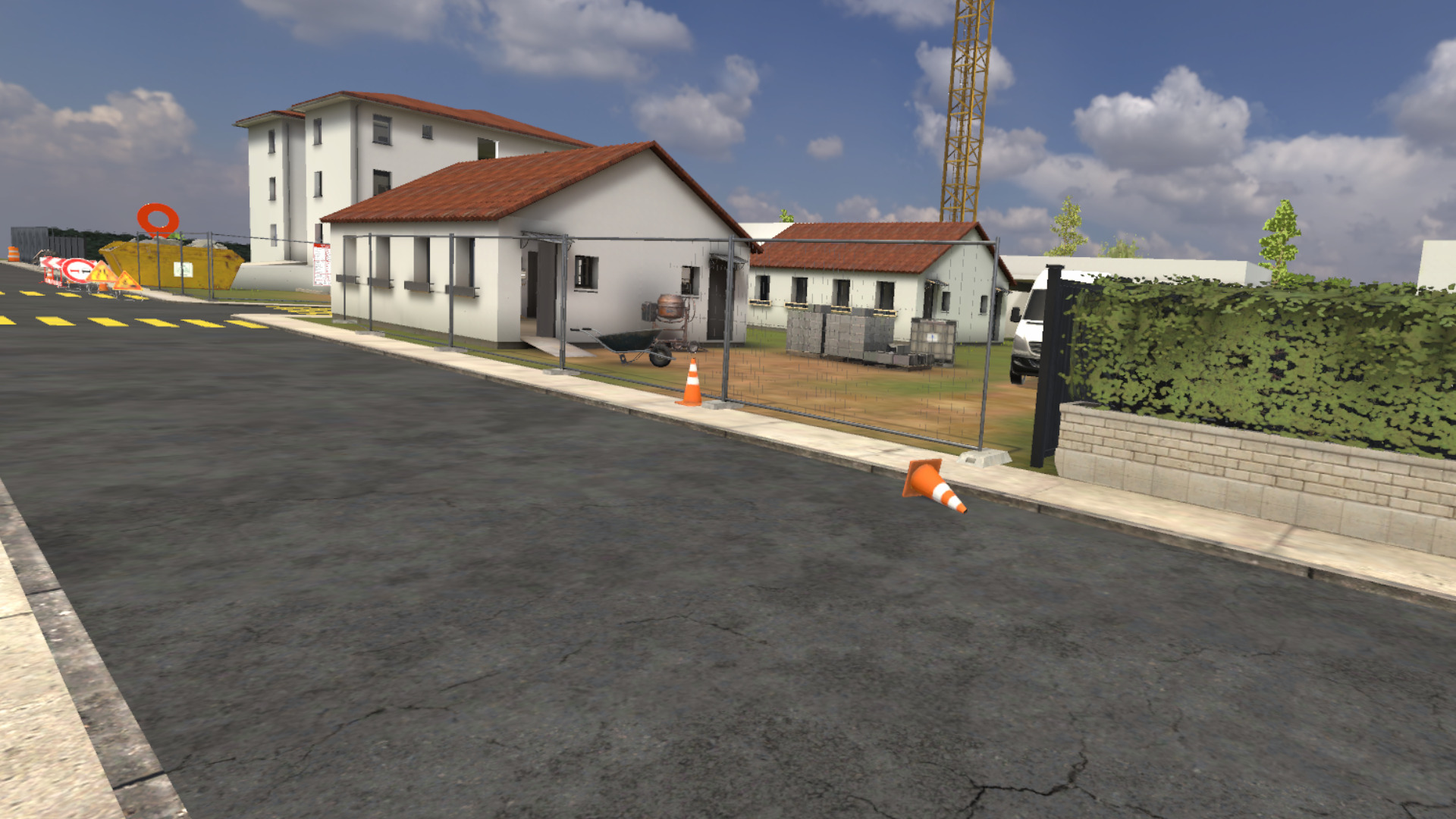
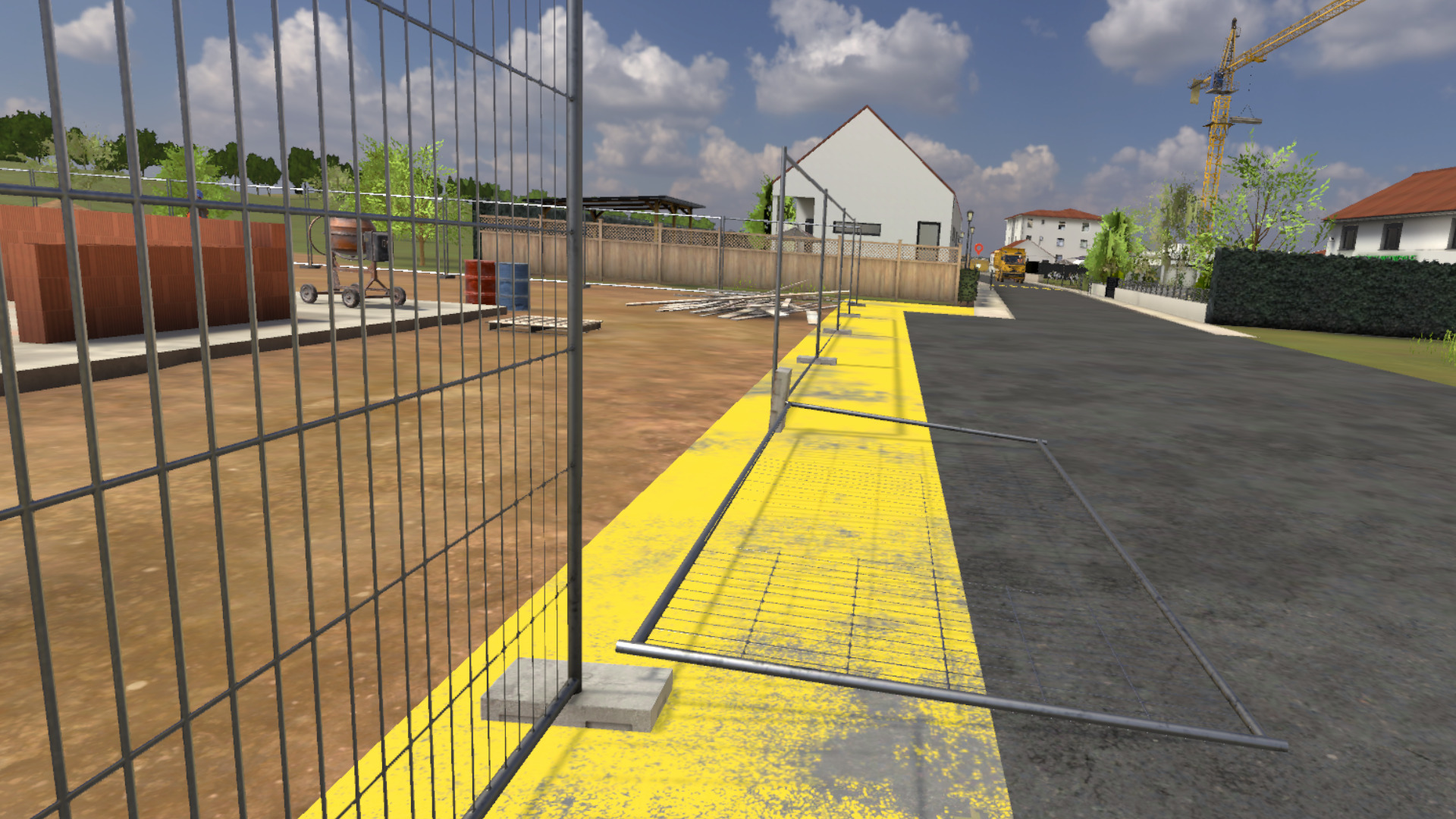
The exercise ends when the user reaches the renovation area.
Advanced difficulty
In the advanced level, the user finds themselves on the renovation site.
A walkie-talkie on the belt allows communication with the site manager to receive instructions.
Expert difficulty
In the expert level, the user finds themselves on the renovation site.
A walkie-talkie on the belt allows communication with the site manager to receive instructions.
7.4.3. Exercise Evaluation Criteria
 Hazard identification: Validates the choices of identifications.
Compliance with circulation rules (Beginner level only): Evaluates compliance with circulation rules.
 Choice of CPE (Advanced level only): Evaluates the choice of collective protective equipment selected by the user.
Choice of PPE (Beginner and expert levels only): Evaluates the choice of personal protective equipment selected by the user.
7.5. Evaluation: Prevention
Immersed in a construction site environment, the user will have to go to the renovation area to verify safety points before commissioning a scaffolding. Going up to the top floor, a colleague is working and by informing him an incident occurs. You will have to act accordingly while respecting safety procedures.
7.5.1. Exercise Plan
To validate all the difficulties of the exercise, the user will have to perform the following actions in the indicated order:
-
Check the briefing.
-
Talk to the site manager.
-
Equip themselves with the appropriate PPE for the task.
-
Leave the base camp.
-
Go to the renovation area.
-
Verify all safety points for commissioning the scaffolding.
-
Ask the colleague to stop working.
-
The colleague falls.
-
Take the necessary measures by following the 4A procedure.
7.5.2. Scenario Progress
The user begins the scenario inside the base camp, facing a briefing screen presenting the context of the mission.
Once the briefing is viewed (or skipped), the site manager stands in a corner of the base camp. The user must interact with her to obtain the following information:
-
the task to be performed
-
the mandatory personal protective equipment (PPE) for the intervention
A cabinet containing all the available PPE is also present in the base camp. It will be necessary to choose gloves, a hard hat, a high-visibility vest, safety shoes and a harness before leaving the area.
Once properly equipped, the user leaves the base camp and goes to the renovation area, making sure to respect the site’s circulation rules.
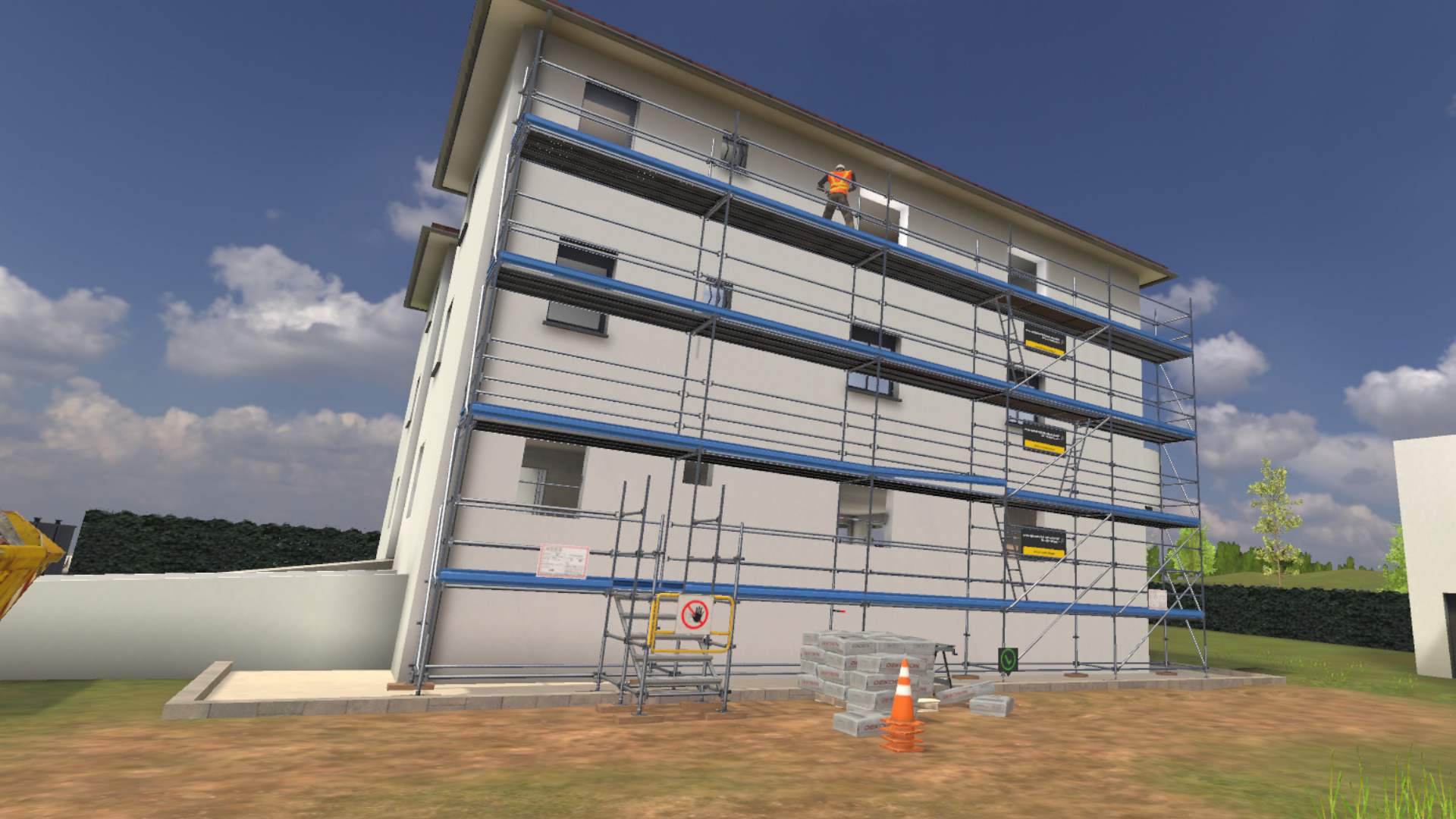
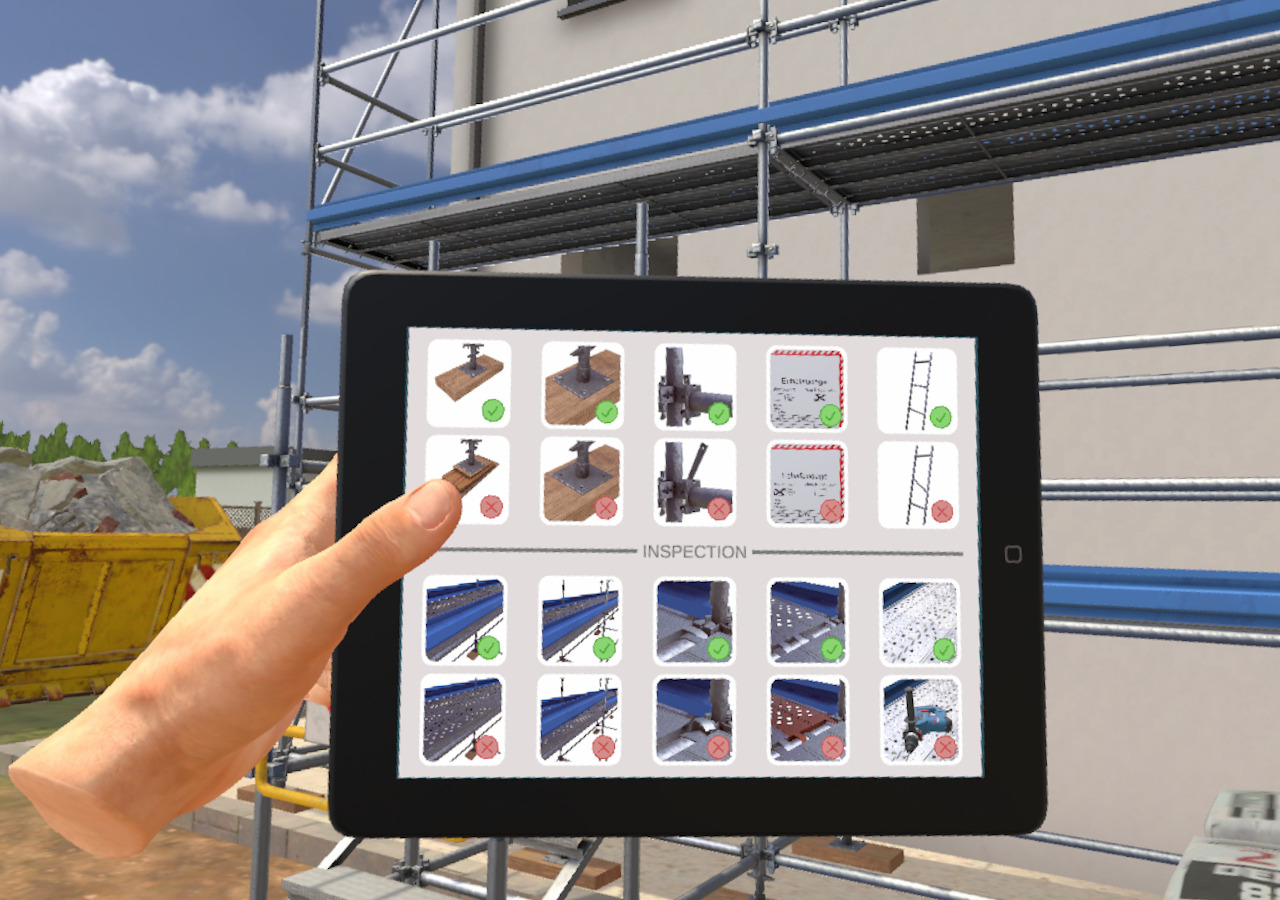
In front of the scaffolding, a safety sheet is present on the tablet on the belt. Using the laser pointer also located on the belt, the user must reference the non-compliant safety points within the scaffolding.
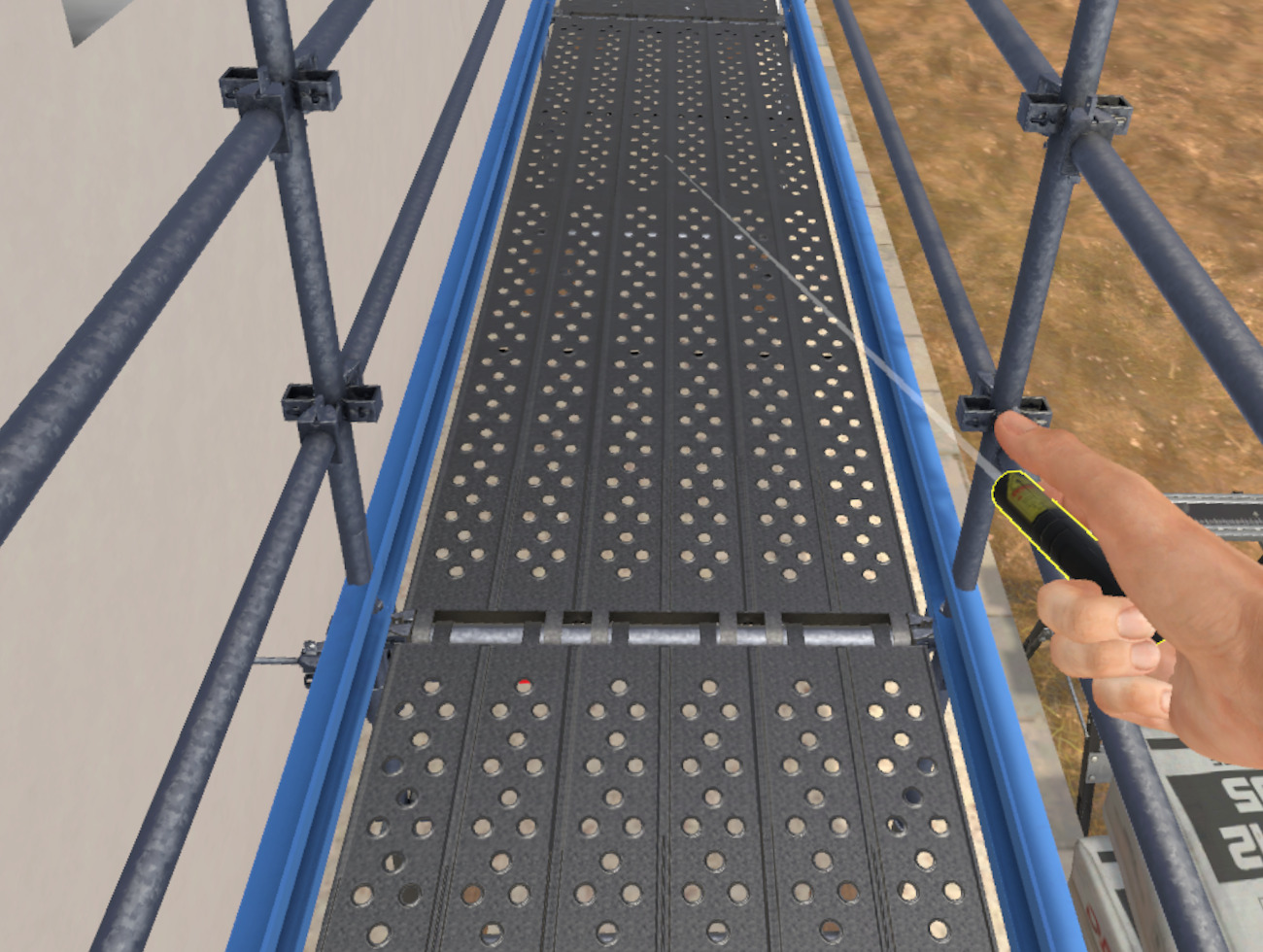
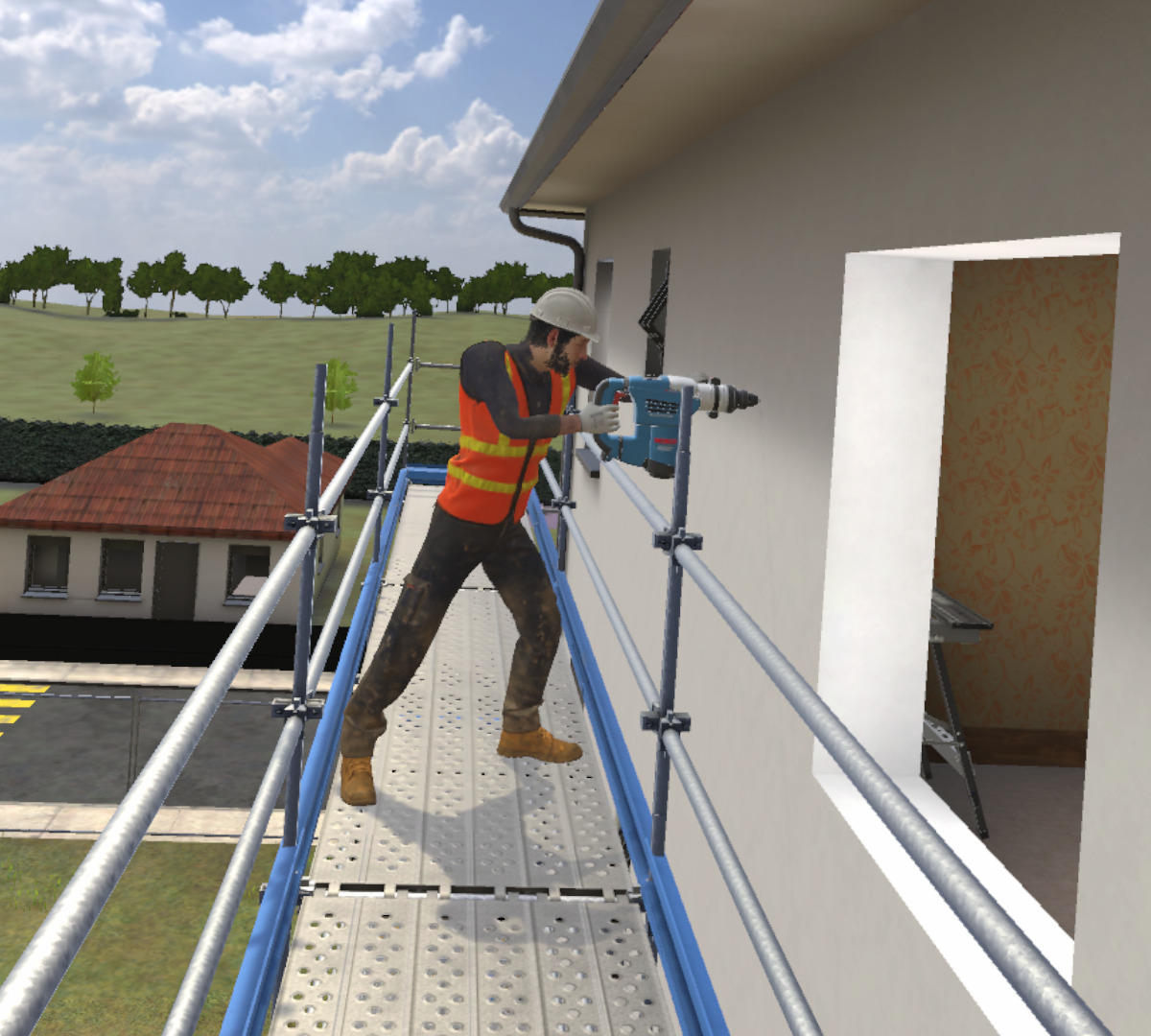
Arriving on the top floor, a colleague is working on this scaffolding even though it has not yet been verified. The user must ask the colleague to stop working. When the user approaches him, the colleague falls. Faced with this accident, the user must apply the 4A procedure to secure the situation.
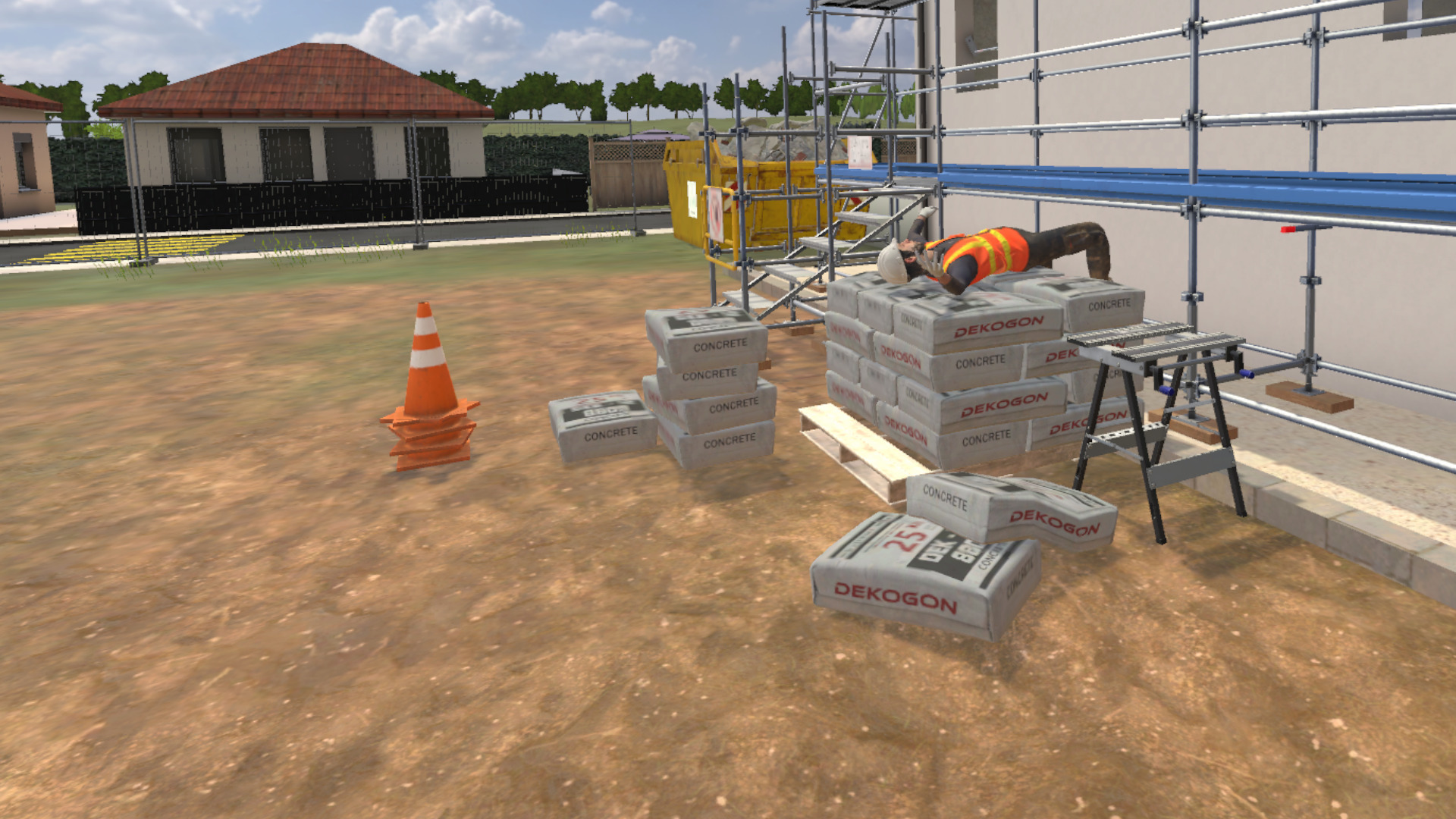
-
Arrest (Stop): Turn off the drill and put the safety barrier back in place.
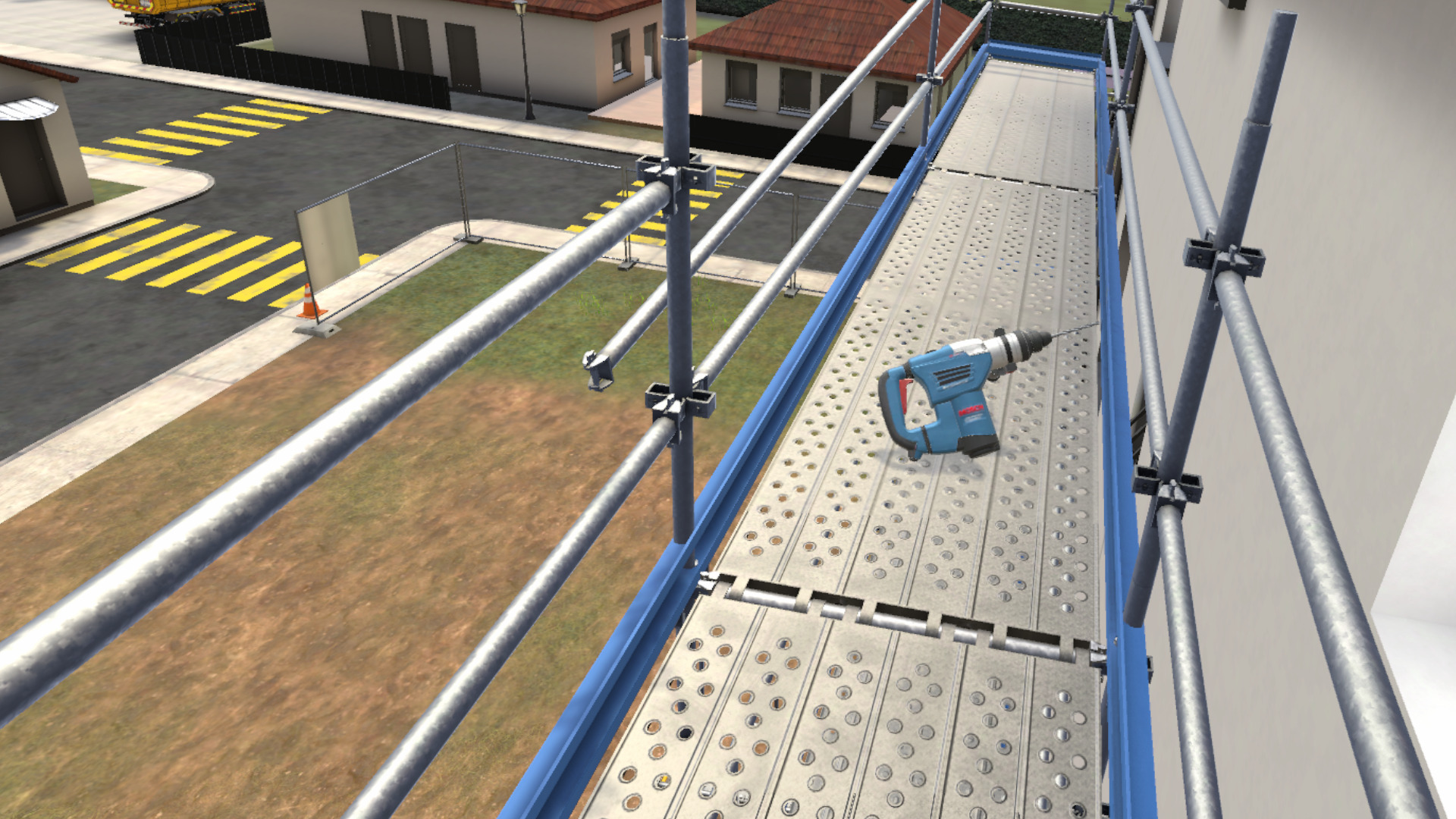
-
Alert: Contact emergency services.
-
Answers to the walkie-talkie conversation:
-
1. Call emergency services.
-
2. Hello, there’s just been an accident at my workplace.
-
3. I am on the construction site at 12 rue du bac, in Valenciennes, in the renovation area.
-
4. Yes.
-
5. There is one person.
-
6. Yes, I’m waiting for you outside.
-
-
-
Arrange (Secure): Place marking cones to block access to the scaffolding.
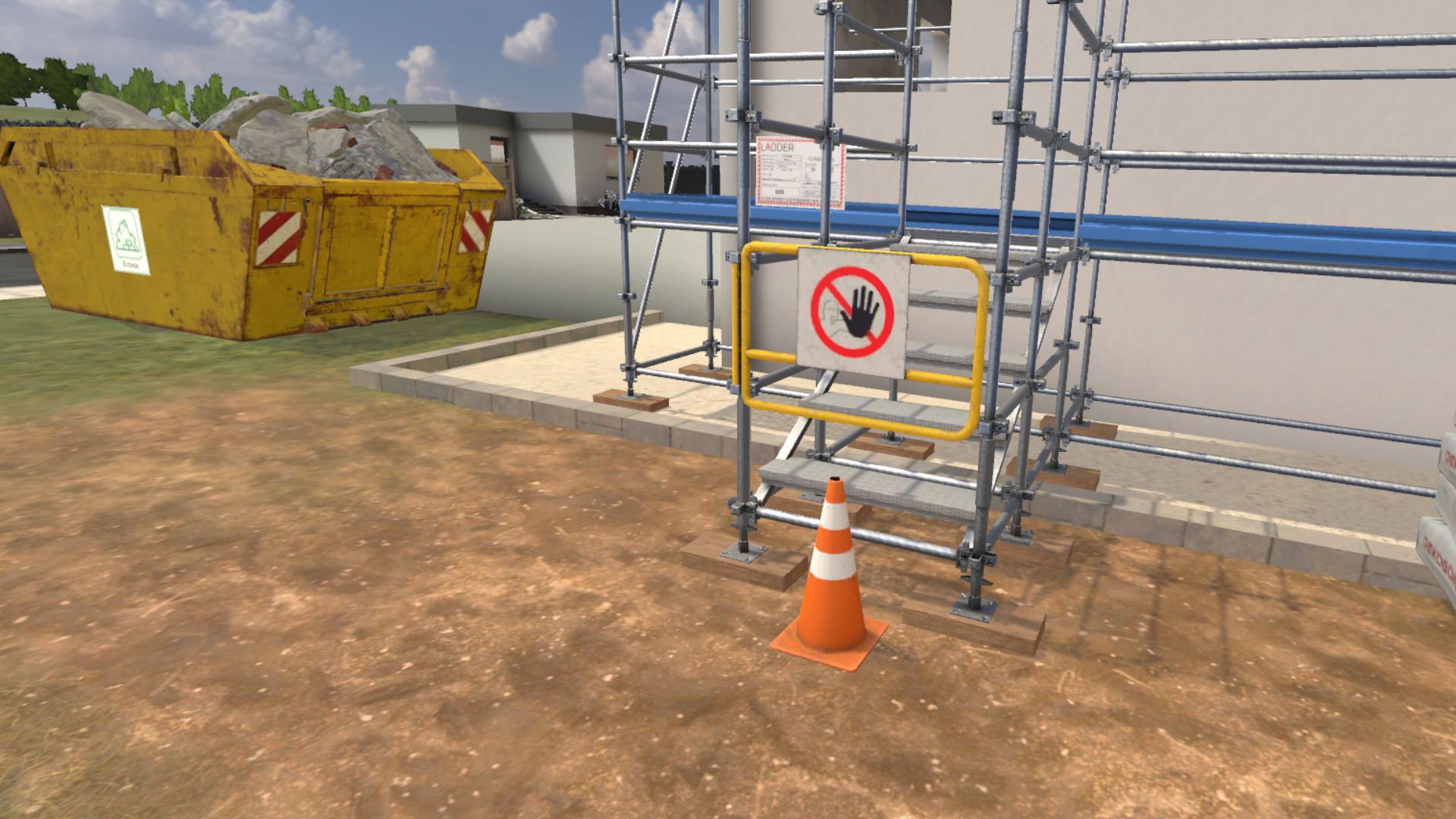
-
Accommodate (Welcome): Go to the side of the road to wait for emergency services. Welcoming also takes into account the correct response to the walkie-talkie conversation.
The exercise ends when the user reaches the side of the road to wait for emergency services.
7.5.3. Exercise Evaluation Criteria
Choice of PPE: Evaluates the choice of PPE selected by the user.
Compliance with circulation rules: Evaluates compliance with circulation rules.
Hazard identification: Validates the choices of identifications.
 Reaction time following an incident: Evaluates the user’s reaction time following an incident.
Arrest (Stop): Evaluates if all dangerous elements have been correctly stopped.
Alert: Evaluates if the user has contacted the appropriate service and transmitted the necessary information.
Arrange (Secure): Evaluates the quality of the arrangement of the incident area.
Accommodate (Welcome): Evaluates the quality of the welcome of emergency services by the user.
Procedure: Validates compliance with the order and steps of the 4A procedure.
8. Construction site safety (urban construction site)
8.1. Free Mode
In free mode, the user can move freely on the construction site. All the possible risks on the construction site are present and fatal errors occur if the user gets too close to one of the risks. The exercise will be validated if the user is able to cover a distance indicated by the trainer in VULCAN in a defined time.
In this mode, the user does not have the possibility of securing the dangers that he encounters, and can leave the exercise at any time by clicking on the cross present on the tablet at his left wrist.
Exercise evaluation criteria
 Distance covered by the user
 Time before accident
8.2. Guided mode
The guided mode takes place on one of the three construction site zones. The user must identify then secure the different dangers present in the zone selected.
Several work stations are present in a zone and are identified by a floating marker above the them.
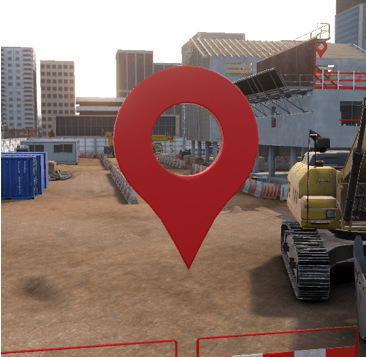
The user is free to go on the workstations in the zone in the order that he wishes. He need only position himself under a marker to activate the sequence of phases specific to this workstation.
Once he is on a workstation, user movements are limited, he can’t directly deal with dangers in the zone.
Exercise evaluation criteria
 Identification : capacity to correctly identify and classify the
dangers.
Identification : capacity to correctly identify and classify the
dangers.
 Securing: capacity to correct dangers
 Completion time : capacity to finish the scenario in a defined time
8.2.1. Identification procedure
Once the user is on the workstation, he is asked to identify the different risks present.
A screen appears in front of the user’s left hand with a list of risk pictograms. It is possible to select a pictogram using the right hand by pointing and clicking on the interaction key.
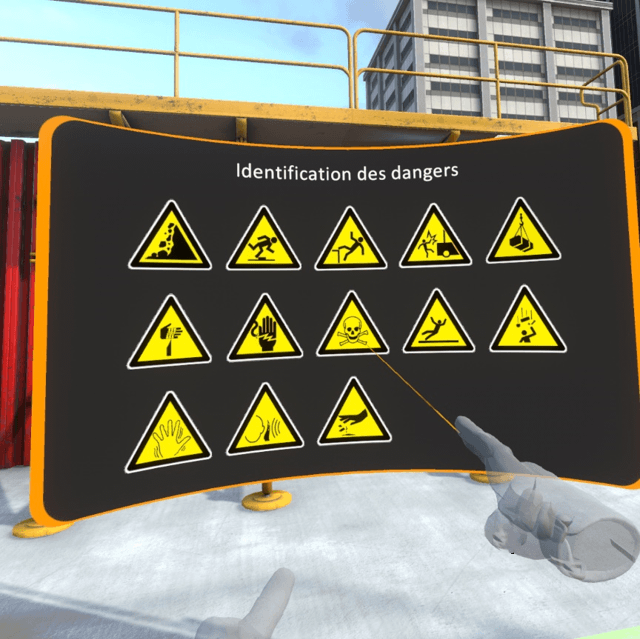
Once a pictogram is selected, the latter appears framed in orange. Now the user must point in the 3D scene at the exact location (or nearby) the risk that he wishes to identify and press again on the interaction key to place the pictogram on it.
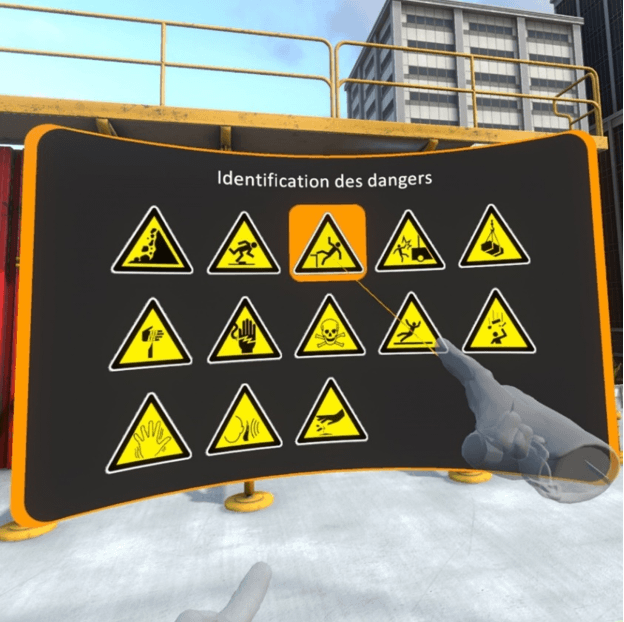
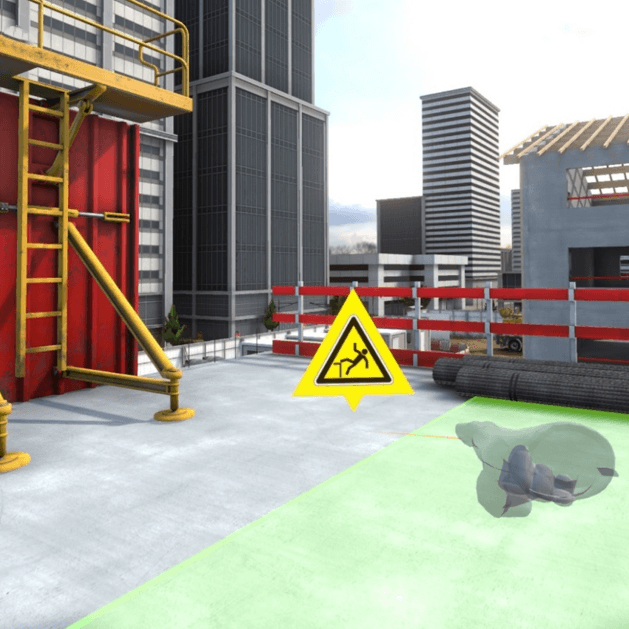
It is possible to delete a positioned pictogram by pointing at it and clicking on the cross.
Once all risks have been identified, the user must click on the buttom “Validate the identification” on the tablet at the level of the left wrist.
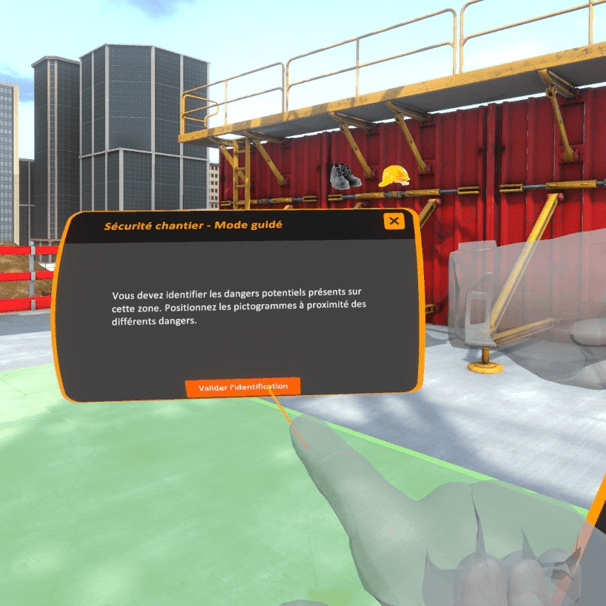
8.2.2. Securing procedure
Once dangers have been identified, the user is asked to secure the zone. The securing phases depend on the type of each risk, the security procedure for each workstation will be described later.
Once the workstation has been secured, clicking on the button « Validate securing » of the tablet enables the user to move on to the next step.
Once the identification of the security procedure has been completed on the first workstation, the user is asked to move on to the next workstation until he has completed all of the workstations in the zone.
8.2.3. Zone assessment
Once all the workstations have been completed, it is possible to move freely in the zone. Pop-ups on the different risks summarize if they have been correctly identified and secured.
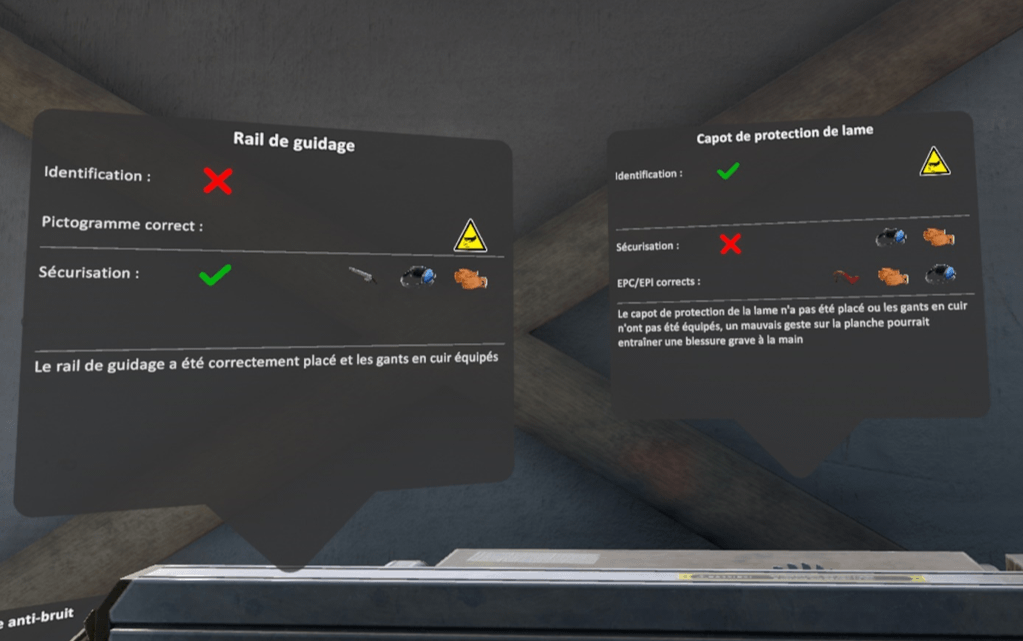
On the example above, the danger corresponding to the guide rail, has not been identified, no pictogram has been placed, so the correct pictogram is displayed. The security is correct, the blade guide has been placed, and the leather gloves and noise protection equipped.
For the danger of the blade protection cover, it was correctly identified by placing the pictogram but it has not been correctly secured. You can see that the gloves and noise protection gear have been equipped, but the cover has not been placed on the blade.
It is possible to terminate the exercise by clicking on the tablet cross, or by going on to the red marker on the ground.
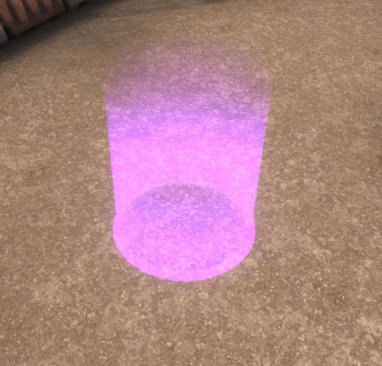
8.2.4. R+2 Structural work area
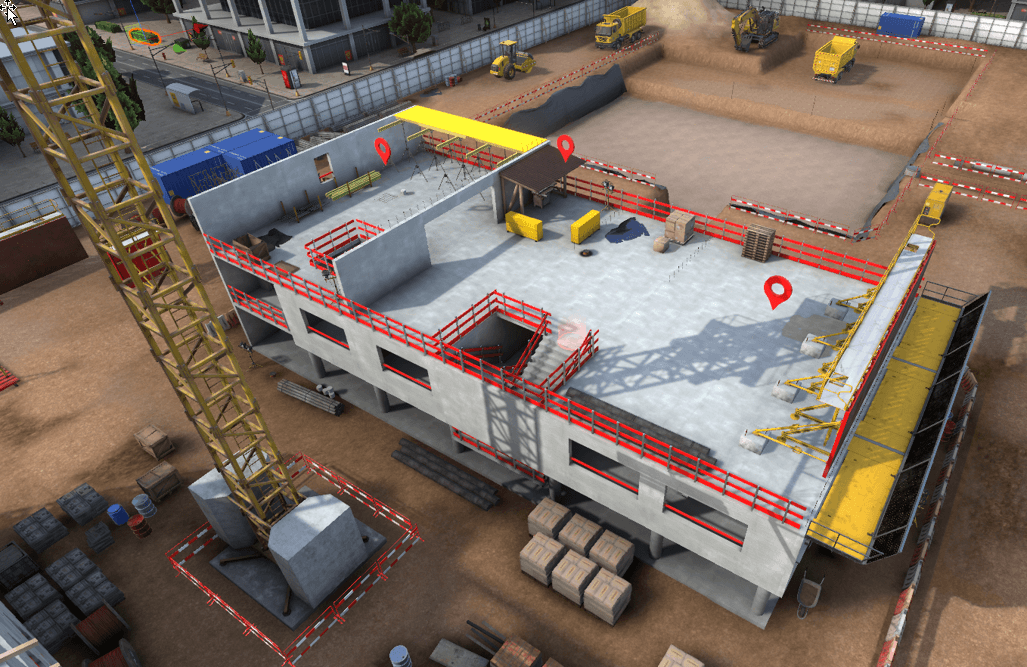
Upon arrival on the zone, three workstations are available, it is possible to move freely to one of the three workstations to begin the risk identification.
Workstation 1 – Coffrage de voile banché /Formwork for a
reinforced wall
There are three dangers on this workstation :
-
Unstable pile of pallets
-
Missing concrete ballast on the formwork
-
Missing platform
Identification
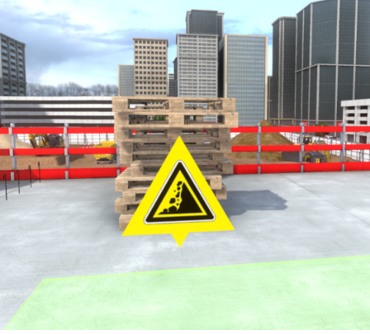
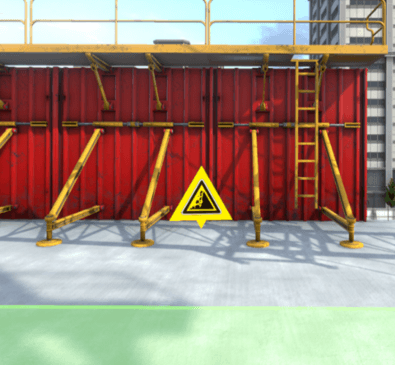
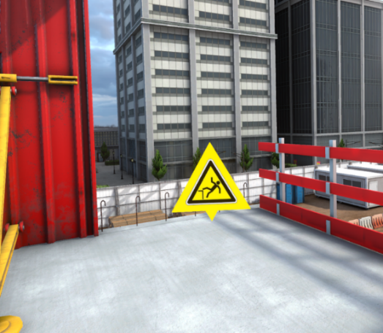
Ensuring security
To secure the pile of unstable pallets, the user must get close enough to it for a pop-up to appear. A click on this pop-up will result in the pallets being positioned in a more stable position.
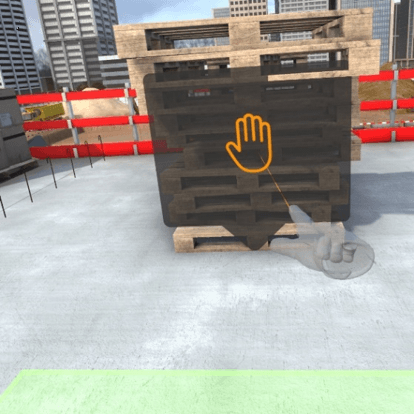
To secure the panels in danger of falling over, click on the « concrete ballast » PPE on the equipment selection window then point to the ground in front of the panels. Then click on the interaction key. This will result in placing the concrete weights against the panels to stabilize them.
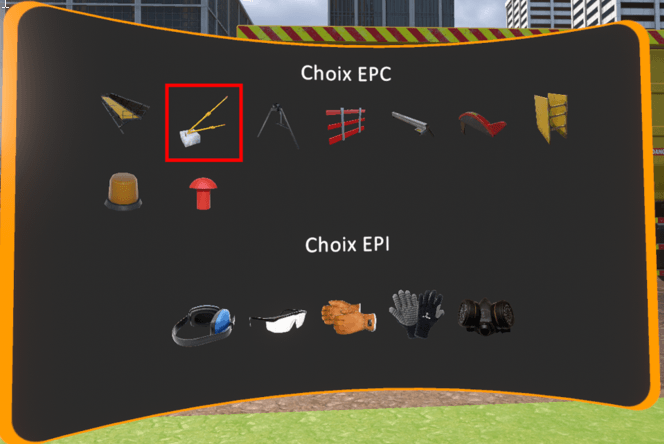
To secure the void near the panels, the user must select the platform in the list of PPE available and point the controller in the direction of the void. Clicking on the interaction key will position the platform in the right place.
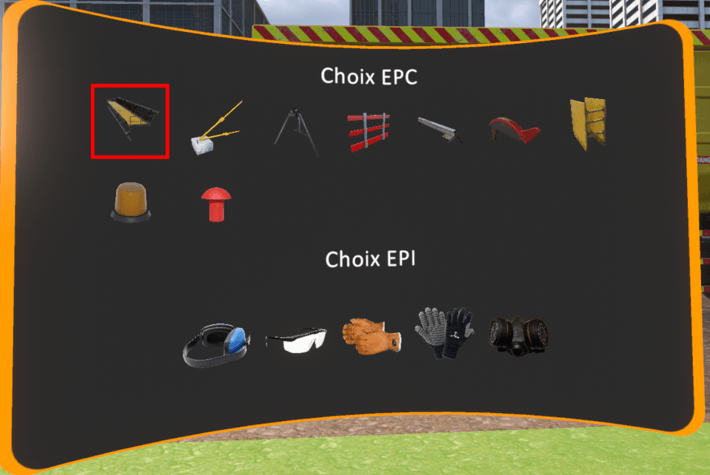
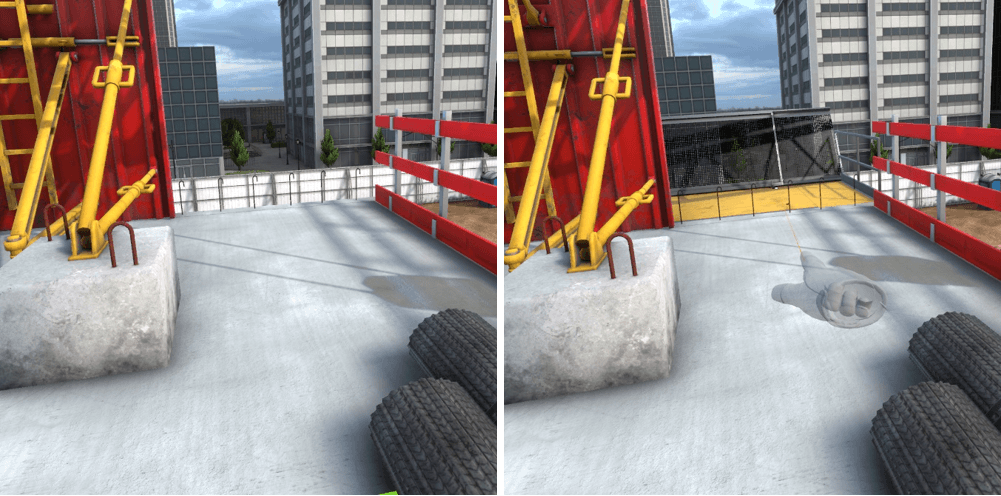
Workstation 2 – Cutting formwork panels
There are three dangers on this workstation :
-
Lack of blade guard
-
Missing guide
-
Saw noise
Identification
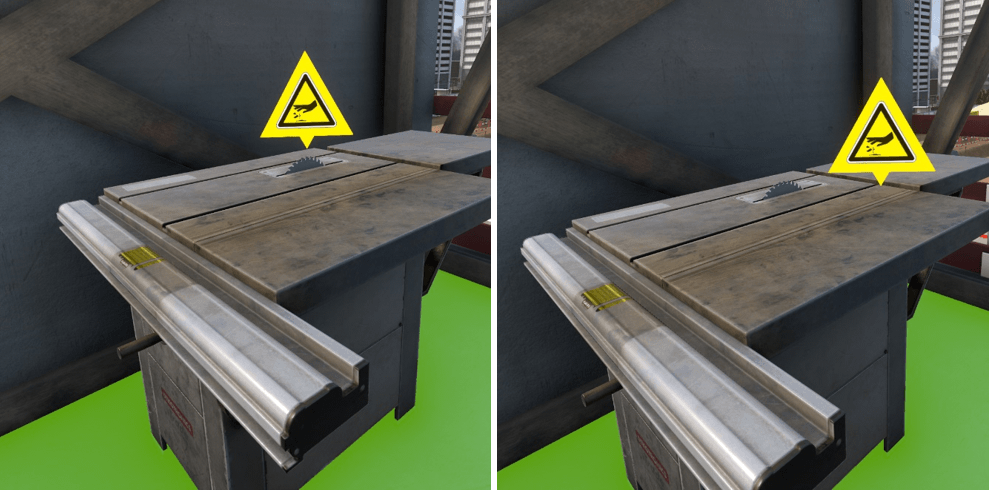
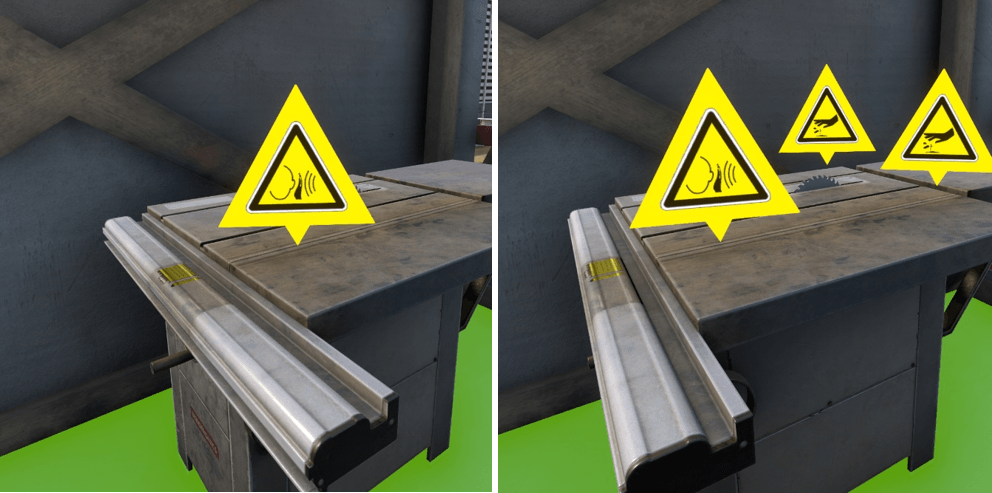
Securing procedure
To secure the blade, select the blade guard in the list of PPE available then point and click on the saw blade with the interaction key. This will position the blade guard on the blade. It will also be necessary to put on the leather gloves available in the list of PPE.
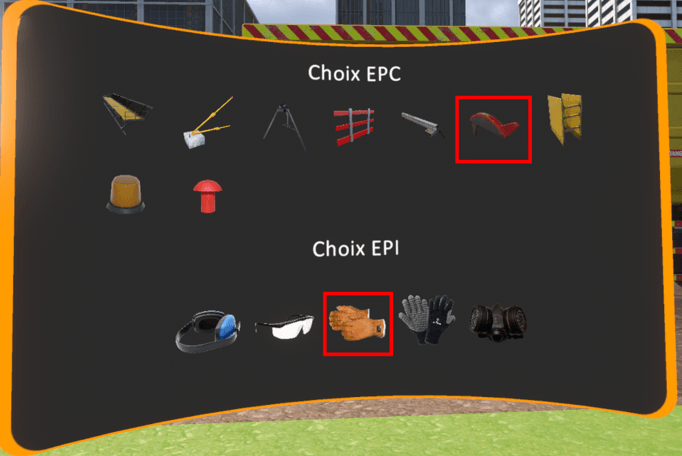
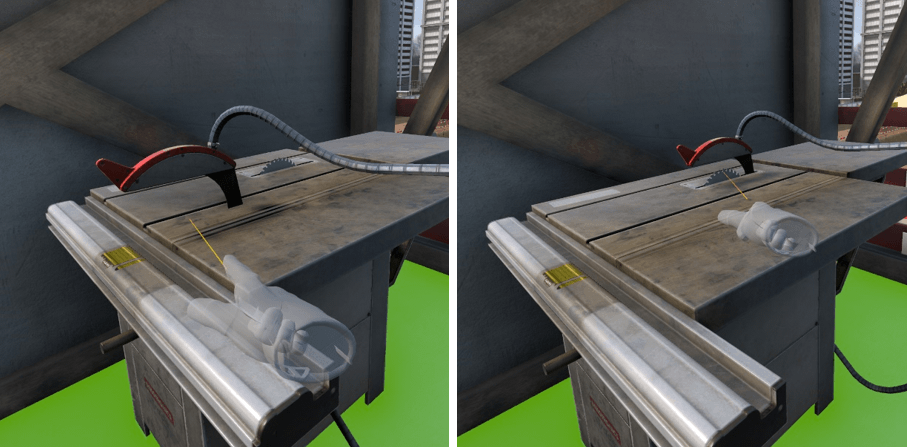
To secure the cutting, it is necessary to install the missing blade guard. It can be found in the list of PPE and positioned by clicking and pointing with the interaction key.
The third danger in the zone concerned is the noise of the saw.
To protect yourself from the noise, the noise protection gear must be equipped from the list of PPE in addition to the leather gloves.
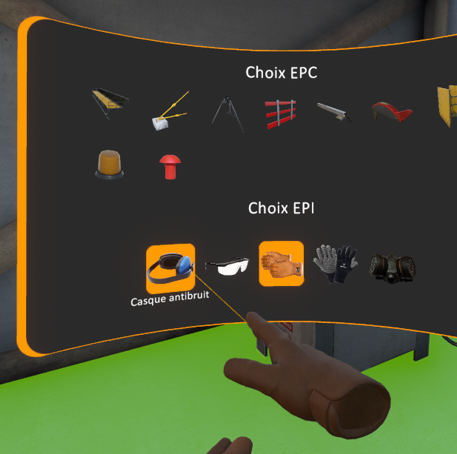
Workstation 3 – Formwork floor shoring
There are three dangers on this workstation :
-
Missing guardrail
-
Oil stain
-
Lack of tripods on props.
Identification
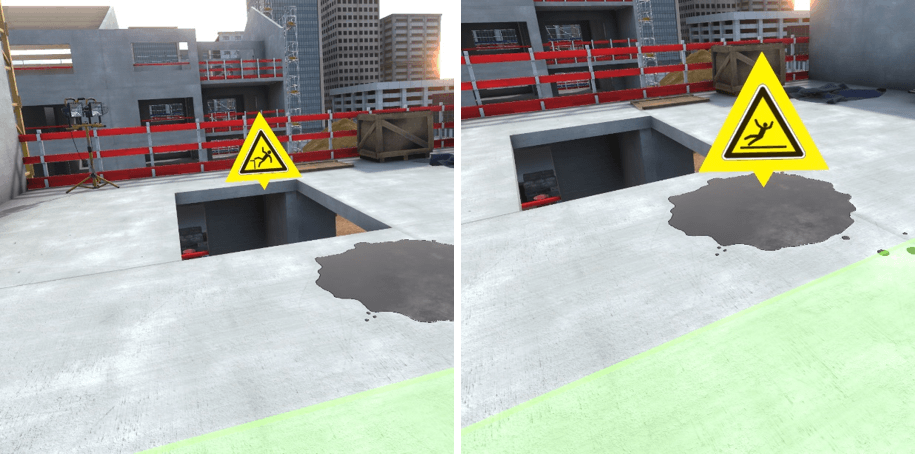
Ensuring security
To secure the void at the elevator shaft, you must select the guard rail from the list of EPC, point at the void and click on the interaction key.
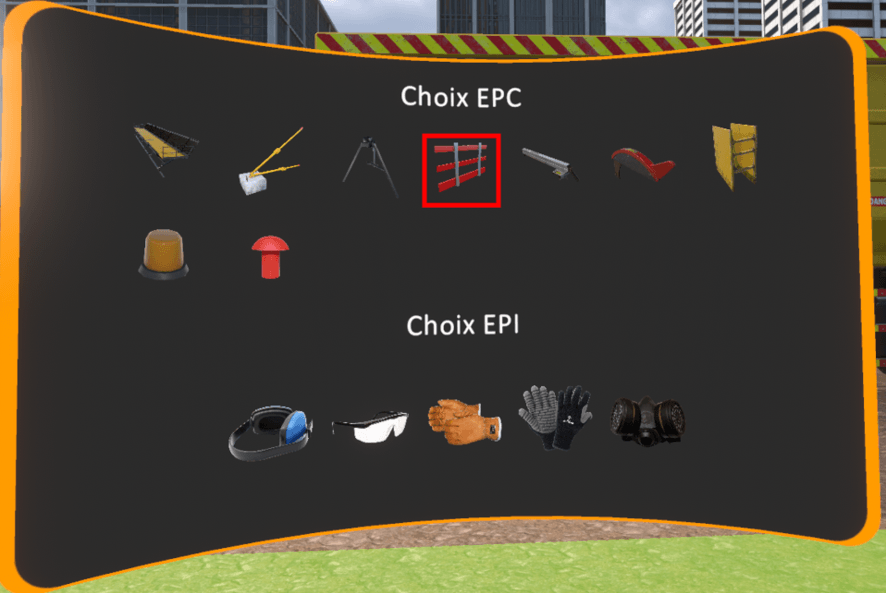
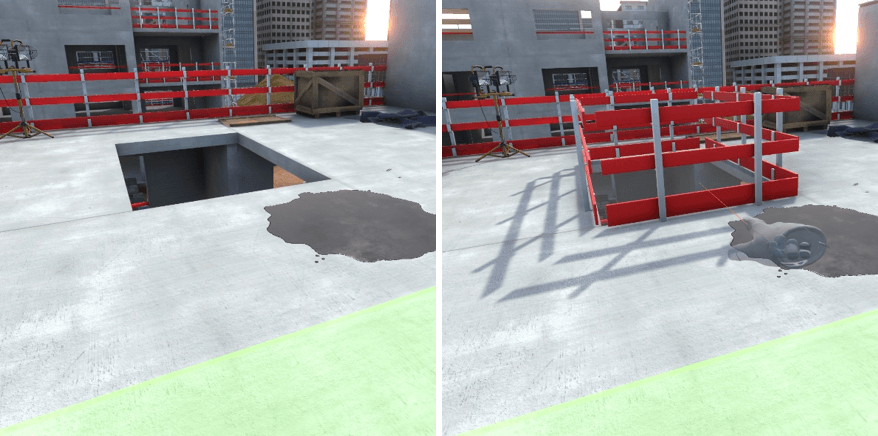
To eliminate the oil stain on the ground, you must get closer to it till a pop-up appears. Clicking on the pop-up will eliminate the oil stain.
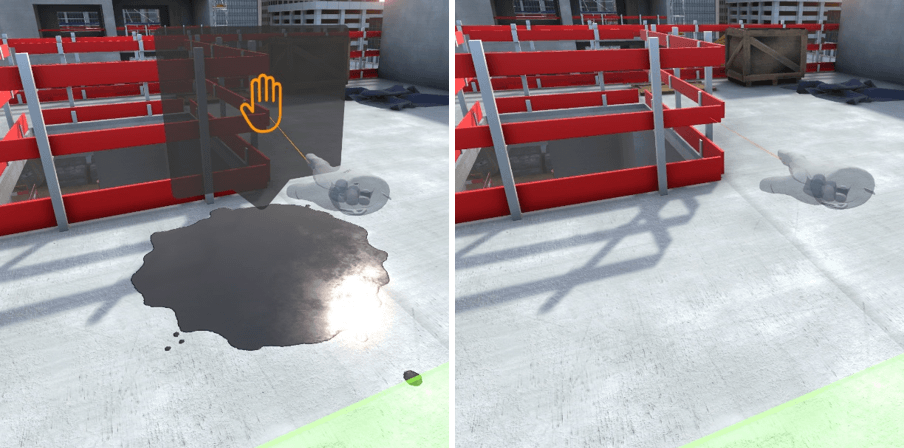
To position the tripod on the props, they must be selected in the list of PPE then point in the direction of a prop and click on the interaction key. They will be positioned on the ground.
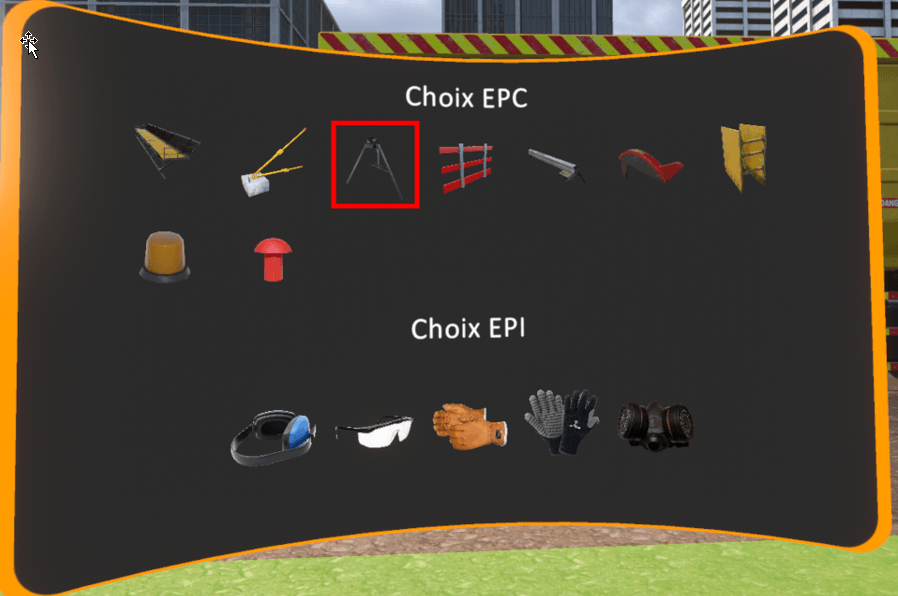
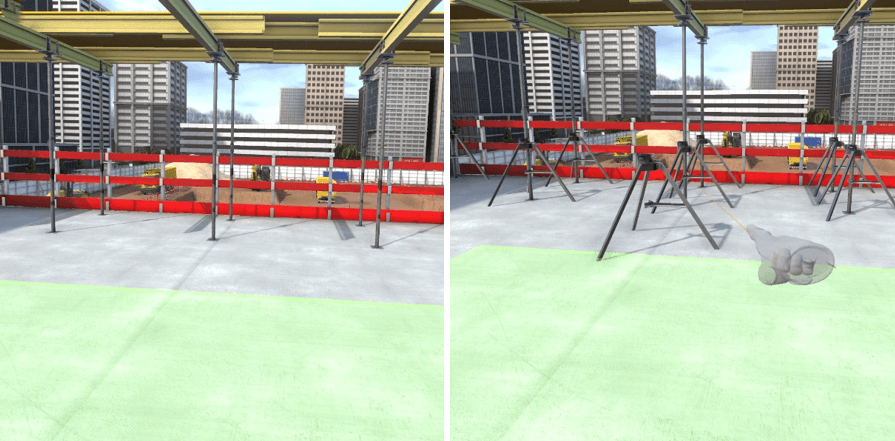
8.2.5. R0 Zone structural work preparation
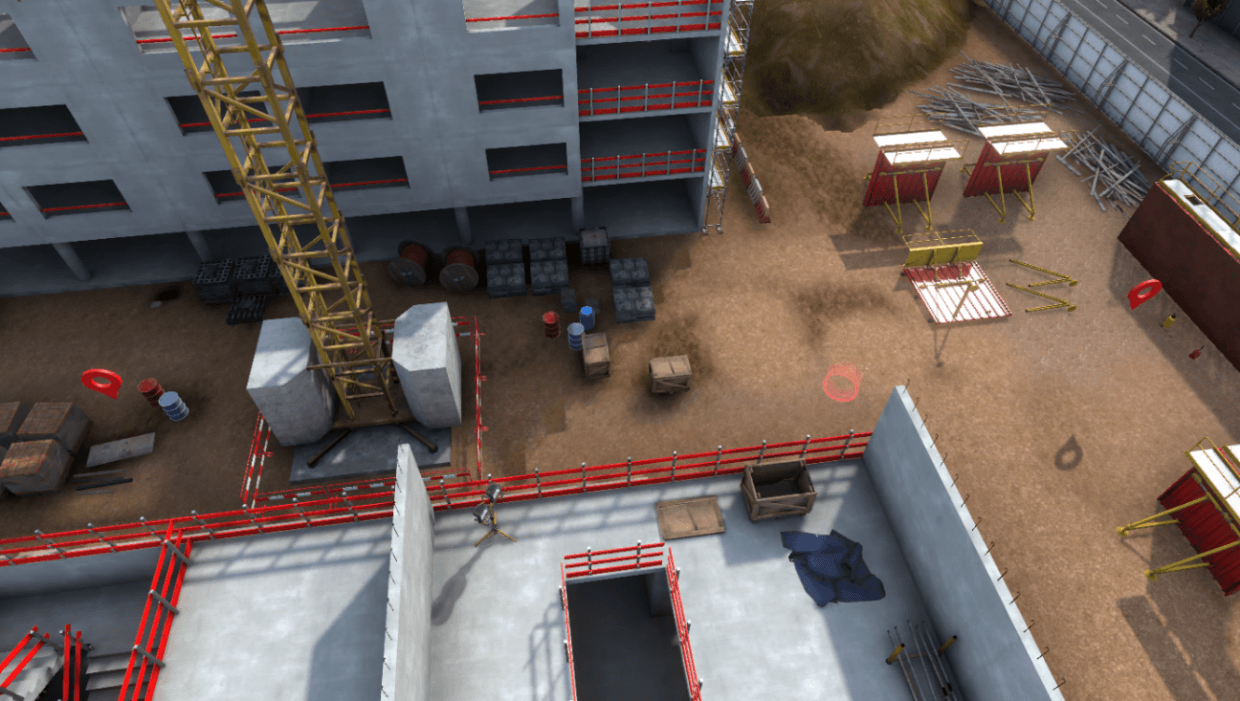
Upon arrival at the zone, two work stations are available, it is possible to move around freely at one of the two work stations to begin the risk identification.
Workstation 1 – Lifting of scaffolding packages
There are two dangers on this workstation :
-
Unprotected holding steels
-
Crane.
Identification
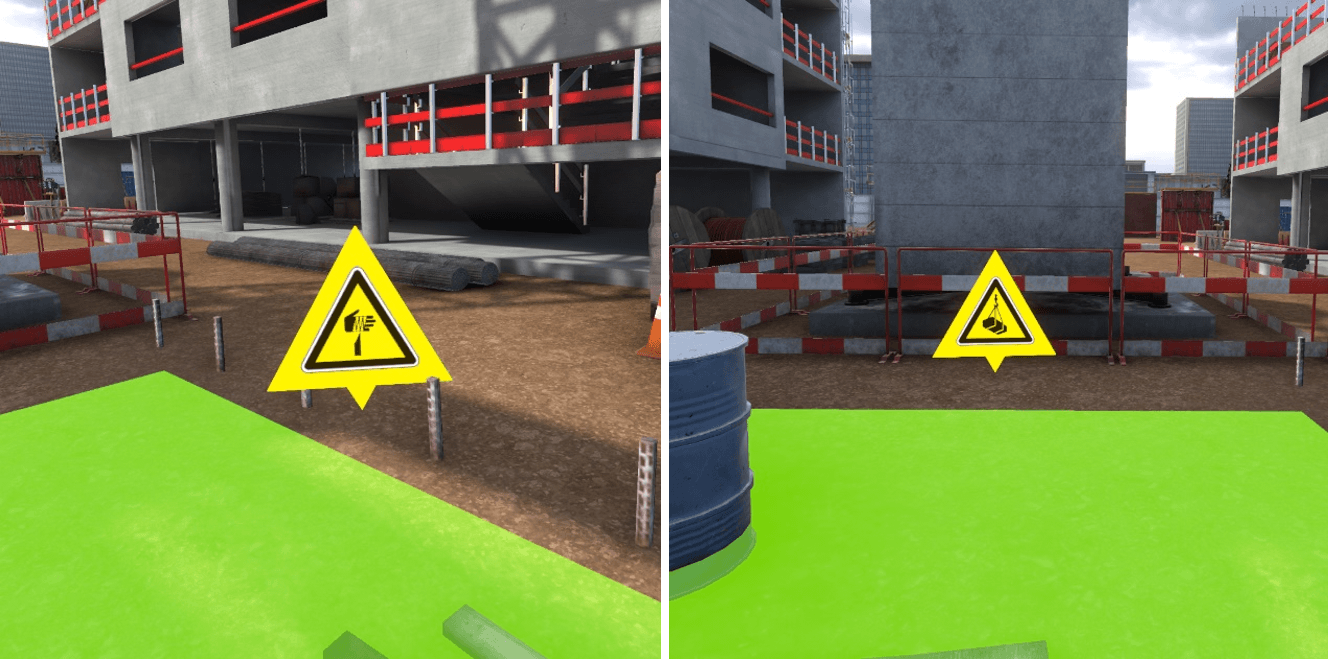
Ensuring security
To secure the unprotected holding steels, you must select the steel protection end caps from the list of PPE and place them on the holding steels on the ground.
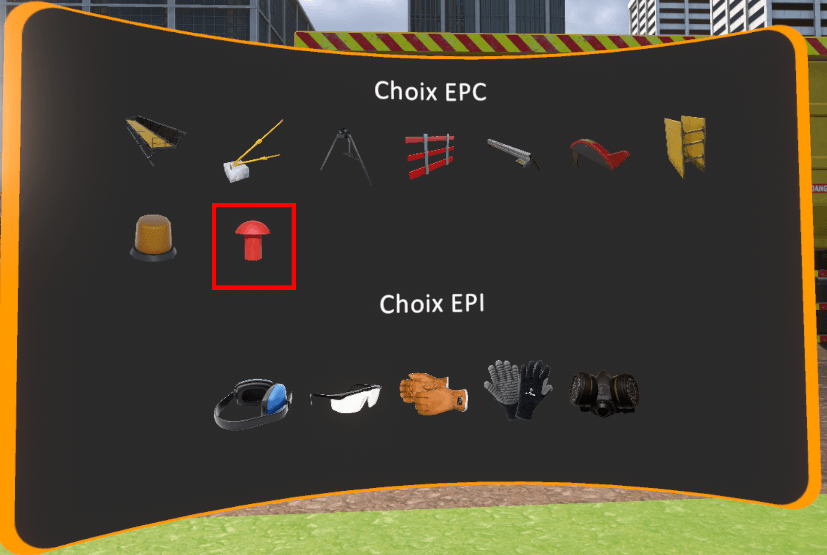
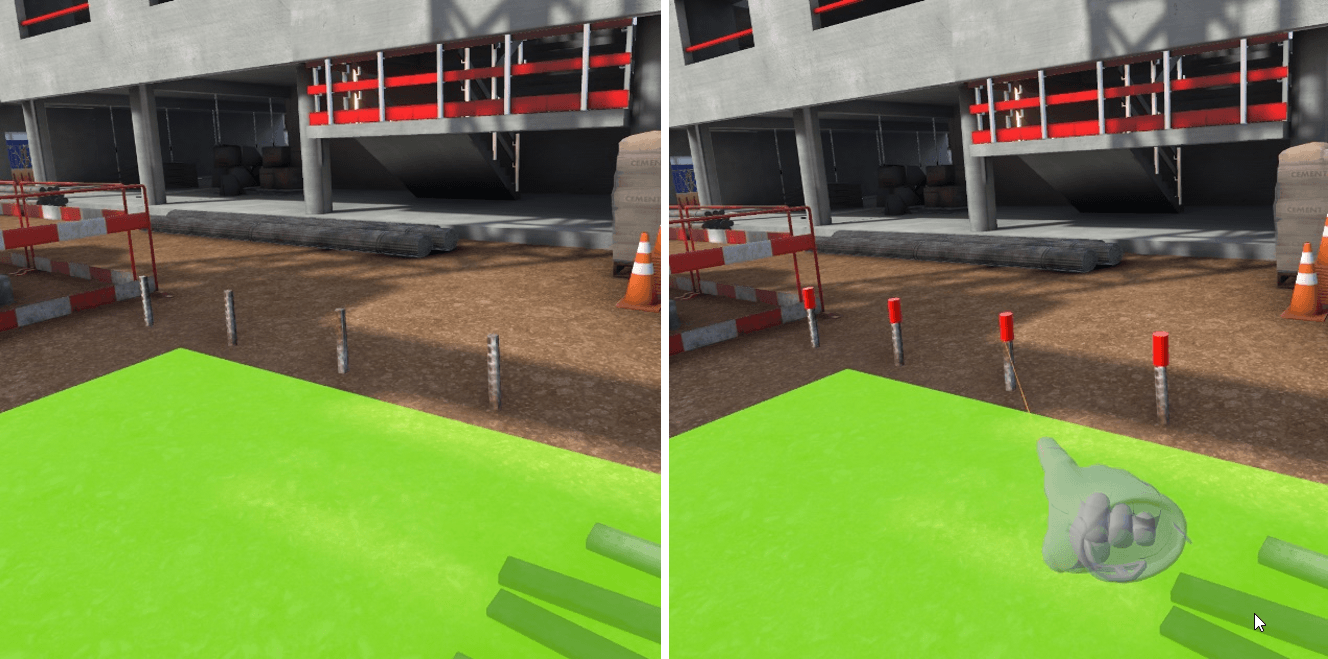
The danger due to the crane can’t be secured, it is necessary to make sure not to get close to the load carried by the crane when it manoeuvres.
Workstation 2 – Cleaning, preparation of the panels
The dangers on this workstation are related to the toxicity of the form release agent.
Identification
Ensuring security
To secure this workstation, it is necessary to equip two PPE available on the PPE selection screen. A gas mask to protect against toxic fumes from the form release agent as well as protective glasses to prevent any projections in the eyes.
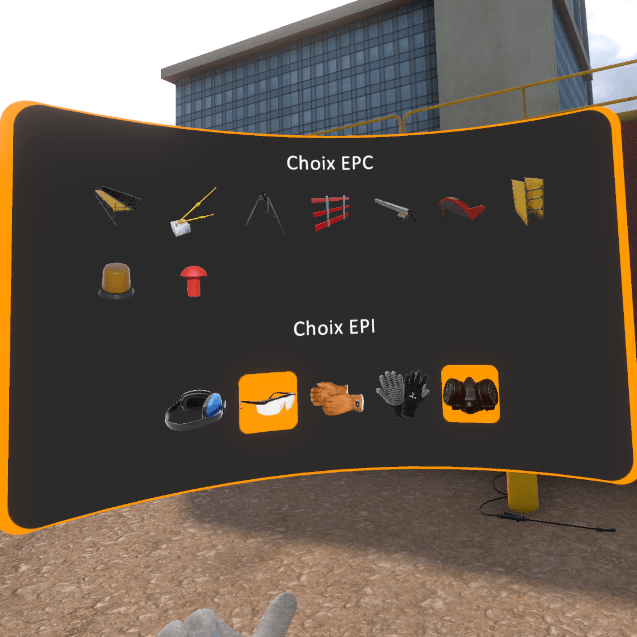
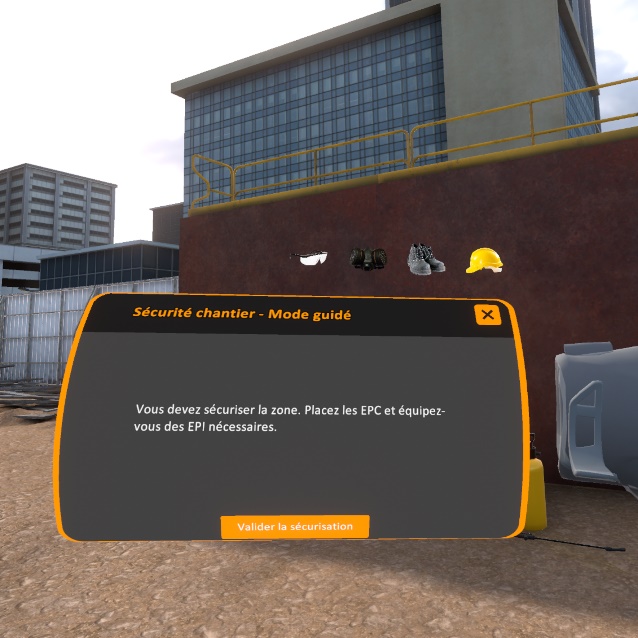
8.2.6. R-1 Earthwork area
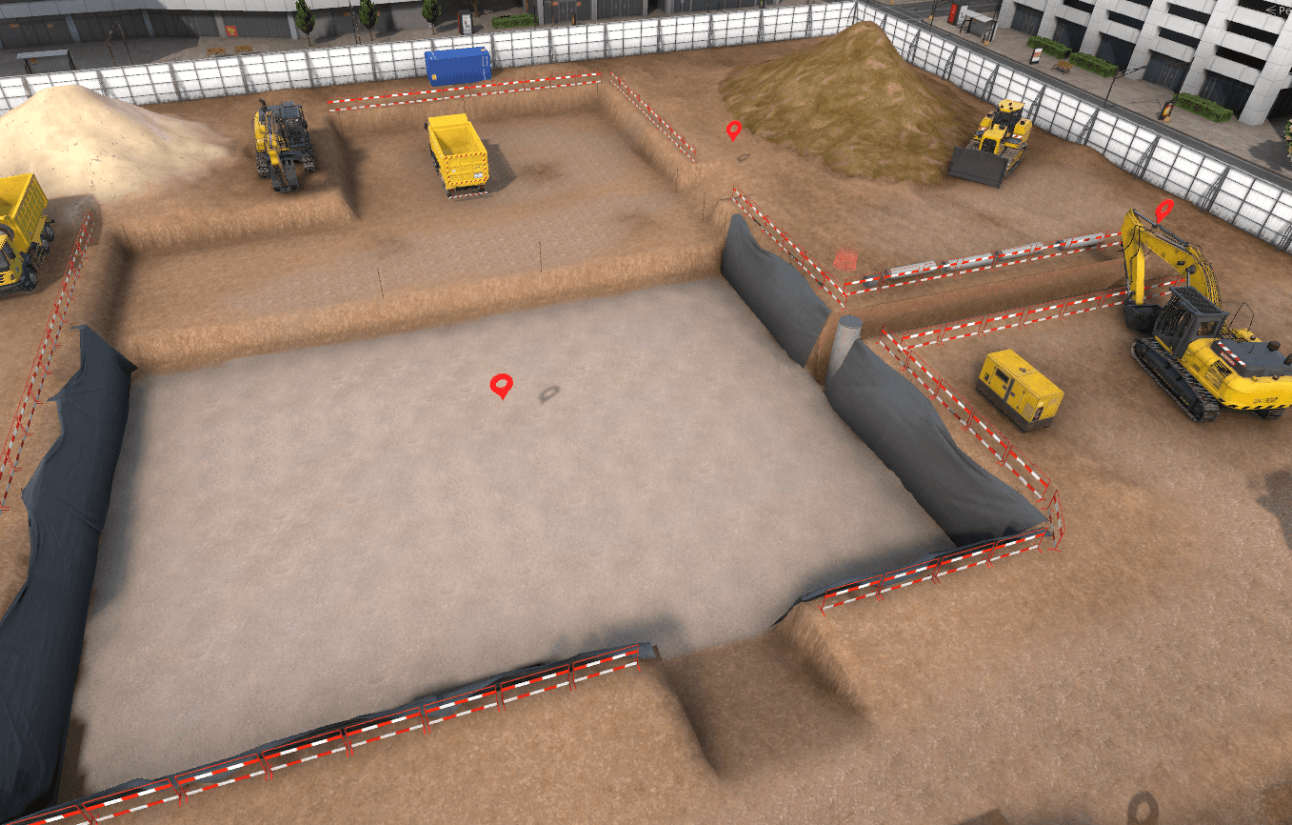
Upon arriving at the zone, three workstations are available. It is possible to move freely at one of the three workstations to begin the danger identification.
Workstation 1 – Laying a pipe at the bottom of the trench
There are two dangers at this workstation:
-
A pipe is at the edge of the trench and could fall into the trench. et pourrait basculer dans la tranchée.
-
The walls of the trench are not supported by shoring and could collapse.
Identification
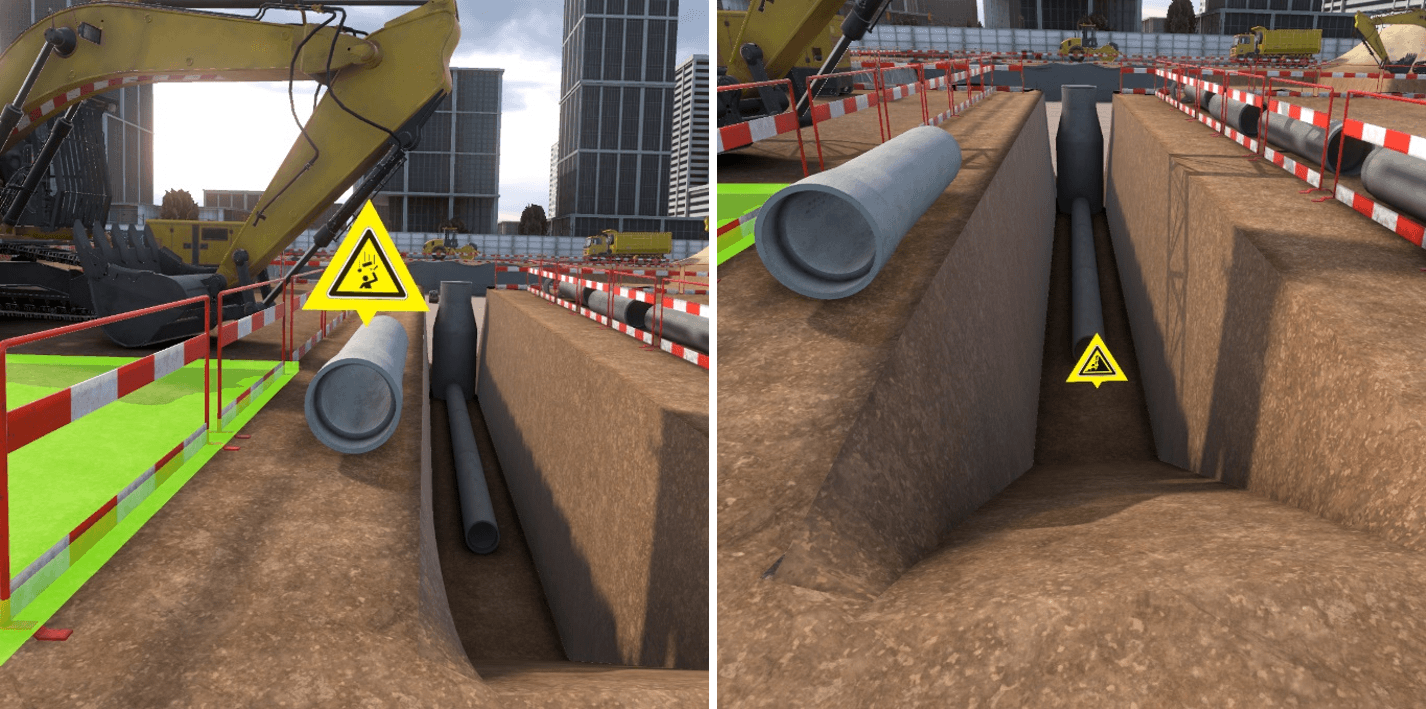
Ensuring security
To secure the pipe, you need to get close enough for a pop-up to appear. Clicking on this pop-up will position the pipe in a less dangerous position.
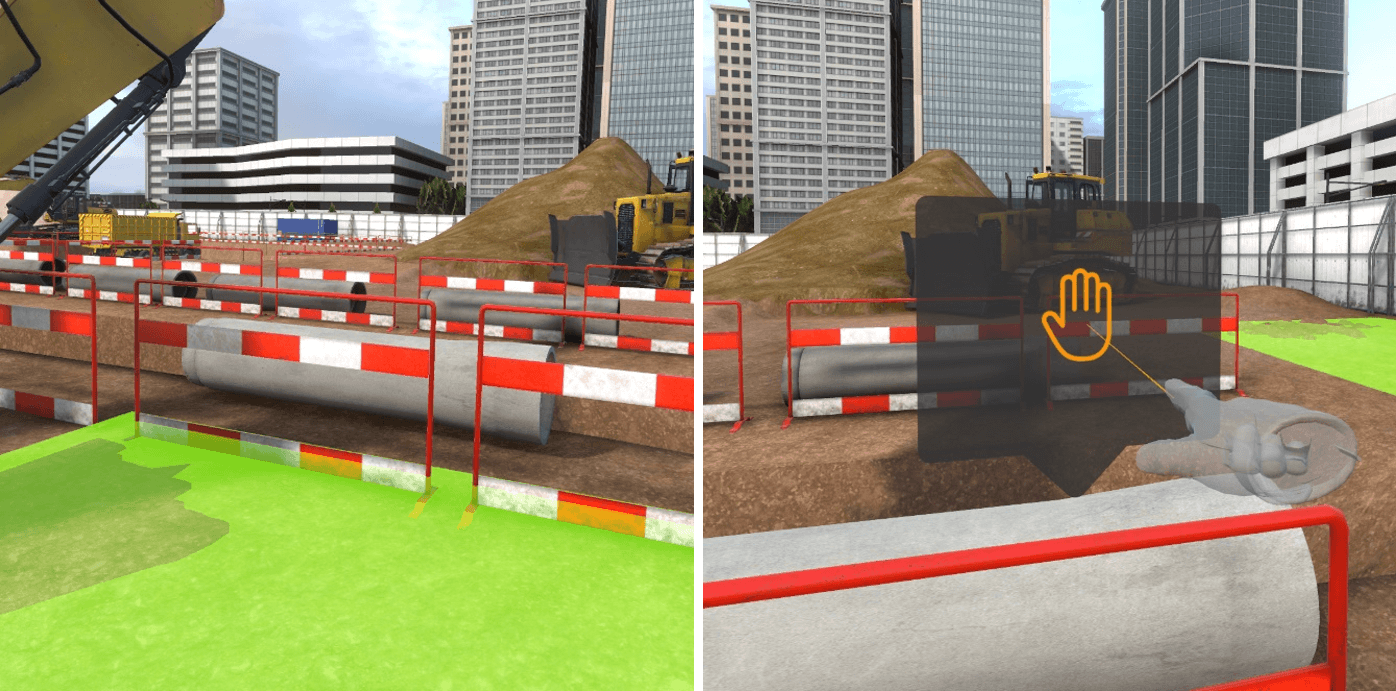
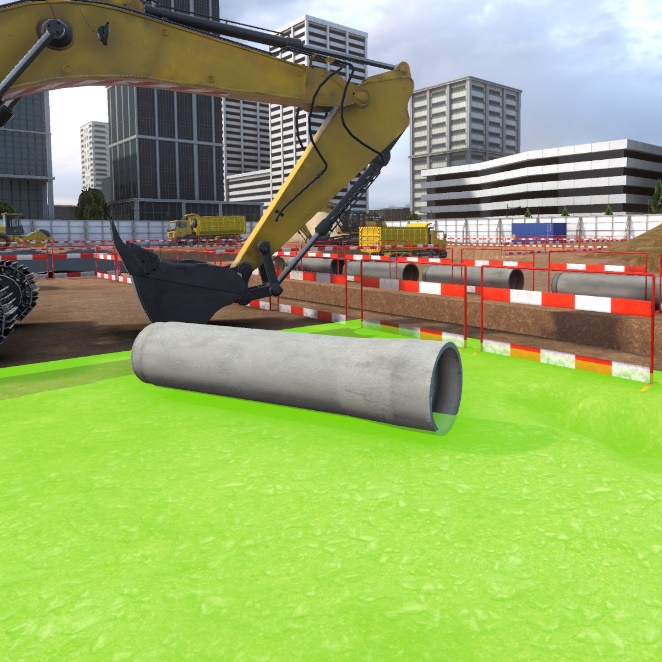
To secure the trench, first select shoring in the list of PPE available, then place them by pointing and clicking on the trench walls.
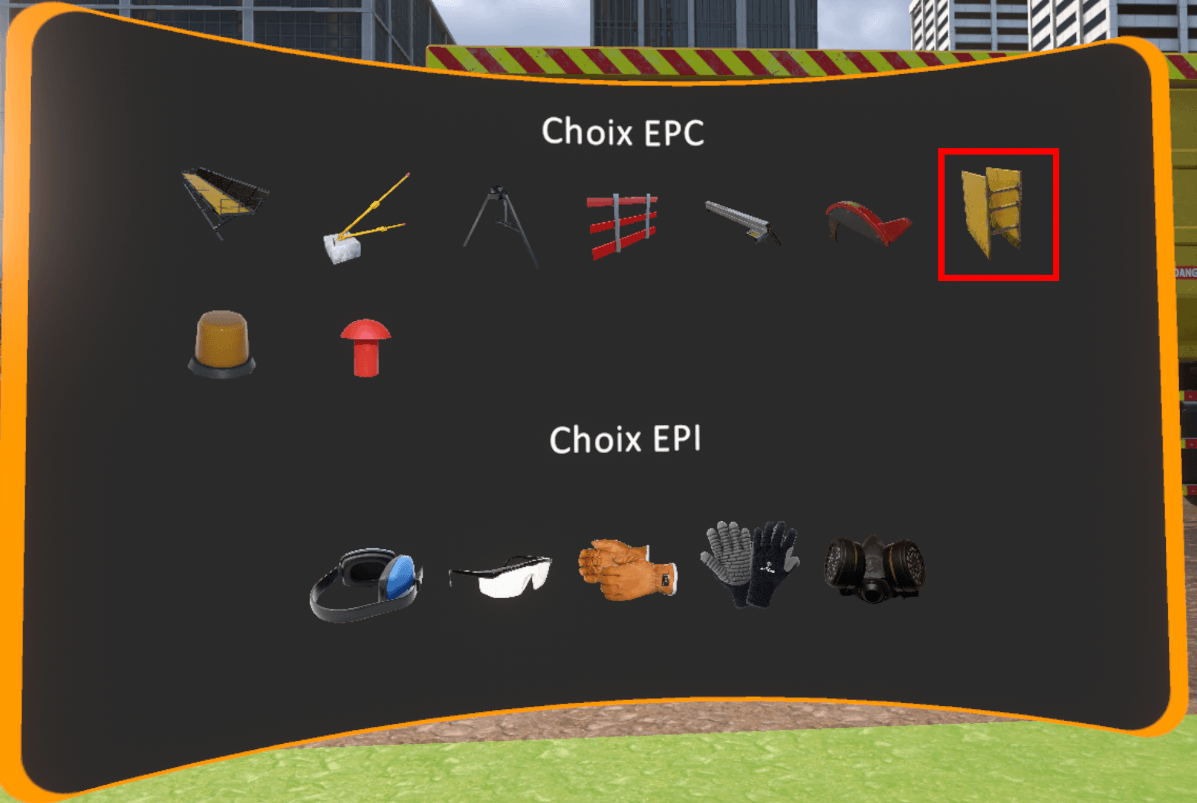
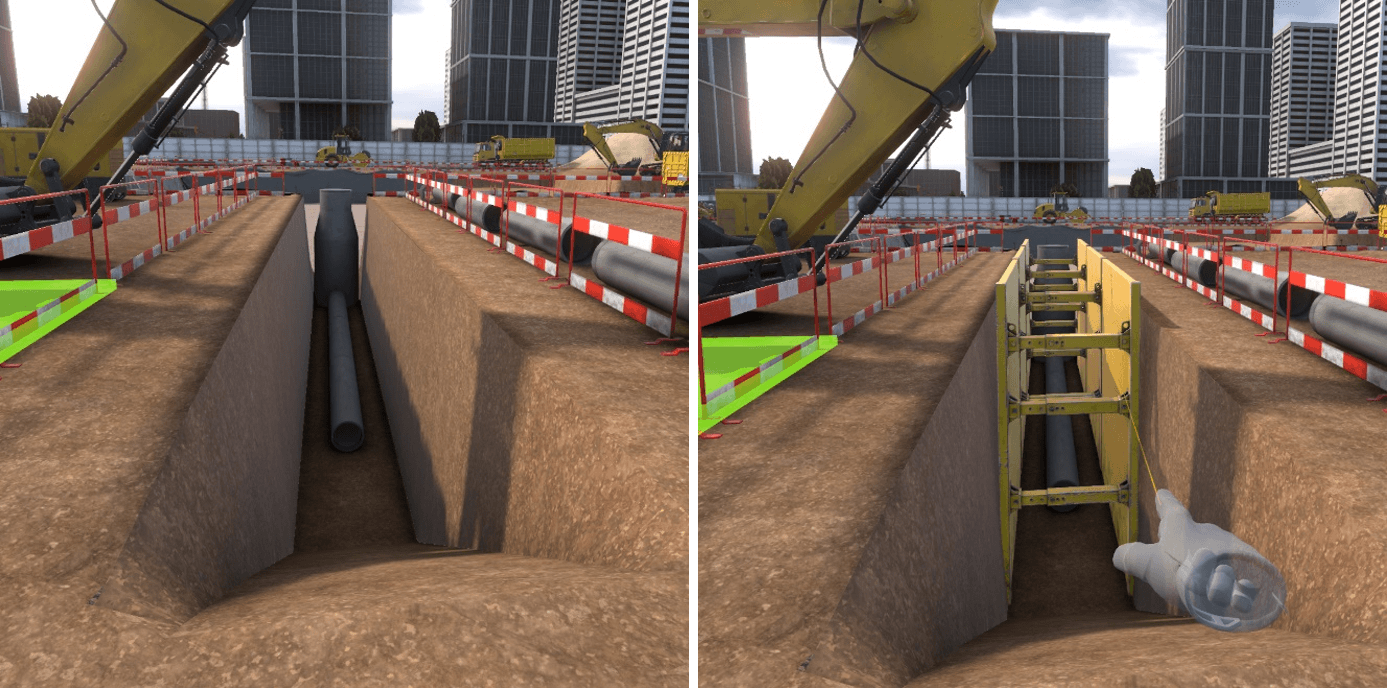
Workstation 2 – Soil compacting
The dangers on this workstation are the intense noise of the compactor, and the strong vibrations under usage.
Identification
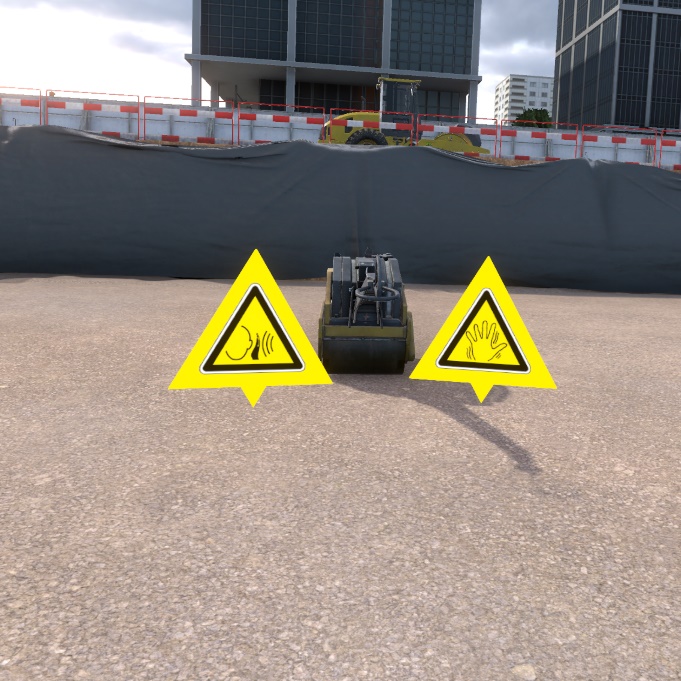
Ensuring security
To secure this workstation, it is necessary to equip the anti-vibration gloves as well as hearing protection muffs, which are both available in the PPE list.
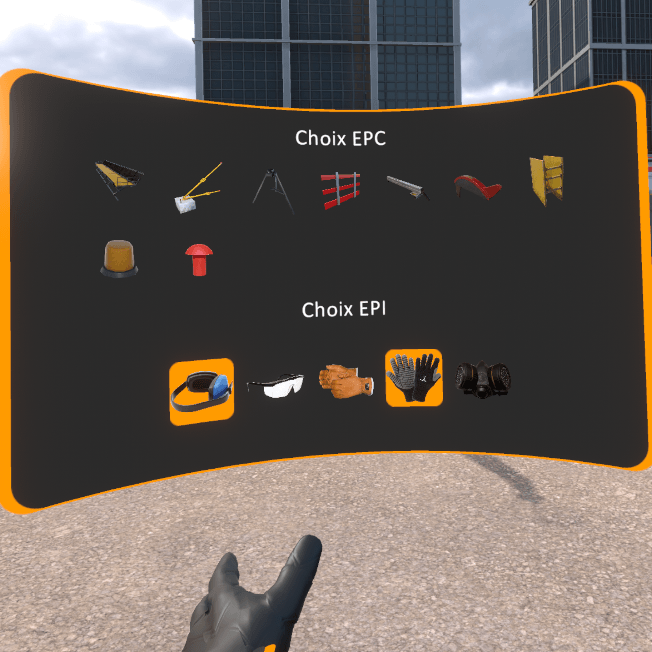
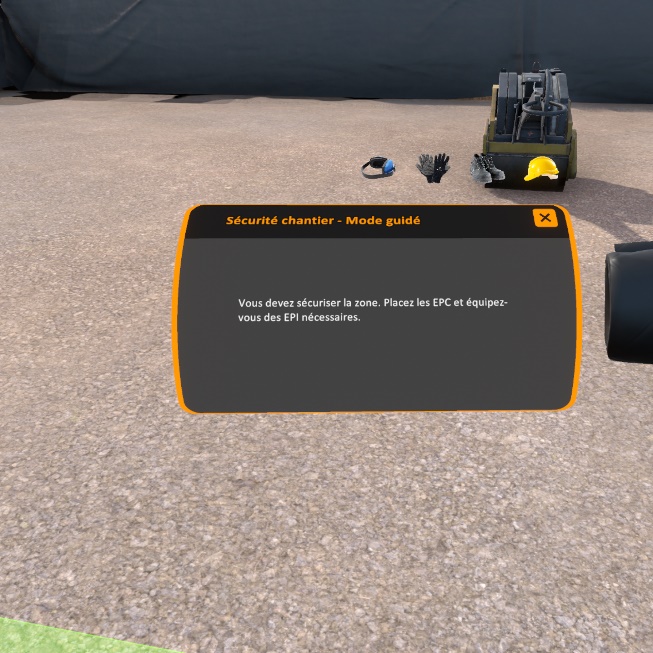
Workstation 3 – Topographic control of the platform
The danger on this workstation is the truck getting ready to back up.
Identification
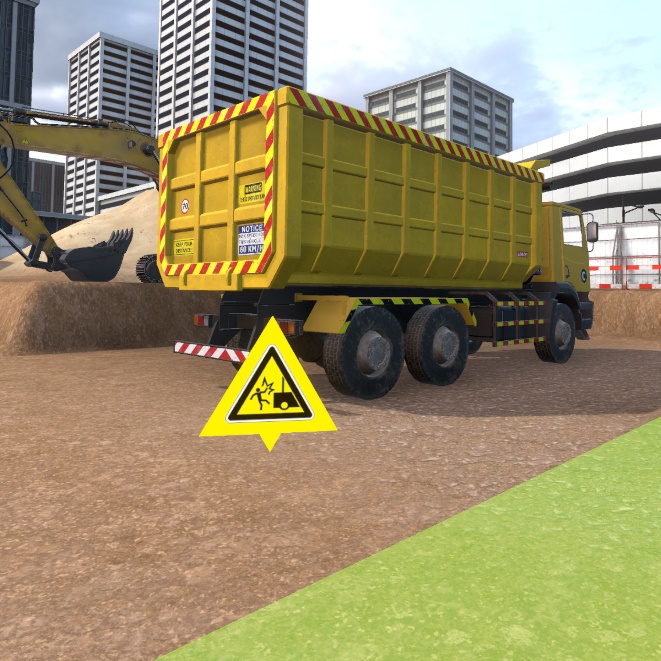
Ensuring security
For the security phase, select the flashing light from the list of PPE and place it on the truck by pointing at it and clicking on the interaction key.

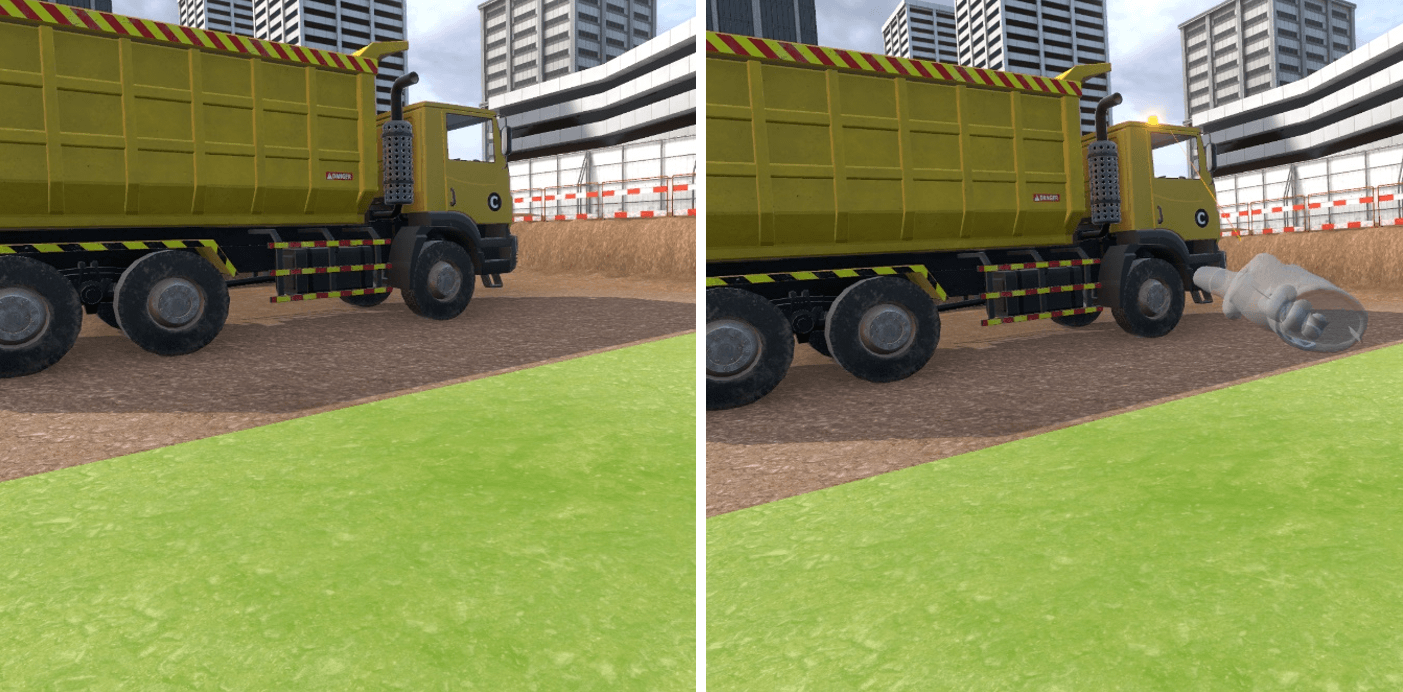
8.3. Evaluation
In evaluation mode, the user is asked to perform an action on the construction site. He or she has the possibility of securing the dangers that he encounters. If he does not do it, and he puts himself in danger, a fatal error takes place which puts an end to the exercise. There is an evaluation exercise per workstation available on the construction site.
Exercise evaluation criteria
Ensuring security : capacity to see and correct the dangers before
arriving at the workstation.
Execution time : capacity to finish the scenario in a defined time
8.3.1. R+2 - Workstation 1 – Wall formwork
IInstruction :
Place a formwork dummy at the highlighted location behind the formwork panels.
To complete this objective, grasp one of the formwork dummies placed near the palettes and place it on the blue highlighted zone behind the formwork panels. To do this safely, it will be necessary to secure the different zone dangers including:
-
Stabilizing the pile of pallets by getting close to them and clicking on the popup
-
Placing the concrete weights against the formwork panels
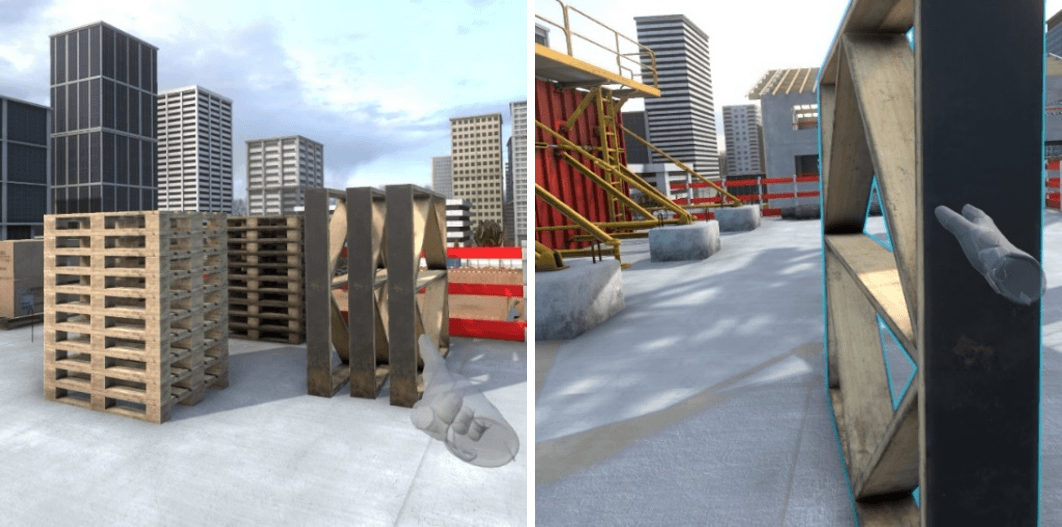
8.3.2. R+2 - Workstation 2 – Formwork panel cutting
Instruction : Cut the formwork panel present on the cutting station.
To complete this objective, simply grasp the formwork panel placed on the saw and move it to perform the cut.
To do this safely, first you must :
-
Place the blade guard on the saw
-
Place the blade guide on the platform
-
Put on the leather gloves
-
Put on the noise protection gear.
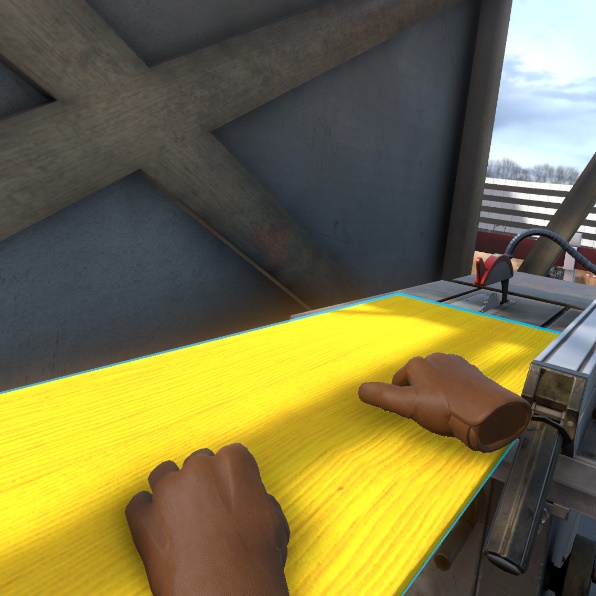
8.3.3. R+2 - Workstation 3 – Floor shoring formwork
Instruction : take a prop from the basket and place it in the highlighted location.
To complete this objective, grasp a prop in the basket and place it at the location highlighted in blue being careful to first secure the zone so as not to set off a fatal error:
-
Clean up the oil spot by carefully getting close to it and clicking on the pop-up that appears over it.
-
Position guard rails around the elevator shaft vide
-
Place tripods around props.
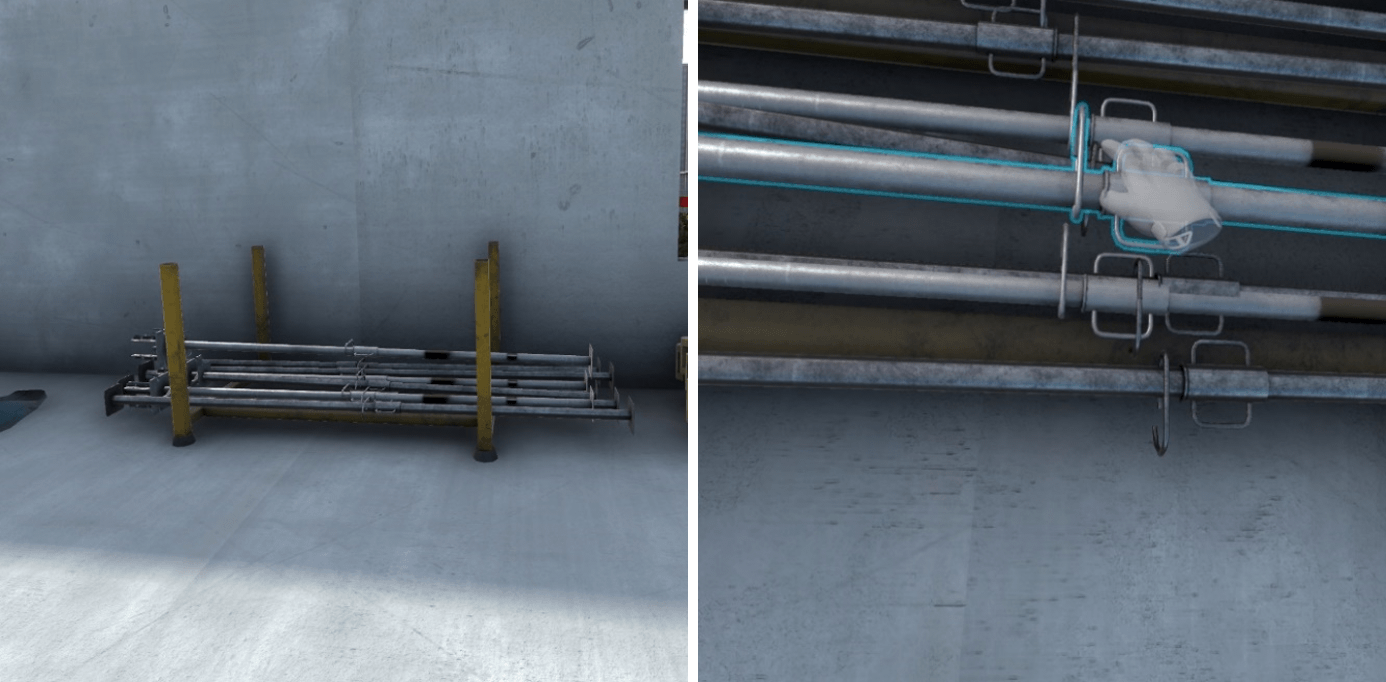
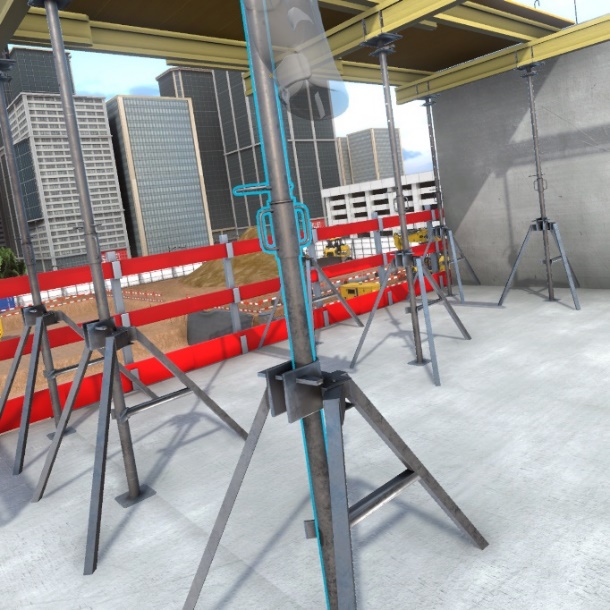
8.3.4. R0 - Workstation 1 – Lifting scaffolding packages
Instruction : Go to the highlighted spot safely.
To complete this objective, go to the blue marker located around the crane, being careful to place the protective end caps on the steel holders on the ground. You must also wait for the passage of the crane carrying the load before passing to avoid being hit.
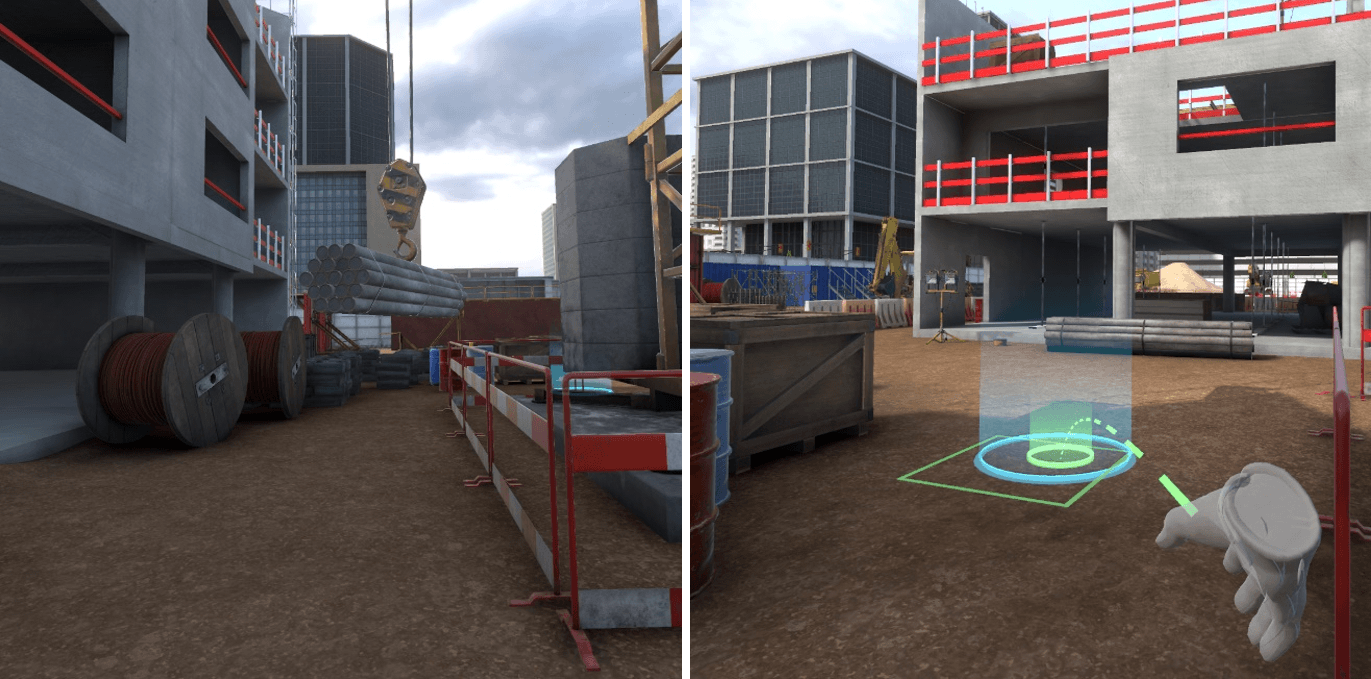
8.3.5. R0 - Workstation 2 – Cleaning, preparation of the panels
Instruction : Spray the form release agent on the formwork panels
To complete this objective, grasp the spray with the objective grasp button then press on the interaction key to spray the product. Before doing this, to be safe, you must :
-
Put on the gas mask
-
Put on the protective glasses.
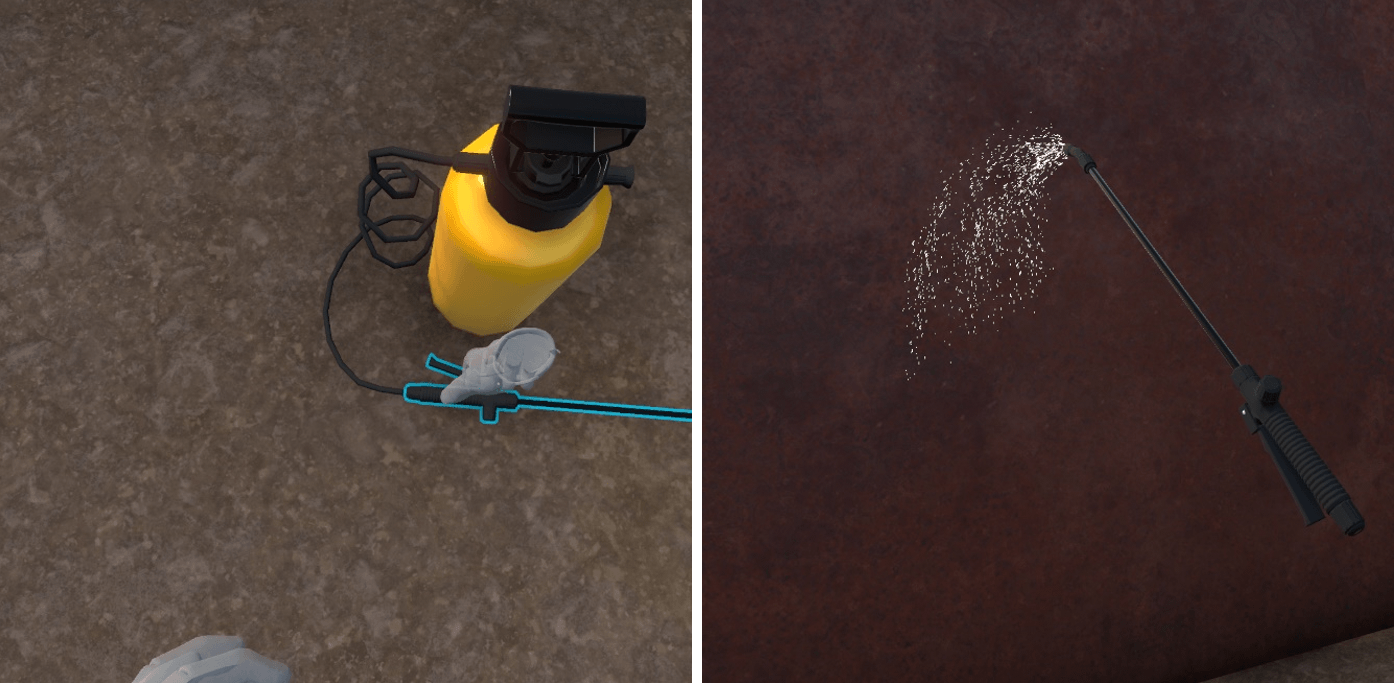
8.3.6. R-1 - Workstation 1 – Laying pipe in the bottom of the trench
Instruction : go down into the trench at the highlighted location to control the slope of the waste water pipes.
To complete this objective, you must enter the trench at one end on the blue marker and stay there a few instants:
First you must :
-
Move the pipe that risks falling into the trench by getting closer and clicking on the pop-up that appears over it.
-
Place shoring on the trench walls to prevent collapse.
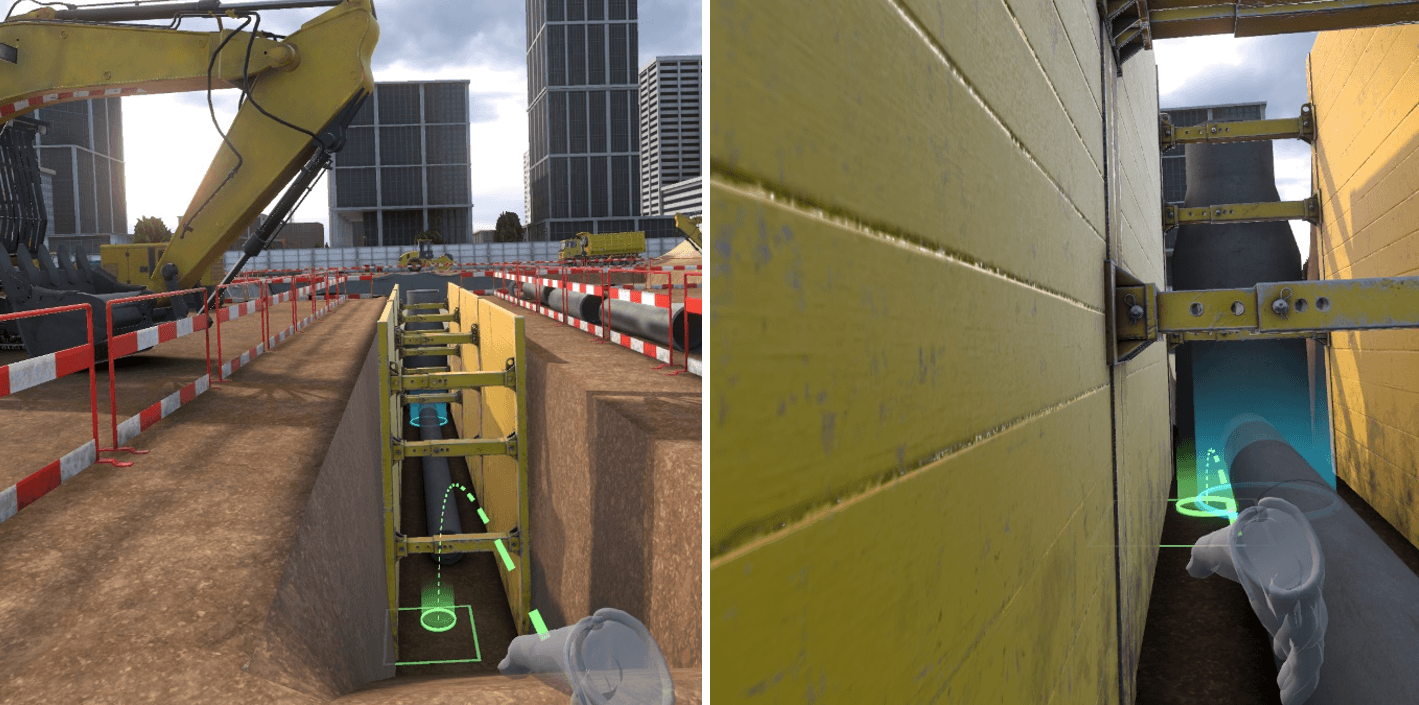
8.3.7. R-1 - Workstation 2 – Soil compacting
To complete this objective, grasp the compactor with the object grasp key and keep pressing the key till the compactor reaches the highlighted zone. First you must secure the situation:
-
Put on anti-vibration gloves available in the PPE list.
-
Put on the noise protection gear available in the PPE list.
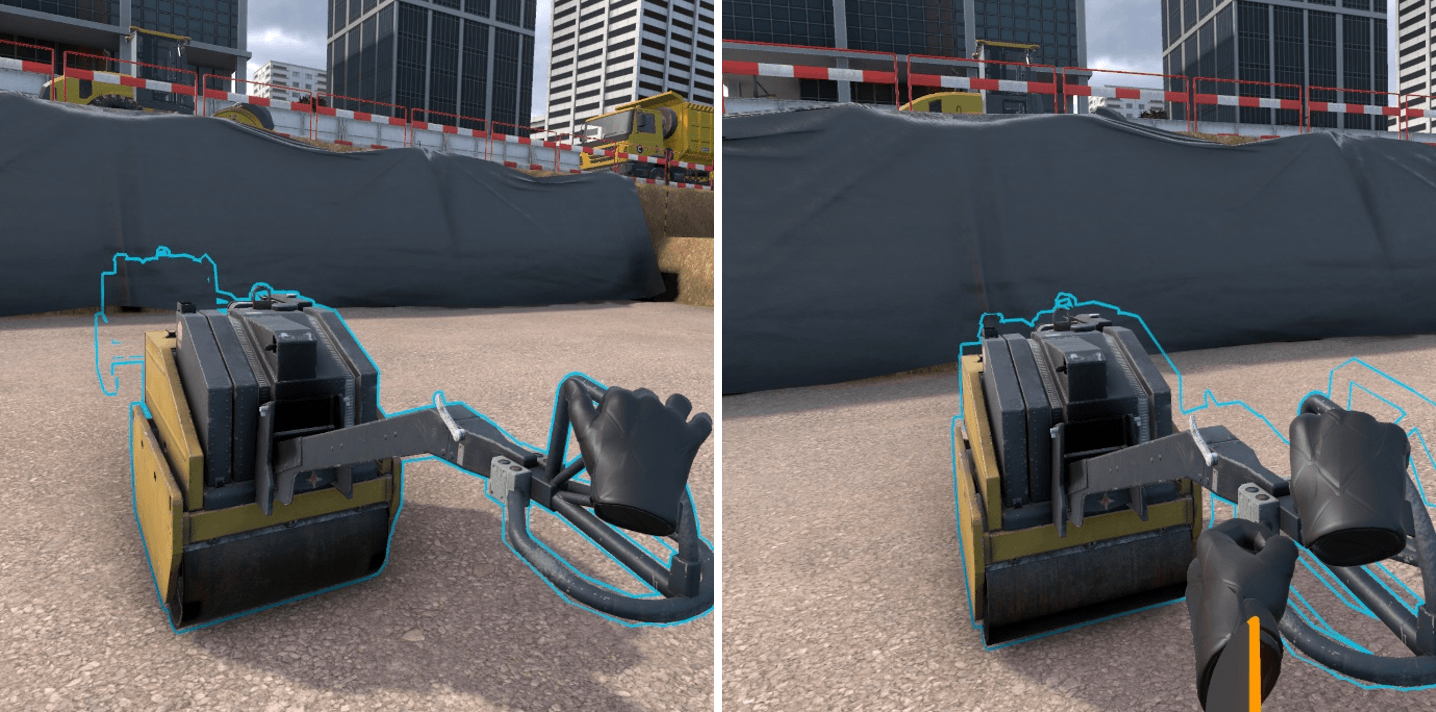
8.3.8. R-1 - Workstation 3 – Topographical control of the platform
Instruction : Move the tacheometer to the highlighted location to make a measurement
To complete this objective, take the tacheometer by pressing on the object grasp button and holding it down. Then walk around the front of the truck and place the tacheometer on the blue highlighted zone. First place the missing flashing light on the truck by selecting it in the PPE list and clicking on the truck with the interaction key.
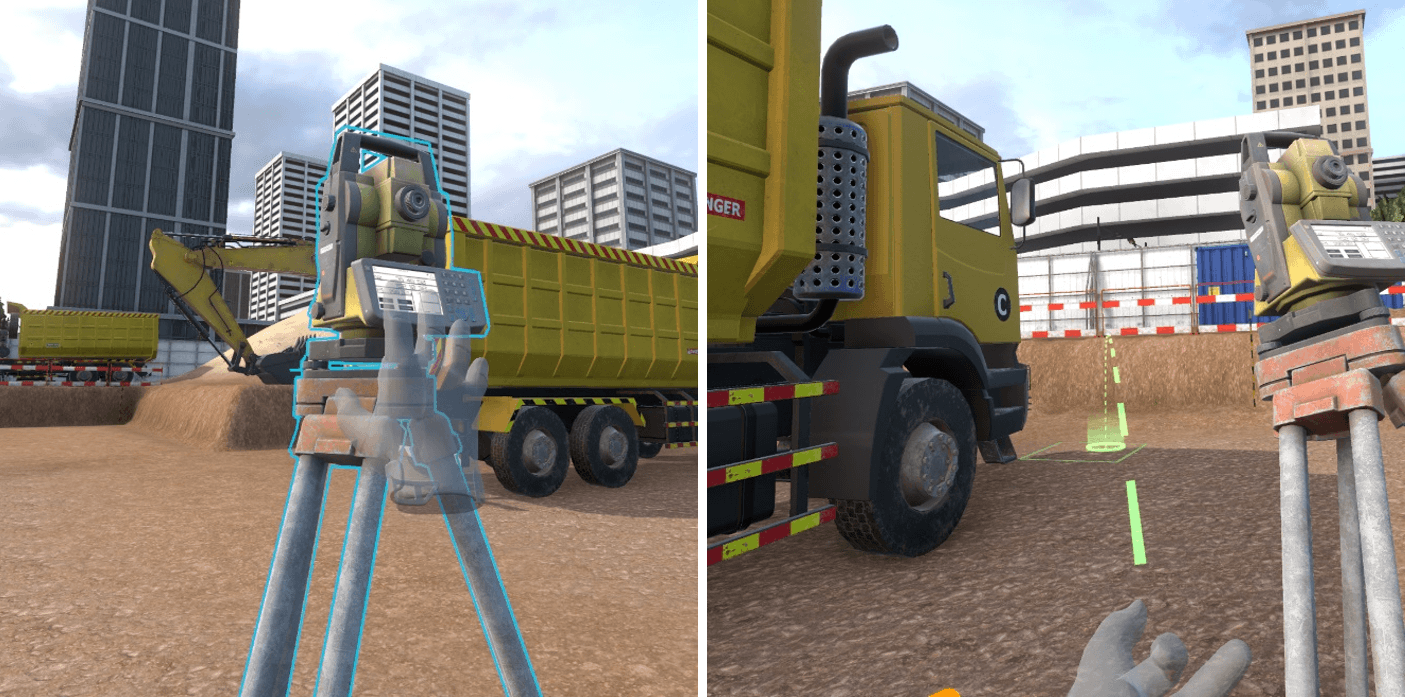
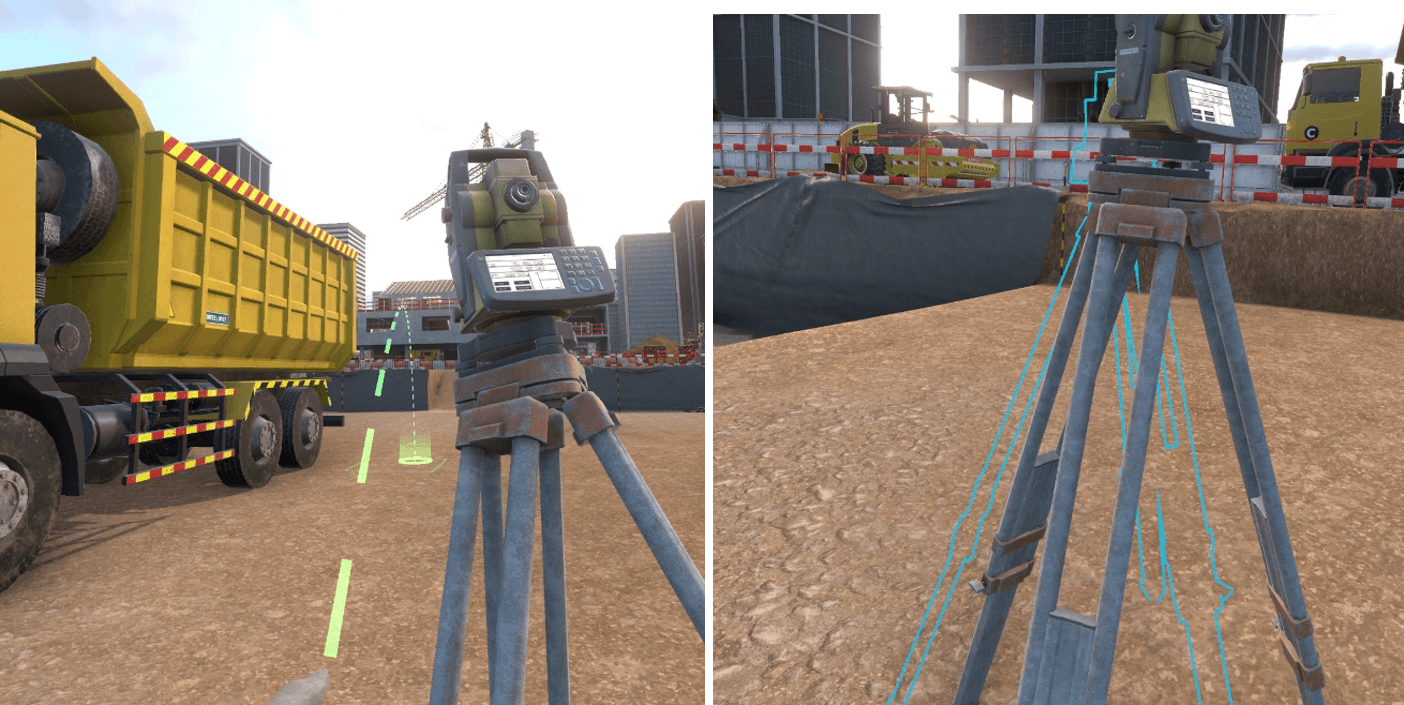
8.4. Setting up the exercises
The default exercise settings can’t be changed but it is possible to create editable copies whose settings can be changed by the trainer to vary the grading according to several criteria.
8.4.1. Parameters
Name of the exercise : enables to change the name of the exercise as it is displayed in the simulator
Level : corresponds to the level of the exercise, when copying an exercise by default it is important to not modify this parameter (beginner = free mode, advanced = guided mode, expert=evaluation mode)
Validation threshold : corresponds to the value of the final score (percentage) below which the exercise is considered a fail.
Consideration threshold : score below which the result of the exercise will not be taken into account.
8.4.2. Sensors
| Min | Target | Max | |
|---|---|---|---|
FREE MODE |
|||
Distance travelled |
Distance in meters to travel below which the score will be 0 % |
Distance in meters to travel starting at which the score will be 100 % |
|
Time before an accident |
Duration in seconds spent on the exercise below which the score will be 0 % |
Duration in seconds spent on the exercise starting from which the score will be 100 % |
|
ACCEPTANCE and USE |
|||
Identification |
Number of dangers identified to obtain a score of 100 % |
Indicative value of the number of dangers present on the zone for this exercise (should not be modified) |
|
Securing |
Number of dangers secured to obtain a score of 100 % |
Indicative value of the number of dangers present on the zone for this exercise (should not be modified) |
|
Duration of execution |
Duration in seconds spent on the exercise below which the score will be 100 % |
Duration in seconds spent on the exercice above which the score will be 0 % |
8.4.3. Simulation variable
Percentage of malus per identification error: percentage of malus applied to the identification score for a danger in this exercise, for each incorrect picture placed in addition to a correct picture (for example, for a value of 10 at this variable, if a correct picture is placed as well as an incorrect picture near the same risk, a malus of 10% will be applied to the identification score for this risk).
Percentage of malus per securing error : percentage of malus applied to the securing score for a risk of this exercise, for each attempt to place an incorrect PPE at the expected securing location.
Percentage of malus per extra PPE equipment : percentage of malus applied to the securing score for a danger of this exercise, for each additional un-necessary PPE equipped. (example: the value of the variable is 10, a risk requires wearing noise protection muffs but protective glasses are also equipped, so the malus would be 10% on the securing score for this risk).
9. Scaffolding Safety Module
9.1. Free mode
Free mode allows the user to move freely around the scaffolding. All the dangers available on the scaffolding are present, and fatal outcomes occur if the user gets too close to one of the dangers.
The purpose of this exercise is to raise the learner’s awareness of the dangers linked to poorly assembled scaffolding; the user will not have the option of securing the dangers he encounters. His objective, defined by the trainer in Vulcan, will be to reach a target floor while spending a defined amount of time in the simulation.
The student can leave the exercise at any time by clicking on the cross on the tablet on his left wrist.
9.1.1. Exercise evaluation criteria
 Floor goal: Reach the floor objective
 Survival time: Exceed the time objective "Time to accident"
9.2. Reception exercises
The Reception exercises come in four variants:
-
Facade scaffolding (guided mode)
-
Facade scaffolding (assessment mode)
-
Multidirectional scaffolding (guided mode)
-
Multidirectional scaffolding (assessment mode)
In these exercises, the user must evaluate the quality of the scaffolding assembly and flag any flaws for correction.
In guided mode, the user is helped at every step and is invited to correct any mistakes as he goes along, in order to assimilate best practices.
In assessment mode, the actions to be performed are similar, but the user’s mistakes are checked at the end of the exercise instead.
9.2.1. Exercise evaluation criteria
Analysis: relevance of the user’s answers during the preparation phase
 Scenario: validation of all the steps that make up the scenario
Dangers identification: relevance of the user’s answers during the preparation phase
 Execution time: ability to finish the scenario within a defined time
9.2.2. Preparing the intervention
At the start of the exercise, the mission order giver presents a briefing to the learner. On this screen, the user can use a button to have the briefing read aloud by the simulator’s built-in speech synthesis.
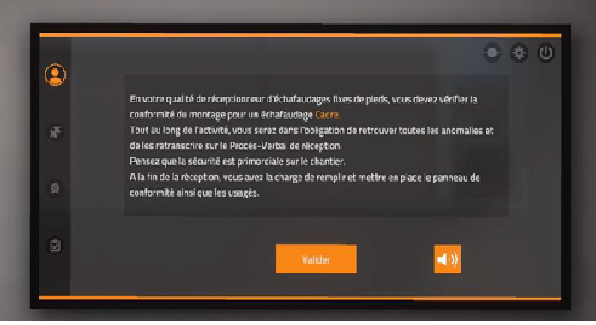
9.2.3. Selecting the weather
After validation, a weather bulletin appears. The user must determine whether the weather conditions are favourable for working on the site.
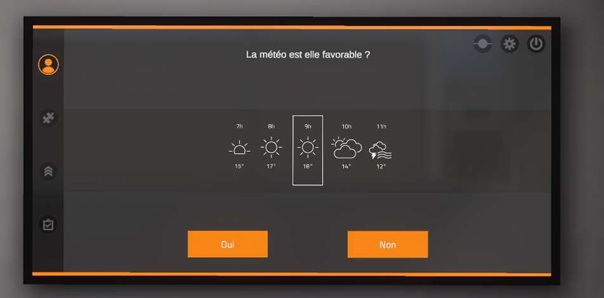
9.2.4. Preparing the equipment
Turn to the left and an open locker is visible with an interface enabling the user to choose the equipment to wear. If the user makes a poor choice, it is highlighted, and the user must correct the mistake before moving on to the next phase. Once the user has selected the equipment, click on the checkmark on the right of the screen.
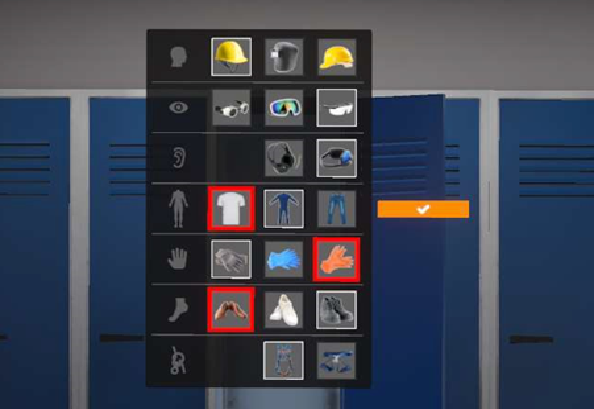
The correct PPE is:
|
Hardhat with strap |
|
Protective glasses |
|
Ear protectors |
|
Coveralls |
|
Protective gloves |
|
Safety boots |
|
Harness |


9.2.5. Selecting the scaffolding
The user is automatically teleported to the site, facing two scaffoldings. He must choose the one that corresponds to the exercise specified during the briefing by teleporting to its dedicated marker.
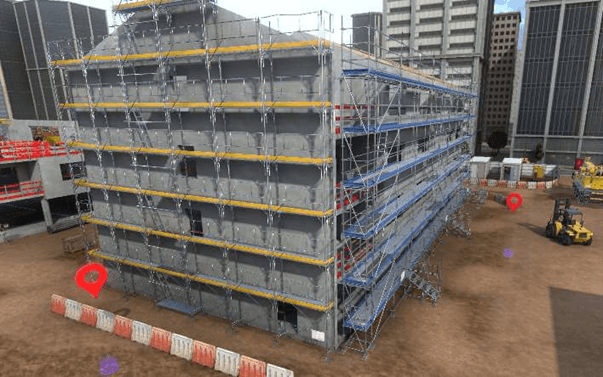
9.2.6. Securing access
Before his intervention, the user must secure access to the scaffolding under reception.
The PPE selection screen appears and the user must pick up the caution tape by clicking the interaction button. It must then be placed at the entrance of the scaffolding to block access, by pointing at the location and clicking the interaction button again.
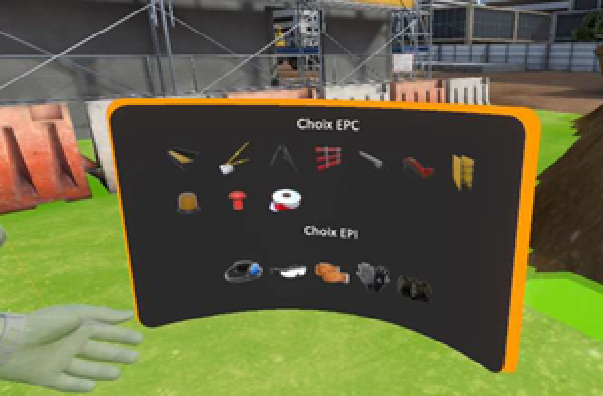
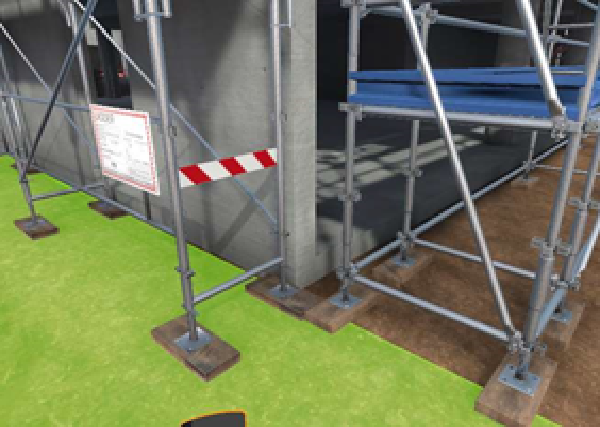
For multidirectional scaffolding, the tape must be positioned in front of the steps of the first level.
9.2.7. Checking the anchors
The user will then confirm that the scaffolding anchors are correctly positioned. To do this, he can view the scaffolding plan and visually check compliance. To help with this step, a "highlight anchors" button will highlight the anchors in blue.
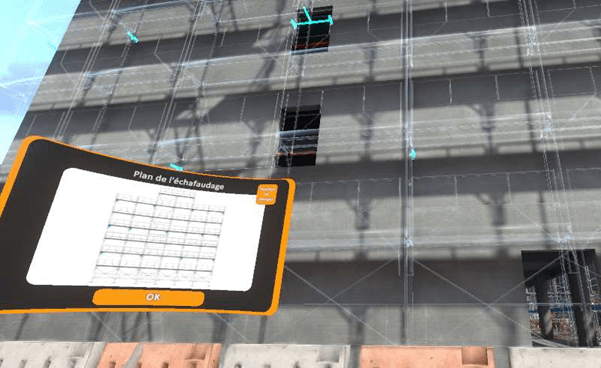
9.2.8. Identifying dangers
Here, the aim is to methodically identify all scaffolding assembly flaws, floor by floor. All flaws must be identified before the user is allowed to move up to the next floor. Faults are generated randomly according to the instructions given by the trainer on the Vulcan platform, so each session is different for each user. Using a laser, the user will highlight the parts he considers to be defective or poorly assembled. The parts selected by the user appear highlighted in cyan.
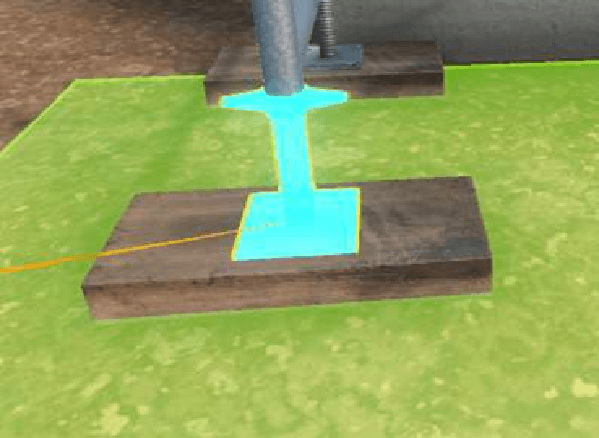
It is during this phase that correction occurs in Guided mode: if some flaws have not been identified by the user, the trap door will not open, and the forgotten flaws will be highlighted in red, with a message indicating the mistake. The student must correct all his mistakes before being able to reach the next level.
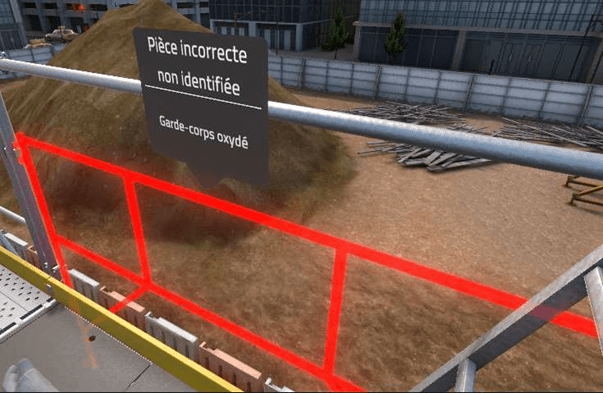
Once the user has identified all the flaws on a floor, he moves on to the next floor by using the ladder and going through the trap door.
9.2.9. Possible flaws on facade scaffolding
| Part | Flaw | Photo |
|---|---|---|
Anchors |
Incorrect anchors |
|
Base jack |
Missing nails |
|
Tray |
Deformed retaining hook |
|
Deformed tray |
|
|
Oxidized tray |
|
|
Retaining hook poorly engaged |
|
|
Walk-through frame |
Deformed |
|
Oxidized |
|
|
Guard rail |
Deformed |
|
Oxidized |
|
|
Toe board |
Poorly engaged |
|
Trap door landing |
Broken rung |
|
Broken hook |
|
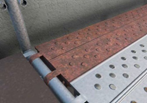
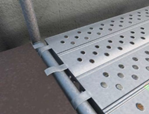
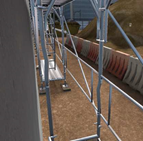
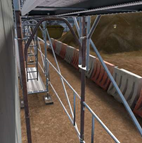
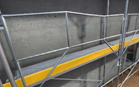
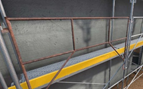
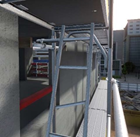
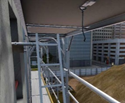
9.2.10. Possible flaws on multidirectional scaffolding
Part |
Flaw |
Photo |
Base jack |
Missing nails |
|
Tray |
Deformed retaining hook |
|
Deformed tray |
|
|
Oxidized tray |
|
|
Retaining hook poorly engaged |
|
|
Horizontal tube |
Cotter pin poorly positioned |
|
Toe board |
Wrongly positioned |
|
Trap door landing |
Broken rung |
|
Broken hook |
|
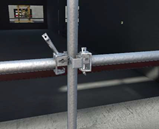
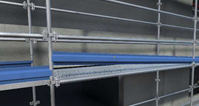
9.3. Usage exercises
These exercises allow the user to practice using scaffolding as different trades. The scaffolding is considered to have already been received and inspected. The purpose of the exercise is therefore to acquire good daily practices such as:
-
PPE management
-
Sign verification
-
Moving between floors
-
Obstacle management
Usage mode comes in four variations corresponding to different trades:
-
Finishing
-
Construction studies
-
Structural work
-
Wood framing
Each trade will be required to work in a different zone:
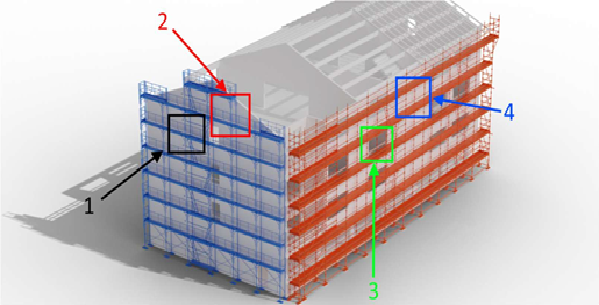
9.3.1. Exercise evaluation criteria
Analysis: relevance of the user’s answers during the preparation phase
Scenario: validation of all the steps that make up the scenario
Dangers identification: ability to see and correct obstacles in the user’s path
Execution time: ability to finish the scenario within a defined time
9.3.2. Starting the exercise
9.3.3. Preparing the intervention
At the start of the exercise, the mission order giver presents a briefing to the learner. On this screen, the user can use a button to have the briefing read aloud by the simulator’s built-in speech synthesis.
9.3.4. Selecting the weather
After validation, a weather bulletin appears. The user must determine whether the weather conditions are favourable for working on the site.
9.3.5. Preparing the equipment
Turn to the left and an open locker is visible with an interface enabling the user to choose the equipment to wear. If the user makes a poor choice, it is highlighted, and the user must correct the mistake before moving on to the next phase. Once the user has selected the equipment, click on the checkmark on the right of the screen.
The correct PPE is:
|
Hardhat with strap |
|
Protective glasses |
|
Ear protectors |
|
Coveralls |
|
Protective gloves |
|
Safety boots |
|
Harness |
9.3.6. Arriving on site
The user is automatically teleported to the site, facing two scaffoldings. He must choose the one that corresponds to the exercise specified during the briefing by teleporting to its dedicated marker.
Before climbing onto the scaffolding, the user must ensure that its specifications comply with the requirements of the trade chosen at the start of the exercise. The user must read the sign to verify that the maximum load is allowed:
-
Finishing: scaffolding bearing 200kg/m² or more
-
Construction studies: scaffolding bearing 150kg/m² or more
-
Structural work: scaffolding bearing 600kg/m² or more
-
Wood framing: scaffolding bearing 450kg/m² or more
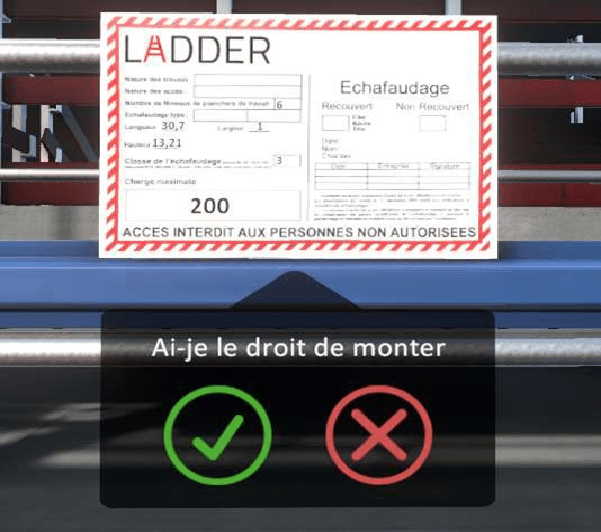
If the maximum load indicated on the sign is not sufficient for the user’s intervention, the value is automatically corrected so the exercise can continue.
9.3.7. Climbing the scaffolding
The user can now climb the scaffolding. The simulator will evaluate his ability to move around safely, in particular his ability to close each trap door behind him. The user must move to the work area indicated by a red icon.
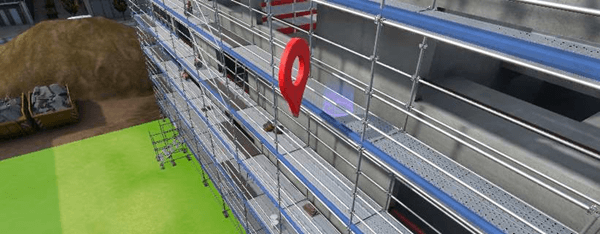
9.3.8. Clearing obstacles
On the way to his objective, the user may encounter obstacles: heavy loads or materials blocking the passage. In this case, he will have to point at the object and click the interaction button to put it back in its place.
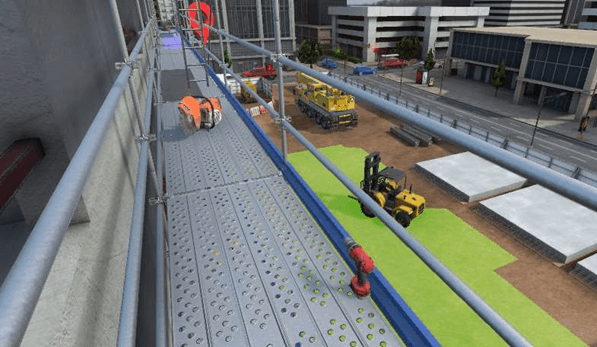
9.3.9. Moving to the purple circle
Once he has reached the intervention site, the user must walk to the purple circle. A sound confirms that the work went well.
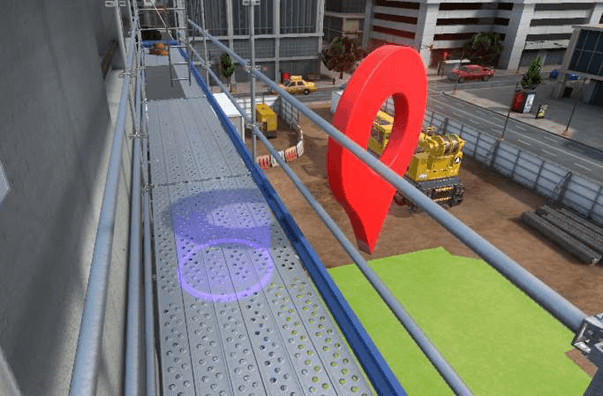
9.3.10. Climbing down
The user must then climb down the scaffolding, always respecting all the safety rules. It is impossible to teleport from the top of the scaffolding. Move to the purple circle where the exercise started, and the user will then be teleported to the locker room where the results are displayed. The exercise is now complete.
9.4. Evaluation / Exercises in evaluation mode
In evaluation mode, the user receives no hints, and mistakes are checked at the end of the exercise. The evaluation criteria are as follows:
Analysis: relevance of the user’s answers during the preparation phase
Scenario: validation of all the steps that make up the scenario
Dangers identification: ability to recognize assembly flaws and obstacles
Execution time: ability to finish the scenario within a defined time
For the facade and multidirectional scaffolding evaluation, the user is required to find all the flaws, but no hints are given. If the user misses a flaw, it is considered a fatal error, and the evaluation is immediately stopped and the student fails. Once the user has completed all seven floors, he moves to the purple circle at the end of the scaffolding to be teleported to the locker room where the results are displayed.
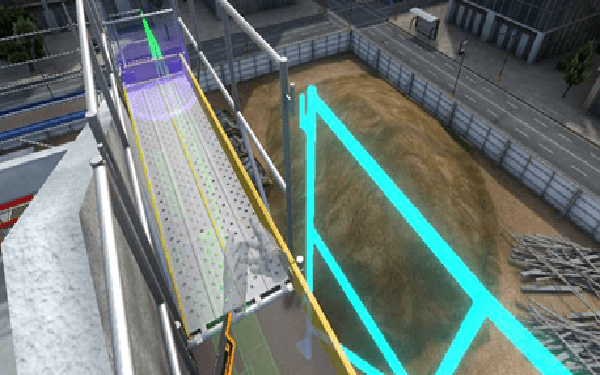
9.5. Vulcan exercise settings
The default exercise settings cannot be modified, but it is possible to create editable copies of the exercises on Vulcan, and then modify the parameters. This allows the trainer to change the weighting of each parameter’s score (coefficient) based on different criteria. The parameters that can be modified are as follows:
Exercise name: allows the exercise name to be modified as it will be displayed in the simulator
Difficulty: corresponds to the exercise level; it is important not to modify this parameter when copying a default exercise (beginner=free mode, advanced=guided mode, expert=evaluation mode)
Validation threshold: minimum score required to pass the exercise
Inclusion threshold: score below which the exercise result will not be taken into account
9.5.1. Sensors
This table shows how to configure the sensors and their target minimum and maximum allowed values.
Min |
Target |
Max |
|
Free mode |
|||
Floor objective |
0 |
Number of floors the user must reach to pass the exercise |
7 (there are 7 floors) |
Time (before an accident) |
The minimum time in seconds the user must spend in the exercise; anything below this will result in 0 |
Duration of the exercise in seconds from which the score will be 100% |
Unlimited, but must be set to a number |
Reception and Usage |
|||
Execution time (seconds) (applies only to Reception and Usage) |
0 |
anything below this threshold will result in a score of 100% |
any time spent on the exercise above this value, which will result in 0% |
The non-adjustable sensors are as follows:
-
Analysis
-
Securing
-
Identification
9.5.2. Simulation variables
It is possible to modify certain variables in the editable copy of the exercise in order to adapt to the exercise’s difficulty and complexity. They are as follows:
-
Defects on floor (+ floor concerned): number of defects randomly generated on the floor concerned.
-
Enable fatal errors: when this function is activated, a fatal error occurs if the user has forgotten to identify a fatal error on the current scaffolding floor
-
Obstacle on floor (+ floor concerned): number of obstacles to randomly generate on the floor concerned.